Transform your Android phone into a powerhouse for big-screen entertainment with three simple mirroring techniques. From built-in features to Chromecast and wired solutions, this guide empowers you to enjoy videos, games, and apps on your TV. Learn how to elevate your mobile experience without hassle.
Why Mirroring Android to TV Matters More Than Ever
As smartphones become central to entertainment and productivity, their screens often feel limiting for immersive experiences. Mirroring your Android device to a TV bridges this gap, enabling everything from collaborative app demos to cinematic gaming—all controlled from your pocket. For developers, this isn't just convenience; it's a window into user behavior and a testing ground for cross-device experiences. Here’s how to do it seamlessly.
 Main article image | Source: ZDNET
Method 1: Leverage Built-in Screen Mirroring
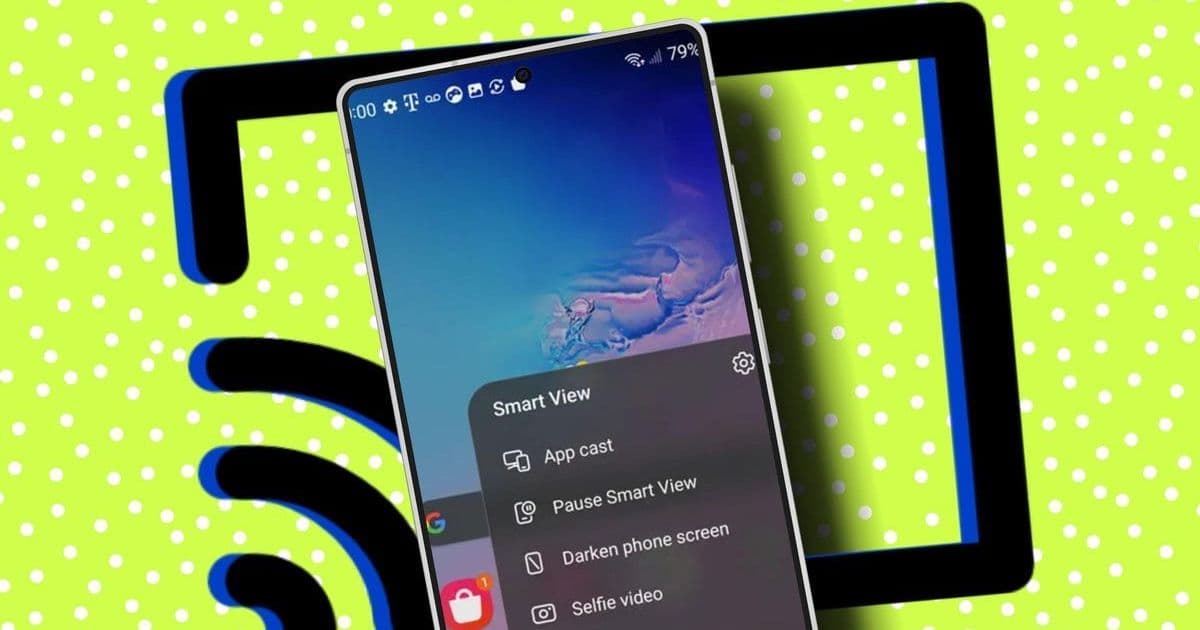
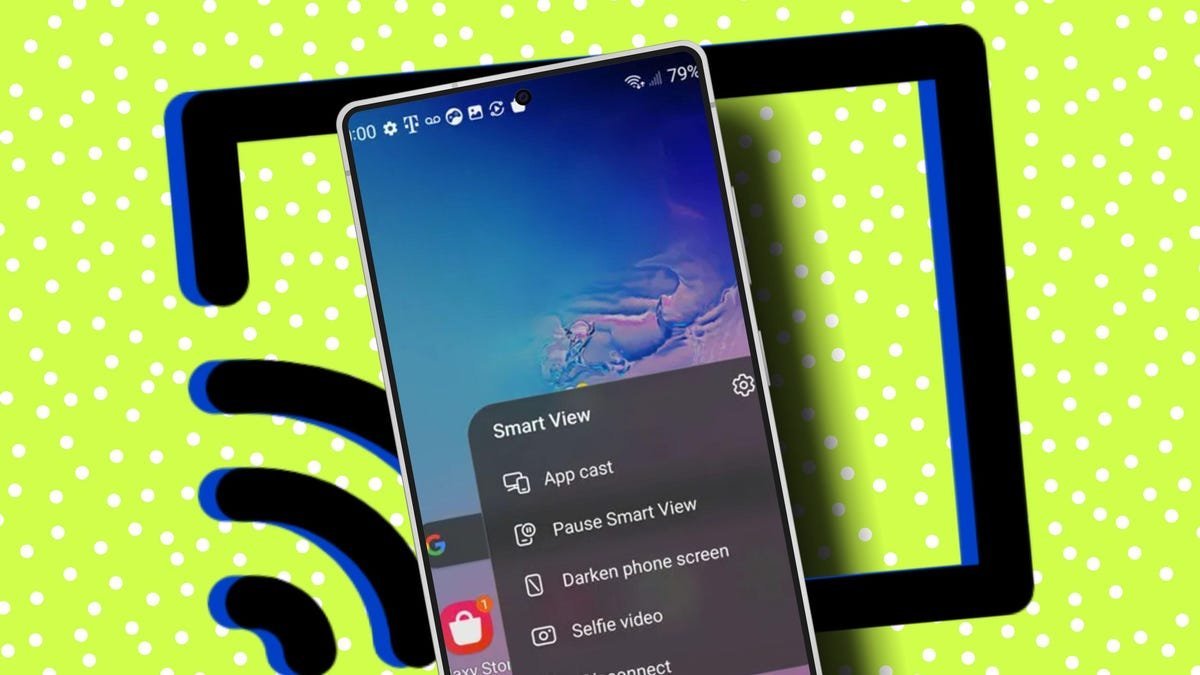
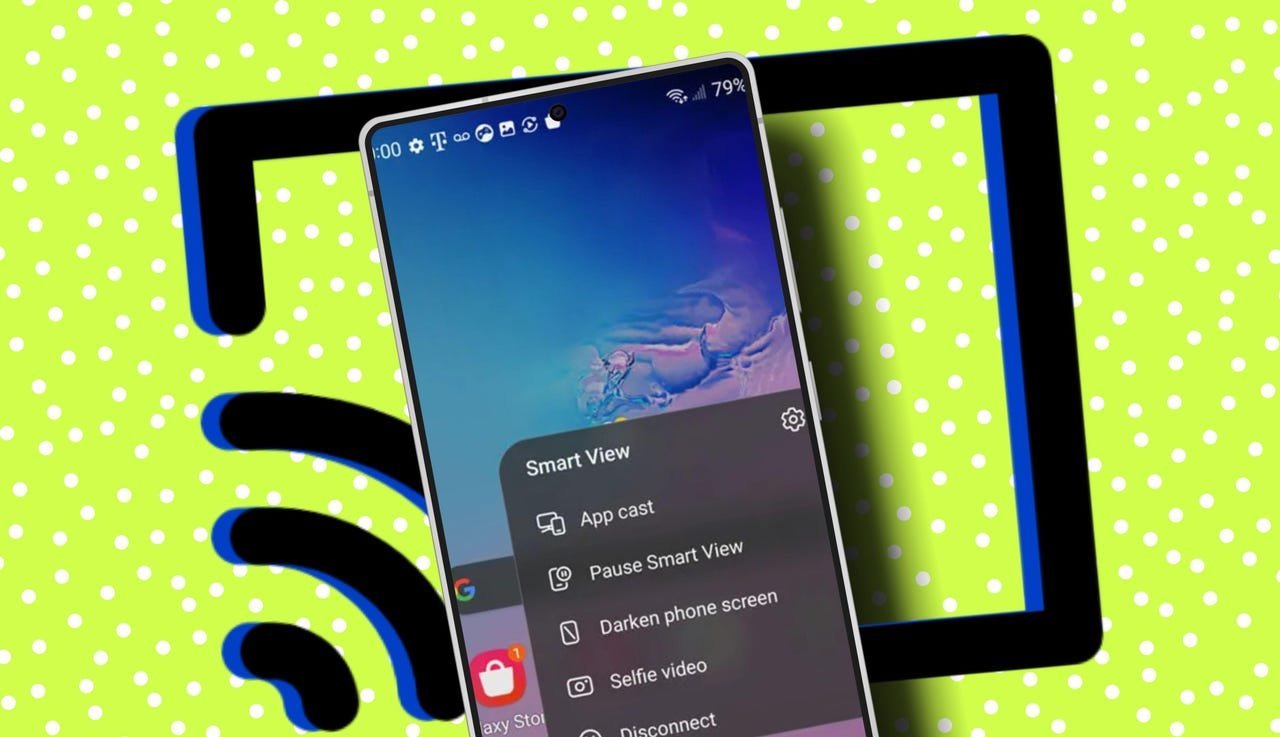
Most modern TVs and Android devices support native casting. Samsung’s Smart View (or similar features like Quick Connect on other Androids) uses Wi-Fi Direct for low-latency streaming—ideal for real-time interactions like gaming or presentations.
Step-by-Step:
- Swipe down for Quick Settings and tap Smart View (or equivalent).
- Select your TV from the detected devices list.
- Tap Start to initiate mirroring. A control panel lets you toggle full-screen apps or pause casting.
Why it shines: Zero-cost and optimized for manufacturer ecosystems (e.g., Samsung-to-Samsung). But compatibility varies—check your TV’s external device settings first.
 How to mirror your Android phone to a TV - 3 easy ways | Lance Whitney / Elyse Betters Picaro / ZDNET
Method 2: Harness Chromecast or Google TV
For non-native setups, Google’s ecosystem offers flexibility. Chromecast devices (or TVs with built-in Chromecast) use standard Wi-Fi, making them universally accessible. At $75 for the latest Google TV Streamer, it’s a worthy investment for cross-platform use.
How to Activate:
- Enable Screen Cast in Android’s Quick Settings.
- Choose your Google TV/Chromecast device.
- Tap Start Now—your phone screen mirrors instantly.
Developer Insight: Chromecast leverages Google’s Cast SDK, widely adopted in apps like YouTube and Netflix. This method ensures broad app support but may introduce slight latency.
Method 3: The Reliable Wired Connection
When wireless fails, a USB-C-to-HDMI adapter (from brands like Anker) delivers lag-free mirroring. Plug the adapter into your phone, connect an HDMI cable to your TV, and the display mirrors automatically—no configuration needed.
Ideal For: Bandwidth-heavy tasks like 4K video or competitive gaming. Downsides? You’re tethered, and adapter quality affects performance (aim for HDMI 2.0+).
Why This Matters Beyond Convenience
Mirroring isn’t just about Netflix on a bigger screen. For tech professionals, it reveals how users interact with apps in shared environments, informing UI/UX design for multi-screen experiences. As foldables and AR evolve, these techniques lay groundwork for seamless device interoperability—proving that sometimes, the simplest solutions unlock the most transformative tech experiences.
Source: Adapted from ZDNET
Comments
Please log in or register to join the discussion