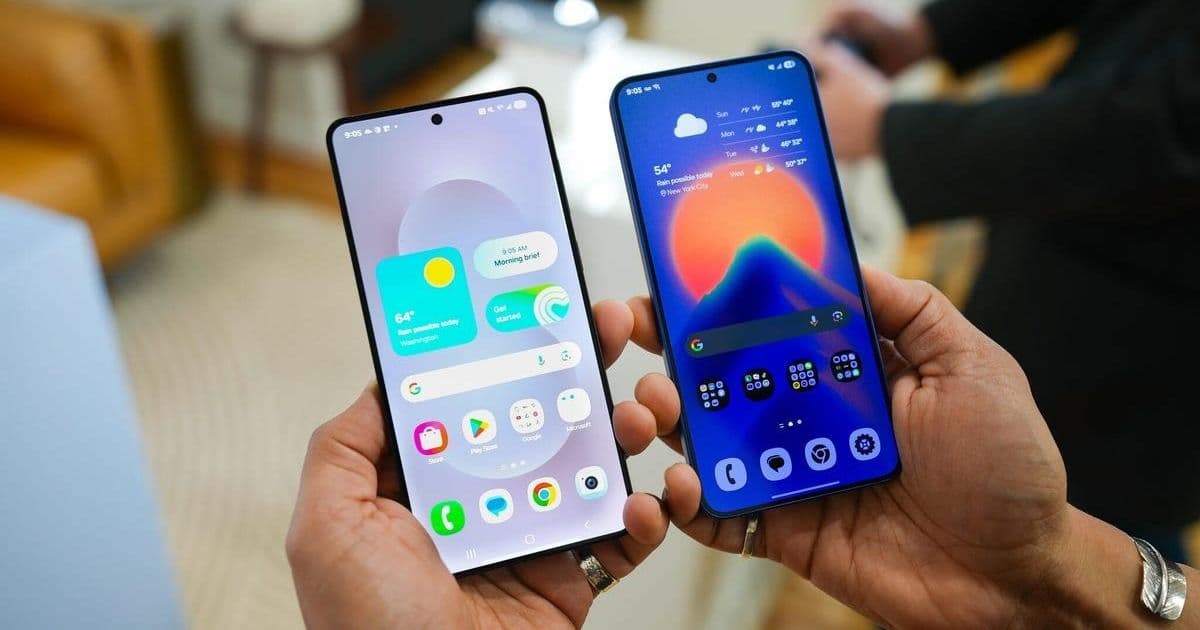
Samsung's One UI is packed with powerful customization options, but many remain undiscovered by users. We reveal the critical settings adjustments—from maximizing display quality to streamlining notifications—that transform Galaxy device performance and user experience.
Samsung's One UI 7 continues to set the standard for Android skins, offering unparalleled flexibility and polish. Yet, out-of-the-box configurations rarely deliver an optimized experience. For developers and tech-savvy users, unlocking a Galaxy device's full potential requires diving into settings often overlooked. Here are 10 essential adjustments, tested and verified, that deliver tangible performance and usability gains.
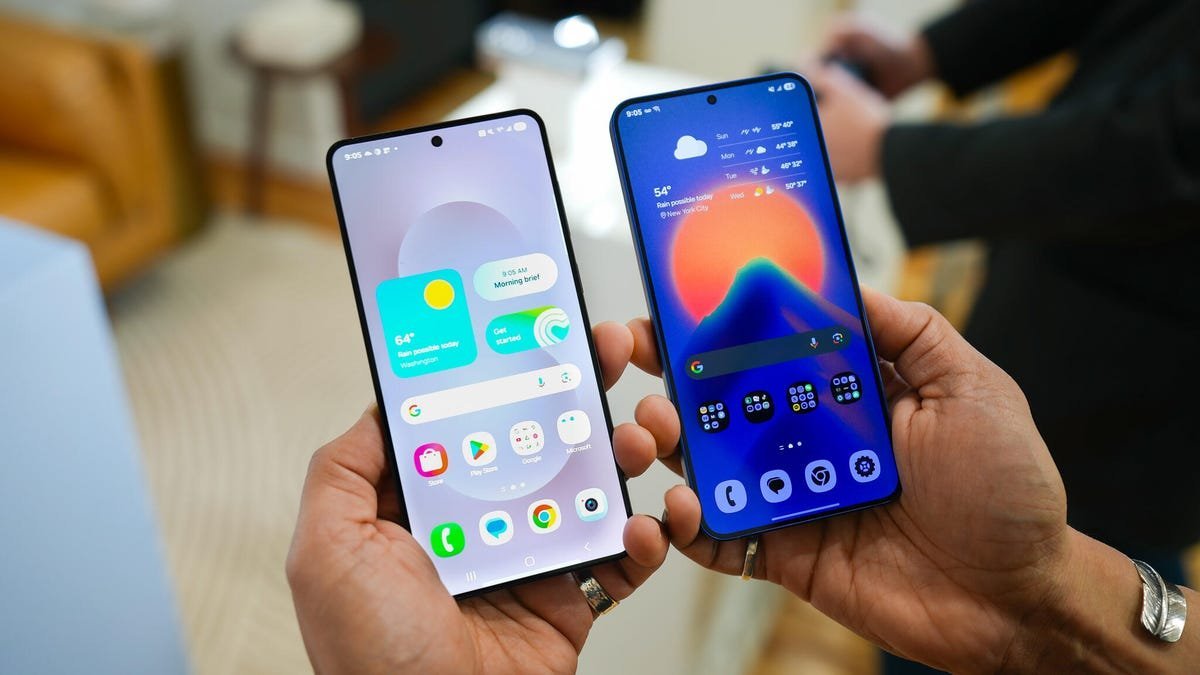 Main article image: Highlighting Samsung Galaxy device interface
Core UI/UX Enhancements
- Ditch Pop-Up Notifications: Prevent distractions by disabling intrusive pop-ups. Navigate to
Notifications > Notification pop-up style > Apps to show as briefand toggle off All apps. This keeps focus intact during workflows. - Embrace Gesture Navigation: Replace the archaic three-button system (
Settings > Display > Navigation bar > Swipe gestures) for fluid, screen-real-estate-friendly navigation. - Maximize Display Resolution: Don’t settle for FHD+ default. Activate QHD+ in
Settings > Display > Screen resolution. While slightly impacting battery life, the visual clarity on modern Galaxy Ultras justifies the trade-off. - Reclaim the Side Key: Redirect long-press from Bixby/Gemini to the power menu (
Settings > Advanced features > Side button > Long Press > Power off menu). Essential for quick reboots or emergency shutdowns. - Lock Screen Notification Control: Restore informative card-style notifications and hide sensitive content via
Settings > Notifications > Lock screen notifications > Cardsand enable Hide content.
Performance & Efficiency Tweaks
- Leverage Samsung Account Integration: Beyond seamless device transfers, a Samsung account unlocks Galaxy Themes, secure password management, and exclusive store apps—critical for ecosystem cohesion.
- Install Good Lock for Advanced Customization: This Galaxy Store app is non-negotiable. Modules like Home Up enable gesture shortcuts (e.g., swipe-down for Quick Settings), transforming usability on large-screen devices like the S25 Ultra.
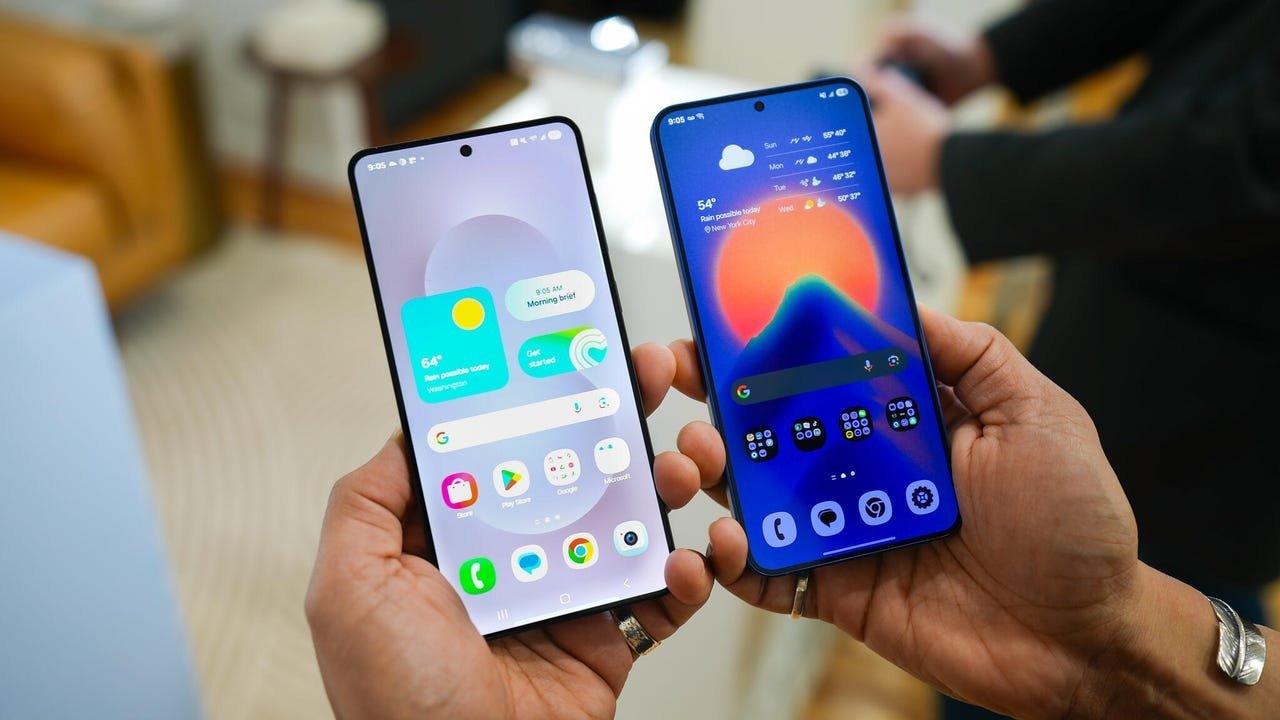 Samsung Galaxy S25 devices showcasing display and form factor
- Purge Bloatware Aggressively: Uninstall or disable unused preloads (Facebook, Samsung Tutor, Microsoft Copilot, OneDrive). Freeing memory and background processes directly boosts responsiveness.
- Optimize Home Screen Layout: Use 5x5 icon grids for efficiency, apply adaptive color palettes (
Wallpaper and style > Color palette), and utilize transparent widgets to maintain aesthetics without clutter. - Enable Always-On Display Properly: Set AOD to Always (
Settings > Lock screen and AOD > Always-on Display) but disable wallpaper display for minimal battery drain—crucial for all-day reliability.
Bonus: Restore Classic Notification Panel
Prefer notifications and Quick Settings together? Reverse the iOS-style split view: Swipe down > Tap pencil icon > Panel Settings > Together. Regain the streamlined Android interface familiarity.
Why This Matters for Tech Professionals
These tweaks transcend casual use. For developers:
- Testing Environments: Max resolution reveals true app rendering; streamlined notifications prevent workflow interruption during debugging.
- Battery/Performance Tradeoffs: Understanding settings like QHD+ impact informs app optimization decisions.
- UI/UX Inspiration: One UI’s granular controls showcase advanced Android customization capabilities.
Samsung’s strength lies not just in hardware, but in One UI’s deep configurability. Mastering these settings transforms a capable device into a finely tuned instrument—whether coding on-the-go, managing cloud services, or prioritizing security. The true power of Galaxy devices isn’t just shipped; it’s unlocked.
Source: ZDNet
Comments
Please log in or register to join the discussion