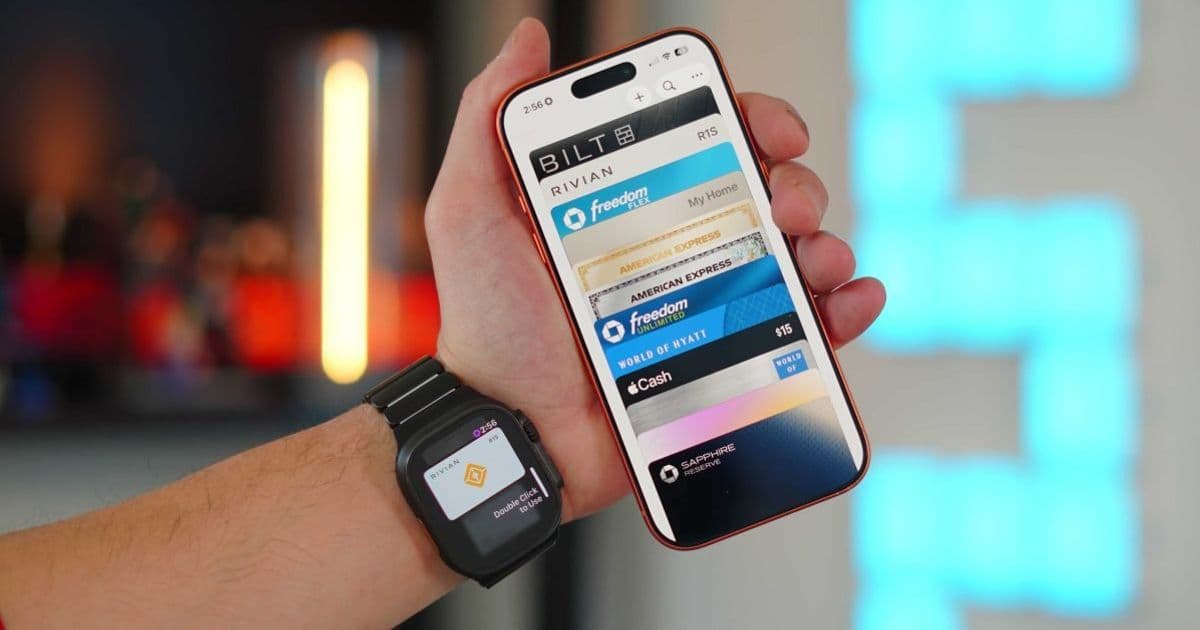
Apple Wallet in iOS 26 can realistically replace most of what people still carry in their pockets, as it has for me. If you've only used it for Apple Pay, you're honestly missing the best parts.
When most people think of the Apple Wallet app, they think of just Apple Pay. They think it's a way to pay for things digitally instead of using a physical card. While this is true, the Apple Wallet App can do so much more and is quietly becoming one of the most useful apps on your iPhone. It can give you public transit access, a form of digital keys for your home or car, peer-to-peer payments, and even storing your physical card information (finally!). Apple Wallet in iOS 26 can realistically replace most of what people still carry in their pockets, as it has for me. If you've only used it for Apple Pay, you're honestly missing the best parts.
Here are some of the best Apple Wallet features!
1. Express Transit and Express Keys
Normally, when you need to pay for something at a store with the Apple Wallet, you need to double-tap the lock button and provide either FaceID or TouchID to authenticate your card. Then it will allow the transaction to take place. This is done for security reasons, of course. But if you are a public transit commuter and you are constantly going through subway turnstiles, the last thing you want to do when you are in a rush is have to double-tap to authenticate a tap to pay transaction.
To get rid of this friction, Apple gave us Express Transit. This allows you to designate one card in your Apple Wallet as your transit card. So you no longer have to give FaceID to initiate that tap to pay. You just walk up to the turnstile, tap your phone (even if the screen is off), and it will charge your credit card that is designated as your transit card.
Here is how to set it up:
- Go to Settings > Wallet & Apple Pay
- Tap Express Transit Card
- Choose your preferred transit or payment card
- Confirm with Face ID/passcode
The same idea applies to your smart home lock. If you have a lock on your house that uses a tap to unlock, by default, you need to tap the lock, then provide FaceID unlock, then tap again. Instead of all that, you can just set up Express Mode for that digital key. Such an amazing and time saving feature!
2. Default Card
If you are like me, then you more than likely have more than just one credit card. I like to play the points and miles game, so I use different cards for different categories of spend to make sure I get max value for every dollar I spend. So Apple makes it incredibly easy to control which card is used when you double-click the side button. You can change your default card in Settings or simply drag cards inside Wallet to reorder them.
There are two ways to set up your default card:
Method 1:
- Go to Settings > Wallet & Apple Pay
- Tap Default Card
- Select your preferred card
Method 2:
- Open Wallet app
- Press and hold a card
- Drag it to the front/bottom position
That card becomes your default
So if you have a card that you use most often, this is the way to make sure it always comes up for your Apple Pay transactions first.
3. Apple Cash & Tap to Cash
When you open up your Apple Wallet, even if you haven't set up a credit card, you might notice there is a black card that is always there called Apple Cash. This is Apple's default card. It's basically a debit card that can be connected to your bank, and you can move money to and from the Apple Cash card. If you have an Apple Credit Card, it is also where your daily cash back is sent for your cash back rewards.
So not only can this card be used to replace peer-to-peer payment apps like Venmo or Cash App, but it now allows you to use your iPhone and Apple Cash as a payment terminal. You can now pay someone else who has an iPhone by tapping iPhones together. Its incredible.
Here is how to do it:
First setup Apple Cash:
- Go to Settings > Wallet & Apple Pay > Apple Cash
- Turn Apple Cash ON
- Verify identity if prompted
- Link your bank account
Then, if you want to Tap to Cash:
- Open Wallet > Apple Cash > Send or Request
- Tap Tap to Cash
- Hold phones near each other
- Confirm with Face ID
You get this really cool animation that makes it feel like money is leaving one phone and entering the other one. This is one of those insanely convenient features that every iPhone user now has.
4. Store physical card info
One of the most underrated iOS 26 additions is the ability to store your actual physical card number inside Wallet. You might have noticed that when you use Apple Pay, Apple uses tokenized numbers as a credit card number for payment. So the payment terminal sees a different number than the actual number on your credit card. Its great for securiry but what if you need to input your actual card number?
Now you can keep the real card details stored securely if you need them for manual entry. Here is how:
- Open Wallet > Tap your card
- Tap (…) > Card Details > Card Information
- Tap Add Physical Card Information
- Scan card or enter manually
So now, if you need your physical card information, you can go into your Apple Wallet and find the information you need. It is still hidden behind a biometric unlock, so safety is still top of mind here.
5. Smart Pass suggestions
This is one of those magic moments we love to see from the Apple ecosystem. The Apple Wallet can store more than just credit cards. I can store IDs, loyalty cards, passes, and boarding tickets. Instead of going into the wallet to find the appropriate card or pass, the Apple Wallet can automatically surface the right pass or card based on time and location and put it on your lock screen. This removes the need to search through apps, emails, or confirmations when you're in high-stress travel situations.
Here is how to set it up:
- Go to Settings > Wallet & Apple Pay
- Make sure Location Access is enabled for Wallet
- Make sure Lock Screen access is enabled
- Add passes via Apple Pay checkout, airline apps, or email
I used this literally last week. I had boarding passes for my family, and as we walked up to the gate, the passes automatically showed up. It saved me not only time, but stress as well.
Final thoughts
The Apple Wallet is getting extremely close to replacing my physical wallet. The only piece missing for me is the ability to have a digital ID in my state. I live in New Jersey, and they do not support that feature yet. But there are 12 states in the US that do allow digital IDs. Other than that, I never use my physical wallet. I bring it with me if I know I'm going to be away for a while. I just hope digital IDs can come to New Jersey. Once that happens, I can kiss my wallet goodbye.
What do you think? Do you use your Apple Wallet? Do you still prefer using physical wallets and credit cards? Let's discuss below!
Comments
Please log in or register to join the discussion