Learn how to connect to Azure SQL Database using custom domain names with Microsoft Entra ID authentication, including DNS setup, SSL certificate considerations, and troubleshooting common connection errors.
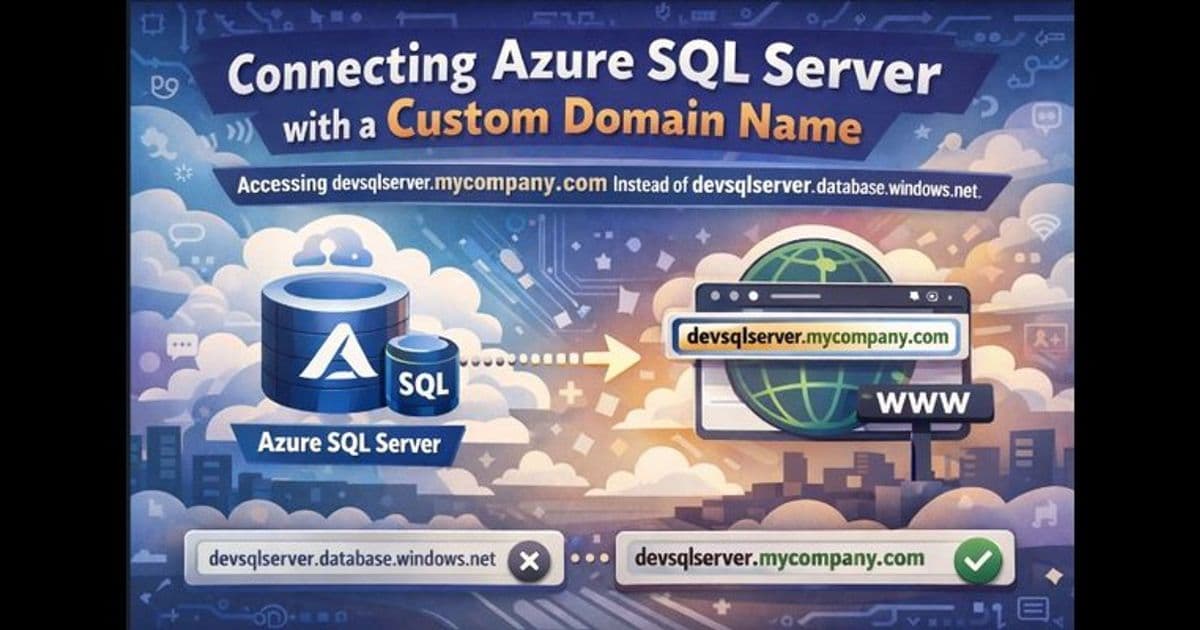
Many organizations prefer using custom domain names like devsqlserver.mycompany.com instead of the default Azure SQL Server names (devsqlserver.database.windows.net) for various application-specific or compliance reasons. This article explains how to set up and connect to Azure SQL Database using custom domain names when authenticating with Microsoft Entra ID.
Key Requirements for Microsoft Entra ID Authentication
When using Microsoft Entra ID authentication with Azure SQL Database (PaaS), there's a critical requirement for custom DNS names. The custom domain must start with the exact Azure SQL server name (the part before .database.windows.net).
Why this requirement exists: Azure SQL Database is a multi-tenant PaaS service where multiple logical servers share infrastructure. During connection establishment with Microsoft Entra ID authentication, Azure SQL uses the server name extracted from the FQDN to:
- Identify the correct logical server
- Route the connection internally within the platform
- Validate the authentication context
If your custom DNS name doesn't start with the Azure SQL server name, Azure cannot route the connection correctly, resulting in error 40532.
Valid examples: devsqlserver.mycompany.com devsqlserver.contoso.com devsqlserver.mydomain.com
Invalid examples: othername.mycompany.com customsql.mycompany.com
Step-by-Step Setup Process
1. Choose Your Custom Domain Name
Select a custom name that starts with your server name. For example, if your server is devsqlserver.database.windows.net, use devsqlserver.mycompany.com, not othername.mycompany.com.
2. Create DNS Records
Set up either a CNAME record or DNS alias to point your custom name to:
- Your Azure SQL server endpoint (public)
- The private endpoint IP (private)
Refer to the official documentation for detailed DNS configuration steps.
3. Verify DNS Resolution
Before attempting to connect, verify that your custom domain resolves correctly from your computer. Use tools like nslookup or ping to confirm the resolution points to the correct Azure SQL endpoint.
4. Connect Using Microsoft Entra ID
In SQL Server Management Studio (SSMS) or Azure Data Studio:
- Set Server to your custom server name (e.g., devsqlserver.mycompany.com)
- Select a Microsoft Entra ID authentication option (e.g., Universal with MFA)
- Sign in with your Entra ID credentials (e.g., [email protected])
SSL Certificate Considerations
When connecting using a custom domain name, you might encounter the error: "The target principal name is incorrect."
Why this happens: Azure SQL's SSL/TLS certificate is issued for the default server name (e.g., servername.database.windows.net), not for your custom DNS name. During the secure connection process, the client validates that the server name matches the certificate name. Since the custom domain doesn't match the certificate, validation fails.
How to resolve this:
- Set Trust Server Certificate = True in client settings
- Add TrustServerCertificate=True in the connection string
This bypasses strict name validation and allows the connection to succeed. Note that you should use the latest client drivers (ODBC/JDBC/.NET, etc.) as older driver versions may not properly handle the TrustServerCertificate setting.
Applies to Both Endpoint Types
This naming requirement and approach work whether you connect over:
- Public endpoint
- Private endpoint
As long as DNS resolution for the custom name is set up correctly for your network.
Important Notes
- This article specifically covers Microsoft Entra ID authentication. If you use SQL authentication (SQL username/password), the process is different. Refer to the separate guide for SQL authentication scenarios.
- With SQL authentication, you can include the server name in the login (e.g., username@servername), but this approach doesn't work with Microsoft Entra ID authentication.
- Always keep your client drivers updated to ensure smooth connectivity with Azure SQL Database.
The custom domain approach provides flexibility for organizations while maintaining security and compliance requirements, making it easier to integrate Azure SQL Database into existing network architectures and application configurations.
Comments
Please log in or register to join the discussion