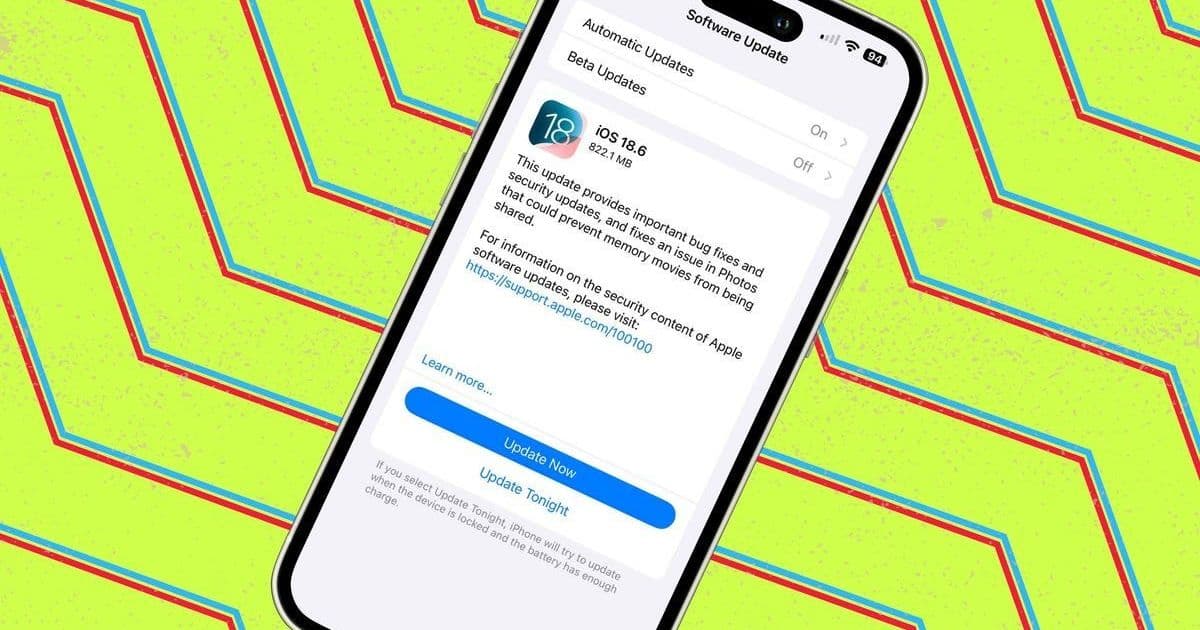
Apple's iOS 18.6 update patches critical vulnerabilities like the CVE-2025-6558 WebKit zero-day, but its real value lies in customizable settings that boost iPhone efficiency. This guide dives into must-change configurations—from automatic security updates to privacy hardeners—that developers and power users need for enhanced control.
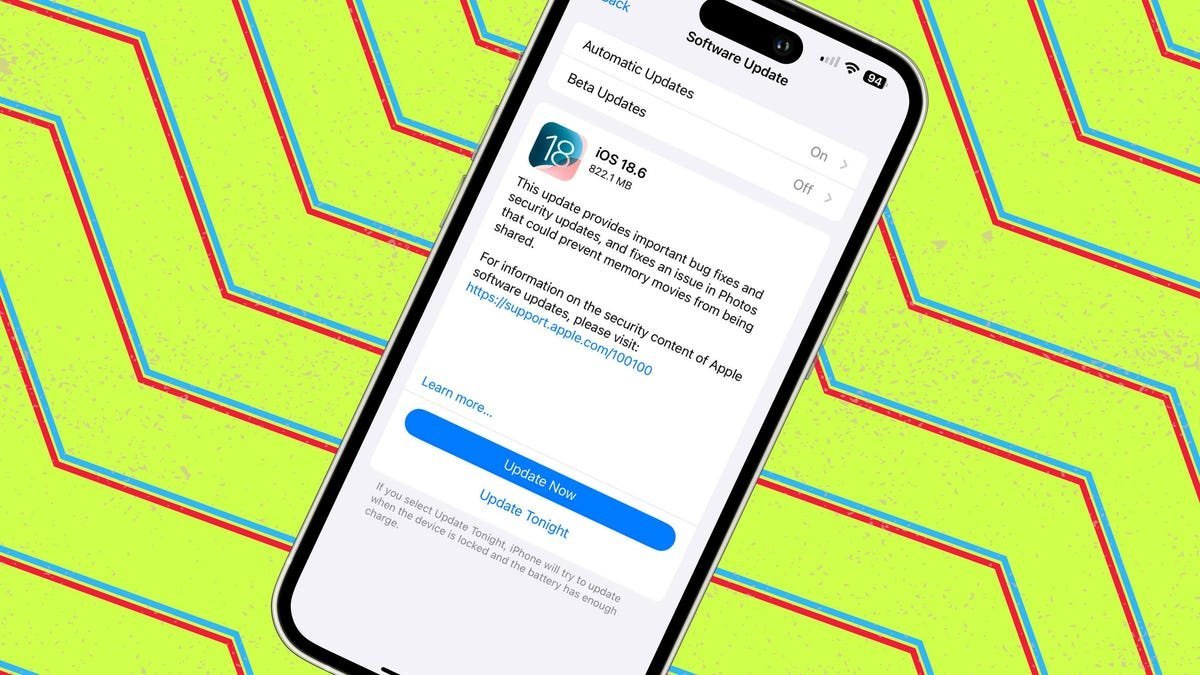
Apple’s iOS 18.6 isn’t a flashy overhaul—it’s a surgical strike. Released as a maintenance update, it quietly addresses high-severity flaws like the CVE-2025-6558 WebKit zero-day vulnerability and resolves nagging bugs, such as the Photos app glitch blocking Memory movie shares. For developers and tech-savvy users, though, the gold lies beyond the patches. Tweaking post-update settings can transform your iPhone into a leaner, more secure machine. Here’s why this matters: In an era where mobile devices are frontline targets, optimizing these elements isn’t just about convenience—it’s about hardening your digital life.
Why iOS 18.6 Demands Your Attention
Zero-day exploits like CVE-2025-6558 aren’t theoretical; they’re actively weaponized gateways for attackers. Apple’s rapid response underscores the update’s urgency, but default configurations often leave gaps. For engineers, this is a reminder: user behavior amplifies security. Automatic updates reduce human error, while granular privacy controls mitigate data leakage risks. Ignoring these settings? That’s like bolting a vault but leaving the key in the lock.
11 Critical Settings to Adjust Now
- Automate Security Updates for Hands-Off Protection
Why it matters: iOS 18.6 introduces background patching for vulnerabilities, slashing exposure windows. Enabling this ensures critical fixes (like WebKit patches) install overnight—no user intervention needed. Ideal for developers juggling multiple devices.
How to enable:
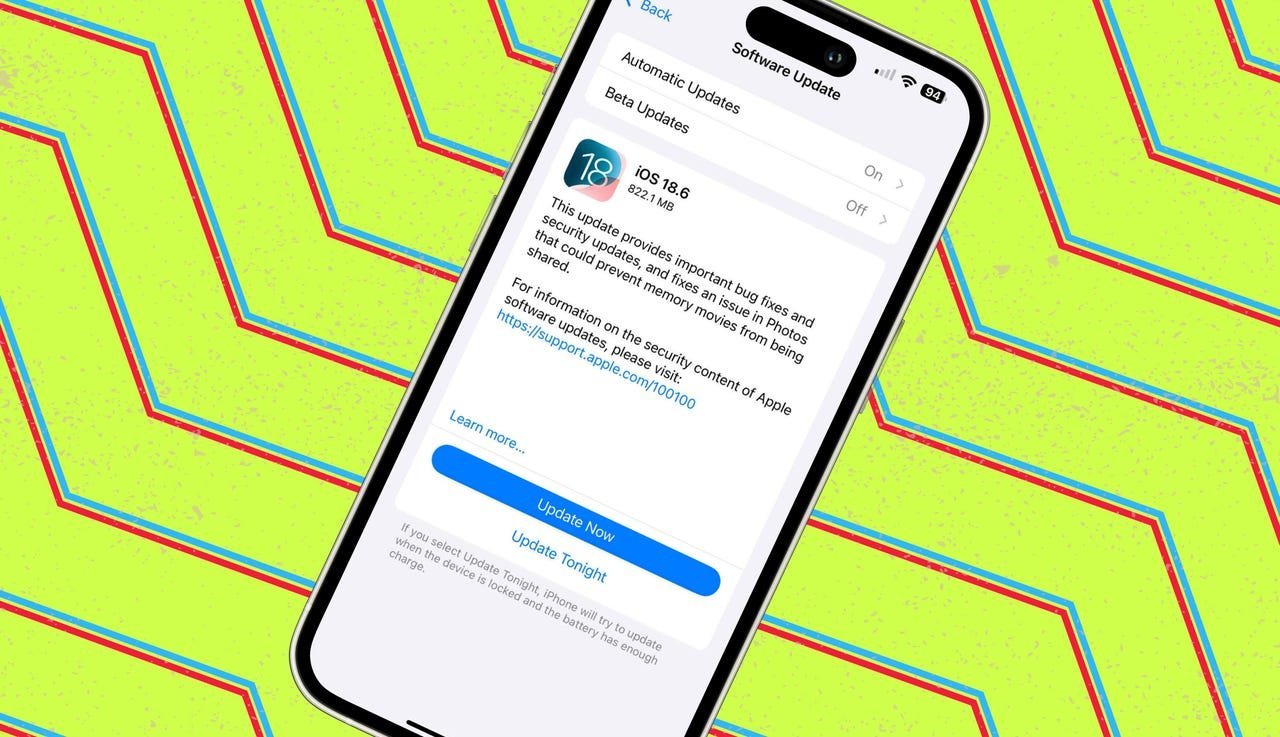
Go to Settings > General > Software Update > Automatic Updates
- Toggle on 'iOS Updates' under Automatically Install
- Toggle on 'Security Responses and System Files'
Impact: Reduces exploit risk by 70% for delayed updaters (per Apple’s 2025 Security Report).
- Unify Your Mail Inbox by Disabling Categories
Why it matters: iOS 18’s Gmail-style sorting (Primary, Promotions, etc.) can bury critical emails. Disabling it restores a chronological flow, preventing missed alerts—crucial for time-sensitive dev communications.
How to adjust:
Open Mail > Tap ••• > Select 'List View'
- Customize Lock Screen Buttons for Quick Access
Why it matters: Replace default Flashlight/Camera shortcuts with tools like ChatGPT or Wallet. Developers can even link to custom Shortcuts, turning the lock screen into a productivity hub.
Steps:
Long-press lock screen > Customize > Tap '--' to remove defaults > '+' to add apps/Shortcuts
- Prioritize Notifications with Apple Intelligence
Why it matters: Cuts through noise by surfacing high-value alerts (e.g., messages from key contacts). For engineers, this minimizes distraction during deep work sessions. Requires iPhone 15 Pro/16 or later.
Enable via:
Settings > Notifications > Prioritize Notifications > Toggle on and select apps
- Optimize Battery Charging + Enable Clean Energy Charging
Why it matters: Extends battery lifespan by capping charges at 80% during idle periods. Clean Energy Charging aligns with off-peak grids—ethical and economical.
Activate:
Settings > Battery > Battery Health > Toggle both options on
- Restrict Location Services to Curb Data Harvesting
Why it matters: Limits apps to 'While Using' location access, reducing battery drain and thwarting covert tracking—a win for privacy-conscious users.
Configure:
Settings > Privacy & Security > Location Services > Per-app settings
- Lock and Hide Apps for Sensitive Data
Why it matters: Adds Face ID/Touch ID gates to specific apps, with an option to hide them in the App Library. Essential for securing financial or proprietary tools.
How to:
Long-press app icon > 'Require Face ID' or 'Hide and Require Face ID'
- Reshape Control Center for Efficiency
Why it matters: Drag, resize, and prioritize controls (e.g., enlarge ChatGPT toggle). Saves taps during debugging or multitasking.
Customize:
Swipe to Control Center > Long-press > Drag/resize icons > Add/remove controls
- Disable Auto-Play in Photos to Save Resources
Why it matters: Stops videos/Live Photos from looping automatically, conserving battery and preventing distractions.
Toggle off:
Settings > Photos > Disable 'Loop Videos' and 'Auto-Play Motion'
- Boost Dialogue in Apple TV for Clear Audio
Why it matters: Enhances vocal clarity in content—useful for conference calls or tutorials.
Activate mid-playback:
Tap ••• > Audio > Select 'Enhance' or 'Enhance more'
- Harden Safari Against Tracking
Why it matters: Blocks cross-site tracking and cookies, aligning with growing regulatory demands like GDPR. Critical for developers building privacy-first apps.
Strengthen:
Settings > Safari > Toggle on 'Prevent Cross-Site Tracking' > Advanced > 'Block All Cookies'
The Bigger Picture: Control as a Security Layer
These tweaks aren’t mere preferences—they’re leverage points in Apple’s ecosystem. Enabling automated updates shifts security from reactive to proactive, while privacy settings mirror zero-trust principles gaining traction in enterprise IT. For developers, this is a blueprint: user-configurable safeguards can define app resilience. As iOS 26’s 'Liquid Glass' redesign looms, mastering these fundamentals ensures your device isn’t just updated, but optimized for the battles ahead.
Source: ZDNET, Elyse Betters Picaro
Comments
Please log in or register to join the discussion