Accumulated cache data can severely hamper smart TV performance, causing sluggishness, app crashes, and storage bloat. This guide details why proactive cache management matters and provides step-by-step instructions for clearing cache on Samsung, LG, Android/Google TV, and Roku platforms. Regular cache clearing is a simple yet crucial practice for maintaining optimal streaming device health.
Smart TVs deliver unparalleled convenience, offering instant access to vast libraries of streaming content. However, this constant connectivity comes with a hidden cost: the relentless accumulation of cache data. Much like smartphones and computers, a smart TV's cache – a temporary storage area for app data, thumbnails, and login details designed to speed up loading – can become bloated over time. This leads to tangible performance degradation: sluggish navigation, delayed app launches, frustrating buffering, unexpected crashes, and even hindered content loading.
 Main article image illustrating smart TV interface
Understanding and managing this cache is not just a troubleshooting step; it's essential digital hygiene for maintaining your device. Clearing the cache periodically offers significant benefits:
- Performance Boost: Frees up processing resources and storage, allowing the TV's OS and apps to run more efficiently.
- App Stability Fixes: Resolves crashes, login errors, and odd behavior often caused by corrupted temporary files.
- Storage Space Recovery: Reclaims valuable internal storage consumed by outdated cache files.
- Privacy Enhancement: Removes residual personal data potentially stored within app caches.
How Cache Clearing Works (Brand by Brand)
The process varies slightly depending on your TV's operating system and manufacturer. Here’s a breakdown for major platforms:
- Samsung TVs:
Navigate to
Settings > Support > Device Care > Manage Storage. Select the desired app, chooseView Details, then tapClear Cache. - LG TVs:
Press the Home button, go to
Settings > General > Storage, and selectClear Cache. (Note: This often clears cache for all apps at once on LG TVs). - Android TV / Google TV (Including Sony Bravia):
Access
Settings > Apps > See all apps. Select the specific app causing issues and chooseClear Cache.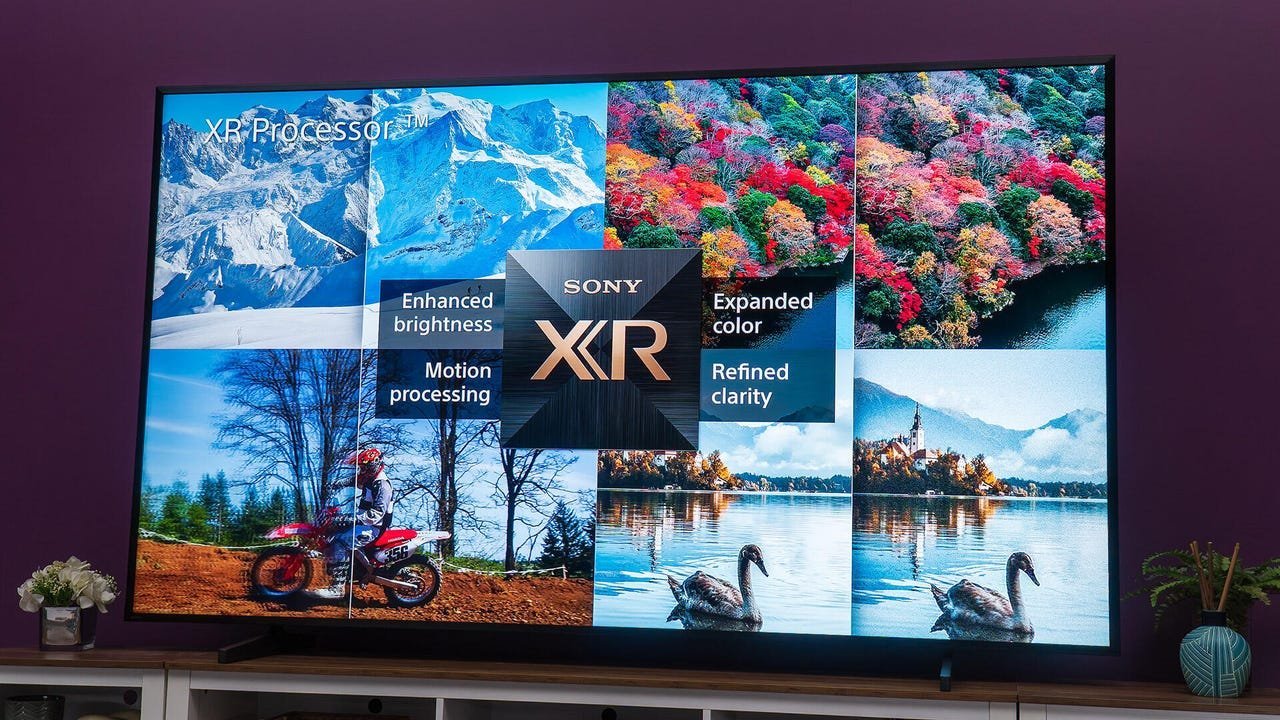 Sony Bravia TV running Google TV (Credit: Adam Breeden/ZDNET)
 - Roku TVs:
Roku's OS doesn't offer a direct cache-clearing option per app. The recommended solution is to restart the TV (
Settings > System > Power > System restart) or, for persistent app issues, uninstall and reinstall the problematic app (Settings > Apps).
When Should You Clear the Cache?
Don't wait for your TV to become frustratingly slow. Incorporate cache clearing into your routine maintenance:
- Proactively: Every few months to prevent significant buildup.
- Reactively: When you notice sluggish performance, frequent app crashes, apps failing to load content correctly, or receive low storage warnings.
Clearing an app's cache is generally safe and won't delete your login credentials or saved preferences (though you might lose temporary data like playback position). If clearing the cache doesn't resolve an issue, the next step is often Clear Data within the same app menu, but be aware this will reset the app entirely, requiring you to sign back in and reconfigure settings.
For tech-savvy users and developers managing home environments, understanding this process highlights a fundamental principle: temporary data management is critical for sustained system performance, whether it's a cloud server, a development machine, or the smart TV in the living room. Taking a few minutes to clear your TV's cache is a simple, effective way to ensure smoother streaming, faster navigation, and a longer, healthier lifespan for your device.
Source: Adapted from original reporting by Chris Bayer, ZDNET (Original Article)
Comments
Please log in or register to join the discussion