Trade-in programs offer convenience but pose significant security risks if devices aren't properly sanitized. This guide details the critical five-step process—including disabling advanced protections like Stolen Device Mode and ensuring complete data erasure—to prevent personal data exposure when selling or recycling iPhones. Neglecting these steps could leave users vulnerable to identity theft or unauthorized access.
For millions upgrading their iPhones annually, trade-in programs promise effortless transitions—but buried within that convenience lie overlooked security pitfalls. As Lance Whitney reports for ZDNET, failing to properly prepare devices before handover risks exposing sensitive personal data, from messages and photos to biometric authentication details. This isn't merely about convenience; it's a critical protocol for digital self-defense.
Why Standard Wipes Fall Short
Modern iPhones incorporate sophisticated security layers like Stolen Device Protection (introduced in iOS 17.3) that intentionally complicate unauthorized access. While vital for theft prevention, these features become obstacles during legitimate transfers if not disabled beforehand. Retailers often require verification that Find My iPhone is disabled, yet many users overlook cascading dependencies between services.
The Five Non-Negotiable Steps
Full Backup Verification
Whether using iCloud or encrypted iTunes backups, validate completion via Settings > [Your Name] > iCloud > iCloud Backup. As Whitney emphasizes: "I recommend doing both [cloud and local] to be on the safe side." This ensures app data, health records, and authentication tokens transfer intact.Disable Stolen Device Protection
Navigate to Settings > Privacy & Security > Stolen Device Protection and toggle it off. This feature enforces biometric checks for security changes—a safeguard that must be suspended before trade-in to avoid activation lock complications.Deactivate Find My iPhone
Found under Settings > [Your Name] > Find My > Find My iPhone, disabling this is mandatory for factory resets. Failure here blocks the final erase step, potentially voiding trade-in eligibility.Unpair Apple Watch
Via the Watch app, select All Watches > [i] icon > Unpair Apple Watch. This prevents wearable activation locks and preserves fitness data integrity.Factory Reset with SIM Removal
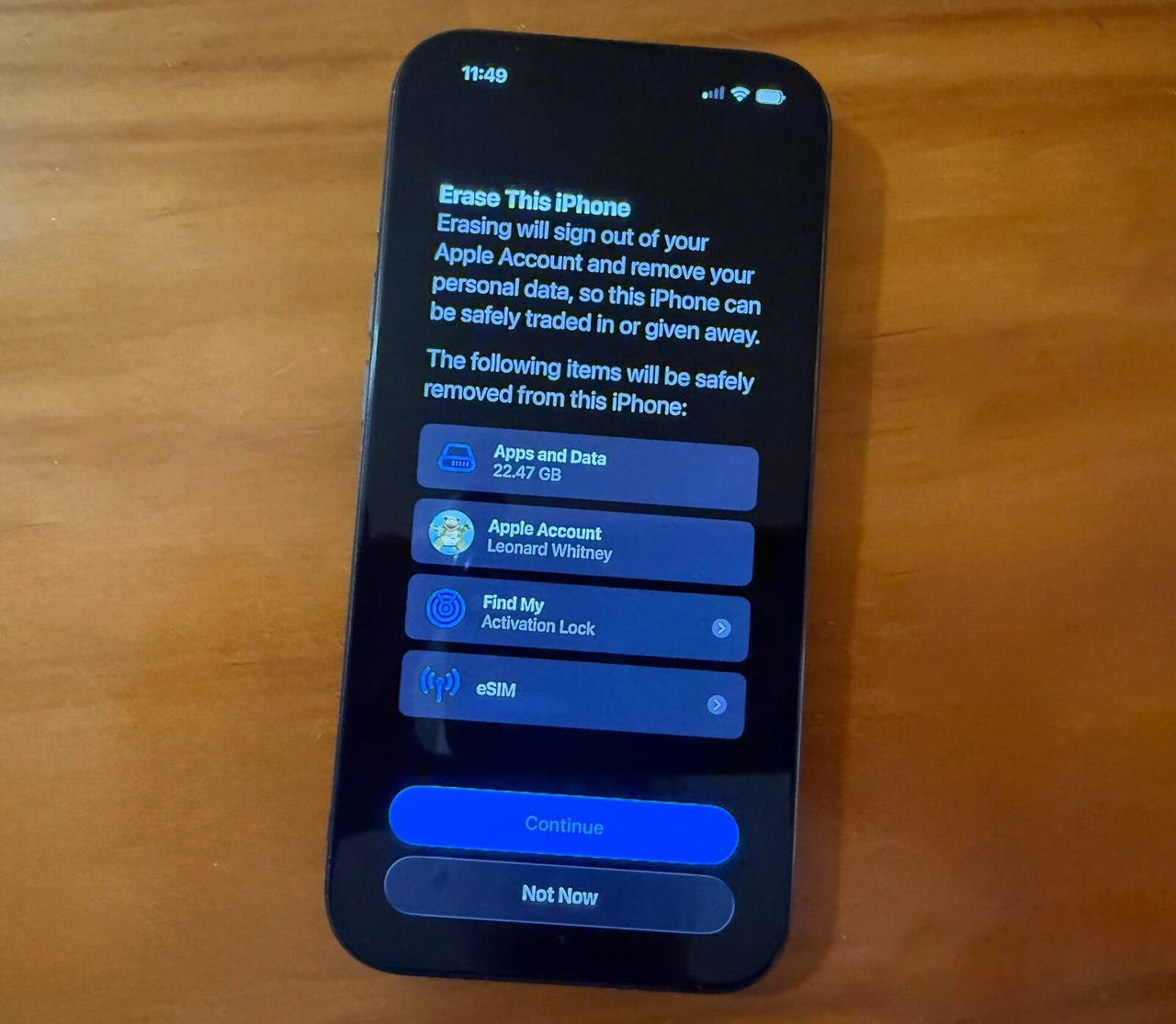
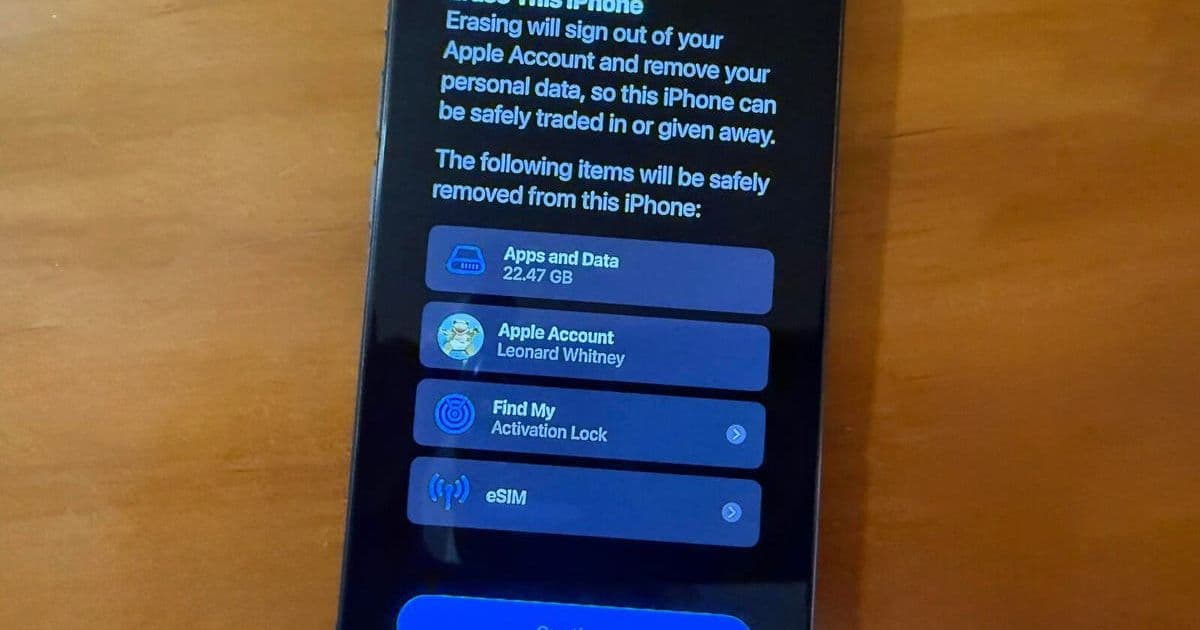
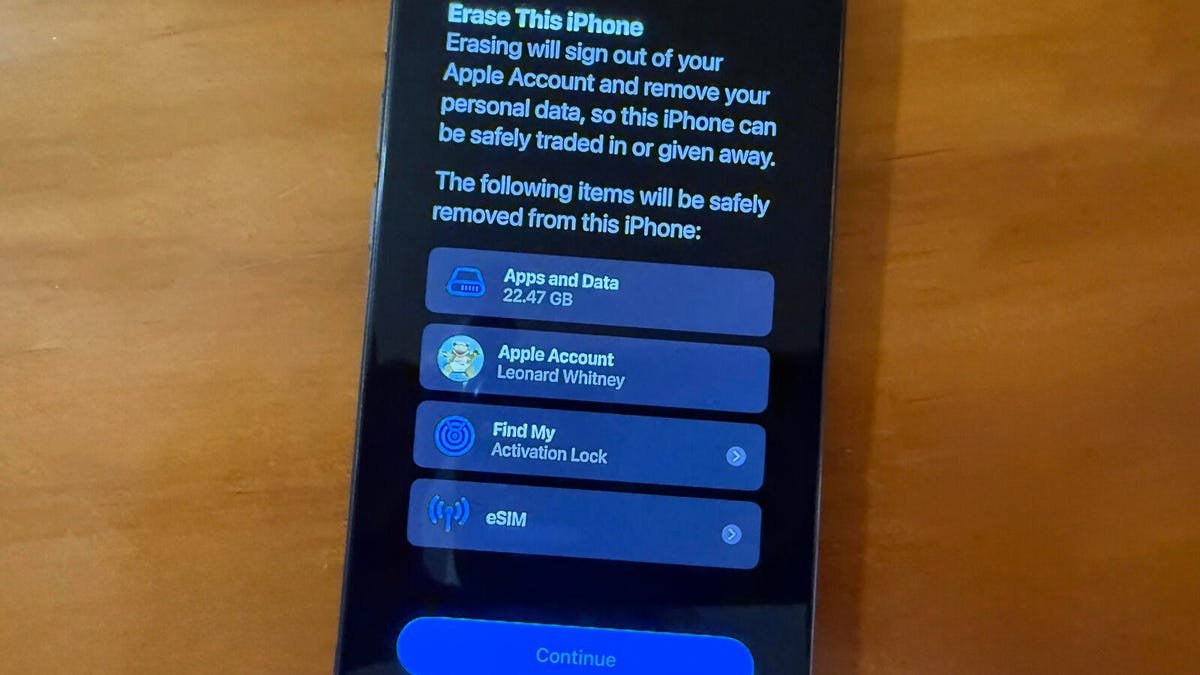
Initiate Settings > General > Transfer or Reset iPhone > Erase All Content and Settings. Physical SIM cards should be removed; eSIMs require carrier transfer. Whitney notes: "Enter your PIN and then your account password. Your phone will be reset to its factory state."
The Broader Security Implications
For developers and IT admins, this process underscores iOS's layered security architecture. Features like Stolen Device Protection reflect Apple's zero-trust approach—but they demand user diligence during decommissioning. Institutions managing device fleets should automate these steps via MDM solutions, while consumers must treat trade-ins as potential data breach vectors. In an era of rampant identity theft, a five-minute ritual could thwart months of recovery nightmares.
Source: Lance Whitney, ZDNET
Comments
Please log in or register to join the discussion