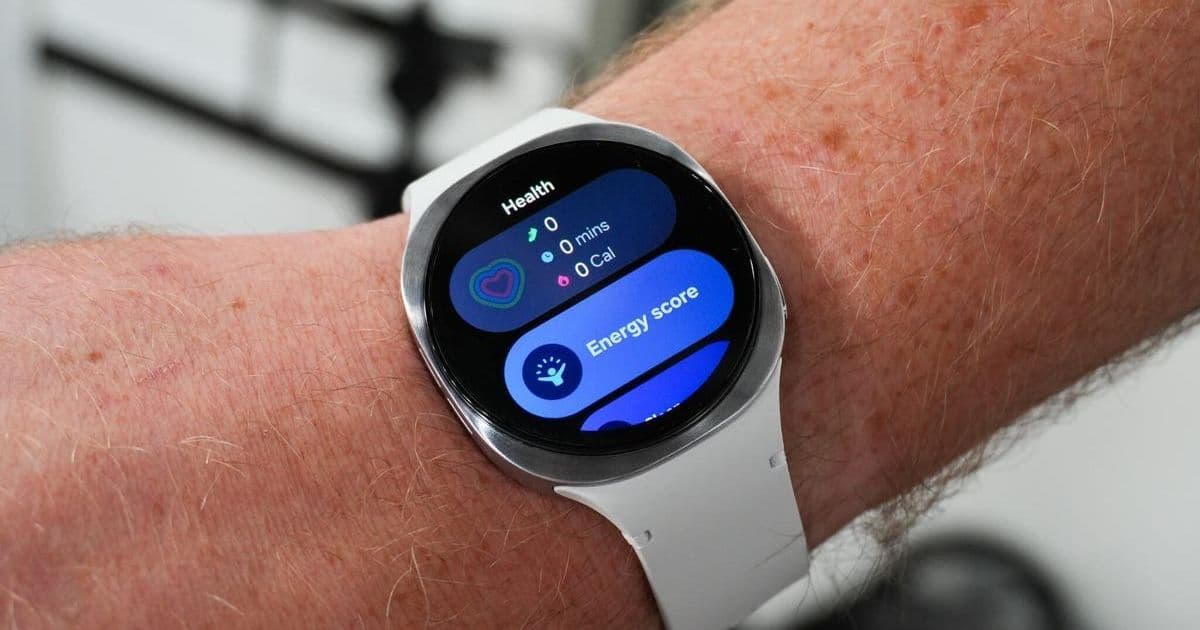
Samsung Galaxy Watch users experiencing sluggish performance, battery drain, or freezing screens can resolve issues without upgrading hardware. This guide details how clearing app caches and optimizing memory through simple settings adjustments can restore watch responsiveness, with crucial timing considerations.
Your Samsung Galaxy Watch accumulates digital clutter through daily use—much like a phone or even a physical workspace. Continual app switching, background processes, and accumulated temporary data can bog down performance, leading to frustrating lag, frozen screens, and accelerated battery drain.
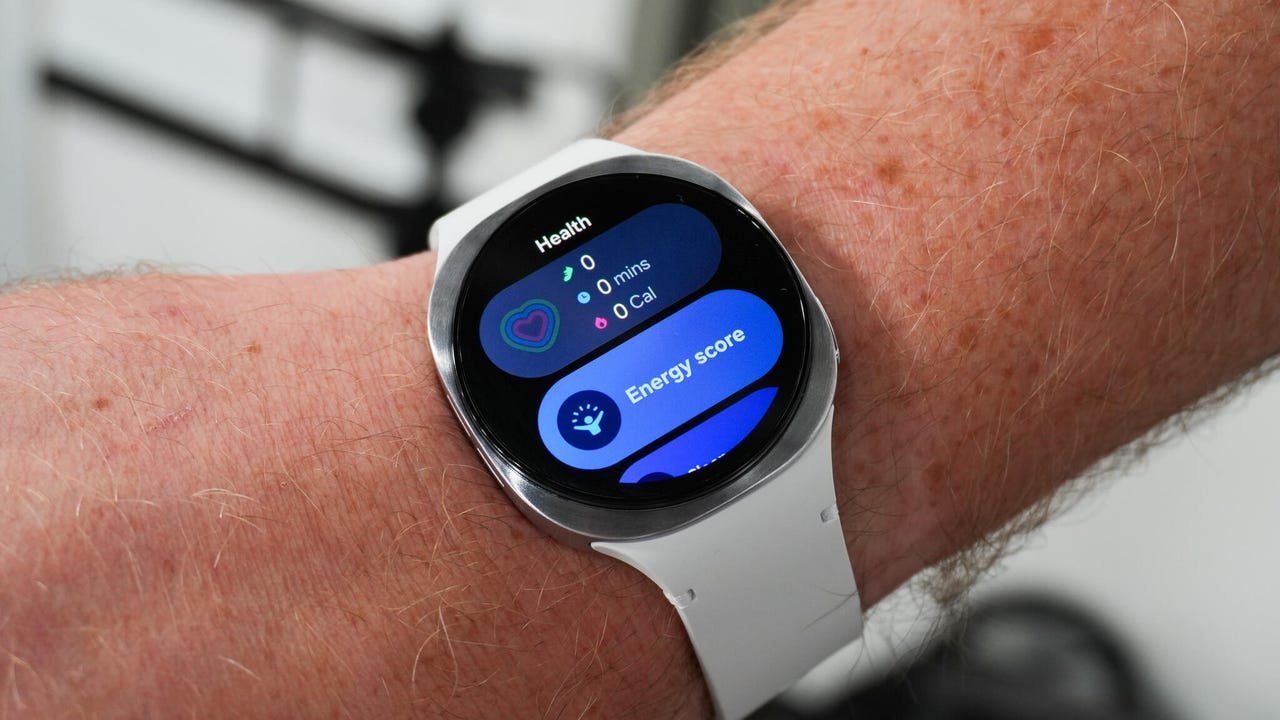
Understanding the Cache Conundrum Think of the watch's cache as a temporary storage bin. It holds data snippets to speed up frequent tasks but becomes counterproductive when overloaded with outdated or corrupted files. As one Reddit expert noted, clearing this cache often resolves performance hiccups by removing digital 'junk.' Samsung confirms that while memory management is automated, manual intervention is effective for troubleshooting.
When Not to Clear Your Cache Crucially, avoid cache clearing immediately after a software update. During this period, the watch is actively rebuilding its cache for optimal operation. Interrupting this process can worsen performance. A simple restart won't suffice either—it may fix transient bugs but doesn't purge accumulated cache data.
Step-by-Step Optimization Guide
- Clear App Cache: Swipe up from the watch face > Tap the Recent Apps icon > Select Close All. For granular control, revisit Recent Apps, tap Active in background, and manually close specific apps.
- Optimize Memory: Navigate to Settings > Device Care > Memory > Tap Clean Now. This frees up RAM by terminating unnecessary background processes.
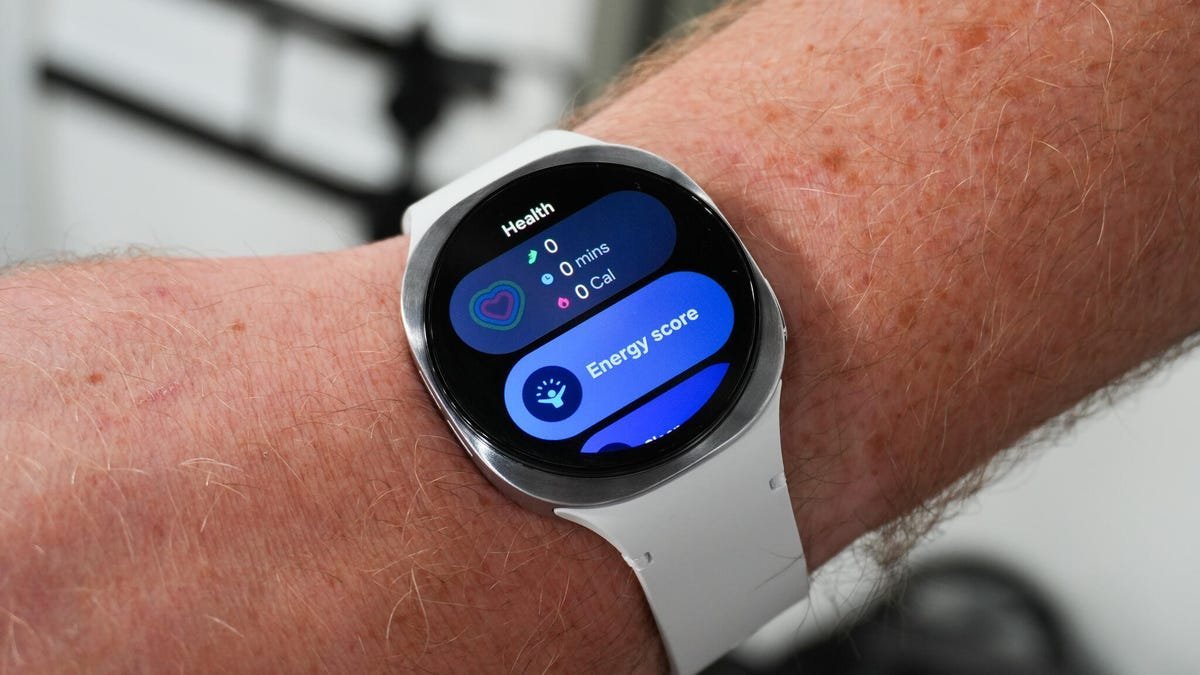
Why This Matters for Wearable Longevity Regular cache maintenance is preventative care for your device. It extends usable lifespan, delays costly upgrades, and ensures a smoother experience. For developers, this underscores the importance of efficient resource management in wearable OS design—especially as smartwatches handle increasingly complex tasks. Treating cache clearing as routine maintenance keeps your Galaxy Watch running like new. (Source: ZDNET)
Comments
Please log in or register to join the discussion