
This article explores a pre-built Tines workflow that automates the lifecycle of Just-In-Time (JIT) access requests, from self-service submission to automatic revocation. By orchestrating tools like Okta, Jira, and Slack, the workflow enforces least privilege, ensures audit-ready compliance, and improves user experience, addressing the common friction between security and productivity.
The Access Dilemma: Security vs. Speed
Identity and Access Management (IAM) forms the digital backbone of modern work, governing everything from email logins to virtual machine provisioning and CRM platform access. As organizations scale, however, the controls designed to protect these identities often struggle to keep pace with the speed and complexity of today's environments. A persistent friction point is the process of granting temporary, or Just-In-Time (JIT), access to sensitive applications. IT teams are frequently caught between business units demanding immediate access to maintain productivity and security teams requiring zero gaps and clear audit trails.
This article examines a specific, pre-built Tines workflow designed to solve this challenge: Grant Temporary Application Access. The workflow uses orchestration to balance speed with security, automating the entire lifecycle of a temporary access request.
The Problem: Scaling Access Equals Scaling Risk
"Scaling access equals scaling risk," notes Stephen McKenna, IT Operations Technician at Tines, in a recent blog post on IAM orchestration. Every "joiner, mover, or leaver" event triggers a cascade of access changes. In many organizations, these changes are handled manually across a patchwork of systems. Some applications integrate quickly with Single Sign-On (SSO), while others require manual provisioning.
When a user needs JIT access—such as a developer requiring production access for debugging or a contractor needing entry for a specific project—the manual process often reveals critical weaknesses:
- Slow Response Times: The user submits a ticket, which languishes in a queue until an analyst processes it. This delay hinders productivity and frustrates users.
- Permanent Privilege Creep: Once access is granted, analysts often forget to revoke it. What was intended as "temporary" access becomes permanent, leading to privilege accumulation that attackers can exploit.
- Audit Nightmares: Evidence of who approved access, when it was granted, and when it was revoked is scattered across emails, Slack messages, and ticket comments. Without a centralized, automated system, accounts linger and privileges pile up, creating a significant compliance risk.
The Solution: Automated, Time-Bound Provisioning
The Grant Temporary Application Access workflow automates the entire lifecycle of a JIT access request. By orchestrating tools like Jira Software, Okta, and Slack, the workflow ensures that access is granted quickly, approved properly, and, most importantly, revoked automatically when the time is up.
Here is an overview of how the workflow operates:
1. Self-Service Request
Instead of sending an email or direct message, the user visits a Tines Page—a simple, drag-and-drop web form. They select the application they need (e.g., "AWS Production Console"), the duration of access required (e.g., "2 hours"), and provide a business justification. This empowers users to initiate their own requests without waiting for an intermediary.
2. Automated Approval Routing
Upon submission, Tines automatically identifies the user’s manager or the application owner. It sends a rich notification via Slack (or Microsoft Teams) to that approver. This message contains the request details and interactive "Approve" or "Deny" buttons, allowing for a swift decision directly within the communication platform.
3. Instant Provisioning
If approved, the workflow triggers an API call to Okta. It adds the user to the specific Okta group associated with that application. This happens instantly—no manual clicking by an IT admin required. Simultaneously, a ticket is created or updated in Jira Software to log the approval for compliance purposes, creating a single source of truth.
4. The "Time-Out"
This is the crucial security step. The workflow enters a "wait" state for the duration specified by the user (e.g., 2 hours). The system maintains this state without requiring any human intervention.
5. Automatic Revocation
Once the timer expires, Tines wakes up and performs the cleanup. It calls the Okta API again to remove the user from the group, effectively revoking access. Finally, it updates the Jira ticket to "Closed" and notifies the user via Slack that their session has ended. This automated cleanup eliminates the risk of lingering privileges.
The Benefits
Implementing this intelligent workflow delivers immediate value across three key pillars:
- Enforced Least Privilege: By automating the revocation of access, you eliminate the risk of "lingering accounts." Access is granted only for the exact time needed, dramatically reducing the attack surface.
- Audit-Ready Compliance: Every step—request, approval, provisioning, and revocation—is logged automatically in Jira. When auditors ask for evidence of access controls, you have a single source of truth without chasing down screenshots or disparate logs.
- Improved User Experience: Users get access in minutes, not days. They don’t have to wait for an admin to return from lunch to click a button in Okta, maintaining business velocity.
- IT Efficiency: IT analysts are freed from the repetitive "click-ops" work of adding and removing users from groups, allowing them to focus on higher-value security tasks like threat hunting and strategy.

Configuring the Workflow
You don’t need to start from scratch. This workflow is available as a pre-built story in the Tines Library.
Step 1: Import the Story: Visit the Tines Library and search for "Grant temporary application access." Click "Import" to bring the template into your tenant.
Step 2: Connect Your Tools: The workflow relies on Credentials to talk to your external tools. You will need to connect:
- Okta: To manage group memberships.
- Jira Software: To track requests and approvals.
- Slack: For notifications and interactive approval messages.
Step 3: Configure the Tines Page: Open the "Page" element in the workflow. You can customize the form fields to match your organization's specific applications. For example, you might create a dropdown menu listing "Salesforce Admin," "AWS Write Access," and "GitHub Admin." 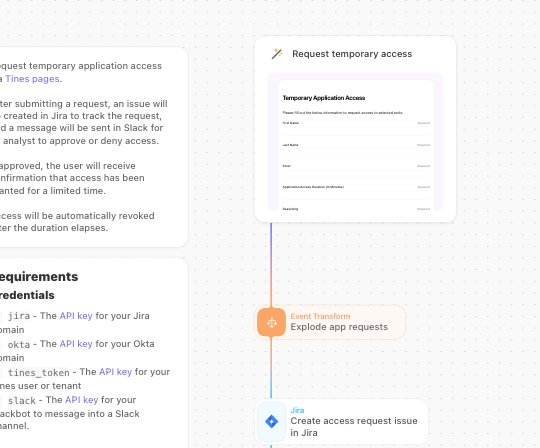
Step 4: Set Your Policies: Adjust the logic to fit your security policies. You might want to cap the maximum duration at 4 hours or require a second level of approval for highly sensitive apps. Because Tines is flexible, you can drag and drop these additional logic blocks right onto the canvas.
Step 5: Test and Publish: Run a test request to ensure the Slack notifications fire and the Okta group changes occur as expected. Once verified, publish the Page and share the link with your team. 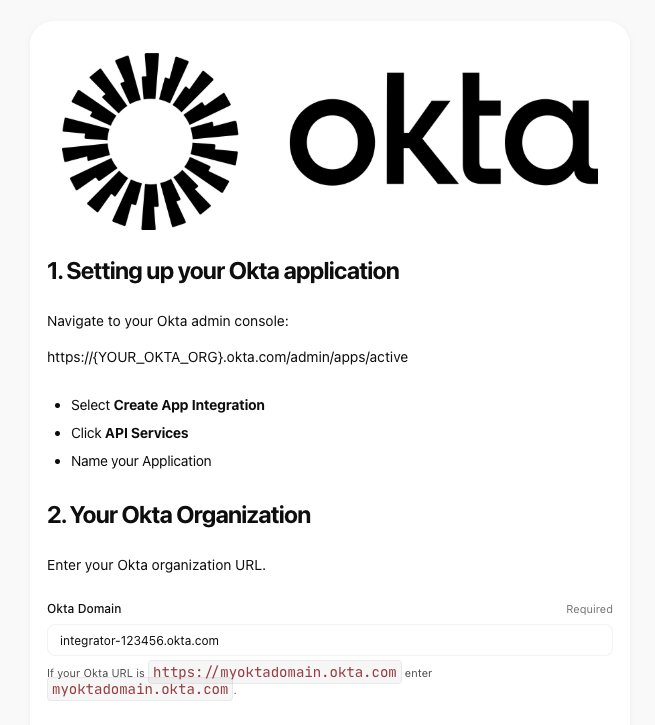
To try this workflow for yourself, you can sign up for a free Tines account.
Sponsored and written by Tines.
Comments
Please log in or register to join the discussion