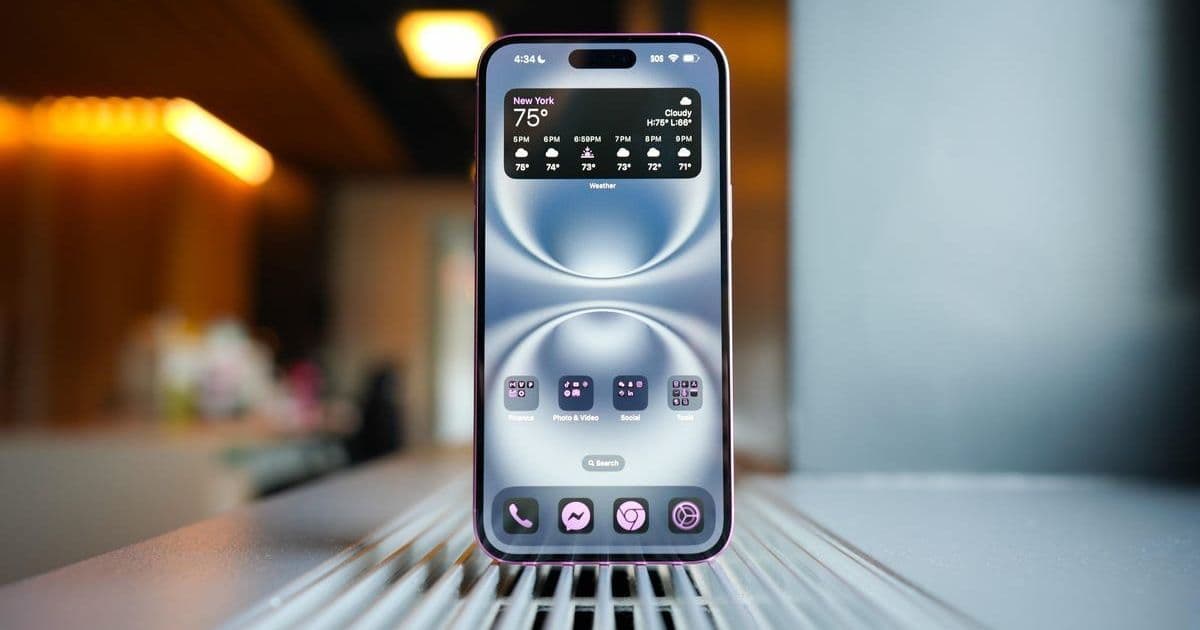
Struggling with dwindling iPhone battery life on iOS 18? Discover 17 actionable, expert-tested settings adjustments—from disabling power-hungry features like Always-On Display and keyboard haptics to leveraging iOS 26's new Adaptive Power Mode—that can reclaim hours of usage without costly hardware upgrades. These free tweaks target the underlying processes draining your charge.
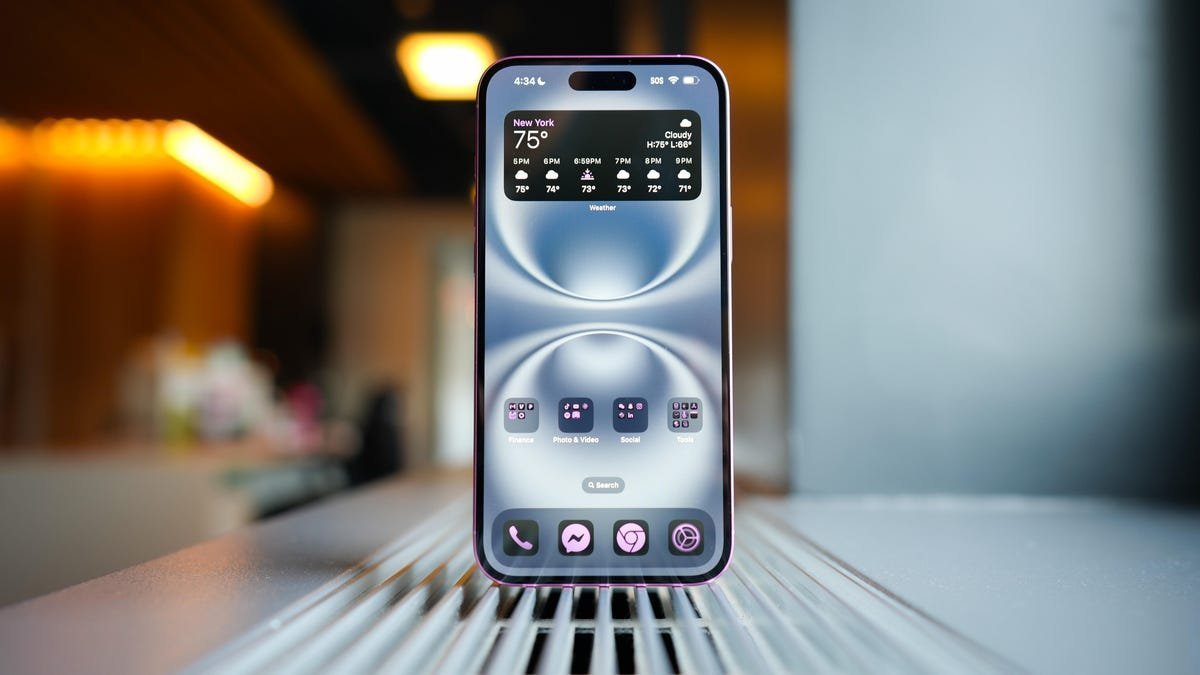
That dreaded red battery icon flashing on your iPhone screen when you're nowhere near an outlet is a modern-day nightmare. While a hardware swap or a new device are often suggested solutions, senior ZDNET contributor Elyse Betters Picaro demonstrates that significant battery life gains are often just a few settings tweaks away, especially on iPhones running iOS 18 (and looking ahead to iOS 26). Her investigation reveals 17 practical, free adjustments targeting the software and feature culprits quietly siphoning power.
Why Software Tweaks Matter: Battery degradation is inevitable, but inefficient software behavior accelerates the drain. Modern iPhones pack powerful processors, high-refresh-rate displays, and constant background processes for connectivity and intelligence – all potential energy hogs if not managed optimally. Picaro's approach focuses on minimizing unnecessary power consumption without crippling core functionality.
Core Strategies for Battery Salvation
Fundamentals First:
- Update iOS: "Apple constantly updates iPhone software... sometimes, it also upgrades its power-management tools and fixes potential battery-draining bugs," Picaro notes. Skipping updates means missing crucial optimizations. (Settings > General > Software Update)
- Screen Savers: Dimming brightness (even slightly) and enabling Auto-Brightness yield immediate gains. Crucially, disable Always-On Display on iPhone 14 Pro and later models: "Reports suggest this feature can consume about 1% of your battery per hour -- adding up to roughly 24% over a full day." (Control Center for brightness; Settings > Display & Brightness > Always On)
- Dark Mode Dominance: On iPhones with OLED displays (iPhone X and later), Dark Mode significantly reduces power consumption as black pixels are turned off. (Settings > Display & Brightness > Dark)
Connectivity & Network Efficiency:
- Wi-Fi Over Cellular: "Cellular data, especially 5G, requires more power... If you need to conserve power, switch to Wi-Fi," advises Picaro. Disable Cellular Data entirely if Wi-Fi is reliable and secure. Crucially, also turn off Wi-Fi Assist to prevent auto-fallback to cellular. (Settings > Wi-Fi / Settings > Cellular)
- Downgrade to LTE: In areas with spotty 5G, forcing LTE (4G) is more power-efficient. (Settings > Cellular > Cellular Data Options > Voice & Data > LTE)
Taming Background Activity:
- Low Power Mode: Apple's built-in tool is a powerhouse saver, throttling the CPU, reducing background refreshes, and dimming the screen. "It can give you an extra hour or three." (Settings > Battery > Low Power Mode)
- Kill Background App Refresh: Prevent apps from updating content when not in use. This is a major source of unseen drain. (Settings > General > Background App Refresh > Off)
- Notification Overhaul: "Each push notification... uses power." Aggressively disable non-essential notifications to minimize screen wake-ups and background checks. (Per App: Settings > [App Name] > Notifications)
- AirDrop & Live Activities: Disable "Bringing Devices Together" for AirDrop (Settings > General > AirDrop) and limit or turn off Live Activities, especially on the Lock Screen, as they provide constant real-time updates (Per App: Settings > [App Name] > Live Activities; OR Lock Screen: Settings > Face ID & Passcode > Live Activities).
Advanced & Niche Tweaks:
- Keyboard Haptics & Sounds: "Every little buzz or click invokes the Taptic Engine... Thousands of key presses... add up fast." Disable haptic feedback for typing. (Settings > Sounds & Haptics > Keyboard Feedback > Haptics)
- "Hey Siri" Silence: Constant microphone listening consumes power. Deactivate it and use the side button instead. (Settings > Siri & Search > Listen for "Hey Siri")
- Lock Screen Widgets: Remove unnecessary widgets that trigger background refreshes. (Long-press Lock Screen > Customize > Remove Widgets)
- Frame Rate Cap (Pro Models): On iPhone 13 Pro and later, limiting the ProMotion display to 60Hz reduces GPU load. (Settings > Accessibility > Motion > Limit Frame Rate)
Future-Proofing & Long-Term Health:
- Optimized Battery Charging: Uses on-device learning to hold the charge at 80% until needed, reducing wear from staying at 100%. Essential for longevity. (Settings > Battery > Battery Health & Charging > Optimized Battery Charging)
- Adaptive Power Mode (iOS 26 - iPhone 15 Pro/16+): "The most technically sophisticated option," Picaro highlights. This upcoming feature uses on-device AI to make subtle, real-time adjustments (like slight brightness dips or process delays) to extend battery life seamlessly, offering a smarter alternative to the blunt instrument of Low Power Mode. (Requires iOS 26: Settings > Battery > Power Mode > Adaptive Power Mode)
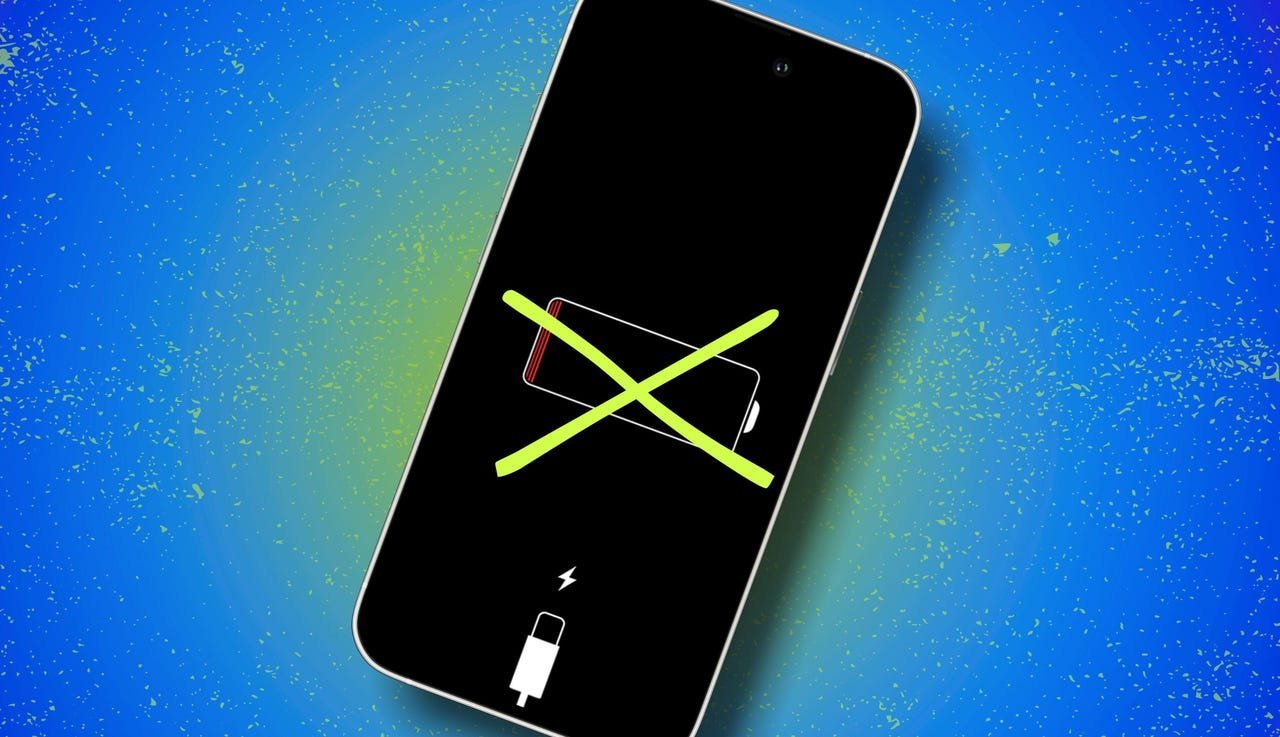 Caption: Key settings like Adaptive Power Mode (iOS 26), Always-On Display control, and Background App Refresh are central to managing iPhone battery drain. (Elyse Betters Picaro / ZDNET)
Beyond Settings: Diagnosis & Tools Picaro also recommends using the built-in battery usage analyzer (Settings > Battery) to identify specific app hogs. For chronic low-battery scenarios, especially while traveling, she pragmatically advises carrying a MagSafe power bank despite software optimizations.
The Takeaway for Tech Professionals: This guide underscores a critical principle in mobile computing: raw hardware specs are only part of the battery life equation. Thoughtful software configuration, understanding the power cost of features like constant connectivity and high-refresh displays, and leveraging intelligent power management systems (like Adaptive Power Mode) are essential skills. For developers, it's a reminder of the impact background processes and notifications have on the end-user experience. Implementing these changes isn't just about avoiding a dead phone; it's about mastering the efficient operation of a sophisticated piece of technology.
Source: Running on iOS 18? Changing these settings greatly improved my iPhone's battery life by Elyse Betters Picaro, ZDNET.
Comments
Please log in or register to join the discussion