
When your Windows PC crashes with the infamous Black Screen of Death, it often stems from outdated drivers or software conflicts. This guide reveals six proven solutions to quickly restore your system, from Safe Mode diagnostics to essential maintenance routines. Mastering these steps can save you costly repairs and transform panic into empowerment.
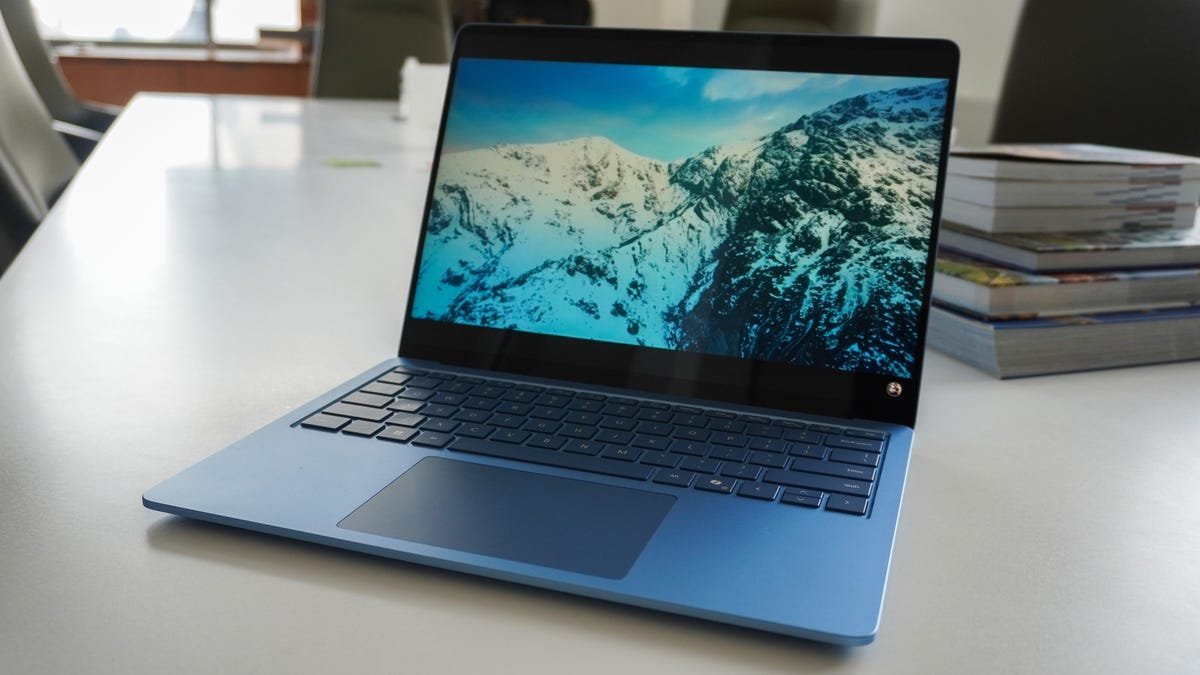
That moment is all too familiar: You're in the flow of work when your Windows PC grinds to a halt, replaced by the chilling void of the Black Screen of Death (BSOD). What was once blue in older Windows versions is now a stark black abyss in Windows 11, signaling a critical system failure. But before you resign yourself to expensive tech support or a new machine, know this—most BSOD incidents are solvable with a few targeted fixes. As Microsoft phases out the Blue Screen for its darker successor, understanding these recovery tactics has never been more crucial for developers and IT professionals alike.
The Usual Suspects: Diagnosing Sluggishness and Crashes
Performance dips and crashes often share common roots. Outdated software, driver conflicts, or resource-hogging background processes can push your system to its limits. Start simple:
- Update Windows Immediately: Microsoft's monthly patches (Patch Tuesday) address security flaws and performance bugs. Navigate to Settings > Windows Update to install the latest version—but verify online if the current update (like October 2025's KB5062660) has known issues before proceeding.
- Tame Startup Bloat: Too many apps launching at boot can cripple RAM. Press Ctrl+Shift+Esc to open Task Manager, switch to the Startup Apps tab, and disable non-essential programs. As Kyle Kucharski notes, "It’s a small tweak that can make your PC noticeably faster."
"Learning how to identify and address these issues early extends your device's lifespan, boosts performance, and saves you money," advises ZDNET's Cesar Cadenas. This proactive approach is the first line of defense.
- Scan for Malware: Hidden infections often trigger instability. Use Windows Security (Virus & Threat Protection > Quick Scan) or third-party tools like Malwarebytes for deeper analysis. ZDNET's testing confirms it's a top choice for robust protection.
Decoding the Black Screen of Death
When the BSOD strikes, don't ignore the error code at the screen's bottom—it’s your diagnostic lifeline. Codes like DPC_WATCHDOG_VIOLATION typically point to driver conflicts. Here's your battle plan:
- Boot into Safe Mode: This stripped-down Windows environment bypasses non-critical drivers. Restart while holding Shift, then navigate to Troubleshoot > Advanced Options > Startup Settings > Restart, and press F5.
- Update or Roll Back Drivers: In Safe Mode, open Device Manager, expand "Display adapters," right-click your GPU, and select "Update driver." If crashes persist, try "Roll Back Driver" for recently updated hardware.
Quick Fixes for Persistent Crashes
When Safe Mode and driver tweaks fall short, these rapid interventions often resolve lingering issues:
- Uninstall Problematic Apps: Corrupted installations can destabilize your system. Remove recently added software via Settings > Apps or in Safe Mode.
- Repair System Files: Launch Command Prompt as admin and run:
chkdsk
chkdsk /r  # If errors are found
This scans and repairs damaged files that might trigger BSOD.
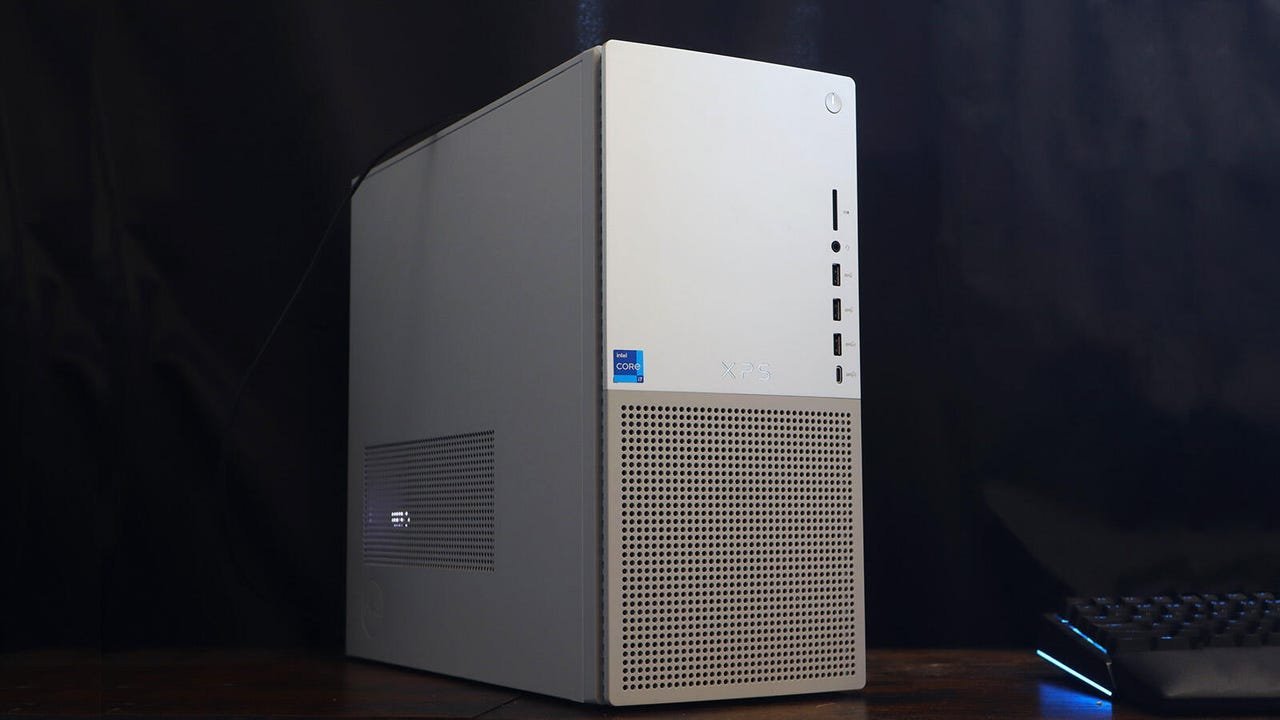
- Prevent Overheating: Dust-clogged vents cause thermal throttling. Regularly clean your PC with compressed air—focus on fans and vents to maintain optimal airflow and avoid hardware damage.
Why trust these methods? With a decade of experience covering consumer tech, I've navigated countless PC failures. The solutions here are battle-tested: they prioritize simplicity and effectiveness, turning daunting crashes into manageable hiccups. In an era where our tools define our productivity, these fixes aren’t just troubleshooting—they’re essential resilience-building for every Windows user. Start small, stay consistent, and reclaim control over your digital workspace.
Source: ZDNET, Original reporting by Cesar Cadenas.
Comments
Please log in or register to join the discussion