macOS users have long debated the utility of Spotlight and Siri, with some finding them indispensable and others viewing them as unnecessary resource hogs. The latest macOS Tahoe continues this tradition, offering partial disabling options that don't fully remove these system components.
The debate over system utilities like Spotlight and Siri reflects a broader tension in modern computing: the balance between convenience and control. For some users, these features are essential workflow accelerators, while others see them as intrusive background processes consuming CPU cycles and storage space. The question isn't just about preference—it's about understanding what's actually happening under the hood when you click "disable" in System Settings.
Siri: The Illusion of Disabling
When you navigate to System Settings and toggle off Siri Requests, you might assume you've turned off Siri entirely. The reality is more nuanced. While Siri stops responding to voice commands, the underlying infrastructure remains active. The siriactionsd process continues running during startup, and siriknowledged persists in Activity Monitor's process list. This isn't a bug—it's by design. Apple's architecture treats Siri as a system service rather than a standalone application, which means even when "disabled," it maintains a minimal footprint for potential reactivation.
This behavior reveals something important about modern operating system design: features are increasingly integrated rather than modular. Unlike older systems where you could remove components entirely, contemporary macOS treats its AI assistants as foundational services. The trade-off is clear—faster reactivation and smoother updates come at the cost of persistent background processes.
Spotlight: The Indexing Paradox
Spotlight presents an even more complex scenario. Disabling every item in Spotlight's System Settings panel doesn't actually stop Spotlight from indexing mounted volumes. In fact, it can slow down Finder operations because the system continues attempting to maintain its search database while simultaneously trying to honor your "disabled" preferences.
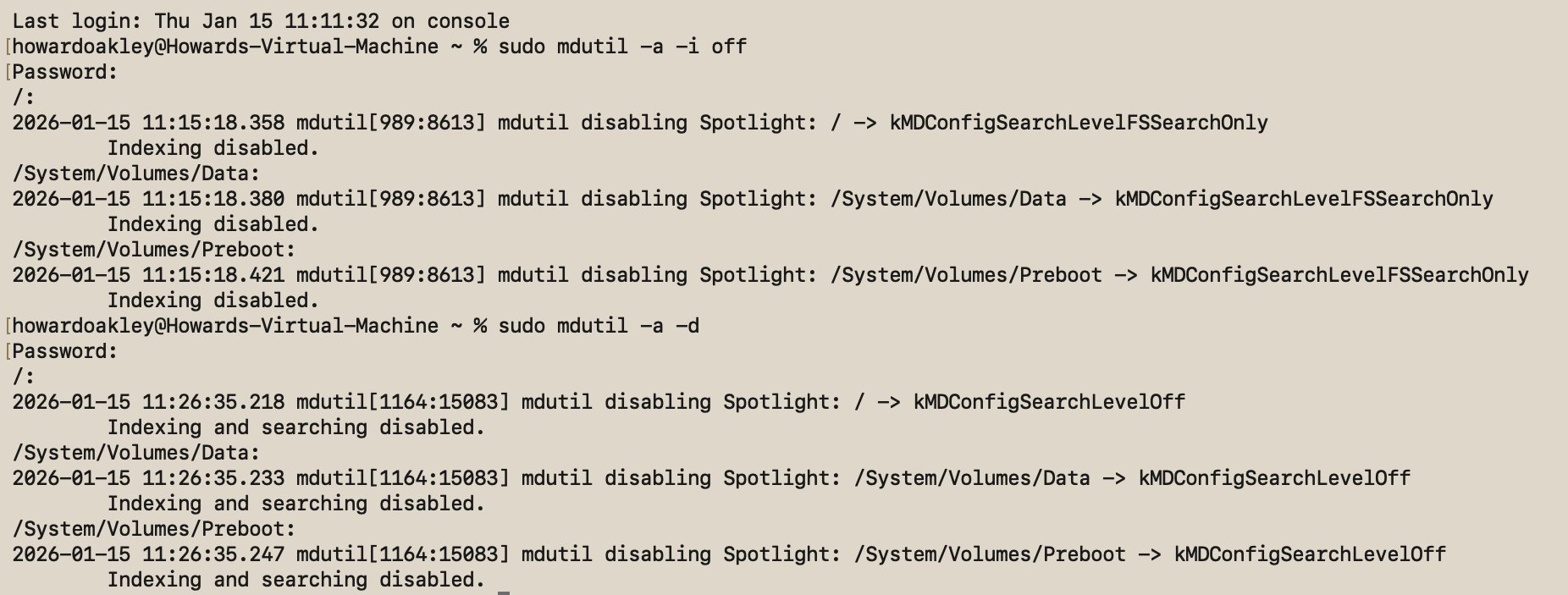
The traditional Terminal approach uses sudo mdutil -a -i off, which should disable Spotlight indexing. When executed, mdutil reports that indexing is disabled on each mounted volume and that Spotlight has switched to kMDConfigSearchLevelFSSearchOnly. However, practical testing reveals gaps in this implementation. Even after running this command, file searches on the Data volume at /System/Volumes/Data still return results, suggesting the command doesn't fully disable indexing on all volumes.
This inconsistency points to a deeper architectural shift. The Data volume operates under different rules than the system volume, and macOS Tahoe appears to handle these volumes with separate indexing strategies. The traditional command might work for the root volume but fail on the Data volume, requiring the explicit path /System/Volumes/Data for complete disabling.
The More Effective Approach
The alternative command sudo mdutil -a -d proves more comprehensive. This disables both Spotlight searches and indexing across all mounted volumes. After execution, mdutil confirms that indexing and searching are disabled on each volume, and Spotlight switches to kMDConfigSearchLevelOff. This setting ensures all search attempts return no results.
However, even this more thorough approach doesn't remove Spotlight from the system. The process list still shows mds, Spotlight, and spotlightknowledged running. During startup, related daemons like mediaanalysisd and photoanalysisd execute briefly. Volumes retain their hidden .Spotlight-V100 folder, though the Store-V2 folder remains empty after mdutil -a -d.
This persistence isn't necessarily problematic. These processes consume minimal resources when inactive, and their presence allows for instant reactivation if you change your mind. The alternative—complete removal—would require disabling System Integrity Protection (SIP) and performing system surgery, which introduces significant security risks and stability concerns.
The Broader Pattern
What we're observing in macOS Tahoe reflects a larger trend in operating system design: the move toward integrated services that resist complete removal. This isn't unique to Apple—Windows has similar behaviors with Cortana and Windows Search, and Linux desktop environments increasingly bundle services that were once optional.
The rationale is multifaceted. Integrated services enable faster feature updates, better cross-system coordination, and improved security through centralized management. They also create consistent user experiences across Apple's ecosystem. However, they reduce user agency and can frustrate power users who prefer granular control.
Practical Recommendations
For users who want to minimize Spotlight and Siri's presence without compromising system stability, the most practical approach is:
For Siri: Disable Siri Requests in System Settings. While the service remains active, it won't respond to voice commands or process requests.
For Spotlight: Use
sudo mdutil -a -din Terminal. This provides the most complete disabling of search and indexing functions while maintaining system integrity.For reactivation: If you change your mind, use
sudo mdutil -a -i onto re-enable indexing, or simply re-toggle Siri in System Settings.
The Trade-off Reality
The inability to completely remove these features represents a philosophical choice by Apple. The company prioritizes system consistency and ease of use over complete user control. For most users, this is an acceptable trade-off—the background processes consume negligible resources when inactive, and the convenience of quick reactivation outweighs the theoretical benefits of complete removal.
Power users and privacy-conscious individuals may find this limitation frustrating, but the alternative—disabling SIP and modifying system files—introduces risks that far outweigh the benefits for most scenarios. The hidden .Spotlight-V100 folders and persistent processes are small prices to pay for a system that remains stable, secure, and updatable.
Ultimately, the question isn't whether you can completely disable Spotlight and Siri in macOS Tahoe—you can't, at least not without significant system modifications. The real question is whether you need to. For most users, the partial disabling options provide sufficient control while maintaining system integrity and future compatibility.
The evolution of these features suggests that future macOS versions will likely continue this trend toward integrated, non-removable services. Understanding how to work within these constraints—rather than fighting against them—becomes the key to effective system management in modern computing environments.
Comments
Please log in or register to join the discussion