
Troy Hunt details his troubleshooting journey with a stubborn Print Screen key conflict and shares community-driven solutions for similar hardware/software binding issues.

Popular security researcher Troy Hunt recently encountered a surprisingly persistent technical hiccup with his new PC setup: his Print Screen key refused to bind properly to SnagIt screenshot software. Instead of triggering the expected capture workflow, the key dumped full-screen images directly to his desktop—a workflow disruption Hunt described as "a real pain."
In his weekly update, Hunt acknowledged the collective effort of his followers who attempted to diagnose the issue. "Try as we all might, none of us could figure out why it refused to bind to SnagIt," he noted. The breakthrough came from a community member who proposed multiple solutions via email, with the second approach finally resolving the conflict.
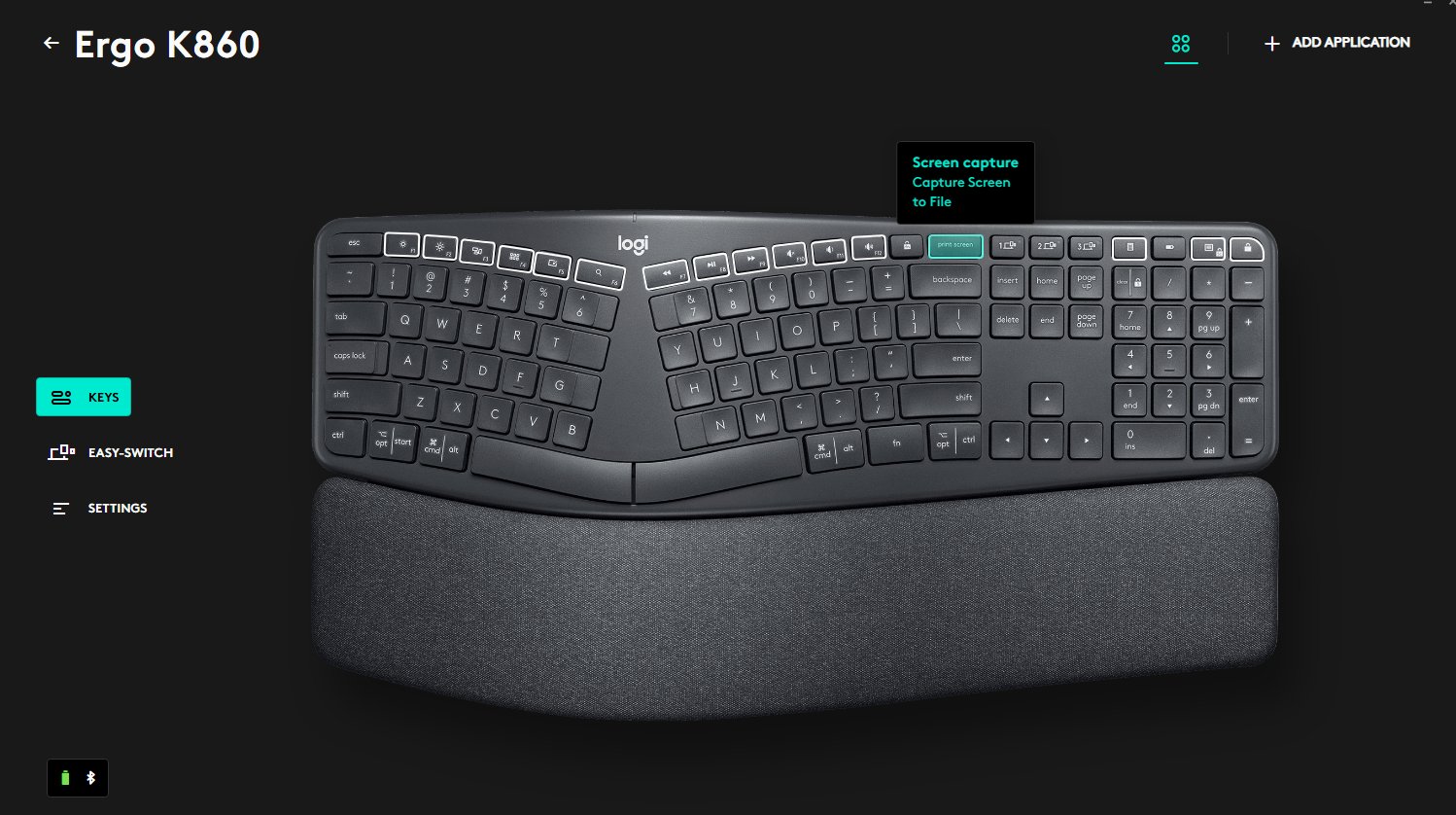
While Hunt didn't disclose the exact fix, he highlighted Logitech peripherals as a central factor in the binding conflict. Hardware manufacturers often include proprietary software that can override system-level key assignments—a common pain point confirmed by IT professionals. "Logitech software frequently reserves certain keyboard shortcuts," explains Michael Rodriguez, a desktop support specialist at TechSolve Inc. "Their utilities run deep in the background and can unintentionally hijack core OS functions."
Practical Troubleshooting Steps for Key Binding Conflicts
If you encounter similar issues where hardware keys ignore software assignments:
Identify Conflicting Software: First, check running utilities from peripheral manufacturers (Logitech G Hub, Razer Synapse, etc.) in your system tray. Temporarily disable these to test key functionality.
Prioritize Startup Order: Launch your target application (e.g., SnagIt) before peripheral software. Some utilities only capture keys launched after their initialization.
Remap Within Hardware Apps: Use the peripheral's configuration tool to unbind or reassign the problematic key. For Logitech devices, access G Hub's key assignment settings.
System-Level Overrides: On Windows, try disabling "Print Screen key opens screen snipping" in Settings > Ease of Access > Keyboard.
Driver Reset: Uninstall/reinstall both peripheral drivers and target software using SnagIt's Clean Utility and manufacturer tools.
Hunt's experience underscores the value of community knowledge-sharing. "An especially big thanks to the follower who emailed ideas until we found a solution," he emphasized. For persistent cases, Rodriguez suggests creating a clean boot environment to isolate conflicting processes.
While frustrating, such conflicts highlight how deeply integrated modern peripherals are with operating systems—and why vendor software deserves scrutiny during troubleshooting. Hunt's resolution serves as a reminder that even experts benefit from crowdsourced solutions when technology behaves unexpectedly.
Comments
Please log in or register to join the discussion