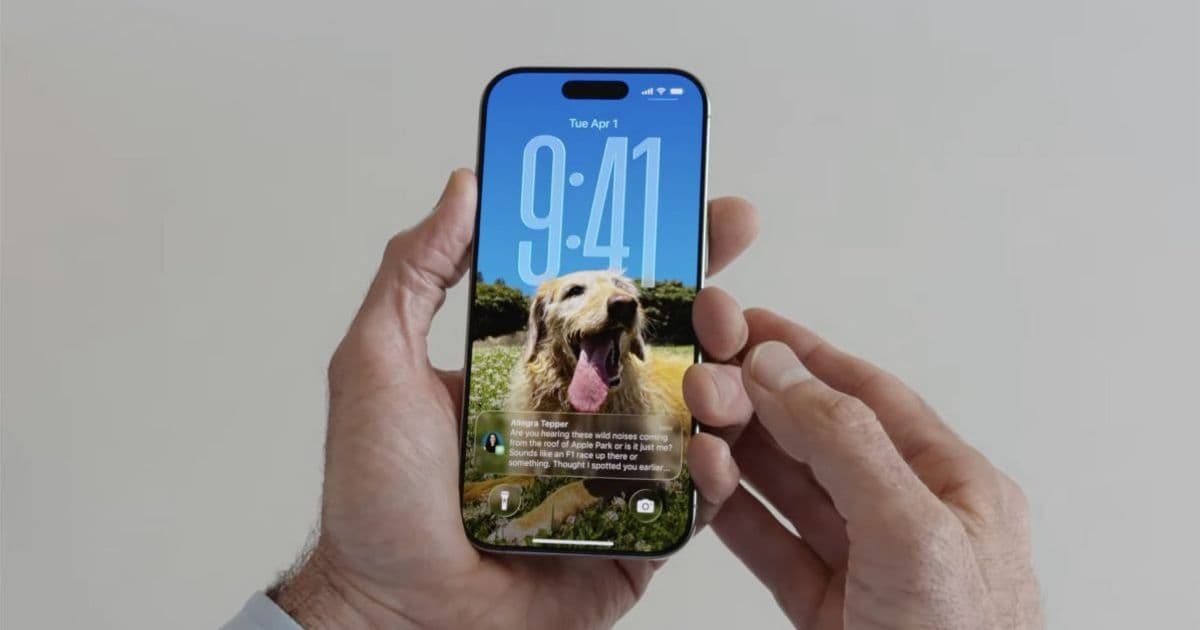
Apple’s iOS 26 release introduces Spatial Scenes, a 3D wallpaper effect that uses device motion to create immersive parallax effects for user photos, alongside SDK updates and privacy changes that impact developers building iOS and cross-platform apps.
iOS 26 adds fun way to customize your iPhone wallpaper, here’s how to use it - 9to5Mac
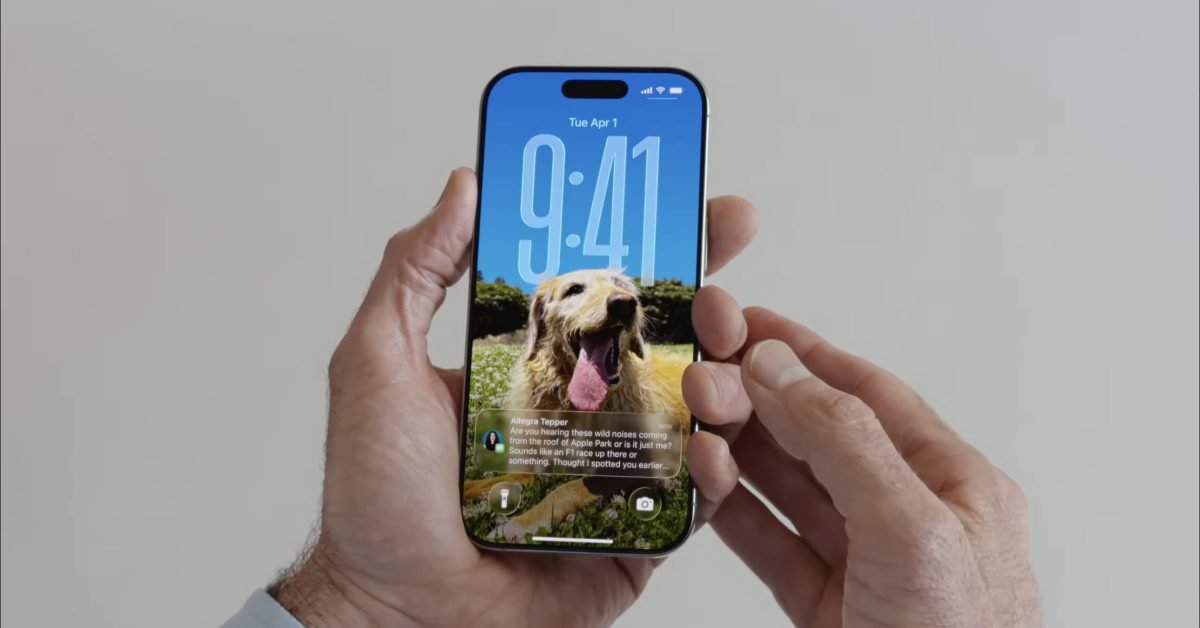
Apple's iOS 26 release, first launched in May 2026, introduces a range of new customization options for iPhone users, including a standout feature called Spatial Scenes that adds 3D parallax effects to photo wallpapers. As originally reported by 9to5Mac, the feature is marketed as a consumer-facing personalization tool, but it carries significant implications for iOS developers building apps that use motion-based UI, photo integrations, or home screen widgets. Below is a breakdown of the platform update, its impact on developers, and migration steps for teams targeting iOS 26.
Platform Update: iOS 26 and Spatial Scenes
Per Apple’s official iOS 26 release notes, Spatial Scenes let users add a new 3D effect to photo wallpapers, bringing them to life when the iPhone is moved. The effect uses real-time gyroscope and accelerometer data to shift the perceived depth of the wallpaper image, creating a responsive parallax effect that aligns with device movement. 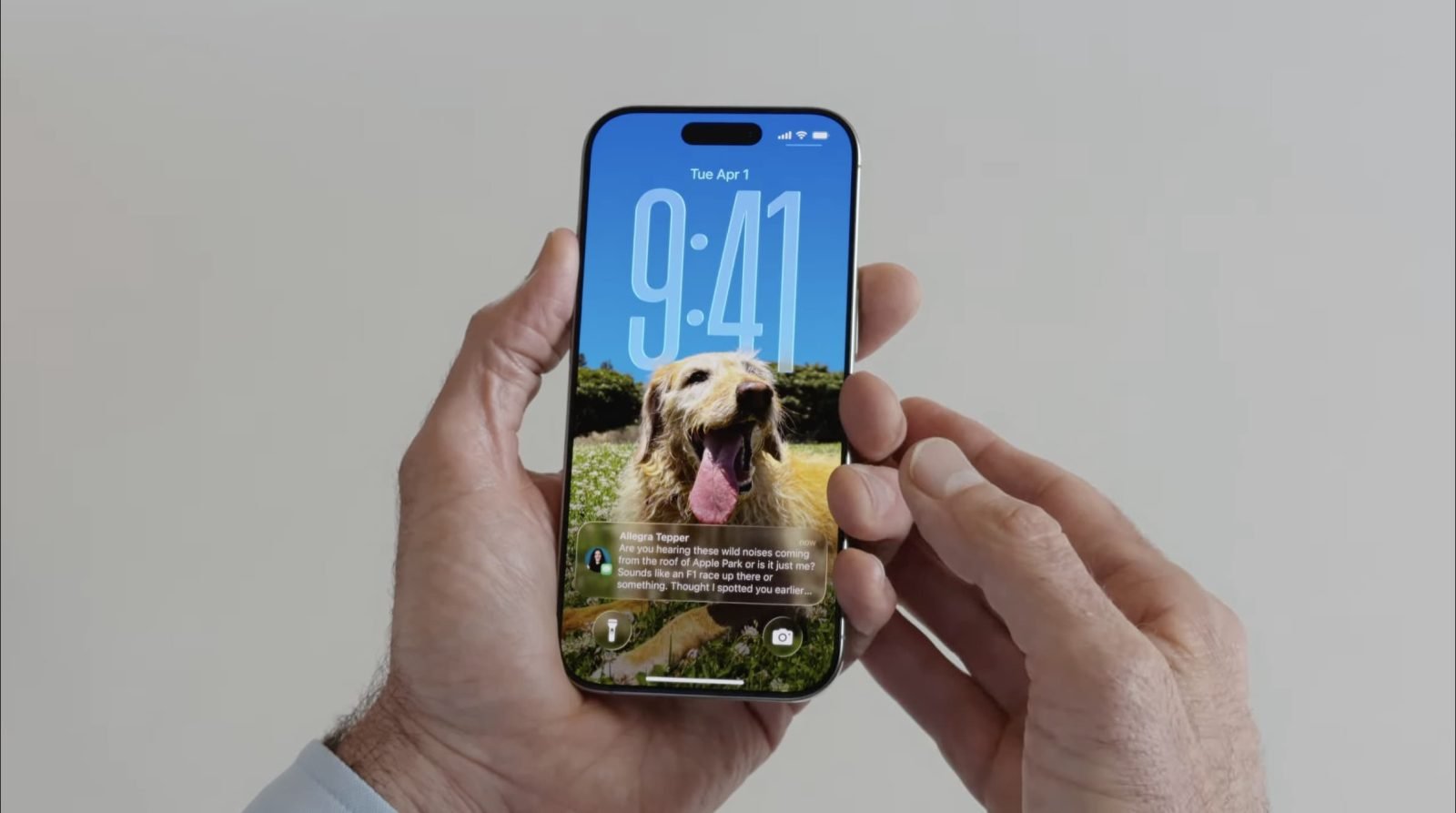
The feature is available through two paths for end users. First, the wallpaper setup flow in Settings includes a dedicated row of suggested Spatial Scenes wallpapers, pre-optimized for the 3D effect. Second, users can apply the effect to almost any photo in their Apple Photos library by following a short set of steps:
- Open Settings, tap Wallpaper, then select the "Add New Wallpaper" button.
- Tap "Photos" in the top-left corner of the picker.
- Choose the desired photo from the library.
- Tap the geometric photo icon in the lower-right corner of the preview screen to generate the Spatial Scene effect.
- Test the effect by moving the iPhone side to side, then tap "Add" to save the wallpaper.
The same Spatial Scenes logic is also baked into the iOS 26 Photos app and the popular Photos Home Screen widget, where it adds motion-responsive effects to displayed images. 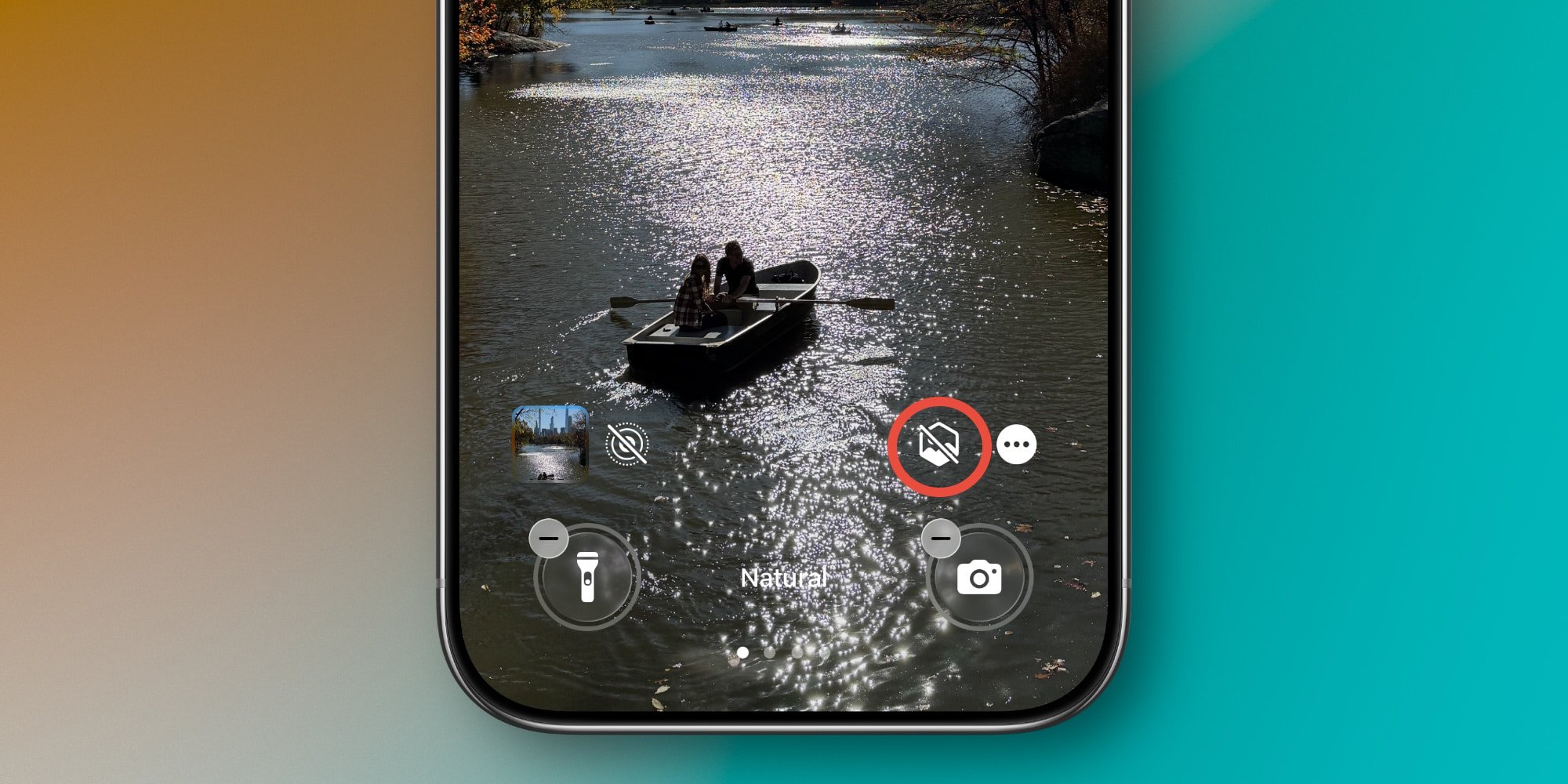
Platform requirements for iOS 26 include support for iPhone XS and later models, with the Spatial Scenes feature specifically requiring an A12 Bionic chip or newer (for hardware-accelerated 3D rendering) and a working gyroscope and accelerometer (for motion tracking). The corresponding Xcode 26 release includes the iOS 26 SDK, which supports building and testing apps for the new OS. iOS 26 is also compatible with iPadOS 26 on iPad Pro (3rd generation and later), iPad Air (3rd generation and later), and iPad (8th generation and later).
Developer Impact: Motion UI and Photo Integration Opportunities
Spatial Scenes demonstrates several mature platform capabilities that developers can adopt for their own apps, particularly those focused on photo editing, home screen customization, or immersive UI effects. The feature relies on three core Apple frameworks, all of which are publicly available in the iOS 26 SDK:
- Core Motion: Used to track device attitude (roll, pitch, yaw) at 60Hz, balancing smooth effect updates with minimal battery drain. Developers can replicate this using the
CMMotionManagerclass, which provides real-time sensor data with configurable update intervals. - Core Image/Metal: Used to apply depth mapping to 2D photos, splitting images into foreground and background layers to create the illusion of 3D parallax. Metal compute shaders enable on-device processing of these effects without offloading to the cloud, preserving user privacy.
- PhotoKit: Used to access the user’s photo library, with the same privacy requirements as previous iOS versions. iOS 26 adds an optional
NSPhotoLibraryMotionEffectUsageDescriptionkey for apps that apply motion-based effects to user photos, supplementing the mandatoryNSPhotoLibraryUsageDescriptionkey.
For developers building cross-platform apps with tools like React Native or Flutter, the underlying patterns for Spatial Scenes are portable with platform-specific code. Android’s SensorManager class provides equivalent motion sensor data, while RenderScript or Vulkan handle 3D rendering. Flutter developers can use the sensors package for motion data and flutter_3d or custom_paint for rendering, while React Native teams can use react-native-sensors and react-native-skia for similar functionality.
The integration of Spatial Scenes into Home Screen widgets also highlights updates to WidgetKit in iOS 26. While the first-party Spatial Scenes widget uses private APIs, the public WidgetKit SDK adds new support for motion-responsive updates, letting developers trigger widget refreshes based on device movement (within strict power limits to avoid background battery drain). 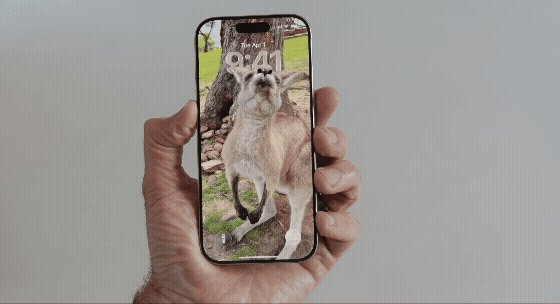
Migration Considerations for iOS 26
Developers targeting iOS 26 should follow these steps to ensure compatibility with Spatial Scenes and related platform changes:
- Update development tools: Install Xcode 26 and the iOS 26 SDK to test apps on the new OS. The SDK includes deprecations for older
UIApplicationwallpaper setting methods, though most existing functionality remains supported for backward compatibility. - Audit photo and sensor integrations: If your app accesses the photo library or motion sensors, update your privacy manifest to include entries for PhotoKit and Core Motion usage. iOS 26 requires all apps to submit privacy manifests detailing data collection practices, with strict enforcement starting in iOS 26.1.
- Optimize motion-based effects: If your app already uses Core Motion for UI effects, test performance on iOS 26 devices. The new OS adds power management limits for background sensor polling, and apps that exceed 60Hz polling for non-essential effects may trigger user-facing battery warnings.
- Test cross-platform parity: For teams building for iOS and Android, audit shared UI components to identify where motion effects can be added consistently across platforms. Avoid forcing iOS-specific effects on Android users, as the two platforms have different sensor calibration and rendering pipelines.
User-Facing How-To Context
For developers who want to test the Spatial Scenes feature as end users, the steps outlined in the original 9to5Mac reporting are reproduced below. This context can help developers understand user expectations for motion-based photo effects in iOS 26:

- In Settings ⇾ Wallpaper tap the "Add New Wallpaper" button.
- Tap "Photos" in the top-left corner of the picker.
- Choose the photo you want to use from your Apple Photos library.
- Tap the geometric photo icon near the lower-right part of the screen (pictured above).
- After the spatial scene generates, test the effect by moving your iPhone from side to side.
- Hit "Add" to save the wallpaper to your device.
The feature is a small but notable addition to iOS 26’s customization toolkit, and its underlying technology provides a blueprint for developers looking to add responsive, performant motion effects to their own apps.
Comments
Please log in or register to join the discussion