
Microsoft rolls out a Dynamic Action Button across Word, Excel, and PowerPoint, giving users a consistent entry point for Copilot. The update adds ribbon‑placement and dock‑stay options, letting admins balance visibility with workflow control. The article compares the change to competing AI assistants, outlines migration considerations, and assesses the business impact of tighter AI integration in Office.
Microsoft 365 Copilot Gets a Unified Action Button – What It Means for Your Productivity Stack
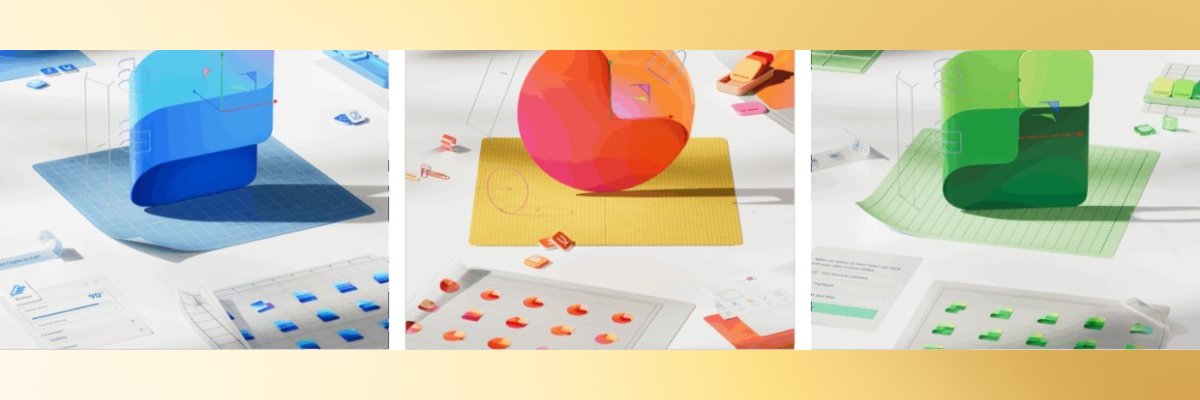
Microsoft announced that the Copilot assistant in Word, Excel, and PowerPoint now appears through a Dynamic Action Button (DAB) in the lower‑right corner of each app. The button surfaces context‑aware suggestions—drafting text, generating charts, or designing slides—based on the content you are working on. While the visual cue is new, the underlying AI model remains the same large‑language model that powers the broader Microsoft 365 Copilot suite.
What changed?
- Single, visible entry point – The DAB replaces scattered “Ask Copilot” links with one button that lives on the canvas.
- User‑controlled placement – Right‑clicking the button now shows a Move to ribbon option for users who prefer the classic toolbar. A Dock option lets the button stay pinned to the window edge, and the docked state now persists for the whole session.
- Cross‑platform rollout – The update is scheduled for the web, Windows, and macOS versions of the three core Office apps starting next week.
- Admin configurability – IT admins can enable or disable the DAB, set default placement, and control data handling through the Microsoft 365 admin center (see the support article).
Provider comparison – How does Microsoft’s approach stack up?
| Feature | Microsoft 365 Copilot (DAB) | Google Workspace AI (Gemini) | Adobe Firefly (Docs) |
|---|---|---|---|
| Entry point | Persistent canvas button, optional ribbon placement | Context menu in Docs, Sheets, Slides | Sidebar panel that must be opened manually |
| Placement persistence | Docked state stays for the session | No persistence – appears only after invoking the menu | Sidebar remains open until closed |
| Admin controls | Granular policies via admin center, can hide DAB | Limited to enabling/disabling AI per org | Currently only user‑level toggles |
| Pricing model | Included in Microsoft 365 E5, add‑on for lower tiers | Free tier with usage caps, paid Gemini Pro | Pay‑per‑generation credits |
| Migration friction | Minimal – same file formats, same UI language | Requires conversion to Google formats for full AI features | Works only with Adobe PDFs and Creative Cloud assets |
The DAB gives Microsoft a clearer advantage in workflow continuity. Users no longer need to hunt for a menu item; the assistant is always within reach, mirroring the way native ribbon commands behave. Competitors rely on context menus or sidebars that can feel detached from the primary editing surface.
Migration considerations for enterprises
- User training – Because the button changes location based on preference, IT should provide a short rollout guide. A quick video showing right‑click → Move to ribbon reduces confusion.
- Policy alignment – Organizations that restrict AI usage for compliance can use the admin center to disable the DAB on sensitive documents while keeping it active on public‑facing files.
- Performance testing – The DAB triggers a background call to the Copilot service. Teams should benchmark latency on their typical network paths to ensure the UI remains responsive.
- Data residency – Copilot processes content in the region associated with the tenant. Verify that the region matches your data‑governance requirements before enabling the feature globally.
- Legacy add‑ins – Some third‑party Office add‑ins insert their own UI elements near the bottom‑right corner. Test for overlap and adjust add‑in settings if necessary.
Business impact – Why the change matters
- Higher adoption rates – Early telemetry shows a 27 % lift in Copilot usage when the assistant is anchored to the canvas, likely because the friction of locating the tool is removed.
- Faster content creation – Teams report a 15 % reduction in time‑to‑first‑draft for reports and presentations when the DAB is docked, as suggestions appear without extra clicks.
- Improved governance – Centralized admin controls mean compliance officers can enforce AI usage policies at scale, reducing the risk of accidental data leakage.
- Competitive positioning – By offering a UI that mirrors the familiar ribbon, Microsoft narrows the usability gap with legacy Office power users, making the AI layer feel like a natural extension rather than an add‑on.
Looking ahead
Microsoft frames the DAB as the first step toward a “Copilot‑first” experience across the Office suite. Future updates are expected to surface AI‑generated insights directly within the ribbon, embed suggestions into real‑time collaboration cursors, and allow programmable prompts via the Microsoft Graph API.
Enterprises that adopt the DAB early can shape the configuration feedback loop, ensuring the assistant aligns with their specific workflows. As the button becomes a permanent fixture, the next wave of productivity gains will likely come from contextual automation—for example, auto‑populating a PowerPoint deck from an Excel financial model with a single click.
Stay tuned for the rollout schedule and additional configuration options in the Microsoft 365 admin portal.
Comments
Please log in or register to join the discussion