Microsoft has streamlined the development lifecycle for Azure Logic Apps by enabling local development, testing, and deployment directly from Visual Studio Code, providing developers with greater flexibility and efficiency in creating workflow automation solutions.
Microsoft has significantly improved the development experience for Azure Logic Apps by introducing comprehensive support for local development within Visual Studio Code. This enhancement allows developers to create, test, and deploy Standard logic app workflows entirely within their preferred development environment, eliminating the need to constantly switch between the Azure portal and local tools.
What Changed: Enhanced Local Development Experience
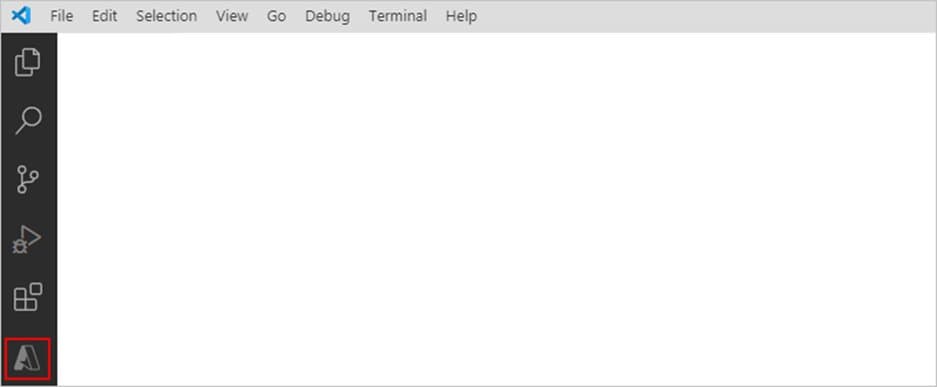
The new capabilities center around the Azure Logic Apps (Standard) extension for Visual Studio Code, which provides a complete development environment for single-tenant Azure Logic Apps. This extension enables developers to perform all workflow development activities locally, including creating projects, building workflows, debugging, and testing before deployment to Azure.
Key improvements include:
- Local Project Creation: Developers can now create Standard logic app workspaces and projects directly within Visual Studio Code
- Integrated Development Environment: The extension provides a workflow designer that opens directly in VS Code
- Local Testing and Debugging: Workflows can be run and tested locally using emulators before deployment
- CI/CD Pipeline Integration: Built-in support for deploying workflows through Azure DevOps pipelines
Provider Comparison: Visual Studio Code vs. Azure Portal Development
Before this enhancement, developers primarily used the Azure portal for creating and managing Logic Apps. While the portal offers a visual designer, it lacks the sophisticated development tools, version control integration, and local testing capabilities that developers expect in modern development environments.
The new Visual Studio Code approach offers several advantages over the portal-based development:
| Feature | Azure Portal | Visual Studio Code |
|---|---|---|
| Local Development | Limited | Full support |
| Version Control | Limited | Git integration |
| Debugging Capabilities | Basic | Advanced debugging with F5 |
| Code Review | Difficult | Easy with standard practices |
| CI/CD Integration | Manual | Automated pipelines |
| Team Collaboration | Limited | Full development workflow |
The Visual Studio Code approach is particularly beneficial for teams following DevOps practices, as it allows for proper version control, code reviews, and automated deployment pipelines that are essential for enterprise-grade applications.
Technical Implementation Details
To implement this new development approach, developers need to set up several prerequisites:
- Visual Studio Code: The base development environment
- Azure Account Extension: For connecting to Azure resources
- Azure Logic Apps (Standard) Extension: The core development tool
- C# for Visual Studio Code: Enables F5 functionality for running workflows
- Azurite for Visual Studio Code: Provides local data store and emulator
- .NET SDK 6.x.x: Required runtime for Azure Logic Apps (Standard)
- Azure Functions Core Tools 4.x: Runtime components
- Node.js 16.x.x: For JavaScript-based inline code operations
The extension simplifies dependency management by including an automatic installer that sets up all required components in a dedicated binary folder, leaving existing dependencies unaffected.
Development Workflow
The development process follows these key steps:
- Project Setup: Create a new Logic App project through the Azure extension in VS Code
- Workflow Design: Use the integrated workflow designer to create triggers and actions
- Local Testing: Run and debug workflows locally using Azurite emulator
- Code Management: Use Git for version control and collaboration
- CI/CD Pipeline: Configure automated build and deployment processes
For local testing, developers start the Azurite emulator through the VS Code command palette, then use F5 to start debugging. The workflow generates a callback URL for testing triggers, and results can be viewed directly in the IDE.
CI/CD Pipeline Implementation
Microsoft provides sample YAML configurations for both build and deployment stages:
The Build.yaml configuration includes:
- Installation of required utilities
- Creation of project folders
- Zipping the project for deployment
- Publishing the artifact to the pipeline
The Deploy.yaml configuration handles:
- Downloading the build artifact
- Deploying the Logic App as an Azure Function App
- Supporting different environment deployments through parameters
This approach enables organizations to implement robust DevOps practices for their Logic App workflows, ensuring consistent deployments across environments.
Business Impact and Considerations
Benefits
- Developer Productivity: Local development reduces context switching and accelerates the development cycle
- Code Quality: Git integration enables proper version control, code reviews, and collaboration
- Consistency: CI/CD pipelines ensure consistent deployments across environments
- Cost Efficiency: Local testing reduces consumption of Azure resources during development
- Faster Iterations: Developers can quickly test changes without deploying to Azure
Migration Considerations
Organizations currently using the Azure portal for Logic App development should consider the following when transitioning to the Visual Studio Code approach:
- Learning Curve: Development teams will need to adapt to the new development environment
- Project Structure: The new approach uses a different project structure that may require adjustments to existing processes
- Tooling Integration: Teams may need to update their existing tooling to work with the new development model
Best Practices
- Environment Management: Use parameter files to manage differences between development, testing, and production environments
- Version Control: Implement proper branching strategies for Logic App workflow development
- Testing Strategy: Develop comprehensive test cases that cover both local and deployed workflows
- Documentation: Maintain documentation for workflow logic and dependencies
The enhanced Visual Studio Code support for Azure Logic Apps represents Microsoft's commitment to providing developers with modern, efficient tools for cloud automation. By bringing the full development lifecycle into Visual Studio Code, Microsoft is addressing a key pain point for developers who previously had to balance between local development tools and cloud-based design experiences.
For organizations adopting Azure Logic Apps, this enhancement significantly lowers the barrier to entry for enterprise-grade workflow automation while providing the flexibility to scale development according to team needs. The integration with CI/CD pipelines also positions Logic Apps as a mature platform for mission-critical automation scenarios.
For more information about getting started with Azure Logic Apps in Visual Studio Code, refer to the official documentation and the Azure Logic Apps (Standard) extension.
Comments
Please log in or register to join the discussion