Microsoft's Link to Windows app for Android has received a transformative beta update, featuring a redesigned UI and new capabilities like remote PC locking and direct file transfers. While promising deeper Android-Windows integration, the update faces connectivity hurdles and highlights stiff competition from solutions like Lenovo's Smart Connect.
Microsoft's Link to Windows App Gets a Major Facelift: Hands-On with New Android Integration
Microsoft is rolling out a substantial redesign of its Link to Windows app for Android, targeting a more intuitive cross-device experience between phones and PCs. Currently in beta for Windows Insiders, the update replaces a previously cluttered interface with a streamlined hub focused on remote control and content sharing—though early testing reveals persistent connectivity challenges and feature gaps compared to rivals like Lenovo.
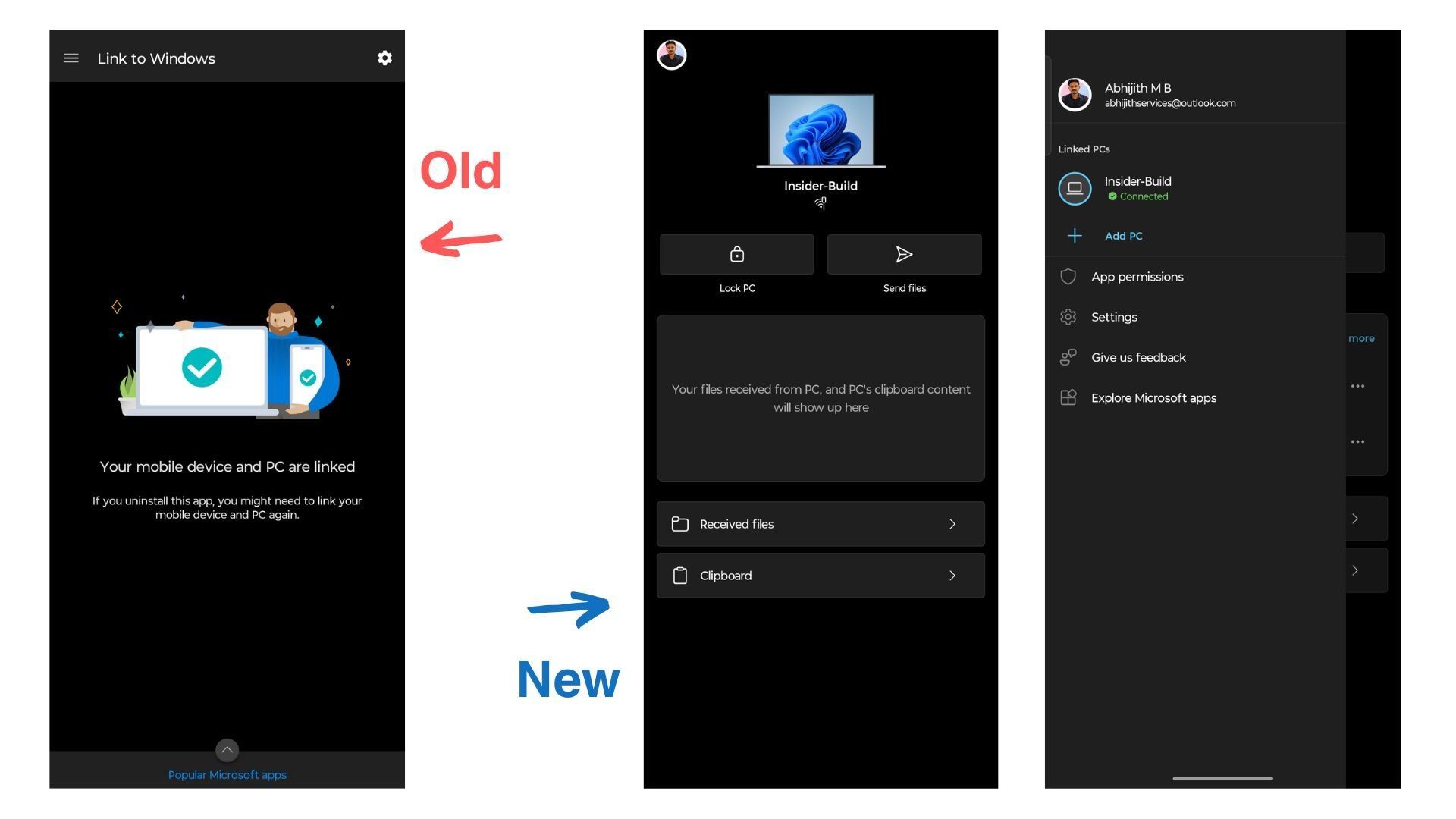 The revamped Link to Windows UI (right) eliminates wasted space and redundant links, offering direct access to core functionalities.
What’s New: Remote Control and Unified Workflows
The overhaul centers on three key additions:
Remote PC Locking: A prominent "Lock PC" button lets users secure their Windows machine directly from their Android device. However, this requires a stable secondary Bluetooth connection, and testing showed inconsistent performance—sometimes falsely indicating a locked state or failing with "Couldn’t connect" errors.
Direct File Transfers: The "Send files" feature allows users to push photos, documents, or camera captures to their PC without switching apps. In trials, PDF transfers succeeded within seconds, triggering native Windows notifications upon arrival.
Clipboard & Content Sync: A "Recents" pane aggregates clipboard history and shared files, while dedicated sections display received PC files and copied content. This enables seamless text/image pasting across devices.
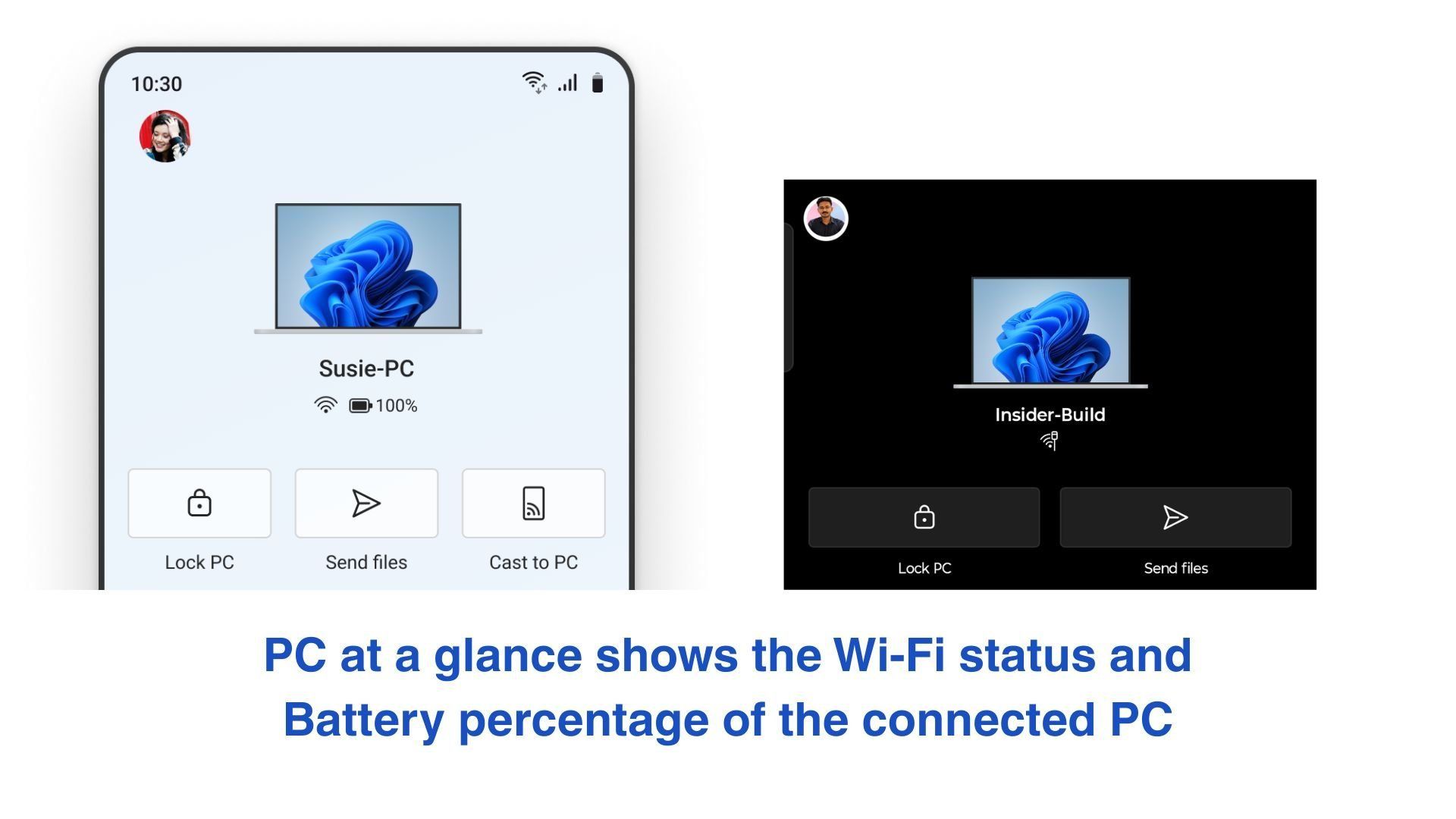 The "PC at a glance" section displays device status, though wallpaper syncing remains unreliable.
The Catch: Fragility and Fragmentation
Despite improvements, the experience remains brittle. Enabling advanced features demands:
- Windows 11 Insider builds (any channel) with Phone Link v1.25062.83.0+
- Android beta enrollment for Link to Windows v1.25071.155+
- Repeated sign-ins across devices and Bluetooth re-pairing
Screen mirroring—teased in Microsoft’s marketing—was absent during testing on non-Samsung devices, suggesting potential hardware exclusivity. As one tester noted:
"Microsoft, with 200,000 employees, can’t match Lenovo’s Smart Connect. Features like cross-device mouse control or offline USB syncing just work there—here, even basic Bluetooth handshakes falter."
The Lenovo Contrast
Lenovo’s Smart Connect ecosystem sets a high bar, offering:
- Cross Control: Unified mouse/trackpad navigation between PC and phone screens.
- Real-time wallpaper sync: Consistent device representation in the app.
- Direct file access: Bidirectional browsing of device storage.
- Offline functionality: USB-based operation without internet.
This disparity underscores Microsoft’s struggle to deliver fluid cross-OS integration, despite controlling the Windows platform. The complexity of marrying Android’s openness with Windows’ closed ecosystem continues to challenge reliability.
Getting the Beta
For enthusiasts undeterred by hiccups:
- Join the Link to Windows beta via Google Play.
- Ensure Windows 11 Insider builds and latest Phone Link updates are installed.
- Navigate to Settings > Bluetooth & devices > Mobile devices > Manage devices and sign in with your Microsoft account.
Patience is essential—multiple restarts and re-pairing may be needed to activate features.
A Step Forward, But Not a Leap
The redesign makes Link to Windows more purposeful, finally retiring its legacy as a glorified app launcher. Yet, its ambition outpaces execution. For developers, this highlights the pitfalls of cross-platform service design: seamless experiences require deeper OS-level hooks than Microsoft currently achieves. As OEMs like Lenovo demonstrate tighter hardware-software synergy, Microsoft must prioritize stability and parity to avoid another Surface Duo-scale misstep in ecosystem integration.
Source: Windows Latest
Comments
Please log in or register to join the discussion