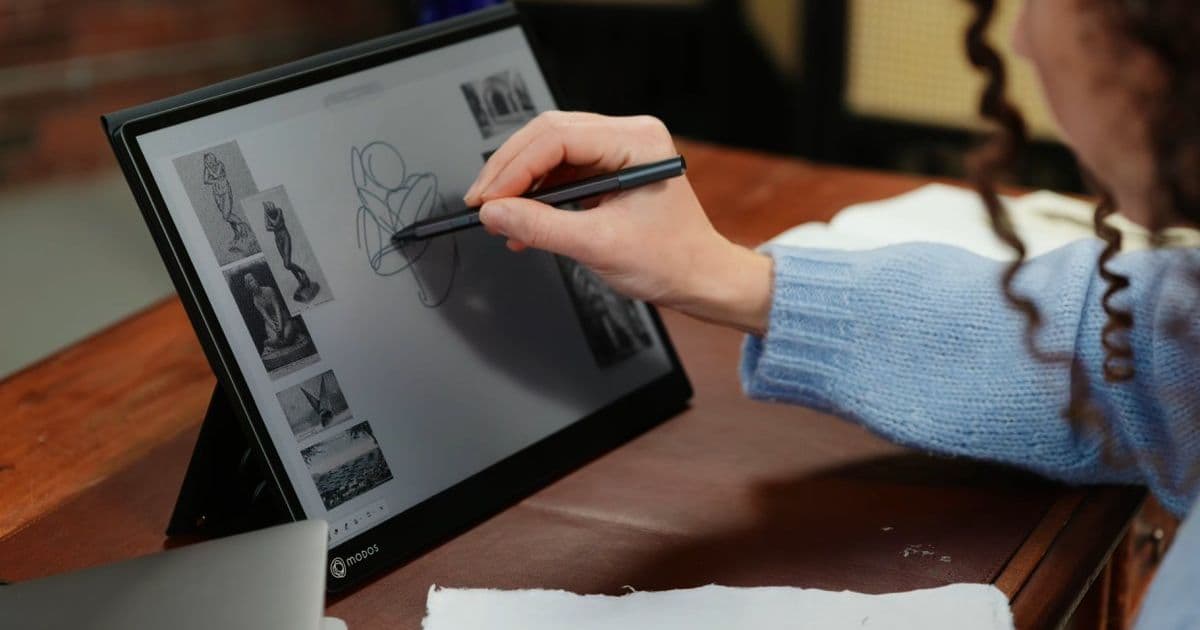
The Modos Flow brings a 13.3‑inch, 3200 × 2400 E Ink touchscreen to the market with USB‑C video‑plus‑power, stylus support, and a custom FPGA firmware. At $619 for grayscale and $719 for color, it promises weeks of battery life and a paper‑like reading experience, but its refresh‑rate limits and unique driver stack raise several questions for iOS, Android, and cross‑platform developers.
A new portable display for developers
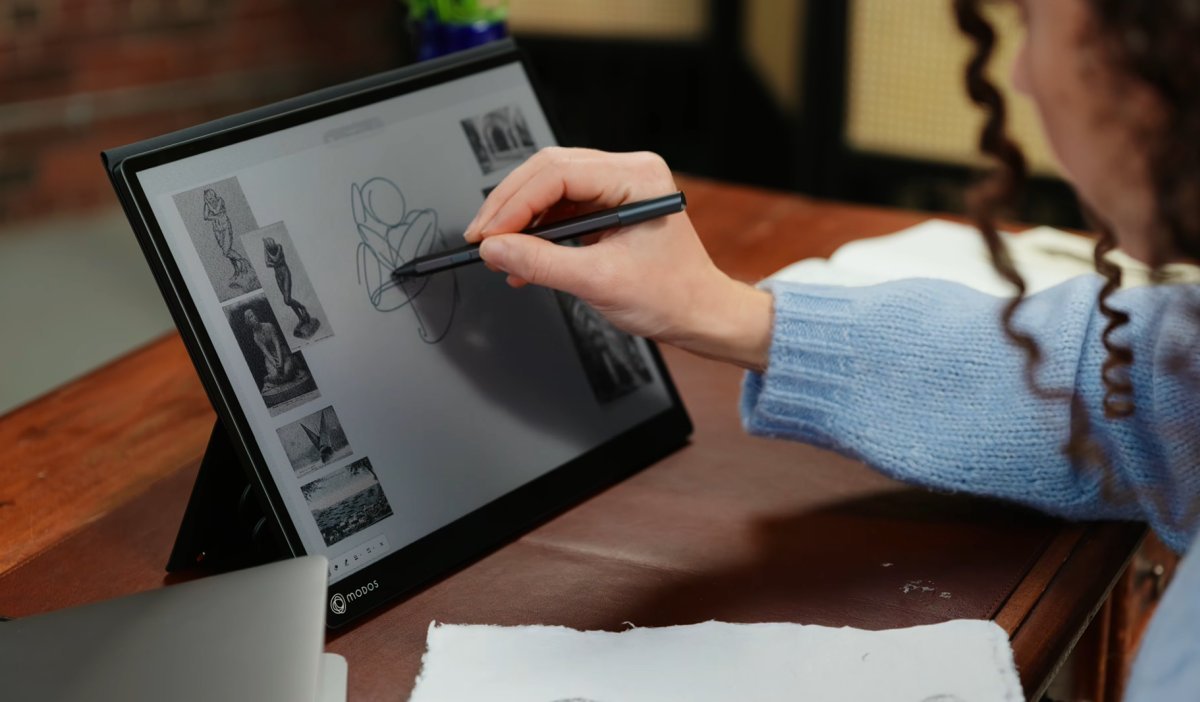 Modos has opened a Crowd Supply campaign for the Flow, a 13.3‑inch E Ink touchscreen that can show up to 4 096 colors (in the Kaleido version) or 16 shades of gray in the grayscale model. The screen runs at a maximum 60 Hz, but the refresh‑rate is dynamically throttled by a custom FPGA board that switches between reading, typing, browsing and watching modes. Two USB‑C ports provide separate power and video lanes, although a single USB‑C cable works when the host device supports USB‑PD + DisplayPort Alt Mode.
Why E Ink matters for mobile devs
E Ink panels differ from LCD or OLED in three key ways that affect app development:
- Power model – Pixels only consume energy when they change state. A static UI can stay on the screen for days without draining the host’s battery.
- Refresh‑rate constraints – Even at the advertised 60 Hz, the panel uses a wave‑form that introduces ghosting and limited motion fidelity. Fast animations that feel smooth on a phone screen will look jittery on the Flow.
- Color depth – The Kaleido variant reduces effective pixel density to accommodate 4 096 colors, meaning UI elements designed for 24‑bit color must be tested for banding.
For developers who build productivity tools, note‑taking apps, or e‑reading experiences, the Flow offers a compelling “paper‑like” surface that can be used for long‑form reading without eye strain. For games or video‑heavy apps, the trade‑off is less attractive.
Platform requirements and SDK support
iOS (iPadOS, iPhone)
- Connector support – iOS devices need a USB‑C port with DisplayPort Alt Mode (iPad Pro 2021+, iPad Air 5, latest iPhone 15 series). The Flow’s dual‑port design means you can power the monitor from the same cable using USB‑PD if the host supplies at least 15 W.
- Driver model – iOS treats external displays as secondary screens and mirrors or extends the UI via
UIScreen. No special driver is required, but the system assumes a minimum 60 Hz LCD. To avoid jank, you should limit frame rates when the Flow is detected. UseUIScreen.main.maximumFramesPerSecondto query the attached display and cap your rendering loop accordingly. - Touch & stylus – The Flow reports a standard HID touch interface over USB. iOS does not expose raw touch data from external displays, so you’ll need to rely on the built‑in Apple Pencil on the host device for precise input, or implement a custom Bluetooth bridge if you want the Flow’s stylus to drive your app directly.
Android
- USB‑C video – Most recent Android tablets and phones (Pixel 8 Pro, Samsung Galaxy Tab S9, etc.) support DisplayPort over USB‑C. The Flow’s power‑only port can be fed from a separate charger, or you can use a USB‑C hub that splits PD and video.
- External display handling – Android’s
DisplayManagerwill expose the Flow as a secondary display. You can create aPresentationobject to render a separate UI surface. Remember to queryDisplay.getRefreshRate(); on the Flow it may return values between 30 Hz and 60 Hz depending on the mode. - Touch input – The Flow presents a generic HID touch device. Android will route touch events to the active window on the external display, so a custom app can receive
MotionEventobjects just like on‑screen touches. For stylus pressure, checkMotionEvent.getToolType()andgetPressure()– the Flow’s stylus reports up to 2048 pressure levels.
Cross‑platform frameworks (Flutter, React Native, .NET MAUI)
- Flutter – The
flutter/screenplugin can enumerate external displays. When a display reports a refresh rate below 45 Hz, Flutter automatically throttles the compositor, but you may still see ghosting. To provide a reading‑optimized UI, switch to a low‑frame‑rate theme (e.g.,ThemeDatawithanimationDuration: Duration(milliseconds: 0)). - React Native – Use the
react-native-external-displaymodule to create a separateWindow. The module forwards raw touch events, but you’ll need to test pressure sensitivity on Android only; iOS will treat the Flow as a mirrored screen. - .NET MAUI – MAUI’s multi‑window support works out of the box on Windows and macOS, but on mobile you must enable
DisplayInfoChangedevents to detect the Flow and adjustGraphicsViewframe rates.
Migration checklist for existing mobile apps
| Step | iOS | Android | Cross‑platform |
|---|---|---|---|
| 1. Detect the Flow | for screen in UIScreen.screens where screen.nativeBounds.width == 3200 |
DisplayManager.getDisplays() and match width == 3200 |
Use framework‑specific display enumeration APIs |
| 2. Cap frame rate | screen.maximumFramesPerSecond = min(screen.maximumFramesPerSecond, 45) |
display.setRefreshRate(45) via SurfaceControl |
Set fps in Flutter WidgetsBinding.instance.window.onMetricsChanged |
| 3. Adjust UI density | Reduce font size scaling to avoid banding on Kaleido | Provide dp‑based layout that respects lower pixel density |
Use responsive units (rem, sp) that adapt to window.devicePixelRatio |
| 4. Handle touch input | No extra code; rely on host device’s touch | Register InputDevice.SOURCE_TOUCHSCREEN for the Flow |
Ensure touch listeners are attached to the external View |
| 5. Test battery impact | Verify that the host stays in low‑power mode when UI is static | Use PowerManager.isInteractive() to confirm low draw |
Profile with platform‑specific profilers (Xcode Instruments, Android Profiler) |
Practical considerations for developers
- Design for static content – Since the Flow excels at displaying unchanged pages, structure your app so that reading screens are separate from interactive ones. A “reading mode” that disables animations can double perceived battery life.
- Provide a fallback UI – Offer an LCD‑optimized layout when the Flow is not connected. Users may switch between a regular phone screen and the Flow throughout the day.
- Mind the color reduction – The Kaleido panel sacrifices effective resolution for color. Test iconography at 2× scaling; you may need to supply vector assets to avoid pixelation.
- Stylus workflows – The Flow’s stylus works over USB HID, so you can capture pressure data without extra SDKs on Android. On iOS you’ll need a Bluetooth bridge or rely on Apple Pencil on the host device.
- Video is a non‑starter – Even at 60 Hz, video playback appears grainy and suffers from ghosting. If your app includes video, automatically route it to the device’s built‑in screen and keep the Flow for reading only.
Bottom line
The Modos Flow is not a replacement for a conventional portable monitor, but it fills a niche for developers who need a low‑power, paper‑like secondary display. iOS and Android both support the required USB‑C video standards, and the major cross‑platform frameworks have enough hooks to let you adapt your UI for the Flow’s quirks. By detecting the display, throttling frame rates, and providing a static‑content‑first experience, you can turn the Flow into a productivity boost rather than a novelty.
Further reading
- Modos Flow official page – specifications and firmware updates
- Apple’s External Display Programming Guide – handling secondary screens on iOS
- Android DisplayManager documentation – enumerating and configuring external displays
- Flutter external display plugin
- React Native external display module
Comments
Please log in or register to join the discussion