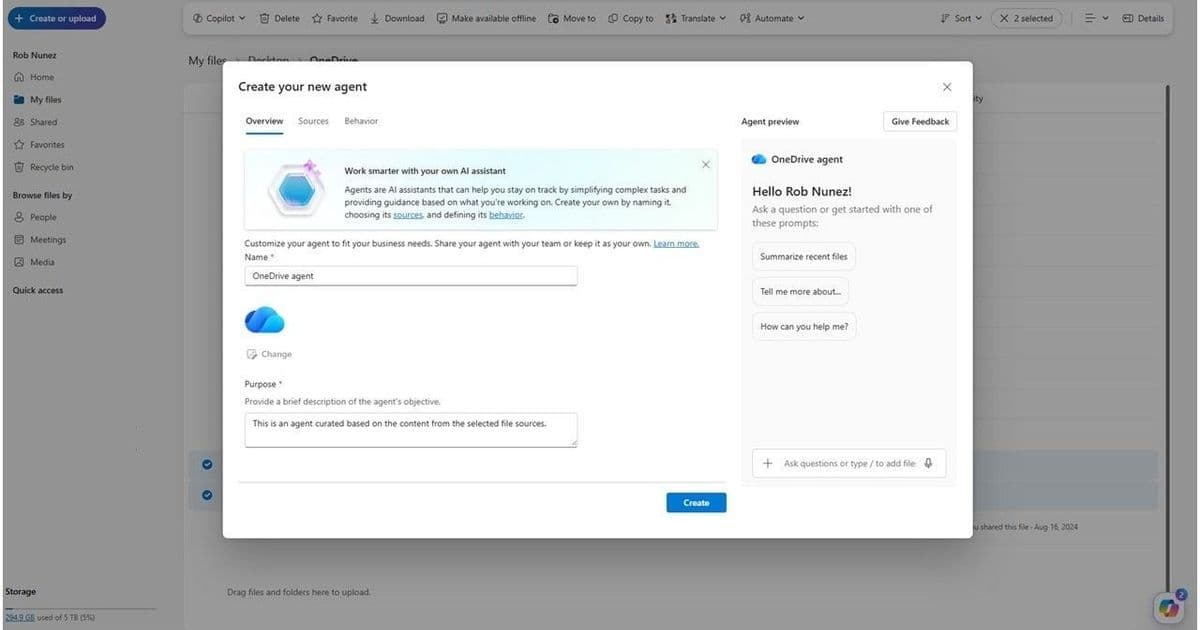
Microsoft's Agents in OneDrive are now generally available, letting users create AI assistants that understand entire document sets and provide contextual answers based on their own content.
Microsoft has officially launched Agents in OneDrive, bringing AI-powered assistants that can understand and respond based on your organization's documents. This new feature transforms how teams interact with their content, creating focused AI teammates that stay grounded in the specific files and folders you choose.
What Are OneDrive Agents?
Think of an agent as a specialized AI teammate built from your own files. Rather than asking Copilot the same questions across individual documents, you can now create an agent that understands an entire collection of content—project plans, specifications, meeting notes, research materials, or presentations—and responds with answers drawn directly from that context.
Agents are saved as .agent files in OneDrive, just like documents or spreadsheets. When you open one, you're dropped into a full-screen Copilot experience that stays centered on that specific project or topic, maintaining conversation history and context as work evolves.
Getting Started is Simple
You don't need special admin setup to begin using Agents. All you need is:
- OneDrive on the web
- A Microsoft 365 Copilot license
From there, you can:
- Select + Create or upload files and choose Create an agent
- Select files and choose Create an agent from the toolbar or right-click menu
- Pick up to 20 files, name your agent, add optional instructions, and save
Your agent immediately appears in OneDrive as a .agent file, ready to help your team.
Where Agents Shine
Because agents stay tied to the content you select, they're especially powerful for work that spans people, time, and files:
Project Coordination
Get clarity fast without digging through folders:
- "What decisions have we made so far?"
- "What's still open, and who owns it?"
Onboarding and Knowledge Transfer
Help teammates ramp up using existing content:
- "Explain how this team operates based on these docs."
- "Summarize how we ship new features."
Meeting Prep and Follow-up
Keep momentum without re-reading notes:
- "What did we agree to in recent reviews?"
- "What risks keep coming up?"
Research and Synthesis
Turn collections of material into insights:
- "What themes show up across these reports?"
- "What did we learn from this research?"
Instead of jumping between files, you keep the conversation in one place with context and history preserved per project.
Integration and Sharing
Agents behave like any other file in OneDrive. You can search for them, filter by file type, open them, and update them as work progresses. As projects change, you can add or remove files or refine instructions, so your agent stays aligned with the latest information.
Sharing an agent is just as easy. Share it with teammates like a regular OneDrive file. As long as collaborators have access to the source documents, the agent can provide complete, grounded responses, keeping everyone aligned without extra handoffs.
The Bigger Picture
This launch represents Microsoft's continued push to embed AI capabilities directly into productivity workflows. By grounding AI responses in your actual content rather than generic knowledge, Agents in OneDrive offers a more contextual and reliable experience compared to general-purpose AI assistants.
The feature is now generally available worldwide for OneDrive on the web, requiring only a Microsoft 365 Copilot license. This makes it accessible to organizations already invested in Microsoft's AI ecosystem.
Getting the Most from Agents
To maximize the value of Agents in OneDrive:
- Start with well-organized document collections
- Use clear, specific instructions when creating agents
- Regularly update agent content as projects evolve
- Share agents with team members who need access to the same context
Microsoft is actively seeking feedback on how teams are using Agents and what improvements would make them more valuable. The company sees this as an evolving feature that will benefit from real-world usage patterns and user insights.
For those looking to dive deeper, Microsoft provides comprehensive documentation on getting started with OneDrive agents, creating and using agents, finding agent files, and sharing agents.
Comments
Please log in or register to join the discussion