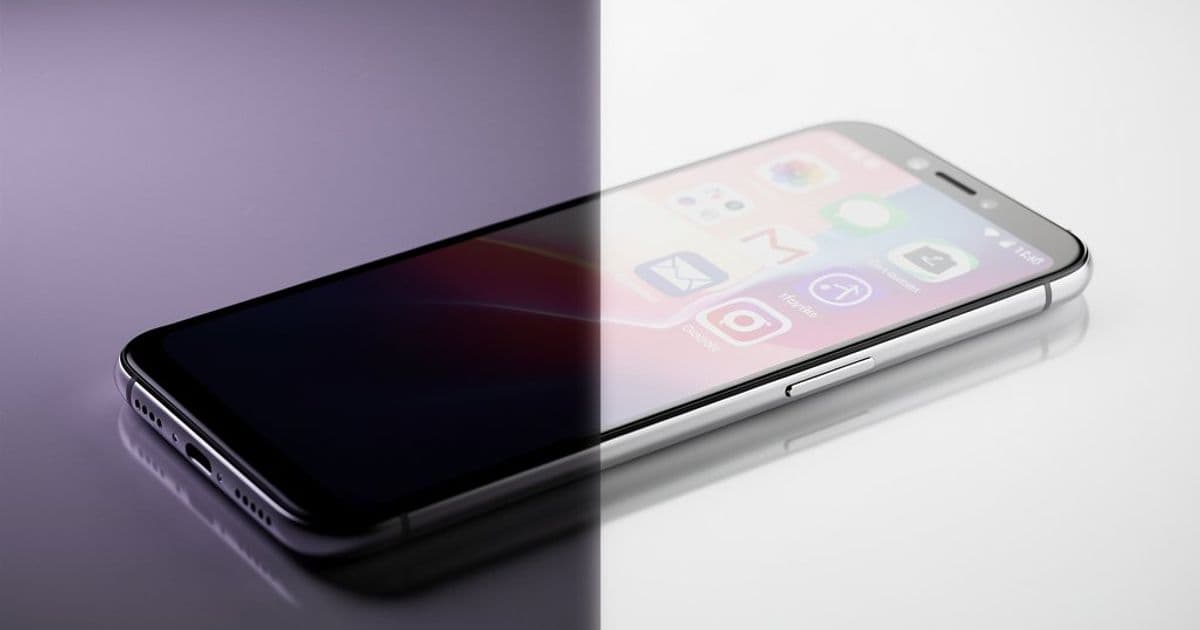
Android work profiles, traditionally managed by employers through tools like Microsoft Intune, can now be configured on personal devices using third-party apps. This guide explains the benefits of isolating work and personal apps and walks through setting up a work profile using the Island app.
For years, the Android work profile has been a staple of corporate device management, offering a clean separation between personal and professional data. Traditionally, this feature is provisioned and controlled by an organization's IT department using platforms like Microsoft Intune or Google Workspace. However, the ability to create a work profile on a personal device—without employer intervention—has become increasingly accessible. This allows individuals to manage their own app silos, turning a single device into a dual-purpose tool with a single tap.
What is an Android Work Profile?
At its core, an Android work profile is a secure, isolated container within the Android operating system. When activated, it creates a separate space for applications, accounts, and data. For enterprises, this isolation is critical: IT administrators can enforce policies, restrict app installations, and remotely wipe the work container without affecting the user's personal data. The official Android documentation details the security and management capabilities designed for this environment.
For personal use, the primary benefits shift from corporate control to user convenience and privacy. The most significant advantage is the ability to toggle the entire work profile on or off. When disabled, all work applications and their notifications are instantly hidden, creating a distraction-free personal environment. This is managed through a system tray icon—a small briefcase—that serves as a master switch. The isolation also means that data from work apps (like email, calendar, or documents) cannot access personal files, and vice versa, providing a clear boundary for privacy and security.
Setting Up a Personal Work Profile with Island
While Android's native work profile setup is typically locked behind enterprise management, third-party applications have emerged to bridge this gap. The most popular and user-friendly option is Island, a free app available on the Google Play Store. Island leverages the same Android work profile APIs that enterprises use, but puts the configuration in the hands of the user.
The setup process is straightforward:
- Install Island: Download and install the Island app from the Play Store.
- Configure the Profile: Open Island and follow the on-screen prompts. The app will guide you through the necessary permissions and create the work profile container on your device.
- Identify the Controls: Once configured, a new briefcase icon will appear in your system tray. Tapping this icon allows you to enable or disable the entire work profile instantly.
- Install Work Apps: Apps must be installed within the work profile to be managed by it. Island provides a dedicated Play Store instance (indicated by a blue briefcase icon) for this purpose. Common choices include separate instances of Gmail, Outlook, Slack, or Microsoft Teams. Alternatively, Island allows you to "clone" existing apps from your personal profile (referred to as "Mainland") into the work profile ("Island").
When the work profile is active, all installed work apps display a small blue briefcase badge on their icons, providing a visual cue. Disabling the profile hides these apps and silences their notifications, effectively creating a clean slate.
Limitations and Alternative Approaches
While Island is a powerful tool, it is not without limitations. The functionality depends on your device manufacturer's implementation of Android and the specific Android version. Some manufacturers, or custom ROMs, may not fully support the work profile APIs required by apps like Island. In such cases, the setup may fail or certain features may be unavailable.
If Island does not work on your device, consider these alternatives:
- Shelter: Another open-source app that uses the same work profile mechanism. It offers a different interface and may have better compatibility on certain devices.
- Multiple User Accounts: Android also supports creating separate user accounts on a single device. While this provides complete isolation, it is less convenient than a work profile, as switching between accounts requires logging out and back in, and not all apps support seamless data sharing between profiles.
- App Cloners: Some device manufacturers (like Samsung, Xiaomi, or Huawei) include built-in "Dual Apps" or "App Twin" features. These clone specific apps, allowing you to run two instances (e.g., two WhatsApp accounts). However, this is less comprehensive than a full work profile, as it doesn't provide a unified container for all work-related apps and notifications.
Strategic Value for the Individual User
Setting up your own Android work profile is more than a productivity hack; it's a strategic approach to digital well-being and data segregation. In an era where personal and professional lives are increasingly intertwined on mobile devices, creating a clear boundary can reduce cognitive load and improve focus. The ability to physically "turn off" work with a single tap is a powerful tool for preventing burnout and maintaining personal time.
For freelancers, contractors, or employees whose organizations don't provide managed devices, this method offers a level of control and separation typically reserved for corporate environments. It allows for the installation of work-specific apps without cluttering the personal app drawer and ensures that sensitive work data is contained within a secure, user-managed container.
By leveraging tools like Island, Android users can reclaim control over their device's environment, tailoring it to their specific needs for work-life balance and personal security.
Comments
Please log in or register to join the discussion