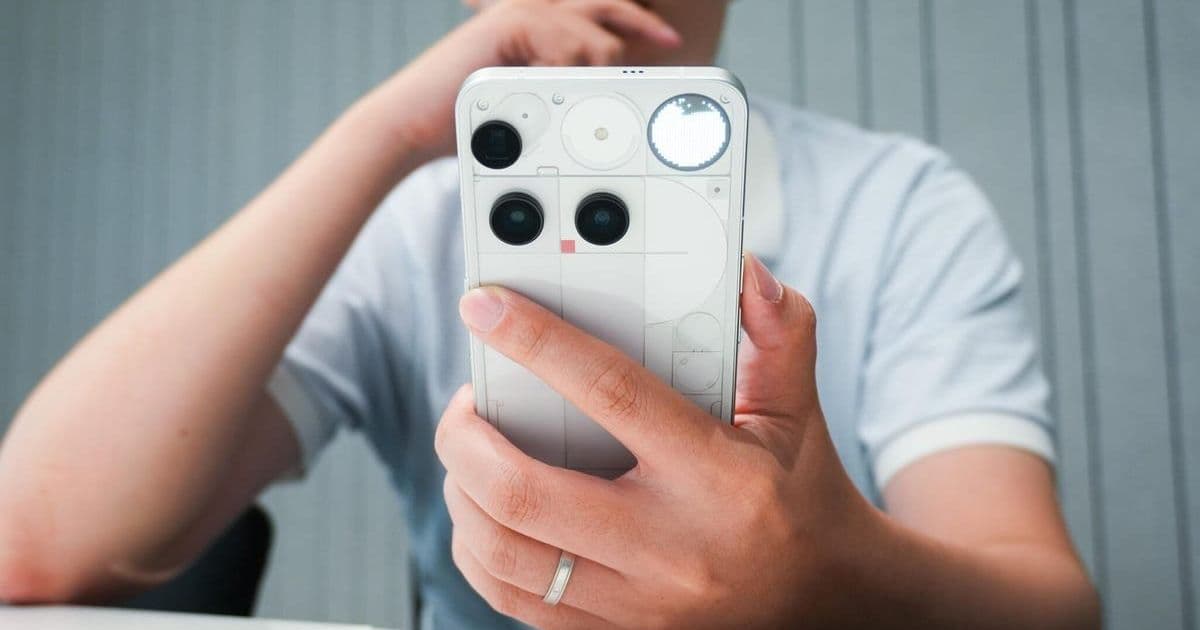
Discover a simple, free tweak in Android's developer options that can make Samsung and Google phones feel dramatically faster by reducing animation delays. This guide reveals how to access hidden settings for a snappier interface, drawing from expert smartphone testing insights.
As smartphones age, sluggish performance often becomes a daily frustration. But what if you could double your device's perceived speed with a few taps—no hardware upgrades or expensive apps required? This isn't hype; it's a proven optimization technique used by smartphone reviewers like Kerry Wan, Managing Editor at ZDNET, who relies on it to fine-tune devices for evaluations. By adjusting animation scales in Android's developer options, users can transform a laggy experience into one that feels instantly more responsive.
 The main article image highlights the simplicity of accessing developer settings, a gateway to performance gains.
Why Animation Tweaks Matter
Animations—those smooth transitions when opening apps or switching screens—are designed to make Android feel polished. However, they introduce micro-delays that accumulate, especially on older or resource-constrained devices. Reducing these animations doesn't just shave milliseconds; it creates a perceptible leap in snappiness. As Wan notes from extensive testing, 'Your phone should feel more responsive; none of that is a placebo.' This approach leverages Android's flexibility, turning a tool intended for developers into a user-centric performance booster.
Step-by-Step: Unlocking Faster Performance
- Enable Developer Options: Navigate to Settings > About phone > Software information. Tap 'Build number' seven times until you see a confirmation message. This reveals the hidden 'Developer options' menu in your main settings.
- Adjust Animation Scales: In Developer options, scroll to 'Drawing' and modify three settings:
- Window animation scale: Controls app pop-up speed.
- Transition animation scale: Affects movements between home screens or app sections.
- Animator duration scale: Governs general UI animations like app launches. Change each from the default 1x to 0.5x for balanced speed or 'Off' for maximum responsiveness.
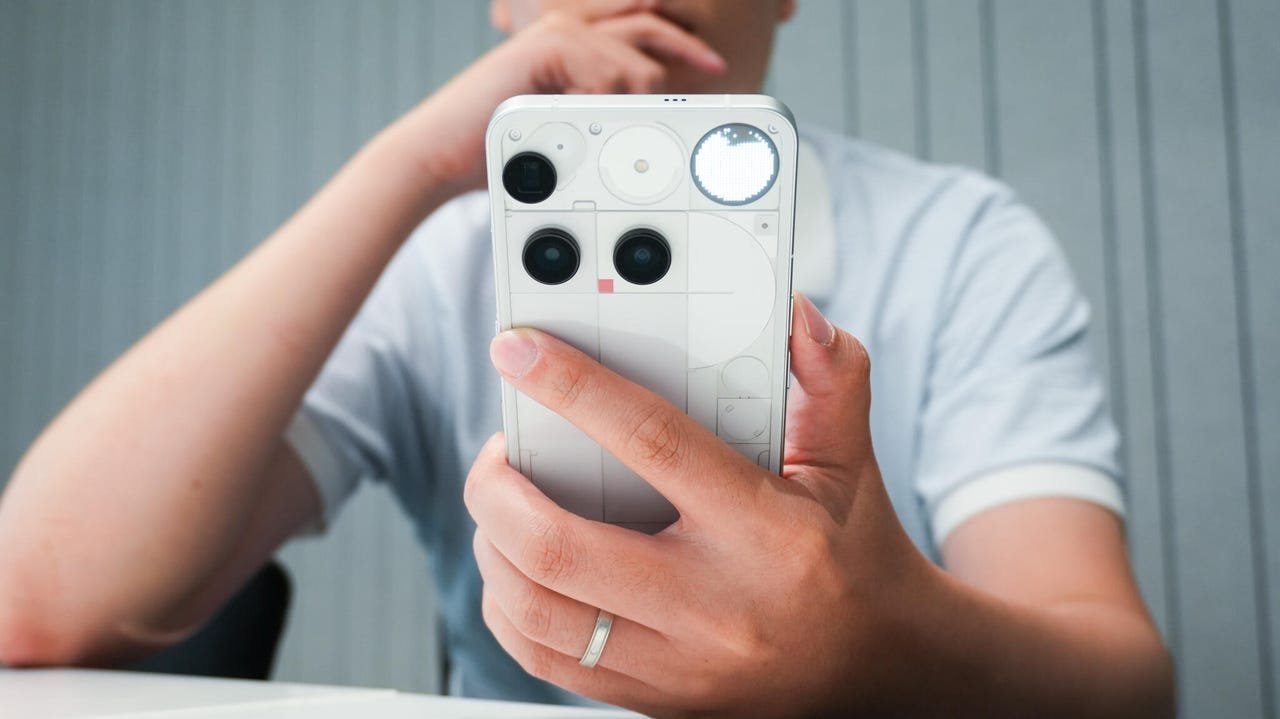 Kerry Wan demonstrates the animation settings menu, emphasizing its accessibility on devices like the Nothing Phone 3.
Implications and Best Practices
This tweak is particularly impactful for mid-range or aging phones, where every fraction of a second counts. While it won't boost processing power, it eliminates visual bottlenecks, making interactions feel fluid. For developers, it's a reminder of how under-the-hood settings can enhance user experience—something Google and Samsung could surface more prominently. A word of caution: disabling animations entirely might make the UI feel abrupt; 0.5x is recommended for a seamless yet faster feel. As Wan advises, 'Swipe around your phone... see if you notice a change.'
In a world obsessed with hardware specs, this software fix underscores that sometimes the most effective optimizations are the simplest. It empowers users to reclaim control over their devices, turning a routine setting into a gateway for renewed efficiency—proving that speed isn't always about what's new, but how you use what you have.
Source: Based on original reporting by Kerry Wan for ZDNET.
Comments
Please log in or register to join the discussion