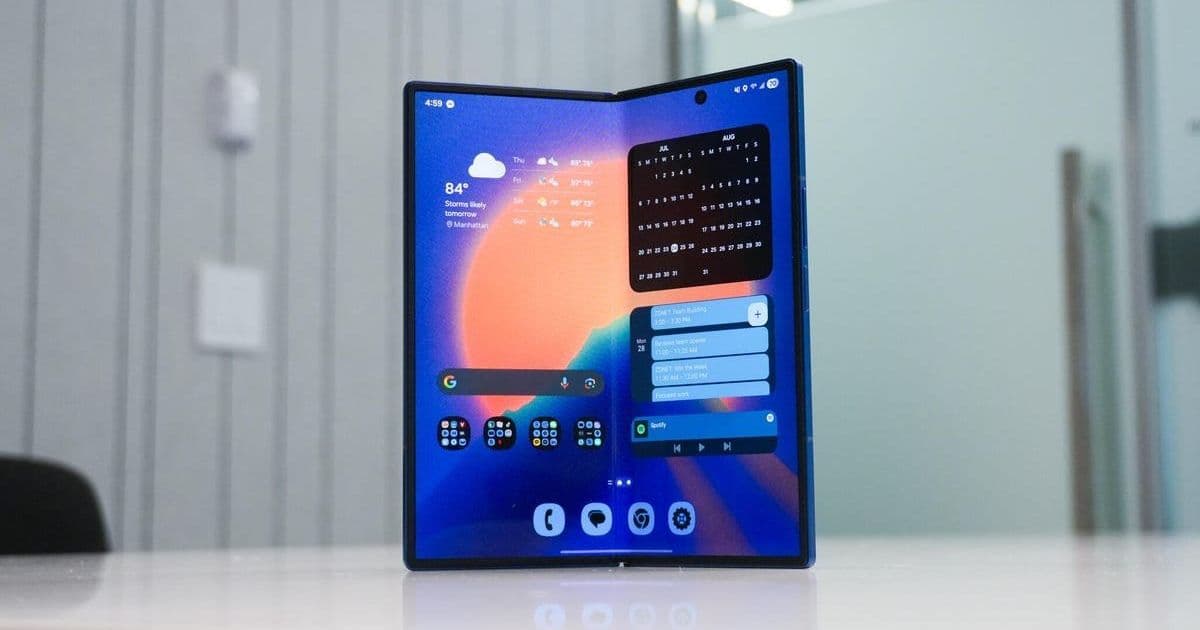
Samsung's feature-packed flagships like the Galaxy S25 Ultra and Z Fold 7 offer immense capability but can drain batteries quickly. Discover seven non-intrusive settings tweaks—from adaptive displays to app management—that extend daily usage without compromising functionality. For developers and tech professionals, these optimizations mean fewer charges and more reliability in demanding workflows.
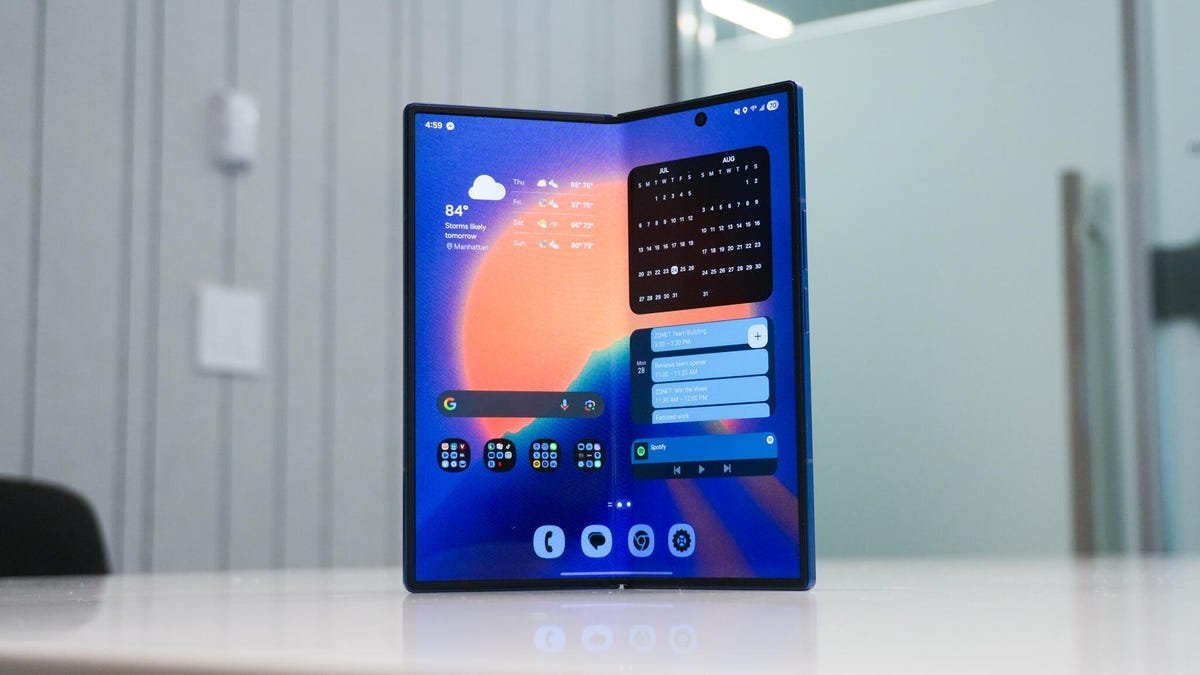
Samsung Galaxy smartphones, including the powerhouse S25 Ultra and innovative Z Fold 7, dominate the Android landscape with their rich feature sets and responsive software. Yet, these very strengths often come at a cost: battery life that struggles to keep pace with intensive daily use. For developers debugging code on the go or tech leaders juggling back-to-back calls, unexpected shutdowns aren't just inconvenient—they disrupt productivity. Prakhar Khanna of ZDNET recently tested practical adjustments that significantly boost endurance, and the results offer actionable insights for anyone reliant on their Galaxy device. Here’s how to implement these changes while maintaining peak performance.
1. Leverage Dark Mode for AMOLED Efficiency
Samsung’s AMOLED displays excel because they illuminate only necessary pixels, turning off blacks entirely. Enabling Dark Mode reduces power draw substantially, especially during extended coding sessions or document reviews.
How to: Settings > Display > Select 'Dark'. Pair this with a dark wallpaper for maximum effect.
2. Embrace Adaptive Brightness
Modern Galaxy phones use advanced ambient sensors to fine-tune screen brightness dynamically. This prevents over-illumination in dim environments—a common battery hog during late-night work marathons.
How to: Settings > Display > Toggle on Adaptive Brightness.
3. Identify and Neutralize Power-Hungry Apps
Preinstalled apps like Facebook or OneDrive often run background processes that drain resources. For developers, this is critical: unnecessary services can slow builds or increase latency. Uninstalling or disabling them reclaims cycles for essential tasks.
How to: Long-press app > Uninstall, or navigate to Settings > Battery > Background usage limits.
4. Schedule Always-On Display Wisely
 The Always-On Display (AOD) is invaluable for notifications but can be inefficient on non-LTPO screens. Scheduling it—say, from 9 AM to 6 PM—ensures visibility during work hours while conserving power overnight. As Khanna notes, disabling 'Show lock screen wallpaper' adds extra savings.
How to: Settings > Lock Screen and AOD > Set 'As scheduled' under 'When to show'.
5. Download Content Offline
Streaming over 5G/LTE heats the device and depletes batteries rapidly. Downloading maps, music, or podcasts via Wi-Fi beforehand is a game-changer for commutes or travel, reducing cellular strain. This mirrors best practices in app development—caching data locally minimizes network dependence.
6. Switch to Light Performance Profile
For non-gaming users, Samsung’s Light Performance profile throttles CPU usage intelligently. It’s ideal for coding, emails, or research, prioritizing battery and thermals without noticeable lag—akin to optimizing cloud resource allocation in DevOps.
How to: Settings > Device care > Performance profile > Choose 'Light'.
7. Audit Background App Drain
Galaxy’s built-in diagnostics pinpoint apps consuming excessive power due to location services or background sync. Limiting these ensures resources funnel toward priority applications, much like containerizing microservices for efficiency.
When Battery Runs Critical: Khanna advises emergency measures like disabling location services or data roaming below 15% charge. These are stopgaps, but the core seven tweaks provide sustainable gains—extending uptime for cross-platform testing or field deployments.
Ultimately, these optimizations highlight a broader trend: as smartphones become primary tools for tech professionals, mastering their ecosystem is as crucial as writing clean code. With minimal effort, you’re not just saving battery—you’re reclaiming time.
Source: Adapted from Prakhar Khanna’s original reporting for ZDNET.
Comments
Please log in or register to join the discussion