Engineers at Pareto Security reveal a cost-efficient method to launch disposable Windows 11 VMs on Azure in under two minutes using GitHub Actions. The setup auto-destroys sessions after use while costing mere dollars per month—ideal for testing and security research without local resource drain.
For developers needing pristine Windows environments—whether for compatibility testing, malware analysis, or CI/CD validation—local virtualization often means tedious setup, snapshot management, and hardware strain. Pareto Security's Neyts Zupan details an elegant alternative: ephemeral Windows 11 VMs provisioned on-demand via GitHub Actions, with Azure handling execution and auto-reset.
The Workflow: Fast, Disposable, and Cost-Optimized
- Trigger a GitHub Action to boot a Windows 11 VM on Azure.
- Connect via Remote Desktop (Mac/Linux compatible).
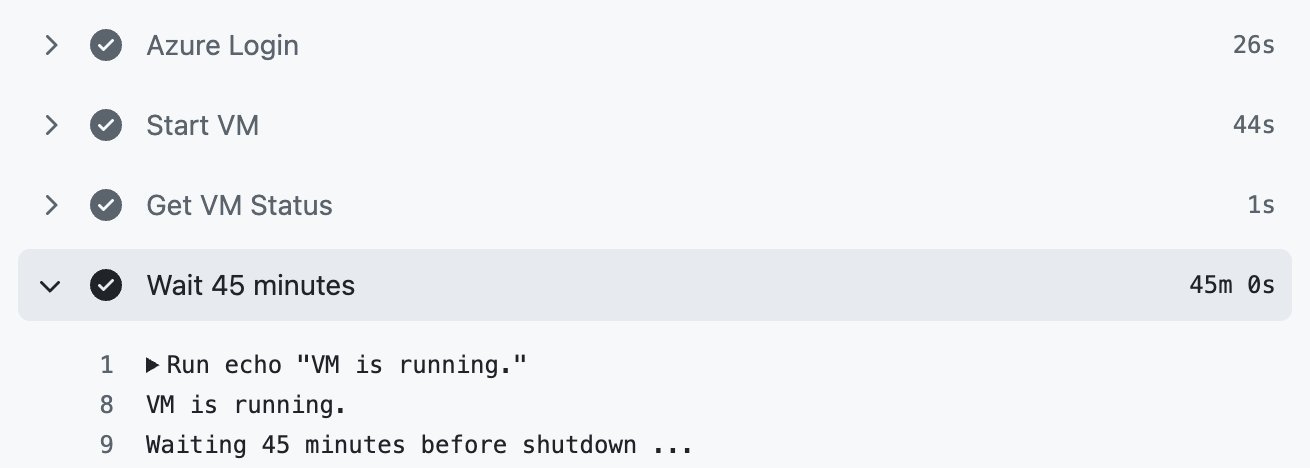
- After 45 minutes of inactivity, the VM auto-shuts down and reverts to a clean state.
Costs are minimized through strategic choices: a Standard HDD disk ($6/month) plus a static IP ($4/month), with compute billed only during active use ($0.20/hour). Compared to local tools like UTM, this eliminates 10–15-minute boot/reset cycles and local resource contention.
Technical Setup: Azure Permissions and Automation
Critical to the flow is secure Azure-GitHub integration. Engineers must:
- Register an Azure AD Application for GitHub Actions access.
- Generate a client secret (saved in GitHub as
AZURE_CREDENTIALS). - Assign Contributor IAM permissions to the resource group.
The GitHub Action YAML then orchestrates the VM lifecycle:
- name: Reimage and Start VM
  run: |
    az login --service-principal -u ${{ secrets.AZURE_CREDENTIALS.clientId }} -p ${{ secrets.AZURE_CREDENTIALS.clientSecret }} --tenant ${{ secrets.AZURE_CREDENTIALS.tenantId }}
    az vm reimage --resource-group YOUR_GROUP --name YOUR_VM
    az vm start --resource-group YOUR_GROUP --name YOUR_VM
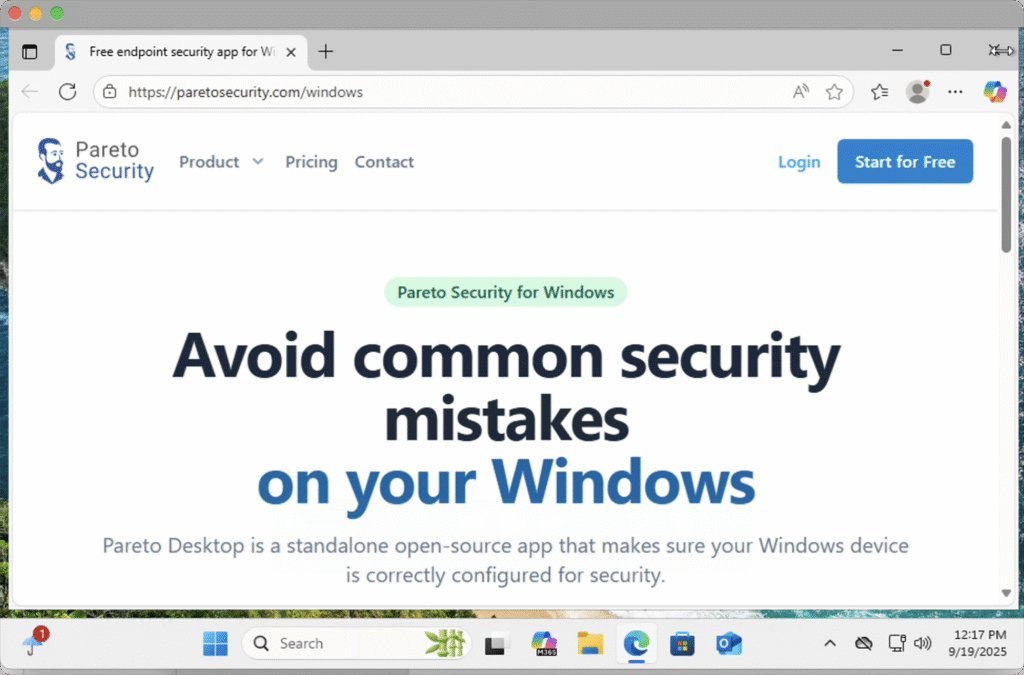 Azure VM configuration using a cost-efficient Standard HDD disk.
Advanced Optimization: Custom Images
To bypass Windows 11’s first-boot setup delays, Azure’s Shared Image Gallery proves invaluable:
- Configure a VM manually post-setup.
- Capture it as a custom image.
- Recreate the VM using this image—subsequent resets inherit your pre-configured state.
Caveats and Licensing
- Some images require
--admin-passwordduring reimaging. - Azure may enforce Windows 11 licensing; a Microsoft 365 Business Premium trial can unblock VM creation (cancelable afterward).
Why This Matters
For infrequent but critical Windows tasks—validating installers, testing exploits, or debugging edge cases—this model shifts operational burden to the cloud. The ephemeral nature ensures consistency while GitHub Actions abstracts infrastructure commands. As hybrid workflows grow, such patterns redefine "disposable compute"—no more babysitting local VMs.
Source: Pareto Security (Neyts Zupan)
Comments
Please log in or register to join the discussion