
A recent Windows 11 preview update (KB5067036) introduced a paradoxical bug: clicking Task Manager's close button fails to terminate the process, allowing instances to multiply endlessly. This accumulation of zombie processes can gradually consume CPU and memory, potentially impacting system performance over time. Microsoft has yet to formally acknowledge the issue, leaving users reliant on manual workarounds.
For decades, the Windows Task Manager has been the go-to tool for diagnosing misbehaving applications and reclaiming system resources. The irony is palpable, then, when the Task Manager itself becomes the misbehaving application. A bug introduced in the optional October preview update for Windows 11 24H2 and 25H2 (KB5067036) is causing precisely this headache for some users.

The Zombie Process Problem:
After installing KB5067036, users discovered that clicking the 'X' close button on the Task Manager window doesn't actually terminate the taskmgr.exe process. Instead, it vanishes from view while continuing to run in the background. Each subsequent launch of Task Manager spawns a new instance, layering them invisibly. This can be repeated indefinitely, creating an unseen horde of Task Manager processes.
"Each instance of Task Manager takes up around 20MB of system RAM and hovers between 0 and 2 percent CPU usage," notes Ars Technica's Andrew Cunningham. While a few instances are negligible, the cumulative effect of dozens or more – easily accumulated by frequent users or those who go long periods without rebooting – can lead to tangible performance degradation and reduced battery life as intermittent CPU usage spikes add up.
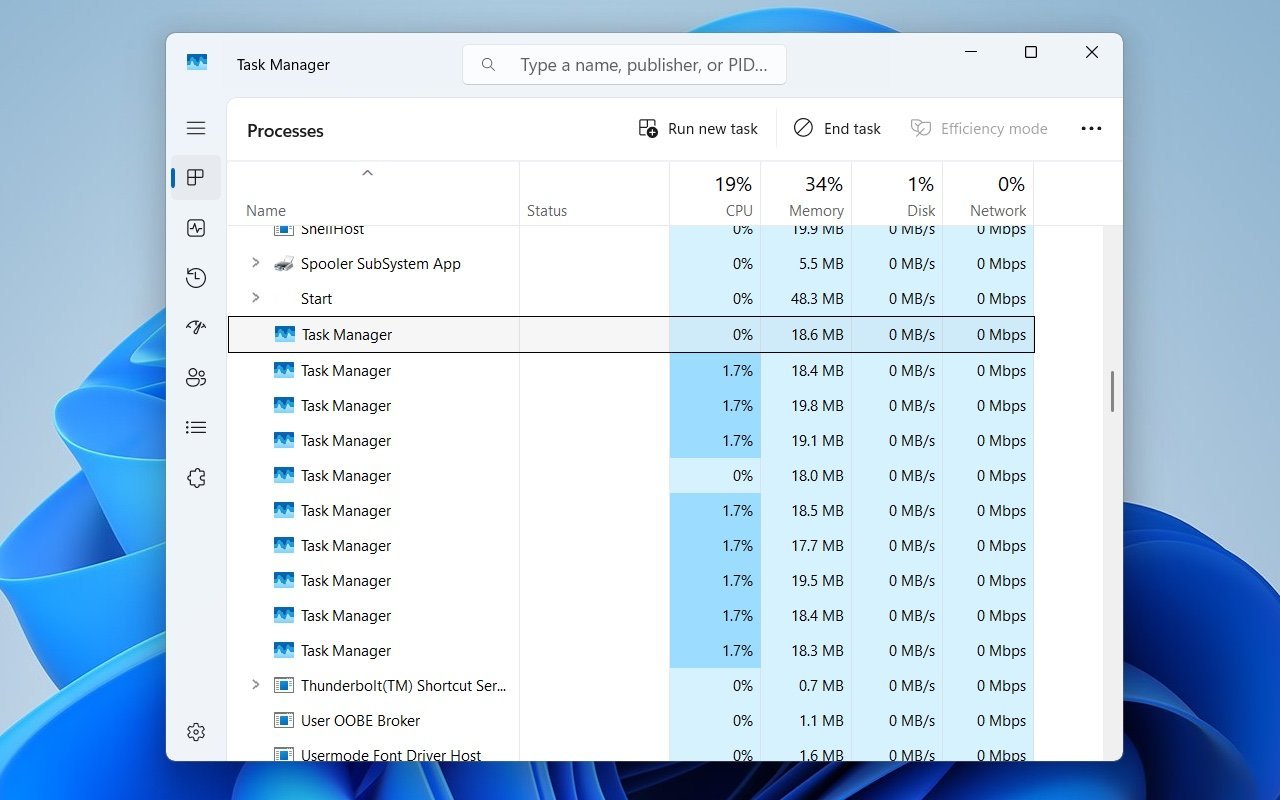
Limited Scope, But Real Impact: Crucially, this bug only affects systems where the optional KB5067036 preview update has been manually installed or where the "get the latest updates as soon as they’re available" setting is enabled in Windows Update. It does not impact systems running standard stable channel updates. While Microsoft hasn't yet officially listed it as a known issue, the bug is readily reproducible by multiple sources.
Mitigation Until a Fix: Until Microsoft releases a patch, affected users have two primary workarounds:
- The Command Line Nuke: Open Command Prompt or PowerShell as Administrator and run:
This forcefully terminates all running instances of Task Manager.taskkill /im taskmgr.exe /f - Manual Culling via... Task Manager: Ironically, the Task Manager can still be used to kill its own rogue instances. Open Task Manager, switch to the "Details" tab, locate multiple
taskmgr.exeentries, select them, and click "End task".
The situation underscores a peculiar failure mode within a core diagnostic tool. For system administrators and power users who rely on Task Manager for real-time monitoring and process management, this bug transforms a trusted utility into a potential source of instability itself. It's a stark reminder that even fundamental system components aren't immune to regression errors introduced in updates, highlighting the importance of cautious rollouts and robust testing – especially for tools designed to manage the system's very health. The resolution now rests on Microsoft acknowledging the bug and swiftly deploying a fix that allows Task Manager to finally close itself properly.
Comments
Please log in or register to join the discussion