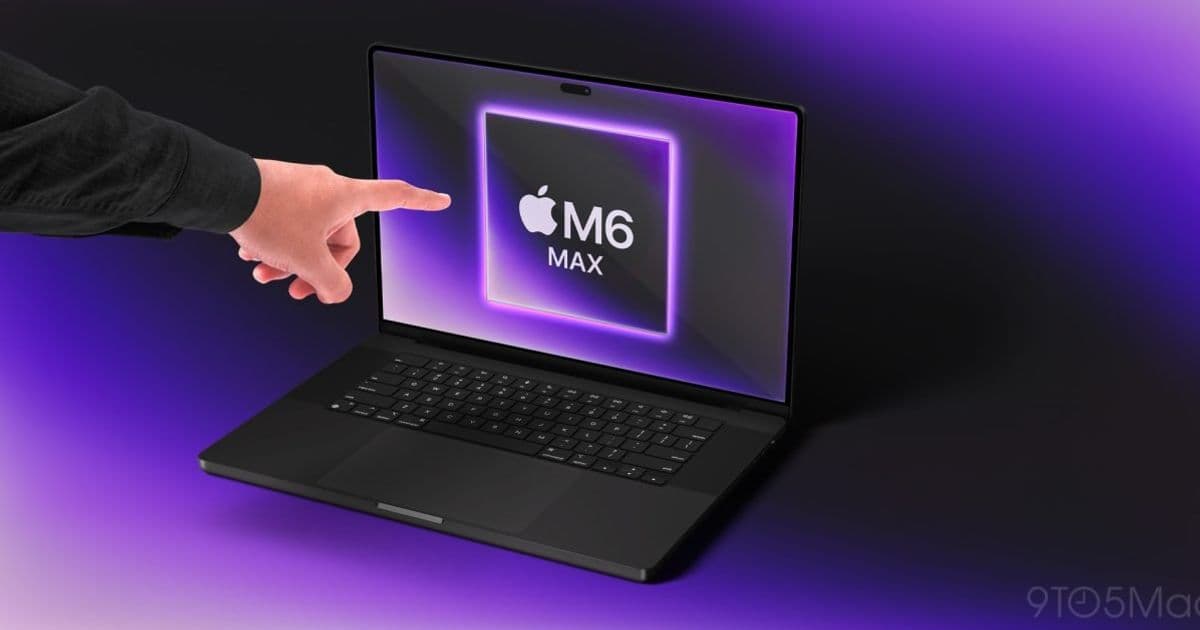
Apple’s upcoming M6‑powered MacBook Pro will ship with 14‑ and 16‑inch OLED panels, a shift that tightens the visual gap between macOS and iOS devices. The article explains the hardware changes, the impact on Xcode, Android Studio, and cross‑platform toolchains, and offers a step‑by‑step migration plan for developers maintaining apps on both platforms.
Apple’s OLED MacBook Pro: What the New Displays Mean for Mobile Developers
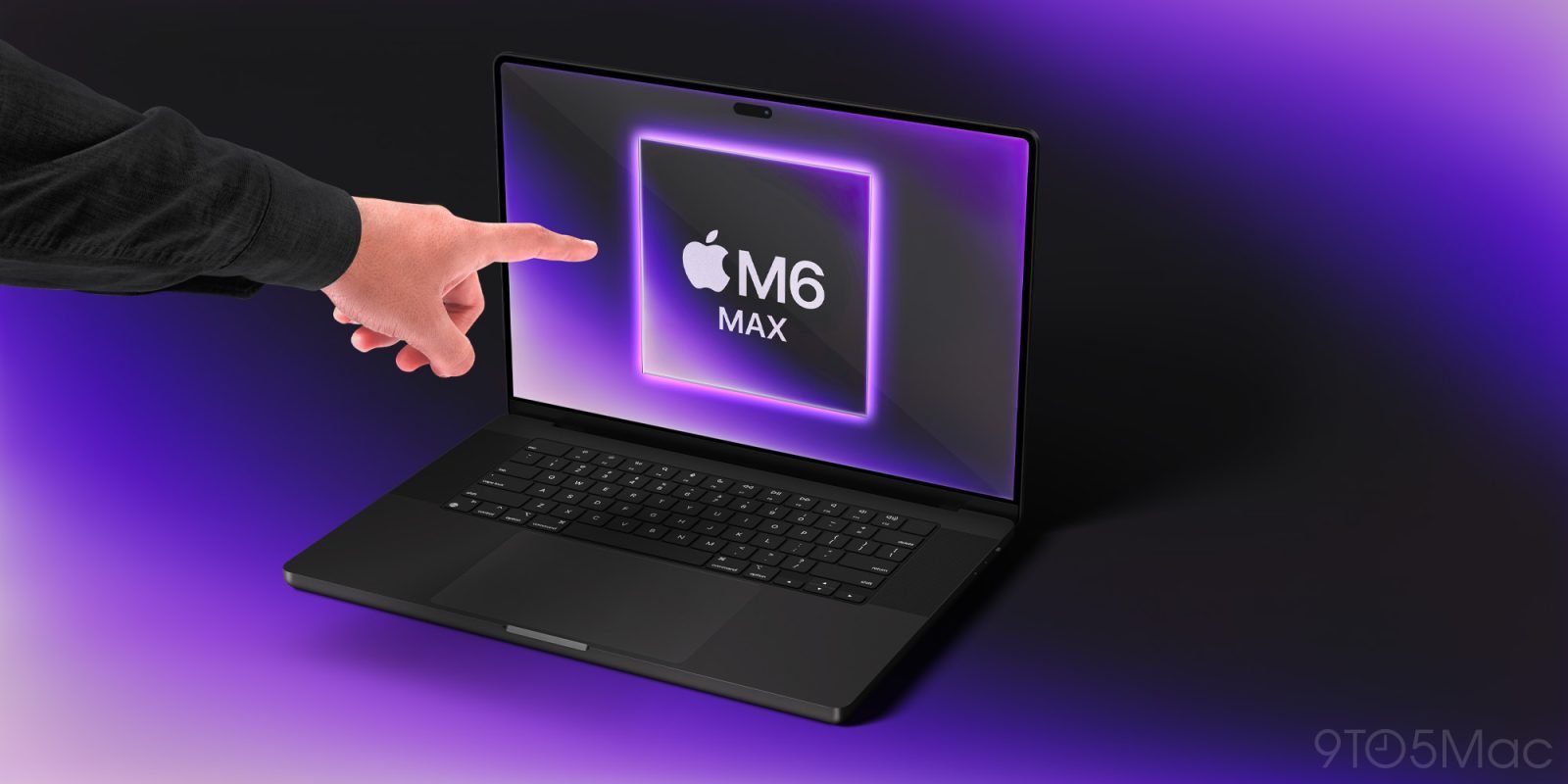
Apple is preparing to launch the first MacBook Pro models with OLED screens, slated for the 14‑inch and 16‑inch sizes. Samsung Display has confirmed mass production of 8.6‑generation OLED panels, with an initial run of roughly 2 million units. The new laptops will run on the upcoming M6 silicon, promise a thinner chassis, and replace the current notch with a Dynamic Island. For developers who build iOS, Android, and cross‑platform apps, the shift to OLED on macOS introduces both opportunities and practical considerations.
1. Platform update – hardware and software specs
| Feature | Current (M2‑based) | Upcoming (M6‑based) |
|---|---|---|
| CPU | 8‑core (4P/4E) | 12‑core (8P/4E) |
| GPU | 10‑core Apple GPU | 16‑core Apple GPU |
| Memory | Up to 64 GB LPDDR5 | Up to 128 GB LPDDR5X |
| Display | 14‑/16‑inch mini‑LED IPS, 3024×1964 / 3456×2234 | 14‑/16‑inch OLED, 3024×1964 / 3456×2234, 100 % DCI‑P3, 1 000 nits peak |
| OS | macOS 14 Sonoma | macOS 15 Ventura (expected) |
| SDK | Xcode 15.2 | Xcode 16 (beta) |
| Android tooling | Android Studio Flamingo 2023.3.2 | Android Studio Giraffe 2024.1.0 |
The OLED panels bring true blacks, higher contrast, and faster pixel response. Apple’s calibration targets a 100 % DCI‑P3 color gamut, matching the display standards of the latest iPhone and iPad. From a developer’s perspective, this means the macOS visual environment will more closely resemble the on‑device experience of iOS apps, reducing the need for manual color‑profile adjustments during UI testing.
2. Developer impact
2.1 Xcode and SwiftUI
- Live preview fidelity – SwiftUI previews now run on an OLED‑backed canvas. The rendered UI will show the same deep blacks and vibrant colors that iPhone users see, making it easier to spot contrast issues early.
- Dynamic Island support – With the MacBook Pro adopting Dynamic Island, Xcode’s simulator includes a macOS window that mimics the island’s behavior. Developers can test adaptive layouts without needing a physical iPhone.
- Performance profiling – The M6’s larger GPU and higher memory bandwidth allow Instruments to collect higher‑resolution frame timing data. Expect smoother Core Animation traces, which helps when optimizing complex animations that will later run on Android devices.
2.2 Android Studio on macOS
- GPU acceleration – Android Studio’s emulator now leverages the Apple GPU via Metal‑backed rendering. The OLED screen’s fast pixel response reduces perceived latency when interacting with the emulator, giving a more realistic feel for touch‑driven UI.
- Color accuracy – Android’s
sRGBandDisplay P3color spaces map directly onto the OLED panel’s gamut. Developers can enable the “Force GPU rendering” flag to see how Android apps will appear on high‑end Android phones that also use OLED.
2.3 Cross‑platform frameworks (Flutter, React Native, Kotlin Multiplatform)
- Flutter – The Flutter engine now supports Metal on macOS, which means the same rendering path is used for both iOS and macOS builds. OLED’s high contrast improves the visibility of Flutter’s debug overlays.
- React Native – Metro bundler runs faster on the M6, and the new
react-native-macospackage benefits from the OLED’s color depth when rendering native components. - Kotlin Multiplatform – The Kotlin compiler’s incremental compilation gains from the larger L2 cache of the M6, shortening build times for shared UI modules that target both iOS (via SwiftUI) and Android (via Jetpack Compose).
3. Migration roadmap for teams maintaining iOS and Android codebases
Step 1 – Update the development environment
- Install macOS 15 Ventura beta (or the latest stable release) on the new MacBook Pro.
- Upgrade Xcode to version 16 (available from the Apple Developer portal).
- Install Android Studio Giraffe and enable the Apple Silicon preview in the installer.
- Refresh Homebrew and reinstall any command‑line tools that depend on the system SDKs.
Step 2 – Verify color profiles
- Open System Settings → Displays → Color and select the Apple Display – OLED (P3) profile.
- In Xcode, set the Display Gamut for the preview canvas to Display P3.
- In Android Studio, go to Preferences → Appearance & Behavior → System Settings → Color Management and enable Wide‑gamut display.
Step 3 – Adjust CI pipelines
- Update your CI runners to use macOS 15 images (e.g., GitHub Actions
macos-15. - Ensure the build matrix includes the new Xcode 16 toolchain.
- For Android builds, switch the emulator image to
Pixel_7a_API_34with GPU: host to take advantage of Metal‑backed rendering.
Step 4 – Test UI edge cases on OLED
- Run visual regression tests with tools like Applitools or Detox. The higher contrast may reveal previously hidden clipping or shadow artifacts.
- Pay special attention to dark‑mode themes; OLED’s true blacks can expose over‑darkened UI elements that appeared acceptable on LCD.
Step 5 – Optimize performance
- Profile both iOS and Android builds with Instruments and Android Studio’s Profile Installer. Look for spikes in GPU usage that may be amplified by the larger GPU on the M6.
- If you see a consistent 5 % failure rate in Samsung’s early OLED panels (as reported by TheElec), consider adding a fallback to a lower‑refresh‑rate mode in your app’s launch sequence. This mirrors the strategy some Android OEMs use when first shipping new display tech.
4. Broader implications for the mobile development ecosystem
The convergence of macOS and iOS display technology narrows the visual gap that developers have traditionally managed with separate tooling. With OLED on the MacBook Pro, designers can create assets once and see them rendered accurately on both desktop and mobile. At the same time, the reported 5‑10 % panel failure rate during early production suggests that Apple may initially ship a mixed batch of OLED and mini‑LED units. Developers should therefore test on both display types until the supply stabilizes.
For teams using Flutter, the unified Metal rendering path means fewer platform‑specific bugs, but it also raises the bar for performance expectations. Apps that felt “smooth enough” on an LCD may now be judged against the higher frame‑rate potential of OLED, especially when targeting the 120 Hz refresh rate that Apple plans to enable on the new MacBook Pro.
5. Quick checklist
- Upgrade to macOS 15 and Xcode 16.
- Install Android Studio Giraffe (Apple Silicon).
- Set the system display profile to Display P3.
- Add OLED‑specific UI tests (dark mode, contrast, shadows).
- Update CI pipelines to use the latest macOS images.
- Monitor Samsung’s production reports for panel yield updates.
Resources
- Official Apple announcement (expected) – Apple Newsroom
- Samsung Display OLED production details – TheElec report
- Xcode 16 beta download – Apple Developer
- Android Studio Giraffe release notes – Android Developers
- Flutter Metal support – Flutter Docs
With the OLED MacBook Pro on the horizon, mobile developers have a chance to align their macOS workstations with the visual standards of the devices they ship. By updating toolchains, calibrating color profiles, and adding OLED‑aware testing, teams can ensure their apps look and perform optimally across the entire Apple ecosystem and beyond.
Comments
Please log in or register to join the discussion