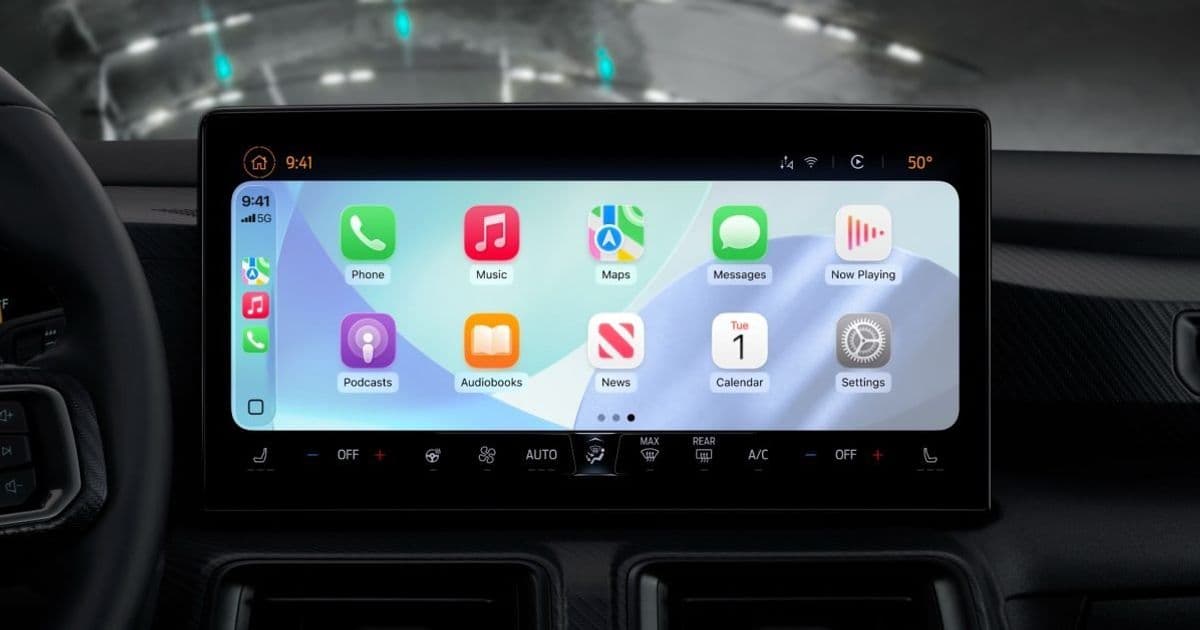
Apple’s iOS 26 update adds Smart Display Zoom, widget stacks, new wallpapers, resizable text and adjustable app‑icon styles, giving drivers deeper control over the look and feel of CarPlay while keeping safety front‑and‑center.
iOS 26 expands CarPlay with five fresh customization options
Apple’s latest mobile OS brings a surprising amount of visual tweaking to the in‑car experience. While most CarPlay updates focus on new apps or safety features, iOS 26 lets you shape the interface to match your vehicle’s display and your personal taste. Below we walk through each of the five new settings, explain where to find them, and discuss how they fit into Apple’s broader ecosystem strategy.
1. Smart Display Zoom
What it does – Smart Display Zoom automatically scales UI elements to suit the physical dimensions of your car’s screen. On larger, low‑resolution panels the system will enlarge icons and text, while on compact, high‑density displays it keeps everything tight.
How to enable – Open CarPlay’s own Settings app, tap Display, then toggle Smart Display Zoom. The switch is off by default, so you’ll need to turn it on to see any change.
Why it matters – Car manufacturers use a wide variety of screen sizes, from 7‑inch portrait panels to 12‑inch landscape dashboards. Prior to iOS 26, developers had to guess a one‑size‑fits‑all layout, which sometimes left UI elements either too small to read or oddly spaced. Smart Display Zoom gives Apple a way to adapt the UI without requiring each app to implement its own scaling logic.
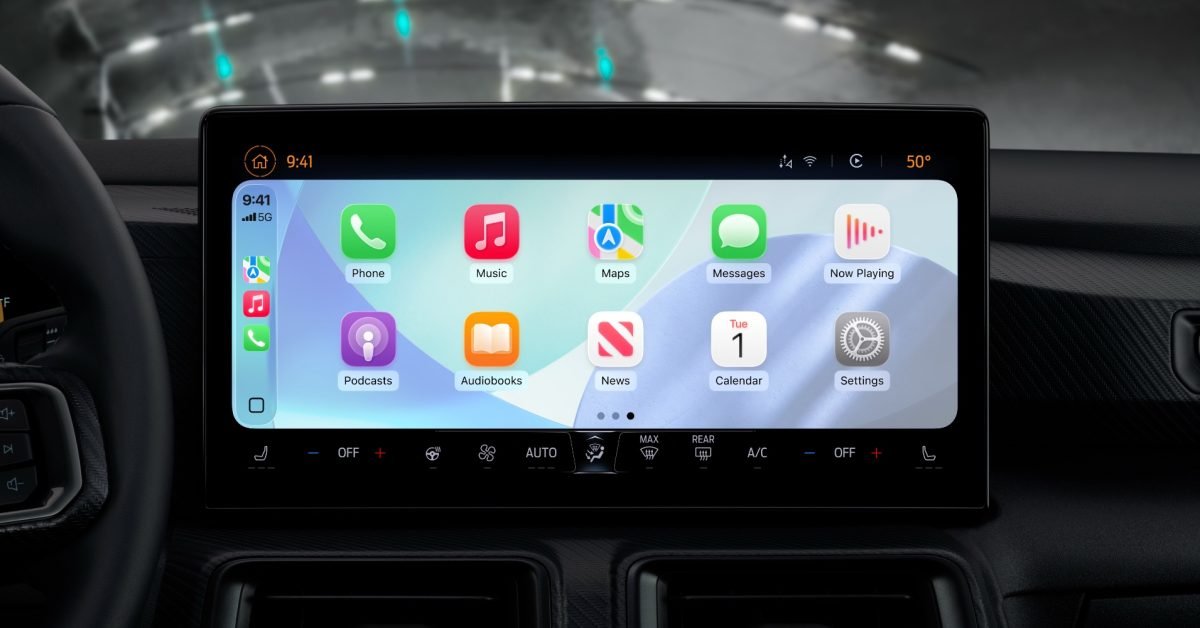
Note: The feature isn’t available on every vehicle yet. Apple’s compatibility list updates as more manufacturers ship CarPlay‑enabled head units.
2. Customizable Widget Stacks
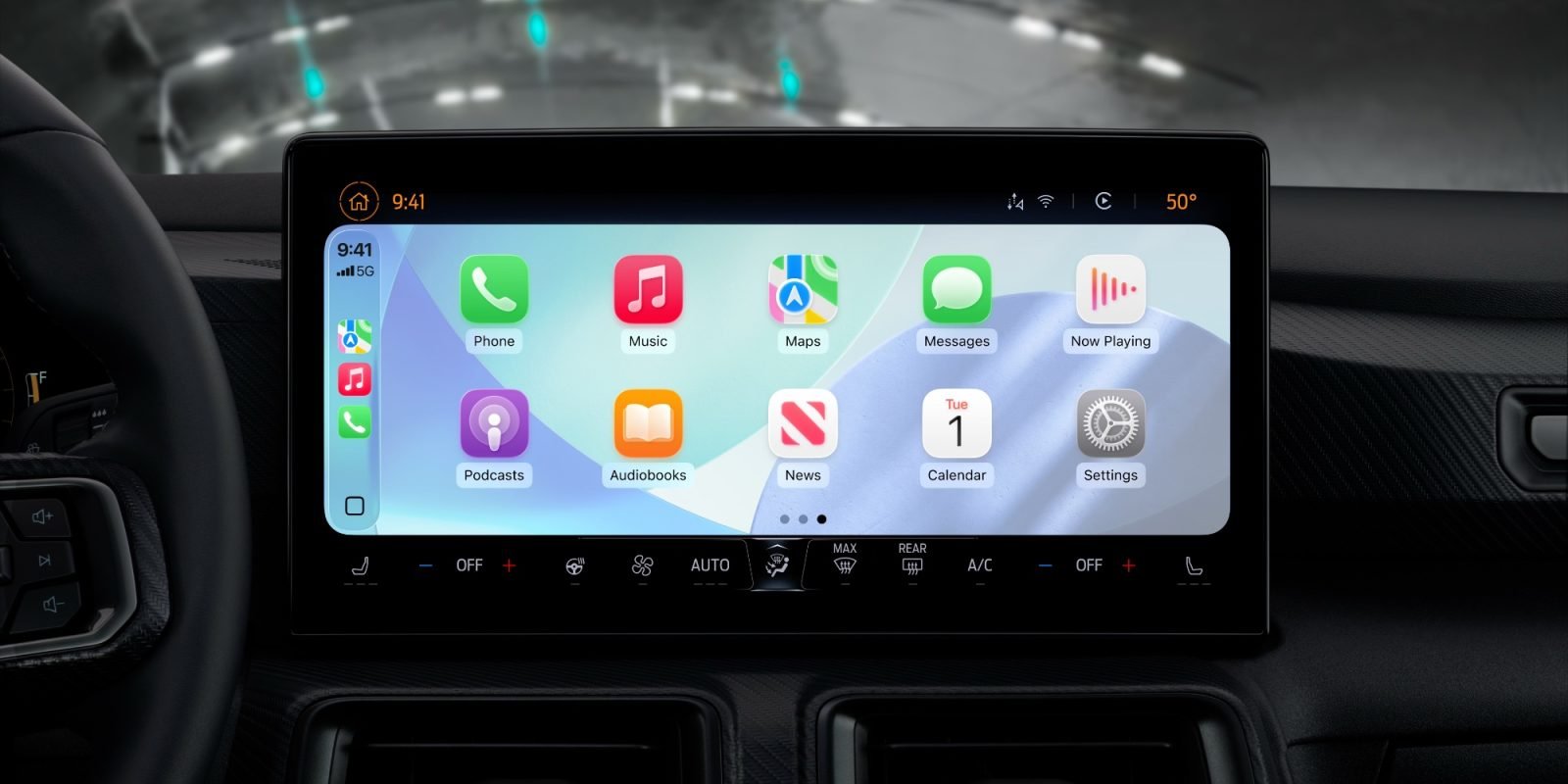
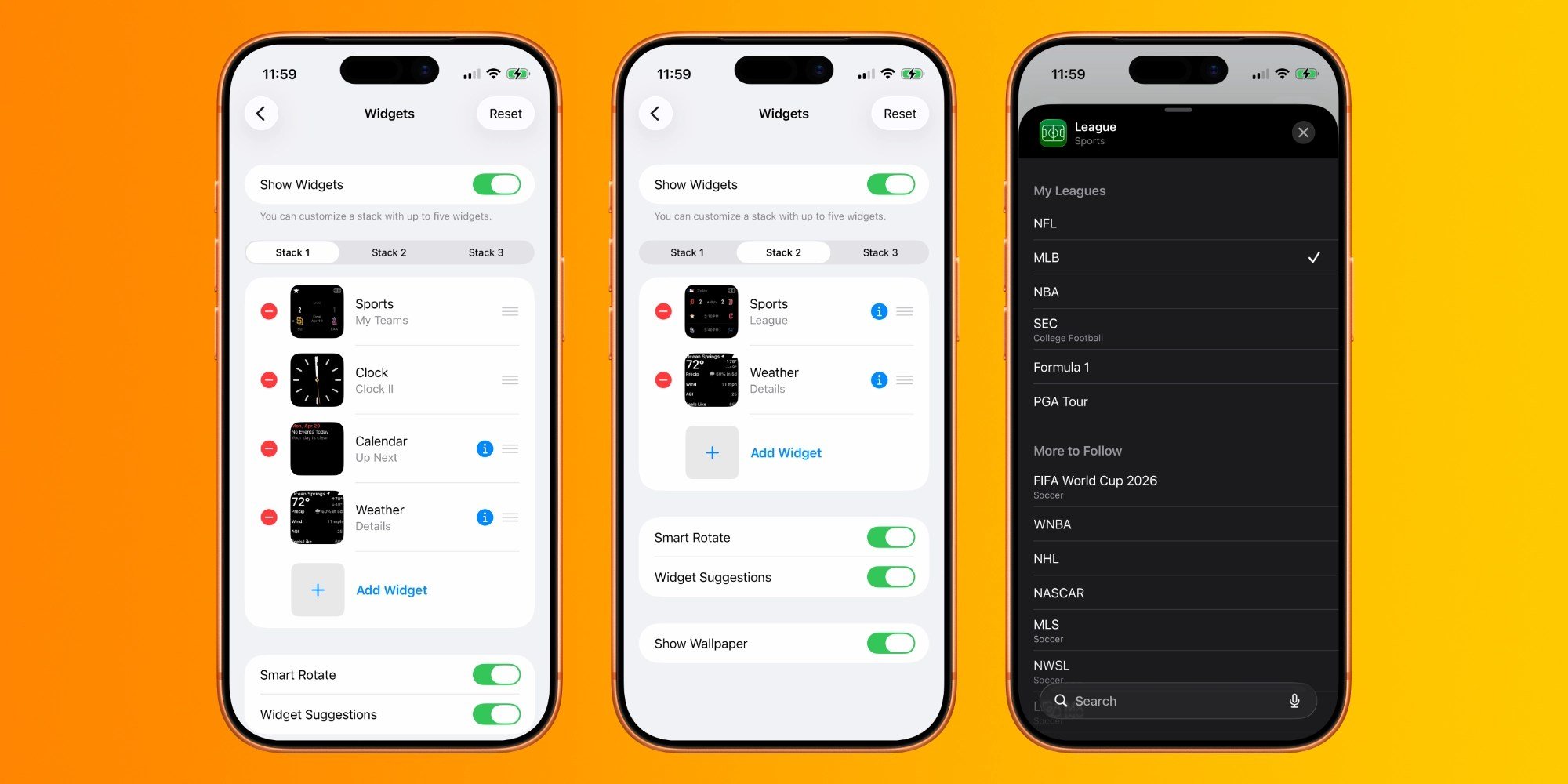
Widgets have been a staple of iPhone home screens for years, but iOS 26 finally brings them to CarPlay. They appear on the left side of the home screen, grouped into stacks that can hold up to five widgets each.
Setup path – On your iPhone, go to Settings → General → CarPlay → Your Car → Widgets. From there you can add, remove, or reorder widgets in each stack. A separate toggle lets you enable Smart Rotate, which cycles through the widgets automatically when the car is stationary.
Practical uses – A driver might keep a weather widget at the top of the first stack, a calendar reminder in the second, and a music‑control widget in the third. Because the number of visible stacks varies with screen width (one to three stacks), the system automatically hides excess widgets, preserving a clean layout.
3. New Wallpapers with Light/Dark Adaptation
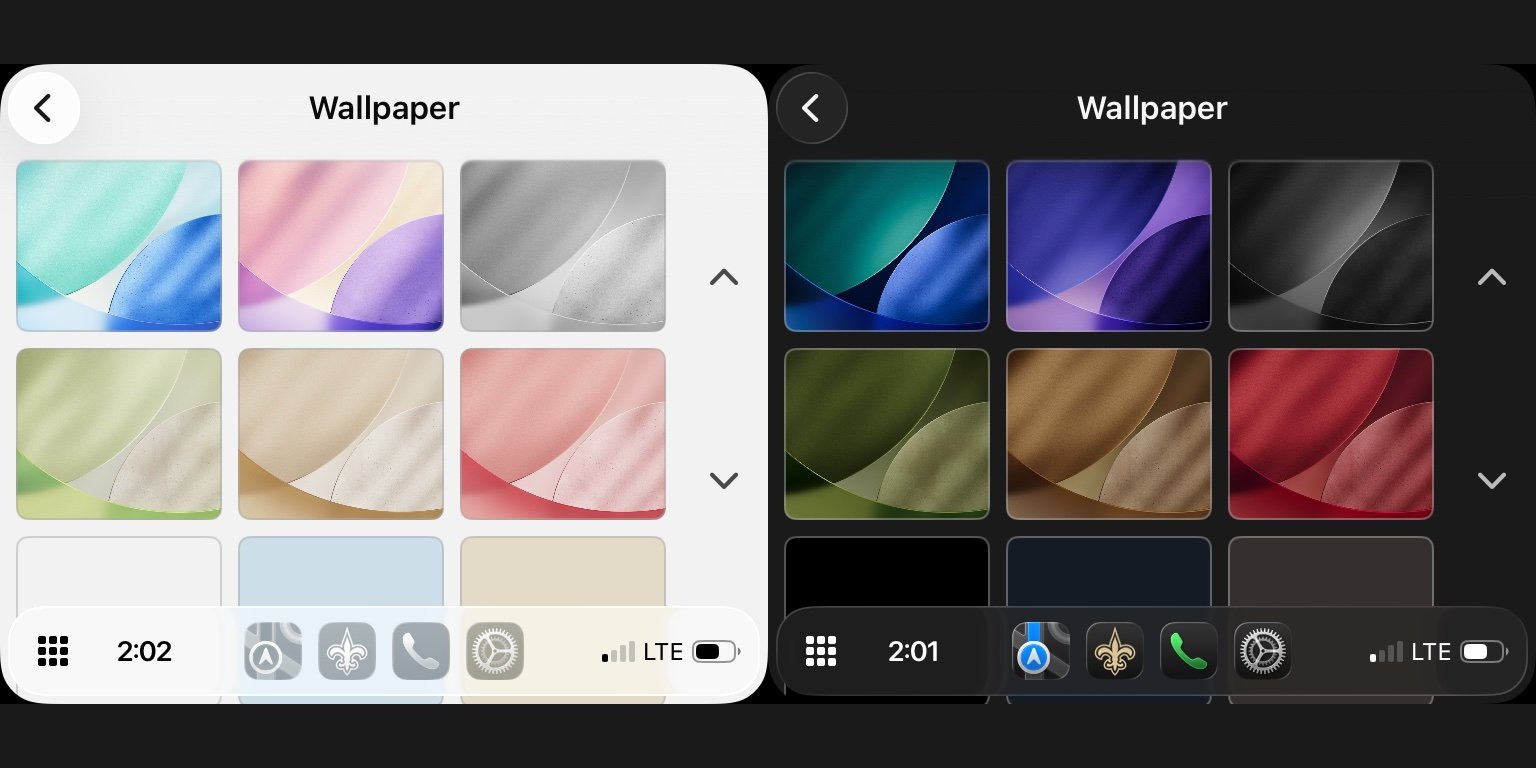
iOS 26 adds six fresh wallpaper palettes that mirror the new default iPhone wallpapers. Each palette automatically switches between light and dark variants based on the system appearance setting, ensuring legibility of icons and text.
Changing the wallpaper – In‑car, open Settings → Wallpaper. Choose a color theme, and the system will apply it instantly. The change is stored per‑vehicle, so you can have a different look for a family SUV versus a sport sedan.
Design impact – The new wallpapers are subtly textured, which helps reduce glare on glossy automotive displays. They also give CarPlay a more polished, cohesive feel that aligns with the rest of Apple’s ecosystem.
4. Resizable Text Across CarPlay
Accessibility has always been a priority for Apple, but text scaling in CarPlay was previously locked to the default size. iOS 26 adds a system‑wide Text Size control that works exactly like the iPhone’s Accessibility setting.
How to adjust – Open the CarPlay Settings app, tap Accessibility → Text Size, then slide the selector to your preferred size. A live preview appears below each number, so you can see the impact before confirming.
Implications – Larger text improves readability for drivers who need a quick glance at navigation or messages, while smaller text frees up more screen real estate for complex apps like maps or podcasts.
5. Adjustable App‑Icon Appearance
Apple’s “Liquid Glass” aesthetic, introduced on iOS 15, is now an optional style for CarPlay icons. In Settings → Display → App Icon Appearance, you can choose between Default, Dark, or Clear. The Clear option renders icons with a semi‑transparent background, letting the underlying wallpaper show through.
Why you might switch – If you prefer a minimalist look, the Clear style reduces visual clutter. Dark icons work well with light wallpapers, while Default maintains the classic Apple look.
How These Changes Fit Into Apple’s Ecosystem
Apple’s strategy has long been to lock users into a seamless experience that spans iPhone, iPad, Mac, and now the car. By exposing the same personalization knobs—widgets, wallpapers, text size, and icon styles—in CarPlay, Apple blurs the line between mobile and automotive interfaces. This consistency encourages drivers to keep their iPhone as the primary hub, reinforcing the “iPhone‑first” model that powers CarPlay.
The Smart Display Zoom feature also signals deeper collaboration with OEMs. Instead of demanding a single hardware spec, Apple adapts its software to the car’s display, reducing friction for manufacturers that want to adopt CarPlay without redesigning their dashboards.
Bottom Line
iOS 26 doesn’t reinvent CarPlay, but it gives users the kind of granular control they’ve come to expect on their personal devices. Whether you’re tweaking text size for better legibility, adding a weather widget for quick checks, or giving your dashboard a fresh wallpaper, the new options make the in‑car experience feel more personal without compromising safety.
What customization have you tried first? Let us know in the comments.
Comments
Please log in or register to join the discussion