
Logitech’s new Rugged Combo 4c and 4c Touch keyboard cases for the iPad (A16) and 10th-gen iPad add simultaneous USB-C charging and wired audio, trackpad support, and spill-resistant builds for classroom use, with direct implications for iOS and cross-platform developers building education and productivity apps.
Platform Update: Logitech Rugged Combo 4c Series for iPad
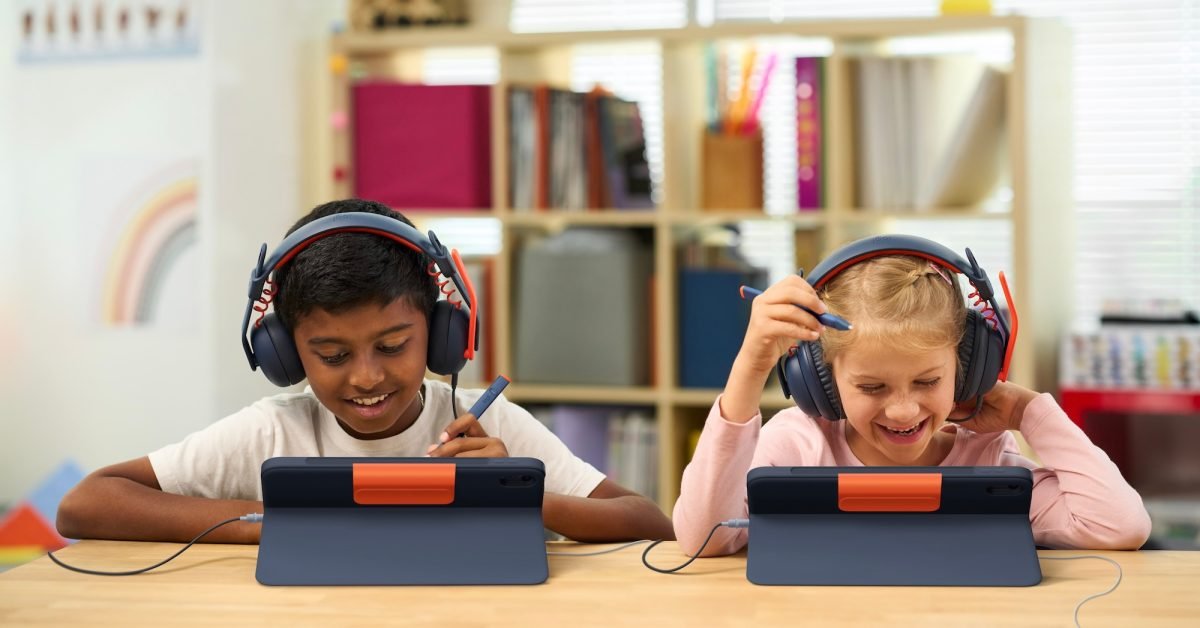
Logitech this week launched two new rugged keyboard cases designed for the iPad (A16) and iPad (10th generation), targeting the education market with features that address common classroom pain points. The Rugged Combo 4c and Rugged Combo 4c Touch both include a dedicated USB-C port that allows simultaneous iPad charging and wired headset use, a spill-resistant sealed keyboard, and Smart Connector compatibility for instant pairing and power draw directly from the iPad.
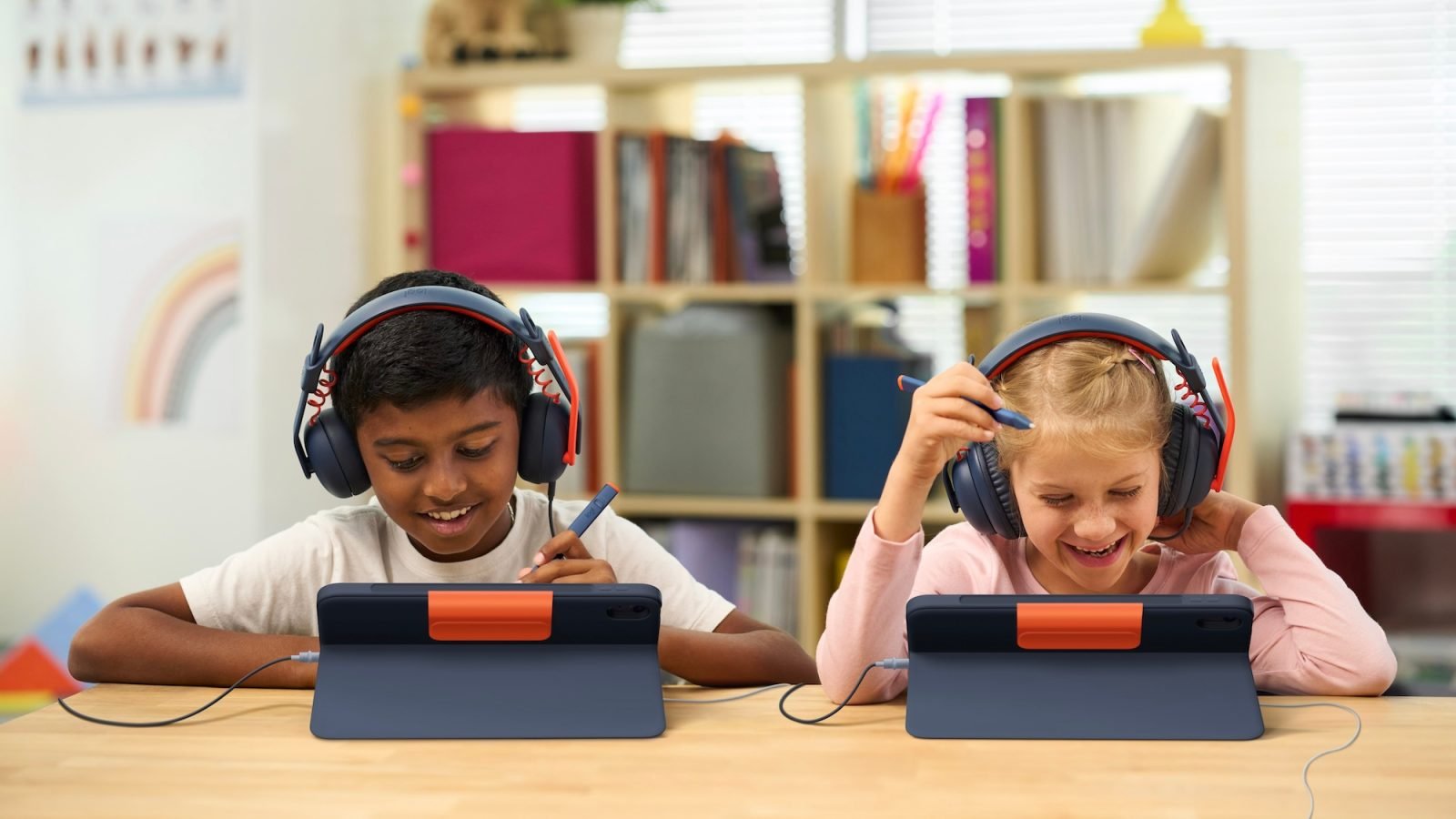
The standard Rugged Combo 4c focuses on physical typing and durability, with a build tested to withstand over three years of daily cleaning with common school disinfectants. Logitech highlights four adjustable use modes: Type, View, Read, and Sketch, which align with common classroom workflows for note-taking, video viewing, reading assignments, and drawing exercises. The Rugged Combo 4c Touch adds a large high-precision trackpad for pointer-based navigation, a feature that aligns with Apple’s push to make iPad a more flexible productivity and learning tool.
Both cases use Apple’s Smart Connector, a magnetic interface that delivers power and data between the iPad and accessory without requiring Bluetooth pairing or separate charging. This means the keyboard and trackpad (on the Touch model) are active the moment the case is attached to a compatible iPad, with no setup steps required for users.
The cases are compatible with the iPad (A16) and iPad (10th generation), both of which include Smart Connector support and are widely deployed in classroom settings.  The iPad (10th generation) supports iPadOS 16.1 and later, while the iPad (A16) ships with iPadOS 20, ensuring long-term compatibility with Apple’s latest platform updates.
Developer Impact
For iOS developers, particularly those building apps for the education sector, these cases introduce several hardware-specific considerations that can affect user experience and app functionality.
First, the dedicated USB-C passthrough port solves a long-standing issue for classroom iPad use: students no longer have to choose between keeping their device charged during long digital assessments or using wired headphones for audio-based lessons. Audio is central to literacy, language learning, and digital assessment tools, per Logitech’s product rationale. Developers of these apps should ensure their audio handling works correctly when a wired USB-C headset is connected via the case’s port while the iPad is charging. iPadOS uses AVAudioSession to manage audio routes, so apps should properly configure their audio session to handle route changes between the built-in speaker, wired headsets, and Bluetooth audio. Since wired USB-C audio is more reliable in crowded classroom environments than Bluetooth, developers targeting education can expect more users to rely on this setup, making thorough testing of wired audio paths a priority.
Second, the inclusion of a trackpad on the Rugged Combo 4c Touch expands the availability of pointer input to more budget-conscious education buyers. iPadOS has supported pointer and trackpad input since iPadOS 13.4, with the UIPointerInteraction API allowing developers to customize how their app responds to cursor movements. Apps that have already implemented pointer support will see the trackpad work natively, but developers who have not added pointer interactions may face user expectations for smooth cursor navigation, especially in productivity and assessment apps. For cross-platform developers using tools like Flutter, React Native, or .NET MAUI, trackpad support on iPad requires framework-specific testing. Flutter’s latest stable releases include improved iPadOS pointer event handling, while React Native relies on community packages or custom native modules for full trackpad support. Developers should verify that their cross-platform app’s input handling maps correctly to iPadOS trackpad events, particularly for interactive elements like buttons, text fields, and drawing canvases.
Third, the Smart Connector integration eliminates Bluetooth pairing friction, which is a common pain point in classroom settings where IT administrators manage hundreds of devices. For developers, this means external keyboard and trackpad input from these cases is delivered the same way as built-in software keyboard input, with no need to handle Bluetooth connection states. Developers should still test keyboard shortcut support via UIKeyCommand, as the Rugged Combo 4c’s physical keyboard includes full-size keys that may trigger shortcuts not easily accessible on the software keyboard. Education apps that use custom keyboard shortcuts for navigation, answer submission, or tool switching will benefit from testing these shortcuts on the new cases to ensure key mapping is consistent.
Durability is another factor for education-focused developers. The cases are rated for spill resistance and frequent cleaning, meaning they will be used in environments where devices are handled roughly. While this does not directly affect app code, developers targeting education should prioritize stability testing on devices with these cases, particularly in the four use modes. For example, Sketch mode positions the iPad at a steep angle for Apple Pencil use, so drawing and note-taking apps should test Pencil input accuracy at this angle, as well as touch input when the case is in View mode for video playback.
Migration and Optimization Steps
Developers looking to optimize their apps for these new Logitech cases can follow a few straightforward steps, with no major platform migrations required for most existing apps.
First, verify your target iPadOS version compatibility. To support all features of the new cases, target iPadOS 17 or later, which includes the most recent audio routing and pointer interaction improvements. Update your Xcode version to 16 or later to access the latest iPadOS SDKs, which include tools for testing external input and audio sessions. Cross-platform developers should update their framework versions to the latest stable release: Flutter 3.29+ and React Native 0.79+ both include improved iPadOS external input support.
For audio handling, test your app with a wired USB-C headset connected to the Rugged Combo 4c’s passthrough port while the iPad is charging. Use AVAudioSession’s AVAudioSessionRouteChangeNotification to listen for audio route changes, and ensure your app does not interrupt audio playback or recording when the charging state changes. Avoid assuming that users will only use wireless audio, as wired setups are still standard in many school districts.
For pointer and trackpad support, if you have not already implemented UIPointerInteraction for custom views, add basic pointer support for interactive elements. This includes adjusting hit targets to be at least 44 points in size, as recommended by Apple’s Human Interface Guidelines, and ensuring the cursor changes appropriately when hovering over tappable elements. Cross-platform developers should check their framework’s documentation for iPadOS trackpad support: Flutter’s iPadOS input documentation and React Native’s external input guide include details on handling external pointers.
For keyboard support, add UIKeyCommand shortcuts for common app actions, particularly for education apps where students may use the physical keyboard for text entry or navigation. Test these shortcuts on the Rugged Combo 4c to ensure all function keys and modifier keys are recognized correctly. Since the case draws power directly from the iPad via Smart Connector, there is no need to handle battery states for the accessory, simplifying input management compared to Bluetooth keyboards.
Finally, test your app in all four case modes to ensure layout and input work correctly across different form factors. Use Xcode’s Simulator to test different iPad orientations and external keyboard configurations, but always verify on physical hardware with the Rugged Combo 4c or 4c Touch, as Simulator does not fully replicate physical keyboard key travel or trackpad precision.
You can find more details on the Logitech Rugged Combo 4c series product page, and order the cases through Logitech’s authorized education distributors.
Comments
Please log in or register to join the discussion