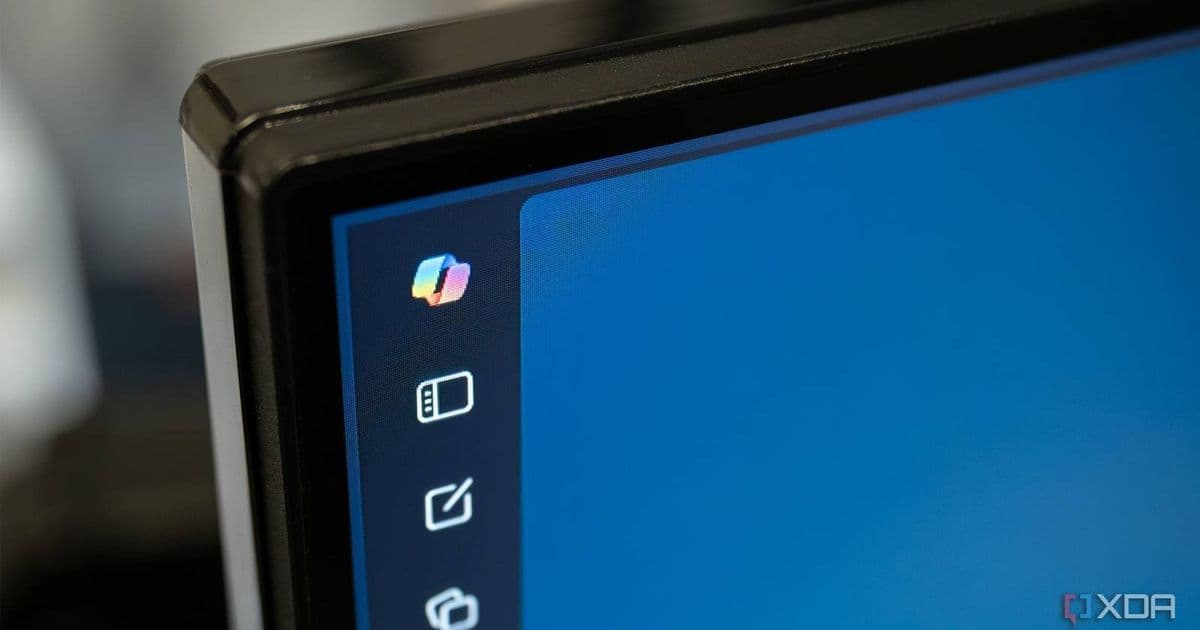
Microsoft has introduced a new Group Policy setting that allows Windows 11 users to permanently remove Copilot from their systems, addressing concerns about forced integration of the AI assistant.
Microsoft has quietly added a new Group Policy option in Windows 11 that gives administrators and advanced users the ability to completely remove Microsoft Copilot from their systems. This development comes as part of a broader shift in Microsoft's approach to Copilot integration, following less-than-expected adoption rates from users.
The new Group Policy, titled "Remove Microsoft Copilot app," provides a more permanent solution than previous manual uninstallation methods that often resulted in Copilot reappearing after system updates. This policy removes not only the desktop version of Copilot but also its integration within Microsoft 365 applications.
Understanding the Context
Microsoft's Copilot rollout has been somewhat turbulent. Initially positioned as a major Windows feature, particularly with the introduction of the dedicated Copilot key on new keyboards, the AI assistant has failed to gain widespread adoption. In early 2026, Microsoft acknowledged this by pulling back on aggressive Copilot integration and allowing more user control over its presence.
This new Group Policy setting represents another step in Microsoft's more nuanced approach to Copilot. Rather than forcing the feature on users, the company is now providing options for those who prefer not to use it.
How to Use the New Group Policy
For Windows 11 Pro, Enterprise, and Education users (those with Group Policy access), the process is straightforward:
- Press Windows + R to open the Run dialog
- Type
gpedit.mscand press Enter to open the Group Policy Editor - Navigate to User Configuration > Administrative Templates > Windows Components > Windows AI
- Locate and enable the policy titled "Remove Microsoft Copilot app"
This policy will remove Copilot from the system and prevent it from reinstalling during future Windows updates. It affects both the standalone Copilot application and its integration within Microsoft 365 applications.
Alternative for Windows Home Users
Windows Home edition doesn't include the Group Policy Editor, but users can achieve similar results by modifying the Registry:
- Press Windows + R to open the Run dialog
- Type
regeditand press Enter to open the Registry Editor - Navigate to the following path:
HKEY_LOCAL_MACHINE\SOFTWARE\Policies\Microsoft - Create a new key named "WindowsAI" if it doesn't exist
- Within the WindowsAI key, create a new DWORD (32-bit) Value named "RemoveCopilot"
- Set the value to 1
Note: Editing the Registry carries risks. Users should back up their Registry before making changes and proceed with caution.
Enterprise Implications
For organizations managing multiple Windows devices, this Group Policy provides a valuable tool for standardizing the user experience. Enterprises that determine Copilot doesn't align with their workflows or security requirements can now ensure it's not present across their fleet.
This is particularly important as Microsoft continues to integrate AI features into its productivity suite. Organizations need clear controls over which features are enabled in their environment.
The Broader Picture
Microsoft's approach to Copilot has evolved significantly since its initial rollout. The company has:
- Reduced the prominence of Copilot in Windows 11
- Allowed users to hide the Copilot button in Microsoft 365
- Now provided a mechanism for complete removal
This suggests Microsoft is recognizing that while AI assistants have value, they should be opt-in rather than mandatory features.
Limitations and Considerations
While this new option is welcome, it's worth noting a few limitations:
- The policy only applies to Windows 11
- It doesn't address Copilot integration in other Microsoft products like Edge or Teams
- Enterprise environments may need additional configuration to ensure compliance across all devices
Additionally, Microsoft hasn't provided an in-system toggle for average users, leaving those on Windows Home or less technically inclined users without a straightforward method to remove Copilot.
Conclusion
The addition of this Group Policy represents a more user-friendly approach from Microsoft regarding Copilot. While it's not as convenient as a simple toggle switch in the Settings app, it provides a reliable method for those who want to ensure Copilot is completely removed from their systems.
As AI continues to integrate with operating systems and productivity software, we can expect to see more options for users to control these features. Microsoft's willingness to provide these controls suggests a more balanced approach to AI integration in the future.
For those interested in implementing this policy, Microsoft's documentation on Group Policy settings provides additional guidance. As the technology continues to evolve, we'll likely see more refinements to how AI features are presented and managed in Windows.
This development also signals a broader industry trend: while AI capabilities are being rapidly developed, user choice and control remain important considerations in their implementation.
Comments
Please log in or register to join the discussion