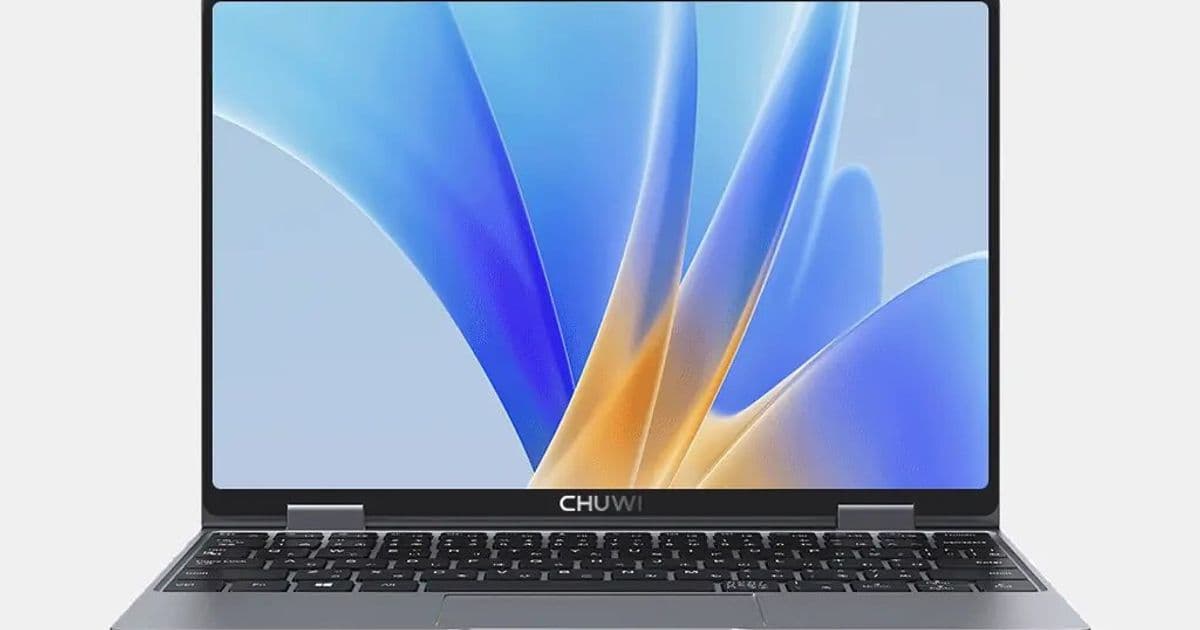
At roughly £300, the Chuwi Minibook X N150 offers a surprisingly capable Linux experience in a sub‑kilogram chassis. Its USB‑C charging, 16:10 display, and solid metal build win points, while a US‑style keyboard, jittery trackpad, and modest power delivery keep it from being a flawless travel companion.
The Chuwi Minibook X N150: A Pocket‑Sized Linux Laptop That Packs a Punch
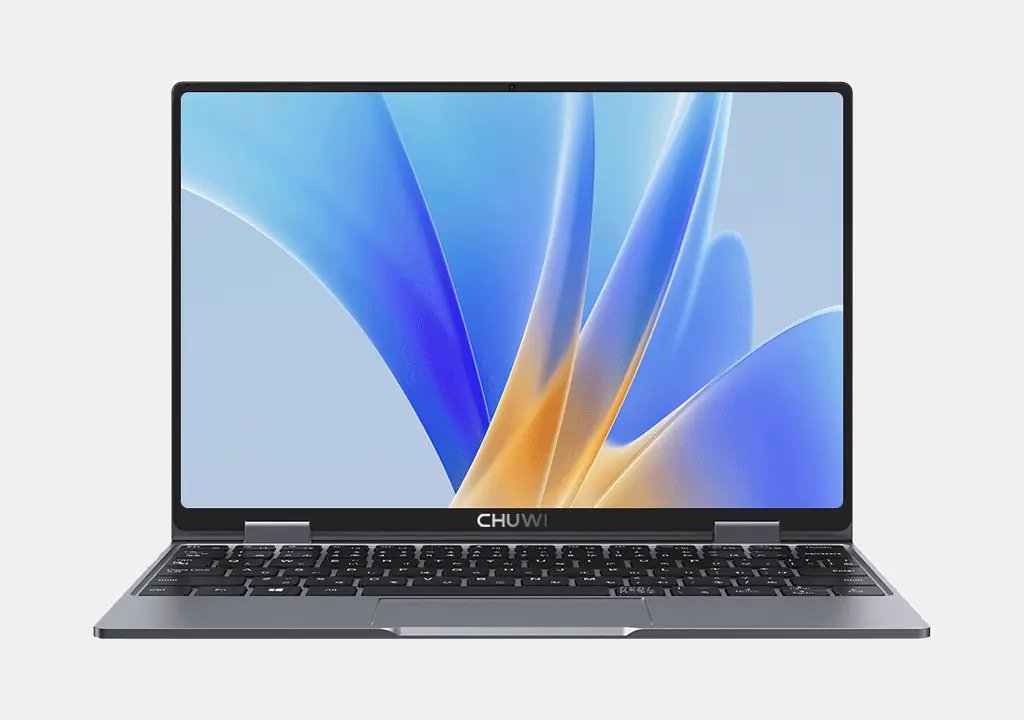
When the market for ultra‑portable laptops starts to look like a sea of overpriced ultrabooks, a handful of Chinese manufacturers keep the conversation grounded with devices that actually fit in a jacket pocket and still run a full Linux stack. The Chuwi Minibook X N150 is a recent example that has been generating buzz among nomadic developers and hobbyists who need a larger screen than a phone without breaking the bank.
Why the Minibook is getting attention
- Price‑to‑performance – At around £300‑£350 the device lands in a price bracket where most competitors are either Chromebooks or low‑end Windows convertibles. For that money you get a full‑size keyboard, a metal body, and a 16:10 10‑inch display.
- Linux‑first friendliness – The firmware updates cleanly on Linux, the BIOS is straightforward to tweak (disable Secure Boot, set USB as first boot option), and the community reports that most major distros boot without a hitch.
- Universal charger – Two USB‑C ports and a 36 W Power Delivery charger mean you can share the charger with a phone, tablet, or even a larger laptop, simplifying travel gear.
These signals have made the Minibook a frequent topic at meet‑ups like OggCamp, where attendees line up to try the device and discuss its quirks.
Getting Linux up and running
- Enter the BIOS – Power on, then hammer the Delete key. Navigate to Security → Secure Boot and set it to Disabled.
- Prioritise USB boot – Under Boot → Boot Option #1, select USB Device, then Save & Exit.
- Install your distro – The author tried several; Linux Mint Debian Edition booted cleanly, while NixOS was ultimately chosen for its configurability. All core components – Wi‑Fi, Bluetooth, touchscreen, and auto‑rotation – worked out of the box after a few display tweaks.
The only persistent hiccup is that the keyboard and trackpad stay active when the device is folded back into tablet mode, which can be annoying for on‑the‑go note‑taking.
What works well
| Feature | Observation |
|---|---|
| Build | Solid aluminium chassis, no stickers on the back, easy to customise. |
| Display | 16:10 IPS panel, bright enough for indoor work, 50 Hz refresh – not a gaming screen but perfectly adequate for reading and coding. |
| Touchscreen & Pen | Multi‑touch works, a stylus is supported (not included). |
| Camera | Small but decent for video calls; positioned centrally at the top. |
| Battery & Charging | Charges at ~35 W when powered on; a full charge takes about 1.5 h. The 36 W charger is modest but sufficient for daily use. |
| Port selection | Two USB‑C ports (one for power, one for data), a headphone jack, and a tiny vent grille. |
The niggles that keep it from being flawless
- US‑style keyboard – The
@and"keys are swapped, the pipe (|) is missing, and the pound sign (£) is absent. Switching the OS layout to UK helps, but you still lose a direct backslash/pipe key. - Trackpad feel – Click feedback is only solid at the edges; the centre feels mushy, which can be frustrating during extended typing sessions.
- Power delivery quirks – The supplied charger initially throttles at ~10 W, only reaching full 36 W when the laptop is on. Using a higher‑wattage charger bumps it to ~40 W, but you won’t see a dramatic fast‑charge improvement.
- Firmware & support – Documentation lives on community forums, and official download links often expire. Users rely on community‑provided firmware patches.
- No biometrics – No fingerprint reader or IR camera, meaning you must manage passwords or a hardware key.
These issues are not show‑stoppers for most developers, but they do add friction compared to more polished alternatives.
Counter‑perspectives: Is the Minibook a good buy?
The Optimist’s View
- Cost‑effective Linux device – For developers who spend hours in a terminal, the ability to run a fully featured distro on a cheap, lightweight chassis outweighs the keyboard inconvenience.
- Repairability – The metal case is easy to open, and the SSD is soldered but replaceable with a compatible M.2 module, extending the device’s lifespan.
- Community momentum – A growing number of blog posts and forum threads provide workarounds for the keyboard layout and trackpad quirks, turning the device into a crowd‑sourced project.
The Skeptic’s View
- Competing alternatives – Devices like the Pinebook Pro or the Framework Laptop (though pricier) offer better keyboards and more transparent support.
- Long‑term durability – The lack of official firmware updates and a fragile USB‑C charging circuit could become problematic after a year of heavy travel.
- Performance ceiling – With an Intel Gemini Lake processor, the Minibook struggles with heavy compilation or VM workloads, limiting it to lightweight development tasks.
Verdict
The Chuwi Minibook X N150 sits at an interesting intersection: it delivers a usable Linux environment in a pocket‑sized, metal‑built form factor for under £350. If you are comfortable tweaking keyboard layouts, tolerating a slightly finicky trackpad, and can live with modest performance, it makes a compelling travel companion. For users who need a rock‑solid keyboard, guaranteed firmware support, or higher CPU power, waiting for a more established Linux‑first laptop may be wiser.
Overall rating: ★★★★☆ – A great find for the budget‑conscious developer who enjoys a bit of tinkering.
For more details, see the official Chuwi Minibook X product page and the community‑maintained Linux installation guide on GitHub.
Comments
Please log in or register to join the discussion