
The Azure AD B2C to Entra External ID (EEID) migration kit provides a structured, automated path for transitioning customer identity systems. This guide walks through the local import process using ngrok and Azurite, focusing on the Start-LocalImport script's batch processing, audit logging, and critical configuration steps for a successful migration.
The migration from Azure AD B2C to the newer Entra External ID (EEID) service represents a significant shift in Microsoft's customer identity and access management (CIAM) strategy. For organizations managing millions of external users, this transition isn't just about a new service name—it's a fundamental change in architecture, pricing, and operational model. The migration kit provided by Microsoft and the community is essential, but understanding its practical implementation is key to avoiding pitfalls.
This article focuses on the local import process, a critical phase for testing and validation before a full production migration. The process uses a local storage emulator (Azurite) and ngrok to create a safe, isolated environment for testing the import logic, attribute mappings, and user authentication flows.
The Local Import Workflow
The migration process begins with exporting user data from Azure AD B2C, typically into Azure Blob Storage. The Start-LocalImport.ps1 script orchestrates the import of this data into a local EEID tenant. The script is designed to be self-contained, handling environment setup, validation, and execution in a single flow.
When you run the script, it performs several sequential checks and actions:
- Configuration Validation: It verifies the existence of the
appsettings.jsonfile, which contains connection strings, tenant IDs, and attribute mappings. This file is shared with the export process, ensuring consistency. - Local Emulator Management: The script auto-detects if a local storage emulator is required. It checks if Azurite is installed and, if not, prompts for installation. If Azurite isn't running, it starts it automatically, managing the process in the background.
- Application Build: The console application is built from source, ensuring you're running the latest version of the migration tool.
- Import Execution: The core import operation begins, processing user data in batches.
Batch Processing and Throttling
The import operation is not a single bulk insert. Instead, it processes users in manageable batches. This approach is crucial for several reasons:
- Resilience: If a batch fails, you can retry that specific batch without reprocessing the entire dataset.
- Throttling: Azure AD Graph API and Microsoft Graph have request limits. Batch processing allows the tool to stay within these limits, implementing retry logic with exponential backoff when throttling occurs.
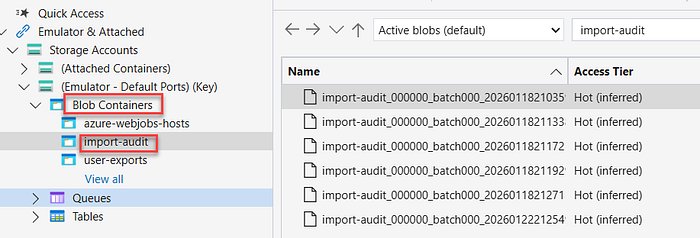
- Auditability: Each batch generates a separate JSON audit log file, providing a clear record of what was processed, what succeeded, what failed, and what was skipped.
The audit logs are stored in a specified container in your local Azurite storage. For example, the configuration sets the audit container name as "ImportAuditContainerName": "import-audit". Each log file contains a detailed summary, including timestamps, batch numbers, success/failure counts, and lists of affected users.
Critical Configuration: Attributes and Permissions
The success of the import hinges on two pre-migration configuration steps: custom attributes in EEID and application permissions.
Custom User Attributes
External ID requires all users to have an email identity for authentication (either Email + Password or Email OTP). The import logic automatically ensures every user gets an email identity, falling back to the userPrincipalName if the mail field is empty.
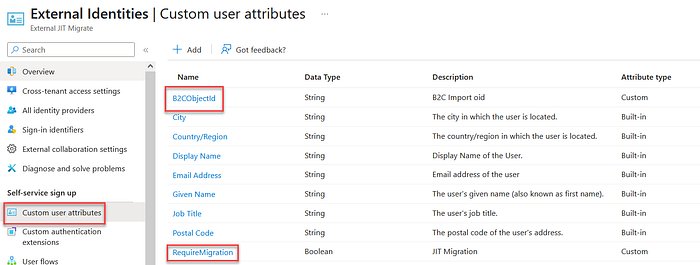
However, if you used custom attributes in Azure AD B2C (e.g., for storing specific user preferences or business data), these must be recreated in EEID before the import. The import will fail if it tries to write to a custom attribute that doesn't exist in the target tenant.
In the provided example, two custom attributes were created in EEID:
extension_1b...8c_B2COriginalId: To store the original B2C Object ID, maintaining a link to the legacy system.extension_1b...8c_RequireMigration: A boolean flag set totrueduring import. This flag is used to trigger the Just-In-Time (JIT) migration flow on the user's first login, ensuring a smooth transition without immediate password resets.
Application Registration Permissions
The migration tool requires a registered application in the EEID tenant with sufficient permissions to create and modify users. The application registration must be configured with the following Microsoft Graph API permissions:
Directory.ReadWrite.AllUser.ReadUser.ReadWrite.All
These permissions allow the tool to read directory information and create or update user objects. It's a best practice to use the principle of least privilege, but for a migration tool that needs to create users and write custom attributes, these permissions are necessary.

The JIT Migration Flow: A Clever Design Pattern
A key design decision in the migration kit is the handling of passwords. The ImportOrchestrator generates a unique, random 16-character password for each user during the import. This is not the user's original B2C password.
This intentional mismatch triggers the Just-In-Time (JIT) migration flow on the user's first login attempt. Here’s how it works:
- Import: The user is created in EEID with a random password and the
RequireMigrationflag set totrue. - First Login: The user attempts to log in with their original B2C credentials. The authentication fails because the stored password is different.
- JIT Trigger: The EEID system detects the
RequireMigrationflag. Instead of simply rejecting the login, it initiates a migration flow, prompting the user to verify their identity (e.g., via email OTP) and set a new password. - Completion: Once verified, the user's account is fully migrated, the
RequireMigrationflag is cleared, and they can log in with their new credentials.
This pattern minimizes disruption for end-users. They don't need to know their password was reset; they simply go through a verification flow they might expect for a password reset.
Analyzing the Sample Run Output
The provided sample run output is instructive. It shows the script's verbose logging, which is invaluable for debugging:
- Configuration Validation: The script confirms it found the
appsettings.Development.jsonfile and detected the local storage emulator configuration. - Azurite Management: It checks for Azurite, finds it installed, and starts it, reporting the Job ID and Process ID.
- Import Initialization: It validates the extension attributes configuration, listing the mappings and flags. A critical warning is issued: "Ensure all target custom attributes exist in External ID tenant... If they don't exist, the import will fail."
- Batch Processing: The script reads from the local blob storage (
user-exportscontainer) and processes theusers_000000.jsonfile, which contains 4 users. - Handling Duplicates: In this run, all 4 users already existed in the EEID tenant. The script correctly identified them as duplicates and skipped them, reporting "0 succeeded, 4 skipped (already exist), 0 failed."
- Audit Logging: The batch result is written to the
import-auditcontainer, creating a file namedimport-audit_000000_batch000_20260122212549.json.
The final summary shows the import completed in about 4 seconds, processing 4 users with a throughput of 0.92 items/sec. For a small batch, this is expected. For larger migrations, performance tuning will be necessary, which is covered in the DEVELOPER_GUIDE.
Business and Strategic Implications
From a strategic perspective, this migration tool is more than a utility; it's a bridge between two distinct identity platforms. Azure AD B2C was built on the same core as Azure AD, while EEID is a modern, standalone CIAM service with a different architecture and pricing model.
- Pricing: EEID introduces a consumption-based pricing model, which can be more cost-effective for high-volume scenarios but requires careful monitoring. The migration tool helps you understand user counts and attribute usage, which are key cost drivers.
- Migration Considerations: The local import process allows for thorough testing of custom attribute mappings and JIT flows. Organizations should run multiple test cycles, using the audit logs to identify and fix data quality issues before the production migration.
- Provider Comparison: While this guide focuses on Microsoft's ecosystem, it's a reminder that CIAM is a competitive space. Azure AD B2C's successor, EEID, must be evaluated against alternatives like Auth0, Okta Customer Identity Cloud, or Amazon Cognito. The migration effort itself is a factor in this comparison—tools like this migration kit reduce the switching cost.
Conclusion
The Start-LocalImport script is a robust, well-documented tool for migrating user data from Azure AD B2C to Entra External ID. Its batch processing, audit logging, and JIT migration design address the core challenges of large-scale identity migrations: data integrity, user experience, and operational transparency.
For organizations planning this transition, the path is clear: start with the local import process. Validate your attribute mappings, test the JIT flow, and use the audit logs to build confidence. The migration kit provides the framework, but success depends on careful planning and execution, starting with a single batch in a controlled environment.
Related Resources:
Comments
Please log in or register to join the discussion