Draw.io MCP transforms diagram creation from manual labor into automated engineering workflows, turning static visuals into living assets that evolve with your infrastructure.
I started using Draw.io MCP to generate diagrams from structured input and keep them tied to code and infrastructure. Instead of dragging boxes around by hand, I can spit out a draft in minutes, tweak it intentionally, and commit it to Git. That turns diagrams into living assets instead of throwaway slides.
Instead of manually arranging every shape, I can now generate a solid first draft in minutes, make deliberate edits, and commit it to Git. That simple change turns diagrams into living assets rather than throwaway images buried in slide decks. This shift matters, especially for teams focused on cloud, platform, and AI-assisted engineering, because architecture isn't static anymore. It evolves with infrastructure, CI/CD pipelines, and operational practices. Our diagrams should, too.
What Draw.io MCP Actually Does
At a high level, Draw.io MCP sits between draw.io (aka diagrams.net) and AI tools via the Model Context Protocol. Instead of a person dragging and dropping shapes, you provide structured input – text, CSV, or Mermaid and MCP produces diagram files (.drawio, .png, .svg) or a hosted link.
There are a few ways to run it:
- MCP App Server – renders diagrams directly inside compatible AI chat interfaces
- MCP Tool Server – generates the draft then opens it in the browser for editing
- CLI/skill integrations – lets you generate diagrams locally and export them
- Hosted Instructions mode – create diagrams without installing anything
It handles native Draw.io XML, CSV (simpler but surprisingly effective), and Mermaid.js. For modest diagrams (say under ~50 nodes), drafts appear in a couple of seconds. Larger diagrams take longer, sometimes five seconds or more – but that's still faster than doing it by hand.
There's no magic here, just practical automation. And it works well enough that I now reach for MCP first when I need a diagram.
Why This Fits Engineering Workflows
In cloud and platform engineering, diagrams shouldn't be static artifacts that get outdated the moment requirements change. Instead, they should evolve with:
- Terraform/Bicep or other infrastructure code
- CI/CD changes
- Shifts in service boundaries
- Operational practices
Draw.io MCP supports this by giving you:
- Speed – You can produce a draft in minutes, not hours
- Consistency – Structured inputs enforce repeatable layouts
- Version Control – Diagrams live with code in Git, so diffs and merges actually make sense
- Repeatability – Regenerate diagrams reliably when architecture changes
That makes diagrams part of the engineering workflow, not an optional afterthought.
A Real Example: Generating CI/CD Diagrams
Using a GitHub Copilot skill I created to make use of draw.io MCP server:
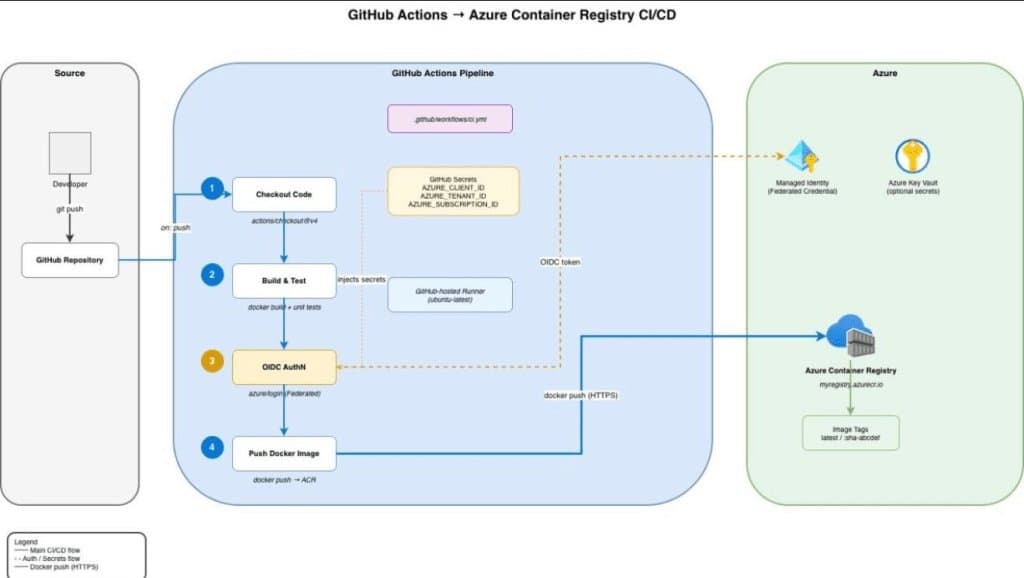
"Create a clean CI/CD diagram for GitHub Actions deploying to an Azure Container Registry using drawio mcp"
In seconds, I had a .drawio file showing:
- Deployment to containers
- The workflow trigger
- Build steps
- Push to Azure Container Registry
This draft wasn't perfect, but it was close enough that I could tweak the component names, refine the layout, and commit it alongside the YAML workflow file. When the pipeline later changed, regenerating the diagram took just a few seconds. That's been a real productivity boost.
Instead of starting with a blank canvas, I start with something that's already 80-90% correct.
Why This Matters in an AI-Assisted World
When you're working with AI tools, text output alone often isn't clear enough for architectural understanding. A diagram accelerates comprehension in ways that blocks of prose simply don't.
Draw.io MCP enables:
- Faster visual thinking – You can see intent quickly
- Clearer communication – People grasp flows and boundaries faster than verbal descriptions
- Sharper feedback loops – Stakeholders react quicker to visuals than wall-of-text specs
Here's the pattern I use:
- Prompt for architecture intent
- Generate a diagram draft
- Review it for clarity and correctness
- Refine and publish with documentation
This doesn't replace deep thinking – it supports it by making intent visible early.
The Gap It Actually Fills
In many teams, diagrams have a short half-life. You produce them at kickoff, and by the next sprint they're already out of sync with reality. Draw.io MCP helps close that gap:
- You can regenerate diagrams quickly after changes
- Naming and structure stay consistent
- Diagrams become source-controlled artefacts that evolve with the codebase
That last bit matters: once diagrams live in Git, they get reviewed, diffed, and discussed – just like code.
Tips for Keeping Automated Diagrams Useful
One risk with automated diagrams is that they turn into cluttered, unreadable blobs if you feed the tool too much detail. My personal defaults:
- Limit diagrams to 3–4 lanes or zones
- Keep a clear left-to-right primary flow
- Use stage numbering instead of excessive edge labels
- One clear responsibility per box
- Avoid crossing lines and unnecessary arrows
For cloud diagrams, I also add simple validation so the output stays coherent. Clean inputs → clean outputs.
When to Use It and When Not To
Use Draw.io MCP when:
- You need fast architecture iteration
- You want consistent diagram standards
- You need version-controlled, repeatable outputs
Don't rely on it exclusively when you need highly polished visuals for marketing decks or executive presentations. In those cases, use MCP to generate a solid baseline, then refine manually.
Where It Fits in the Lifecycle
Draw.io MCP isn't just for kickoff:
- Design – Compare ideas quickly
- Implementation – Validate deployment intent
- Operations – Keep runbooks updated
In environments that use infrastructure as code, you can even automate diagram generation in CI/CD pipelines – e.g. generate updated diagrams from Terraform plans. That makes them a living part of delivery, not an optional side task.
Adoption Path for Teams
If you're introducing MCP into an existing team, keep onboarding light:
- Standardise one diagram type (e.g., service flows)
- Define simple visual rules (lanes, direction, naming)
- Add diagrams to PR/design review checklists
- Evolve to domain-specific skills (cloud icon validation, compliance mapping)
Start small, deliver value early, and expand from there.
Final thought
Draw.io MCP turns diagramming into part of engineering work, not a chore that's set aside. It lowers the cost of keeping diagrams current, makes visual assets part of delivery, and fits naturally into AI-assisted and code-centric environments.
You do give up a bit of first-draft polish in exchange for speed and adaptability – but in practice, that's exactly what keeps diagrams honest and aligned with reality.
Next step: pick one diagram type your team uses often. Set clear visual standards. Integrate MCP into your review process. Once diagrams live alongside your systems rather than in a slide deck, that's when the real value shows up.
Comments
Please log in or register to join the discussion