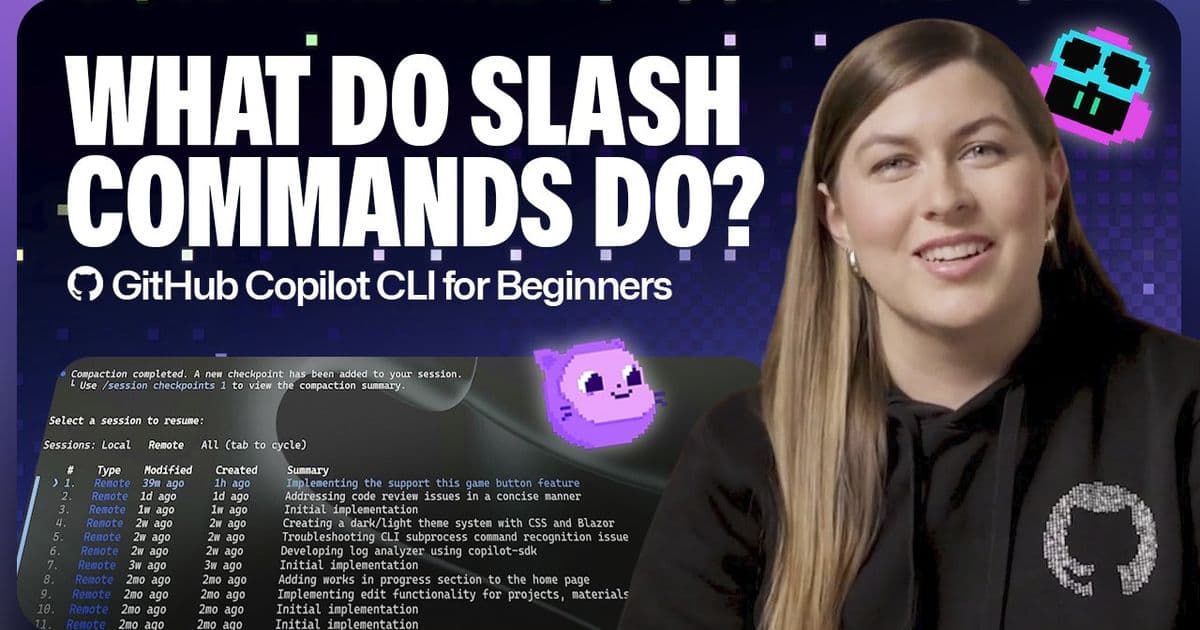
GitHub published a new installment of its Copilot CLI for Beginners series, covering the slash commands that let developers switch models, manage token usage, resume sessions, and inspect changes without leaving the command line.
GitHub published the latest installment of its Copilot CLI for Beginners series on June 15, walking developers through the slash commands that serve as the control surface for the command-line AI assistant.
The tutorial, written by Senior AI Developer Tools Advocate Kayla Cinnamon, explains how slash commands let you guide Copilot's behavior, inspect changes, manage context, and navigate across sessions without exiting the terminal. Typing / in the command line pulls up a scrollable list of all available commands.
Switching models with /model
Different models handle different workloads. Some excel at quick refactoring; others tackle deeper reasoning tasks like feature planning. The /model command displays available models along with their capabilities, availability based on your plan or organization settings, and a cost multiplier shown on the right side of each option.
Choosing the right model affects both speed and output quality.
Managing context and token usage
Copilot CLI operates within a context window that determines how much information it can hold during a session. Running /context shows your remaining tokens, system usage, and available buffer.
When space runs low, /compact summarizes the current conversation so you can continue without starting over. Copilot CLI does this automatically as you approach the limit, but you can trigger it manually to transition between tasks or clean up context mid-session. For a full reset, /clear wipes the session entirely.
Resuming previous sessions
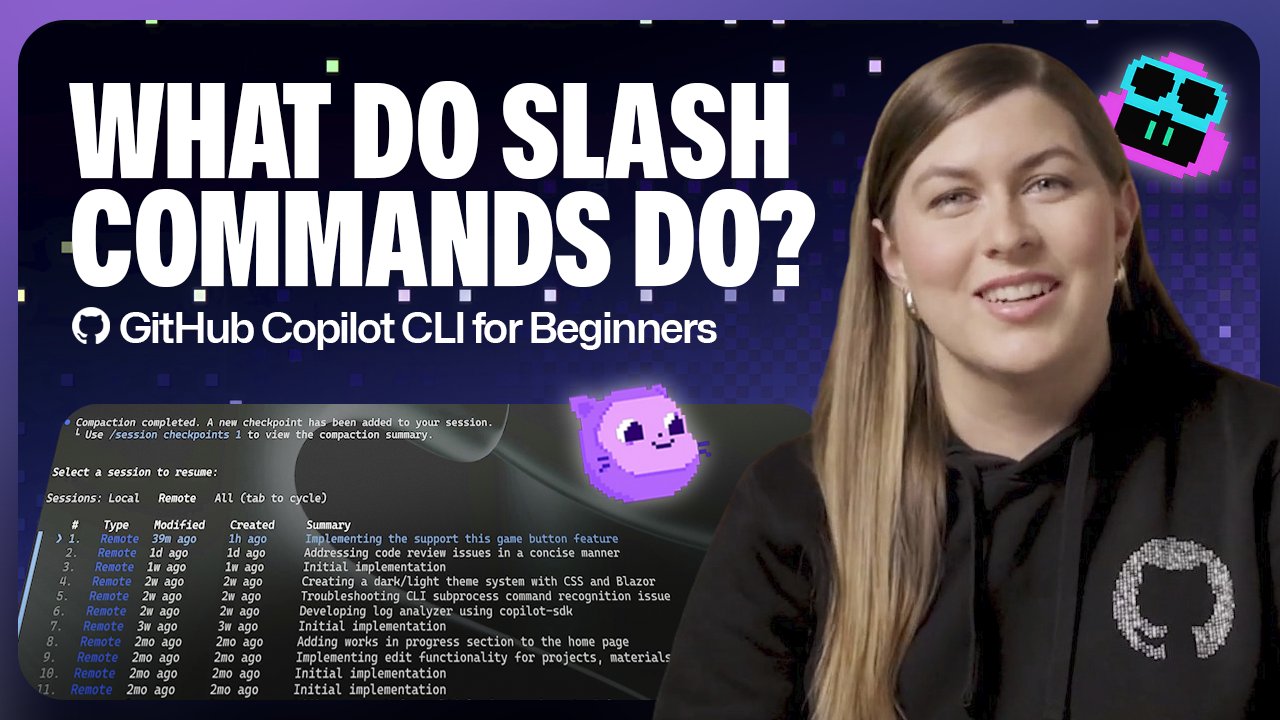
The /resume command brings up a list of your previous sessions, including both local and remote ones. Selecting a session displays its history and lets you pick up where you left off.
Inspecting changes
Running /diff shows the modifications made during your current session. The command gives a clear view of what changed, letting you validate updates before moving forward.
Navigating across repositories
The /cwd command changes your working directory to another repository without exiting Copilot. This scopes Copilot's work to a specific part of your project, useful when multitasking across codebases.
Resetting tool permissions
If you granted Copilot CLI permission to edit files in one repository and want to start fresh in another, /reset-allowed-tools clears those permissions.
Taking it further
The series covers foundational concepts across multiple installments. Previous entries explain getting started with Copilot CLI and the differences between interactive and non-interactive modes.
GitHub recommends typing / in the terminal to explore the full list of available commands. The more familiar you become with them, the more deliberate your workflow becomes.
Comments
Please log in or register to join the discussion