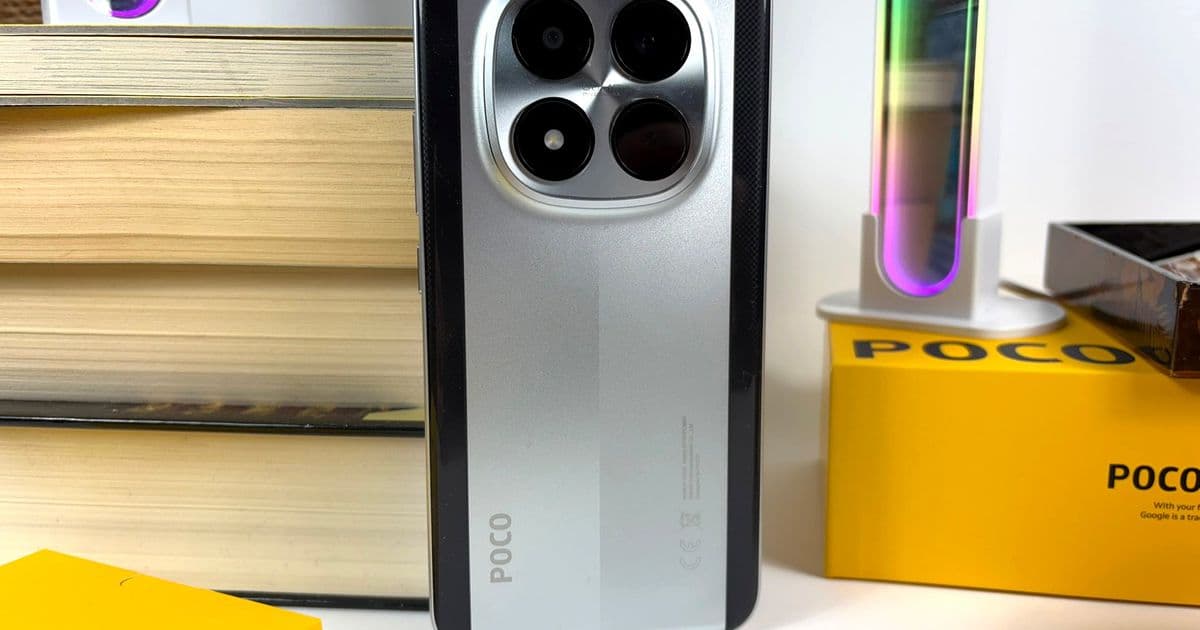
A comprehensive guide to disabling ads across Xiaomi, Redmi, and Poco phones running HyperOS, covering all major system apps and the msa data collection service.
Xiaomi, Redmi, and Poco phones running HyperOS have become notorious for showing ads in various system apps, which can significantly impact the user experience. These ads appear in apps like Downloads, Mi Browser, Mi Video Player, Music, Security, Themes, and the App Vault. Additionally, there's a system service called msa that collects data and is responsible for showing personalized ads. Fortunately, all of this can be turned off, though it requires navigating through multiple settings menus.
Disabling the msa System Service
The msa system service is the backbone of Xiaomi's ad personalization system. To disable it:
- Open Settings
- Navigate to Fingerprints, face data, and screen lock
- Tap on Authorization and revocation
- Find and turn off the toggle for msa
- Confirm the change by tapping Revoke
This step is crucial as it prevents the system from collecting data for personalized advertising across all apps.
Disabling Ads in Individual Apps
Downloads App
- Open the Downloads app
- Tap the menu icon (three vertical lines) at the top right
- Go to Settings
- Turn off Show ads
Mi Browser
- Open Mi Browser
- Tap the profile icon at the bottom right
- Tap the gear icon (Settings) at the top right
- Go to Advanced
- Turn off Show ads
Mi Video Player
- Open Mi Video Player
- Tap the profile icon at the bottom right
- Tap the gear icon at the top right
- Turn off Personalized recommendations
Note: Xiaomi leaves a loophole here, as this feature is only disabled for 90 days before it reactivates.
Music App
- Open the Music app
- Tap the profile icon (top left, the symbol with two stacked sliders)
- Go to Settings
- Turn off Allow permanent notifications
- In Advanced settings, also turn off:
- Show ads
- Personalized recommendations
Security App
- Open the Security app
- Tap the gear icon (Settings) at the top right
- Turn off Show recommendations (ads)
- Under Cleaner, also turn off Show recommendations
Themes App
- Open the Themes app
- Tap the account settings icon at the bottom right
- Tap the gear icon at the top right
- Turn off both Show ads and Personalized recommendations
App Vault
- Open the App Vault app (if installed on your device)
- Tap the menu icon (three vertical lines) at the top right
- Select Manage services
- Turn off both App suggestions and Ads
Important Notes
- The exact menu names and locations may vary slightly depending on your specific Xiaomi, Redmi, or Poco model and HyperOS version
- Some settings may reset after system updates, requiring you to repeat these steps
- The 90-day limitation on Mi Video Player's personalized recommendations setting means you'll need to revisit this setting periodically
- Disabling these features may slightly impact some personalized functionality, but significantly improves the user experience by removing intrusive ads
By following these steps, you can effectively eliminate most, if not all, of the advertising content that Xiaomi includes in their HyperOS devices. While the process is somewhat tedious due to the need to disable ads in each individual app, the result is a much cleaner and less intrusive user experience on your Xiaomi, Redmi, or Poco smartphone.
Comments
Please log in or register to join the discussion