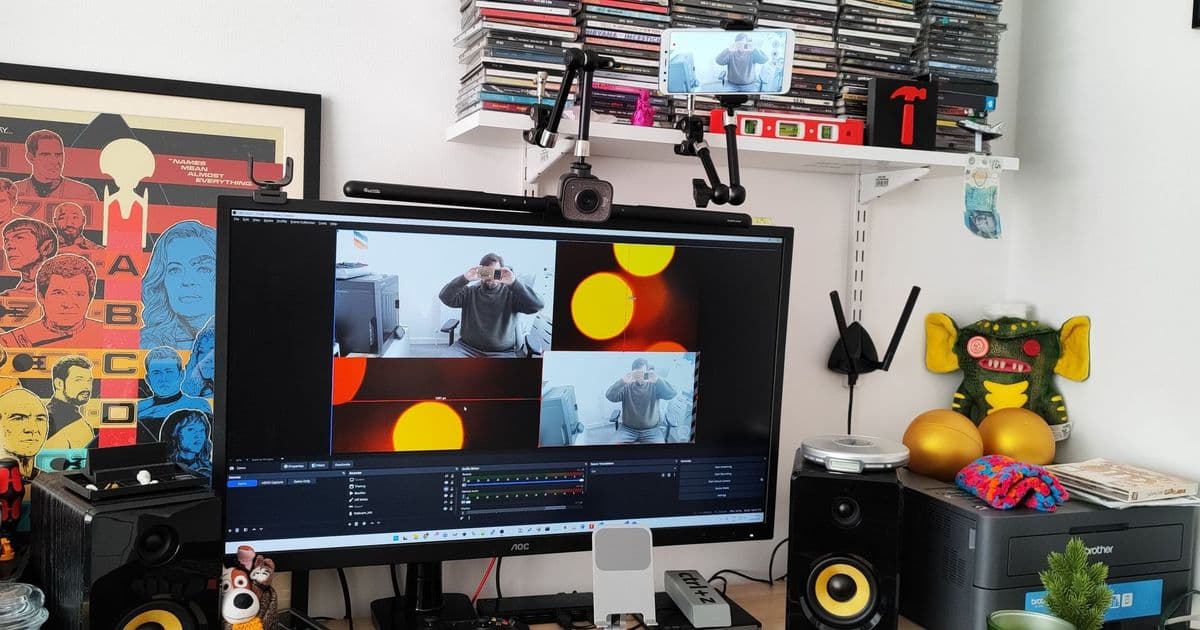
Breathe new life into that forgotten Android device by transforming it into a high-quality wireless webcam for Windows 10/11 and OBS streaming.
If you're scrambling for a webcam and can't wait for shipping or make it to the store, that old Android smartphone collecting dust in your drawer might be the perfect solution. With Camo Studio, you can repurpose your forgotten device into a wireless webcam that works seamlessly with Windows 10, Windows 11, and even OBS for streaming setups.
Why Use Your Smartphone as a Webcam?
Modern smartphones pack impressive camera hardware that often outperforms dedicated webcams. The multi-lens setups, advanced image processing, and high-resolution sensors in today's phones can deliver superior video quality compared to budget webcams. Plus, you're giving new purpose to hardware you already own instead of buying something new.
Getting Started: What You'll Need
- An Android smartphone (running Android 5.0 or later)
- A Windows 10 or 11 PC
- Both devices connected to the same Wi-Fi network
- The Camo Studio app for Windows
- The Camo Camera app from Google Play Store
Installing Camo Studio on Windows
The Windows application provides the interface to control your smartphone camera remotely.
Download Camo Studio from the official website. The installer is lightweight and straightforward.
Navigate to your Downloads folder and double-click the .exe file to begin installation. The process uses the Microsoft Store to install the application, ensuring you get the latest version.
Follow the installation prompts as they appear. The setup is quick and doesn't require any complex configuration.
Open Camo Studio once installation completes. You'll be greeted with a clean, intuitive interface.
Understanding the Camo Studio Interface
The user interface is thoughtfully organized into four main areas:
Device Selection: Choose which smartphone you want to use as your webcam. If you have multiple devices paired, they'll all appear here.
Device Settings: Fine-tune your camera's performance with options for resolution, focus mode, and lighting adjustments. You can also switch between front and rear cameras.
Live Preview: See exactly what your camera sees, including any filters or adjustments you've applied in real-time.
Filters and Templates: Access a library of visual effects and scene templates to enhance your video output.
Setting Up Your Android Device
Open the Google Play Store on your Android smartphone.
Search for "Camo Camera" and install the application. The app is free and lightweight.
Launch the Camo Camera app once installation completes.
Connecting Your Smartphone to Camo Studio
In the Camo Studio Windows app, click on "Device" in the menu bar, then select "Pair a device." This initiates the pairing process.
Open the Camo Camera app on your smartphone and tap the Wi-Fi+ icon. Ensure both your PC and smartphone are connected to the same network.
Scan the QR code displayed in the Camo Studio app using the Camo Camera app on your smartphone. The devices should connect within seconds.
Verify the connection by checking that you see a live video stream from your smartphone in the Camo Studio preview window.
Pro Tip: For extended use, keep your smartphone plugged into power. The wireless streaming process can drain your battery quickly.
Customizing Your Webcam Settings
Once connected, you can optimize your video output:
- Switch between cameras using the Lens dropdown to choose between front-facing and rear cameras
- Blur the background for a professional look that keeps focus on you
- Experiment with effects like Sketch, 8-bit, or Emoji Face for creative streams
- Adjust image parameters including temperature, tint, and contrast in the Adjustments section
Using Templates for Professional Scenes
Camo Studio includes several templates to enhance your video presentation:
Select a template from the right-side panel. "Meet & Greet" is popular for video calls.
Access the Layers panel by clicking the Layers icon to customize template elements.
Modify text elements by selecting them and using the Variables dropdown to insert dynamic information like your name or title.
Fine-tune your template until it matches your desired look, then close the dialog to apply changes.
Integrating with OBS for Streaming
For content creators, Camo Studio works beautifully with OBS (Open Broadcaster Software):
Ensure Camo is running and your smartphone is connected.
Open OBS and create a new scene by clicking the "+" under Scenes. Name it "Camera2" or similar.
Add a video source by clicking "+" under Sources, then selecting "Video Capture Device."
Create a new source called "Camo" and click OK.
Select "Camo" from the device list and confirm.
Verify the video feed appears in your OBS preview window.
Switch between scenes in OBS to toggle between different camera angles during your stream.
This multi-camera setup is perfect for tutorials, reaction videos, or any content where you want to show both your face and your screen or workspace.
Practical Applications
- Video conferencing: Upgrade your Zoom or Teams calls with better image quality
- Content creation: Add dynamic camera angles to YouTube videos and streams
- Online teaching: Create more engaging virtual classroom experiences
- Remote work: Present a more professional appearance in virtual meetings
Troubleshooting Tips
- Connection issues: Restart both apps and ensure devices are on the same network
- Lag or latency: Move closer to your Wi-Fi router or use a 5GHz network if available
- Battery drain: Use a charging cable or battery pack for longer sessions
- Quality problems: Check that your smartphone's camera lens is clean and unobstructed
By repurposing your old Android smartphone, you're not just solving an immediate need—you're extending the life of perfectly good hardware and reducing electronic waste. Whether you're a streamer looking for that extra camera angle or someone who needs a quick webcam upgrade, Camo Studio offers an elegant, cost-effective solution that leverages the powerful cameras we already carry in our pockets.
Comments
Please log in or register to join the discussion