Windows 365 Link devices now support passwordless FIDO2 authentication, eliminating the friction of traditional credentials while strengthening security posture. This guide covers the complete configuration workflow from Entra ID tenant settings to Intune policy deployment and user registration.
Password-based authentication remains the default for many organizations despite its inherent vulnerabilities: forgotten credentials, management overhead, and susceptibility to phishing attacks. Windows 365 Link devices, which provide direct access to Cloud PCs, have traditionally required users to enter both username and password for login and screen unlock operations—a friction point that IT teams know generates significant help desk volume.
FIDO2 security keys offer a practical solution that combines hardware-backed security with streamlined user experience. By implementing passkey authentication, organizations can reduce credential theft risk while eliminating password entry for Windows 365 Link users.

Why FIDO2 Matters for Windows 365 Link
FIDO2 authentication implements true multi-factor security through possession and knowledge factors. Users carry a physical security key (possession) and know their PIN (knowledge). This approach fundamentally changes the security equation:
- Device-bound keys: Even if a key is stolen, it cannot authenticate to other devices or services without the PIN
- Phishing resistance: FIDO2 protocols prevent credential interception through cryptographic verification
- User experience: Authentication reduces to inserting the key and entering a PIN—no password typing, no reset cycles
For Windows 365 Link specifically, this means users can sign in directly to their Cloud PC session without the traditional username-and-password dance, creating a more appliance-like experience that matches user expectations for modern endpoints.
Prerequisites and Planning
Before beginning configuration, ensure you have:
- Administrative access: Permissions to modify Microsoft Entra ID authentication methods and Intune policies
- Compatible hardware: FIDO2-compliant security keys (YubiKey, Feitian, or other FIDO2-certified devices)
- Physical connectivity: Windows 365 Link devices have one front-facing USB-A port; USB-C keys require connection to the rear port or a USB hub
- Key distribution plan: Provide users with two registered keys as backups
Step 1: Enable FIDO2 in Microsoft Entra ID
FIDO2 authentication must first be enabled at the tenant level through the Microsoft Entra portal.
Navigate to Protection → Authentication Methods and locate the Passkey (FIDO2) method. Enable the method and configure deployment scope:
- All users: Broad deployment for organization-wide rollout
- Targeted groups: Pilot with specific security groups before full deployment
- Key restrictions: Enforce attestation GUIDs to limit authentication to organization-approved hardware
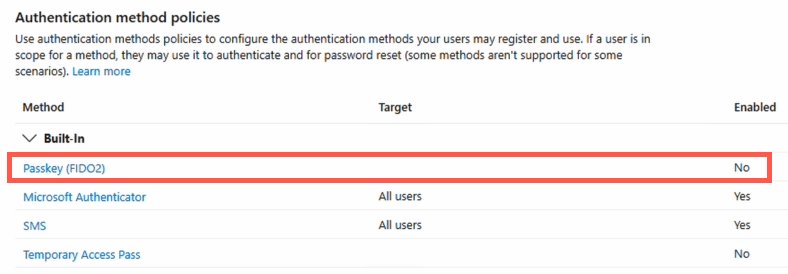
This tenant-level setting activates FIDO2 capability but does not force its use—device-level policies control actual implementation.
Step 2: Configure Intune for Windows Devices
Intune policies enable FIDO2 authentication on Windows 365 Link devices through Windows Hello for Business settings.
Standard Configuration Policy
- In the Intune portal, navigate to Devices → Windows → Configuration profiles
- Create a new profile for Windows 10 and later
- Under Windows Hello for Business, locate Use Security Keys for Sign-In
- Set to Enabled
This policy applies to newly provisioned devices automatically.
Targeted Deployment for Existing Devices
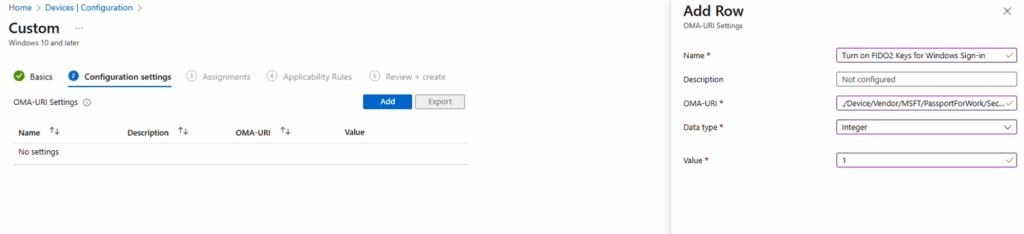
For existing Windows 365 Link deployments, create a custom configuration profile using OMA-URI settings:
- OMA-URI Path:
./Device/Vendor/MSFT/PassportForWork/SecurityKey/UseSecurityKeyForSignin - Value:
1(Integer type) - Assignment: Target a dynamic device group containing your Windows 365 Link devices
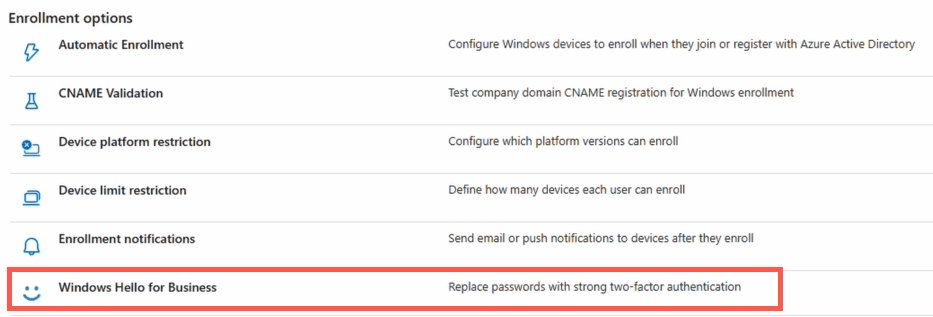
Dynamic device groups can be created using the rule: (device.deviceModel -eq "Windows 365 Link") or based on device IDs if managing a specific fleet.
Step 3: User Security Key Registration
Once policies are applied, users must register their FIDO2 keys through the My Account portal. This is a one-time process per key.
- Navigate to My Account → Security Info
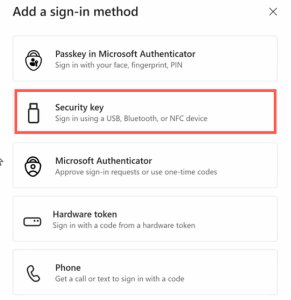
- Select Add Method and choose Security Key
- Insert the physical key into the USB port
- Enter a PIN for the key (set during initial key setup)
- Name the key for identification (e.g., "Primary Work Key")
Users should register both provided keys during this process. The portal supports multiple registered keys, ensuring access continuity if one key is lost or damaged.
Step 4: Test Authentication
Validate the configuration by restarting a Windows 365 Link device:
- At the sign-in screen, select Security Key Login (this option appears when FIDO2 is enabled)
- Insert the registered FIDO2 key
- Enter the key's PIN
- Touch the key if prompted (depending on key model)
The user should authenticate directly to their Cloud PC session without entering a username or password.
Operational Considerations
User Experience Impact
FIDO2 authentication fundamentally changes the login workflow:
- Initial login: Insert key, enter PIN, access Cloud PC
- Screen unlock: Same process—no password entry required
- Multi-key support: Users can register multiple keys for redundancy
- Cross-platform consistency: Same authentication method works across Windows 365 Link, Windows desktops, and web services
Security Posture Improvements
- Credential theft elimination: No passwords to steal, phish, or crack
- MFA enforcement: Hardware possession + PIN knowledge provides inherent multi-factor authentication
- Audit trail: All authentication events logged in Entra ID with key attestation data
- Revocation control: Administrators can disable specific keys or entire FIDO2 methods through Entra ID
Troubleshooting Common Issues
Key not recognized: Verify the key is FIDO2-certified and that USB connectivity is established. For USB-C keys on Windows 365 Link, use the rear port or a powered hub.
Security Key Login option missing: Confirm the Intune policy has applied (check device sync status) and that the device has restarted after policy installation.
Registration failures: Ensure the user has appropriate permissions in Entra ID and that FIDO2 is enabled for their account scope.
Integration with Broader Authentication Strategy
FIDO2 for Windows 365 Link should be viewed as part of a comprehensive passwordless strategy. Organizations can extend the same keys to:
- Web authentication for Microsoft 365 applications
- Windows sign-in on physical endpoints
- Other cloud services supporting FIDO2 standards
This creates a unified authentication experience where users carry a single credential for all access scenarios, reducing complexity and training requirements.
Measuring Success
Track these metrics after deployment:
- Help desk tickets: Reduction in password reset requests
- Login times: Faster average authentication duration
- User satisfaction: Survey feedback on the new authentication method
- Security incidents: Decrease in account compromise attempts
Conclusion
FIDO2 security keys transform Windows 365 Link from a password-dependent endpoint into a modern, secure access appliance. The configuration requires careful planning but delivers immediate benefits: stronger security through hardware-backed authentication and improved user experience through password elimination.
For organizations standardizing on Windows 365 Link, FIDO2 implementation should be considered a core component of the deployment strategy rather than an optional enhancement.
Additional Resources
- Microsoft Documentation: FIDO2 Security Keys for Windows 365 Link
- Entra ID Passwordless Authentication Configuration
- Windows 365 Link Product Overview
- FIDO Alliance Specifications
Related Training
For comprehensive Azure Virtual Desktop and Windows 365 training:
Comments
Please log in or register to join the discussion