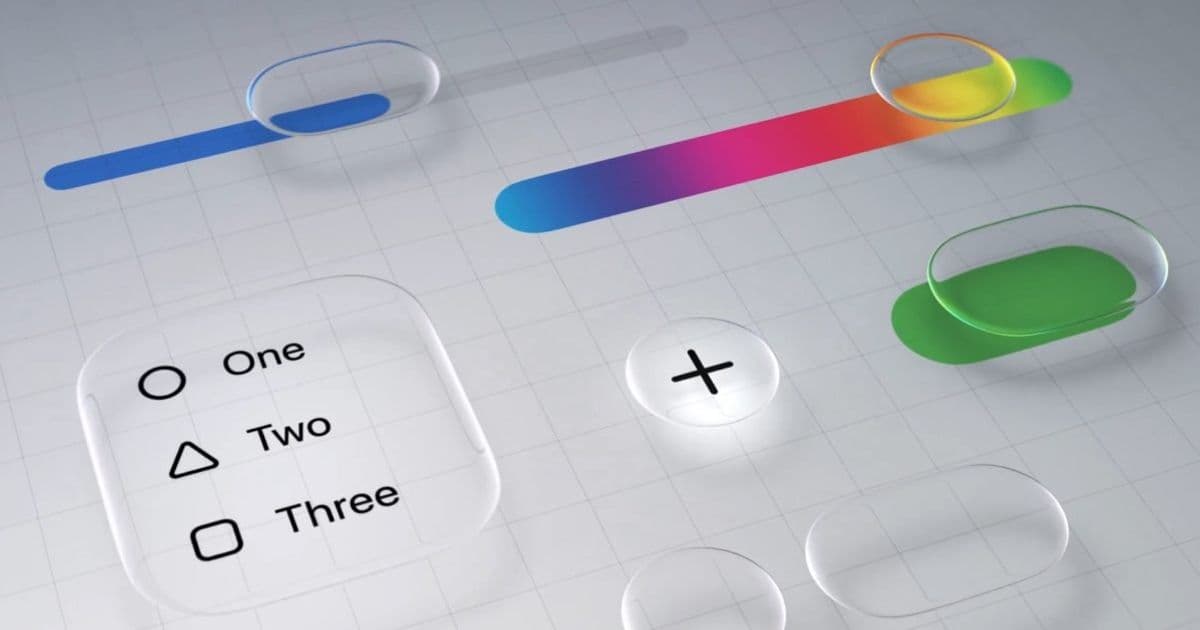
Apple's iOS 26.4 beta introduces a new accessibility option to disable flashing UI elements in the Liquid Glass design, giving users more control over the visual experience.
Apple continues to refine its Liquid Glass design language in iOS 26, and the latest iOS 26.4 beta brings another user control option that addresses concerns about the interface's visual intensity. The new 'Reduce Bright Effects' setting, discovered in beta 4, allows users to disable the bright flashing responses that occur when interacting with certain UI elements throughout the operating system.
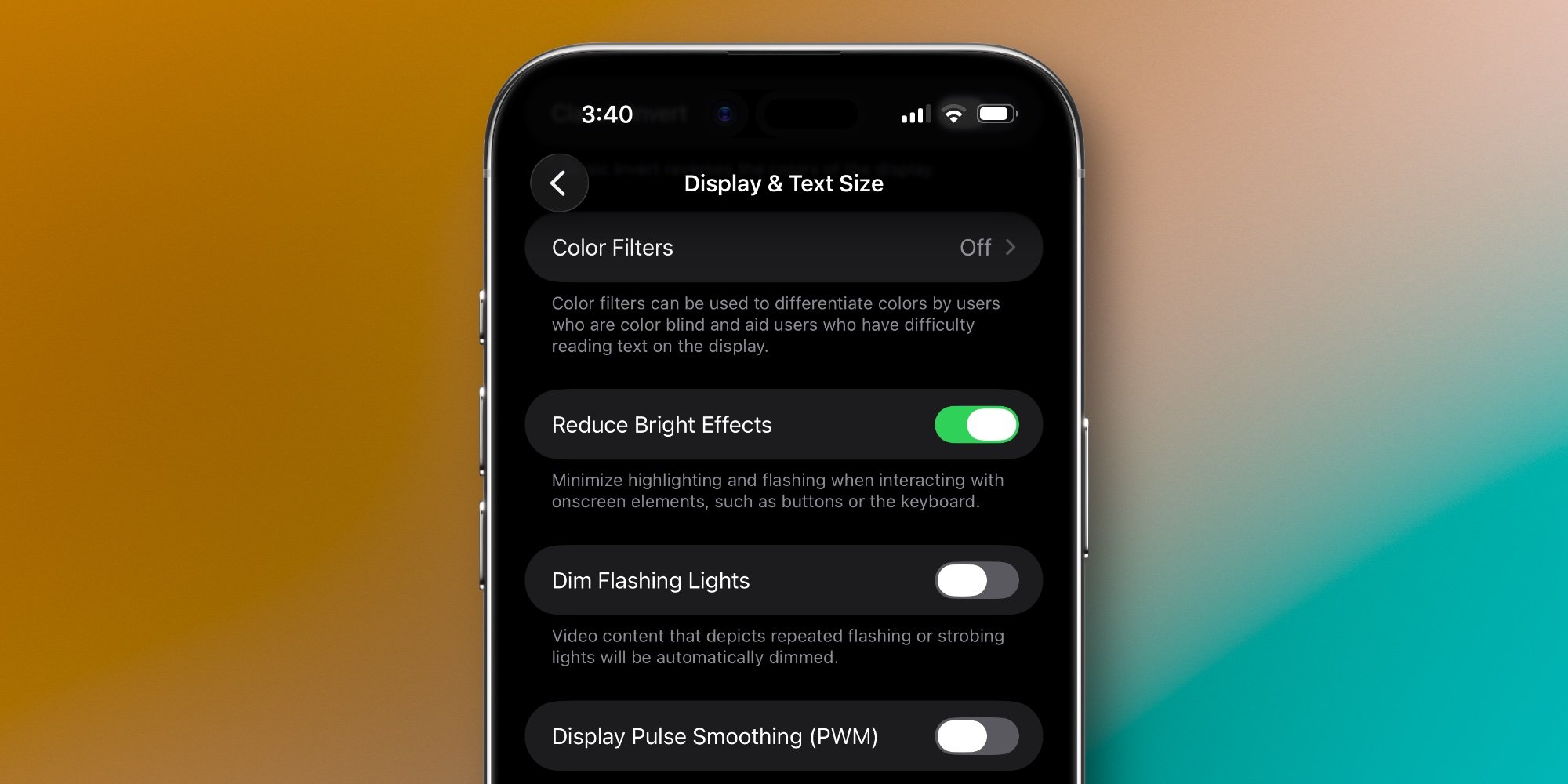
The setting is located within Settings > Accessibility > Display & Text Size, joining other visual customization options that Apple has been gradually adding to give users more control over their experience. This follows the earlier introduction of the 'Clear' versus 'Tinted' design toggle in iOS 26.1, which allowed users to choose between the full Liquid Glass effect or a more subdued appearance reminiscent of iOS 18.
Understanding Liquid Glass and Its Visual Impact
Liquid Glass represents Apple's most ambitious design overhaul in years, introducing translucent, glass-like surfaces that respond dynamically to user interactions. The design philosophy emphasizes depth, movement, and visual feedback through various effects including transparency, blur, and notably, bright flashes that occur during certain interactions.
These flashing effects serve multiple purposes: they provide immediate visual feedback to user actions, create a sense of depth and dimension, and reinforce the glass-like nature of the interface elements. However, for some users, these effects can be overwhelming or distracting, particularly in low-light environments or for those sensitive to visual stimuli.
The Evolution of Design Customization in iOS 26
The introduction of 'Reduce Bright Effects' represents Apple's ongoing commitment to balancing innovative design with user comfort and accessibility. This approach mirrors the company's strategy with other recent design changes, where new visual paradigms are accompanied by options to dial back their intensity.
The 'Tinted' versus 'Clear' setting from iOS 26.1 was the first major customization option for Liquid Glass, allowing users to choose between the full translucent effect or a more traditional appearance. Combined with the new 'Reduce Bright Effects' toggle, users now have multiple levers to adjust their visual experience:
- Clear mode: Full Liquid Glass with all effects enabled
- Tinted mode: Subdued appearance closer to previous iOS versions
- Reduce Bright Effects: Disables flashing responses while maintaining other Liquid Glass features
- Both options combined: Maximum reduction of Liquid Glass visual intensity
Practical Implications for Users
For users who find the flashing effects distracting or uncomfortable, this new setting provides welcome relief without requiring a complete abandonment of the Liquid Glass design. The ability to selectively disable specific visual elements while maintaining others allows for a more personalized experience that can accommodate different preferences and needs.
The setting is particularly relevant for:
- Users with visual sensitivities or conditions affected by flashing lights
- Those who work in low-light environments where bright flashes are more noticeable
- Users who prefer a more subdued interface while still wanting some modern design elements
- Anyone who finds the flashing effects break their concentration or workflow
Developer and Design Considerations
From a design perspective, Apple's approach demonstrates an understanding that innovative interfaces must be flexible enough to accommodate diverse user needs. Rather than forcing all users to adapt to a single visual paradigm, the company is providing graduated options that allow for customization while maintaining design consistency.
This strategy also reflects broader trends in interface design, where accessibility and personalization are increasingly prioritized alongside aesthetic innovation. The ability to reduce specific effects while maintaining others shows a nuanced understanding of how different visual elements contribute to the overall user experience.
Looking Ahead
As iOS 26.4 continues through its beta cycle, it will be interesting to see whether Apple adds additional customization options or refines the existing ones based on user feedback. The company's willingness to provide these controls suggests an ongoing commitment to making Liquid Glass accessible to as many users as possible, regardless of their sensitivity to visual effects.
The 'Reduce Bright Effects' setting joins a growing suite of accessibility and customization options in iOS, reflecting Apple's recognition that even the most well-designed interfaces need flexibility to serve diverse user populations effectively.
For now, users running iOS 26.4 beta 4 can find the new setting in Settings > Accessibility > Display & Text Size, where they can experiment with different combinations of visual preferences to create their ideal iOS experience.
Comments
Please log in or register to join the discussion