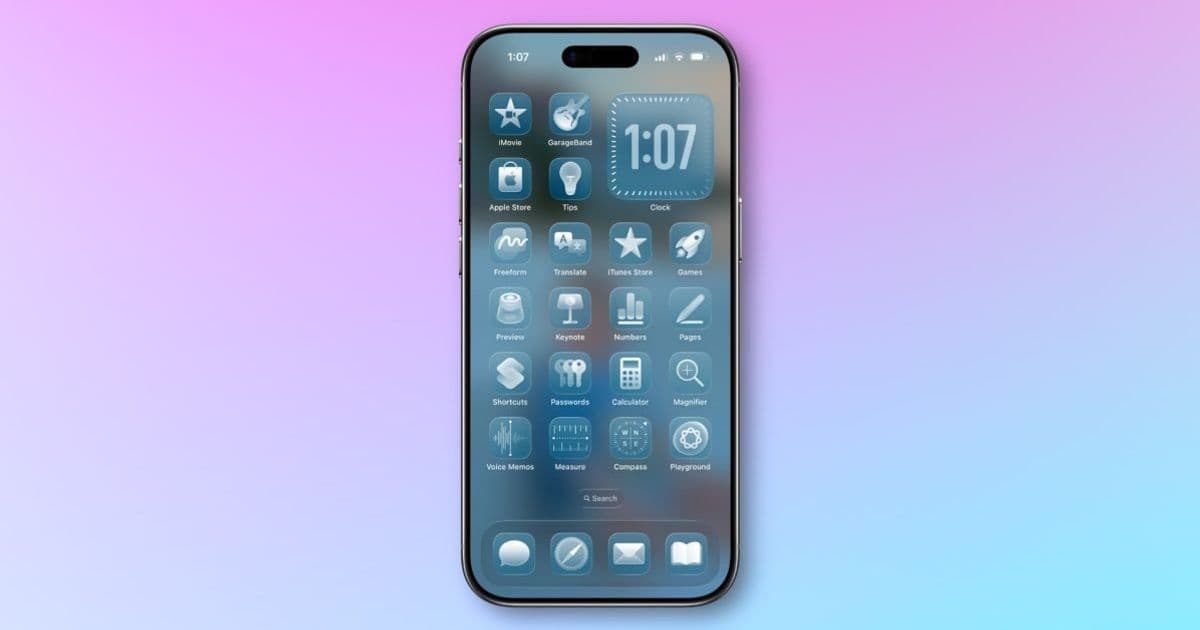
Apple's latest iOS update introduces refined accessibility controls for Liquid Glass design elements, giving users more control over visual effects while maintaining the aesthetic vision of the interface.
iOS 26.4 Enhances Liquid Glass Accessibility with New Customization Options
Apple continues to refine its Liquid Glass design language in iOS 26.4, introducing two new accessibility features that give users greater control over visual effects. The update addresses concerns about potentially overwhelming animations and flashing elements while preserving the core design philosophy behind Liquid Glass.
Understanding Liquid Glass in iOS
Liquid Glass represents Apple's latest design direction for iOS, characterized by subtle, fluid animations and translucent elements that create depth and visual interest. Introduced in iOS 26, this design language aims to create a more immersive and dynamic user interface while maintaining clarity and functionality.
The design incorporates several visual effects:
- Subtle transparency layers
- Fluid transitions between states
- Highlight effects on interactive elements
- Dynamic backgrounds that respond to user interaction
While these effects enhance the aesthetic experience, some users have reported sensitivity to certain animations, particularly those with vestibular disorders, epilepsy, or simply preferences for less visual stimulation.
New Features in iOS 26.4
Reduce Bright Effects
The most significant addition in iOS 26.4 is the "Reduce Bright Effects" toggle, a new accessibility option specifically designed to minimize the intensity of visual feedback when interacting with UI elements. This setting targets the highlighting and flashing effects that occur when users tap buttons, interact with the keyboard, or engage with other onscreen components.
Apple's official description states: "Minimize highlighting and flashing when interacting with onscreen elements, such as buttons or the keyboard." This feature provides a more subdued visual experience without completely removing interactive feedback.
Users can enable this feature by navigating to Settings → Accessibility → Display & Text Size. The toggle provides immediate visual feedback, allowing users to compare the standard Liquid Glass experience with the reduced version.
Updated Reduce Motion
While "Reduce Motion" isn't new to iOS 26.4, Apple has significantly improved the functionality of this existing accessibility feature. Previously, Reduce Motion offered a blanket reduction of animations throughout the system. In iOS 26.4, Apple states that the feature now "more reliably reduces the animations of Liquid Glass for users sensitive to screen motion."
This improvement addresses a common frustration among accessibility users who found that previous versions of Reduce Motion inconsistently applied to Liquid Glass elements. The refined implementation provides more consistent behavior, ensuring that users who need reduced motion receive a more stable experience.
The updated toggle remains in the same location: Settings → Accessibility → Motion. Users who previously enabled this setting but found its effectiveness lacking in iOS 26 should notice a marked improvement with the 26.4 update.
Developer Impact and Considerations
For iOS developers, these accessibility updates require attention to ensure applications remain compatible with both standard and reduced visual effect modes. Here are key considerations:
Testing with Accessibility Settings
Developers should thoroughly test their applications with both Reduce Bright Effects and Reduce Motion enabled. This includes:
- Verifying that interactive elements remain functional with reduced visual feedback
- Ensuring that important state changes are still communicated effectively
- Checking that custom animations respect the system accessibility settings
Implementing Custom Animations Responsibly
When implementing custom animations that complement Liquid Glass:
- Use system-provided animation APIs rather than custom implementations
- Respect the
UIAccessibility.isReduceMotionEnabledproperty to conditionally apply animations - Provide alternative visual feedback for users who have motion effects disabled
Designing for Accessibility from the Start
These updates reinforce the importance of designing with accessibility in mind:
- Ensure that critical UI elements remain discoverable even with reduced visual effects
- Consider providing additional non-visual feedback options (haptic, audio)
- Test designs with users who have visual sensitivities
Future Directions for Liquid Glass Customization
Rumors suggest that Apple may introduce more granular control over Liquid Glass in iOS 27, potentially including a slider that allows users to adjust the intensity of visual effects to their preference. This would represent a significant shift from the current binary approach (on/off) to a more nuanced system.
Such a change would align with Apple's broader trend of providing more user control over their experience, particularly in accessibility features. It would also acknowledge the diversity of user preferences regarding visual stimulation while maintaining the core design principles of Liquid Glass.
The Balance Between Design and Accessibility
The introduction of these features highlights an important tension in modern interface design: balancing aesthetic innovation with accessibility requirements. Liquid Glass represents Apple's vision for a modern, dynamic interface, but as with any design system, not all users benefit from or can tolerate certain visual effects.
By providing these accessibility options, Apple demonstrates a commitment to inclusive design while maintaining its design language. This approach allows the company to push visual boundaries while ensuring that the platform remains accessible to all users.
Practical Implementation for Users
For users who experience discomfort with Liquid Glass effects:
- Navigate to Settings → Accessibility
- For reduced bright effects: Display & Text Size → Reduce Bright Effects
- For reduced motion: Motion → Reduce Motion
Users can experiment with these settings individually or in combination to find the balance that works best for their needs. The immediate visual feedback makes it easy to compare different configurations.
Conclusion
iOS 26.4's accessibility enhancements for Liquid Glass represent a thoughtful evolution of Apple's design language. By providing more granular control over visual effects, Apple acknowledges the diverse needs of its user base while maintaining the core aesthetic principles of Liquid Glass.
For developers, these updates reinforce the importance of designing with accessibility in mind from the earliest stages of development. As Apple continues to refine its design system, developers must remain attentive to these changes and ensure their applications provide a consistent, accessible experience across all user configurations.
The rumored slider control in iOS 27 suggests that Apple may continue to expand customization options for Liquid Glass, potentially offering even more fine-tuned control over visual effects. This evolution would further demonstrate Apple's commitment to inclusive design while maintaining its innovative approach to interface aesthetics.
As mobile interfaces become increasingly sophisticated, the balance between visual richness and accessibility will remain a critical consideration for platform designers and application developers alike. iOS 26.4's accessibility updates represent a significant step toward finding that balance.
Comments
Please log in or register to join the discussion