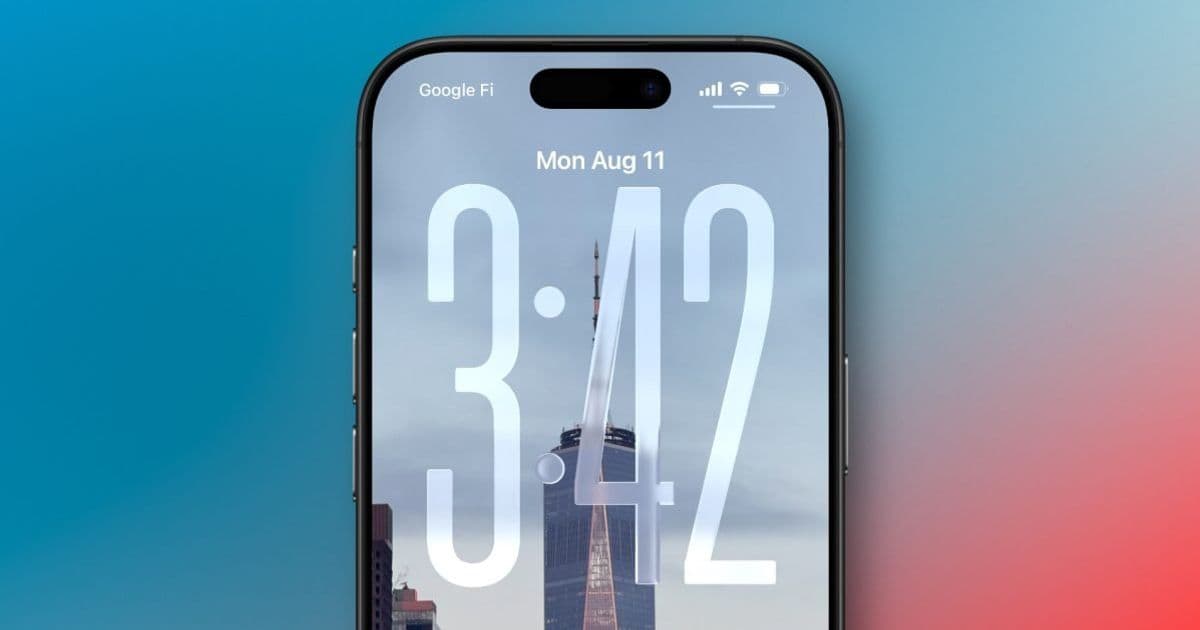
Apple’s iOS 26 adds a new default blur to the Always‑On Display wallpaper, making clocks and widgets easier to read but muting the personal touch of lock‑screen photos. Users can revert to the original clear‑wallpaper view via a new toggle in Settings.
iOS 26 Tweaks iPhone Always‑On Display in a Way You Might Not Like
Apple introduced the Always‑On Display (AOD) with the iPhone 14 Pro series, showing a dimmed version of your lock screen whenever the device is locked. It gives quick access to the clock, date, notifications, and widgets without waking the phone.
What Changed in iOS 26?
In iOS 26 the system now applies a subtle blur to the lock‑screen wallpaper when the AOD is active. The blur is applied automatically; the clock and widgets become more prominent, improving legibility in low‑light conditions. The visual trade‑off is that the photo you chose for your lock screen is no longer visible in its original clarity.
Why Apple Might Have Done This
- Readability – A blurred background reduces contrast interference, making the white or black text of the clock stand out even when the display is dimmed to just a few nits.
- Privacy – A faint image is harder for onlookers to identify, which can be useful when the phone is on a nightstand or in a pocket.
- Consistency – The same blur effect is already used for the lock‑screen preview in the lock‑screen editor, so extending it to AOD keeps the visual language uniform.
How to Turn the Blur Off
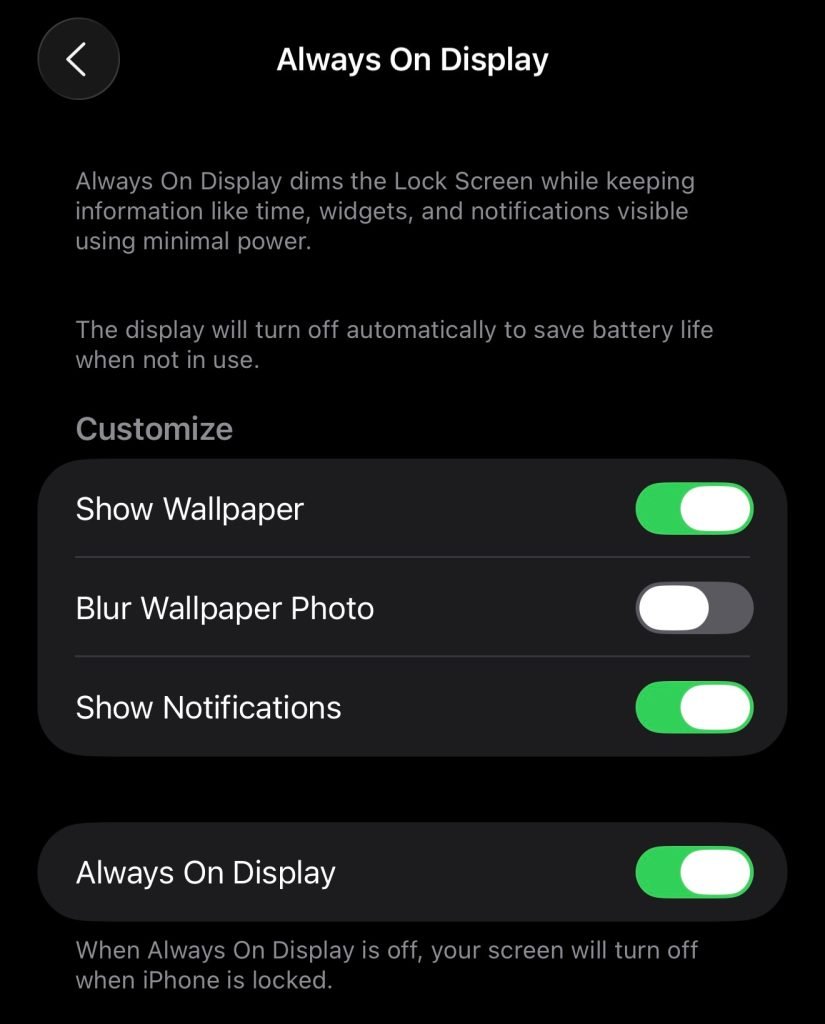
Apple recognized that many users prefer their personal photos to remain crisp. A new toggle appears in Settings → Display & Brightness → Always‑On Display. Turning off “Blurred wallpaper” restores the original, unblurred lock‑screen image when AOD is active.
A Quick Recap of Existing AOD Controls
- Wallpaper visibility – You can hide the wallpaper entirely, showing only the clock and widgets.
- Notification display – Choose whether notifications appear on the AOD.
- Power‑saving behavior – AOD turns off when the phone is face‑down, in CarPlay, using Continuity Camera, in Low Power Mode, during Sleep Focus, or at bedtime.
These settings have remained largely unchanged since iOS 18, so the blur is the most noticeable new visual tweak.
What This Means for Different Users
- Photo‑centric users – If your lock‑screen image is a key part of your phone’s aesthetic, the blur may feel like a step backward. The toggle lets you keep the photo sharp, but you’ll need to dive into Settings to enable it.
- Utility‑focused users – For those who mainly use AOD for the clock and widgets, the blur can be a welcome improvement, making the information easier to read without sacrificing battery life.
- Battery considerations – The blur itself has negligible impact on power consumption; AOD still draws the same amount of energy regardless of the background style.
How to Decide
Try the default blurred AOD for a day. If the clock feels clearer and you don’t miss the photo, you may stick with it. If the blurred image feels like a loss of personality, flip the toggle in Settings and return to the original look.
Bottom line: iOS 26’s default blur makes the Always‑On Display more legible but less personal. Apple provides a simple setting to revert to the classic clear‑wallpaper experience, letting each user choose the balance between readability and visual flair.
Comments
Please log in or register to join the discussion