
Apple’s new on‑device AI in iOS 26 lets Wallet import order‑confirmation emails automatically, turning the app into a functional order hub. This guide walks through the required settings, shows where to find tracked orders, and explains what developers need to know for future integrations.
iOS 26 brings order tracking to Apple Wallet
Apple finally fulfills the promise it made with the original Order Tracking feature introduced in iOS 15. Thanks to Apple Intelligence, the Wallet app can now read your Mail inbox on‑device, extract order details, and surface them inside Wallet without any third‑party partnership. The result is a single place where iPhone and iPad users can see upcoming deliveries, past purchases, and even block unwanted merchants.
What changed for developers?
- No external API required – Previously, vendors had to implement the
WalletOrderTrackingentitlement and expose a server‑side endpoint that Apple could call. iOS 26’s on‑device parsing bypasses that model entirely, meaning you no longer need to ship a dedicated order‑tracking backend for Apple Wallet. - Privacy‑first processing – All email parsing happens locally with the on‑device AI model. Apple only stores a hash of the extracted order ID to de‑duplicate entries. If you still want to provide richer data (e.g., real‑time shipment status), you can expose a standard Order Tracking API that the Wallet UI will call when the user taps a Track button inside an order card.
- SDK version – The new APIs are part of WalletKit 3.0, available starting with iOS 26 SDK and Xcode 15.4. The relevant header is
WalletKit/WalletKit.hwith theWKOrderTrackingProviderprotocol. - Platform requirements – The feature works on iPhone 12 or later and iPad OS 16.5+ because those devices support the on‑device AI engine. Older hardware will still show the toggle in Settings, but the toggle will be disabled.
Enabling the feature on a device
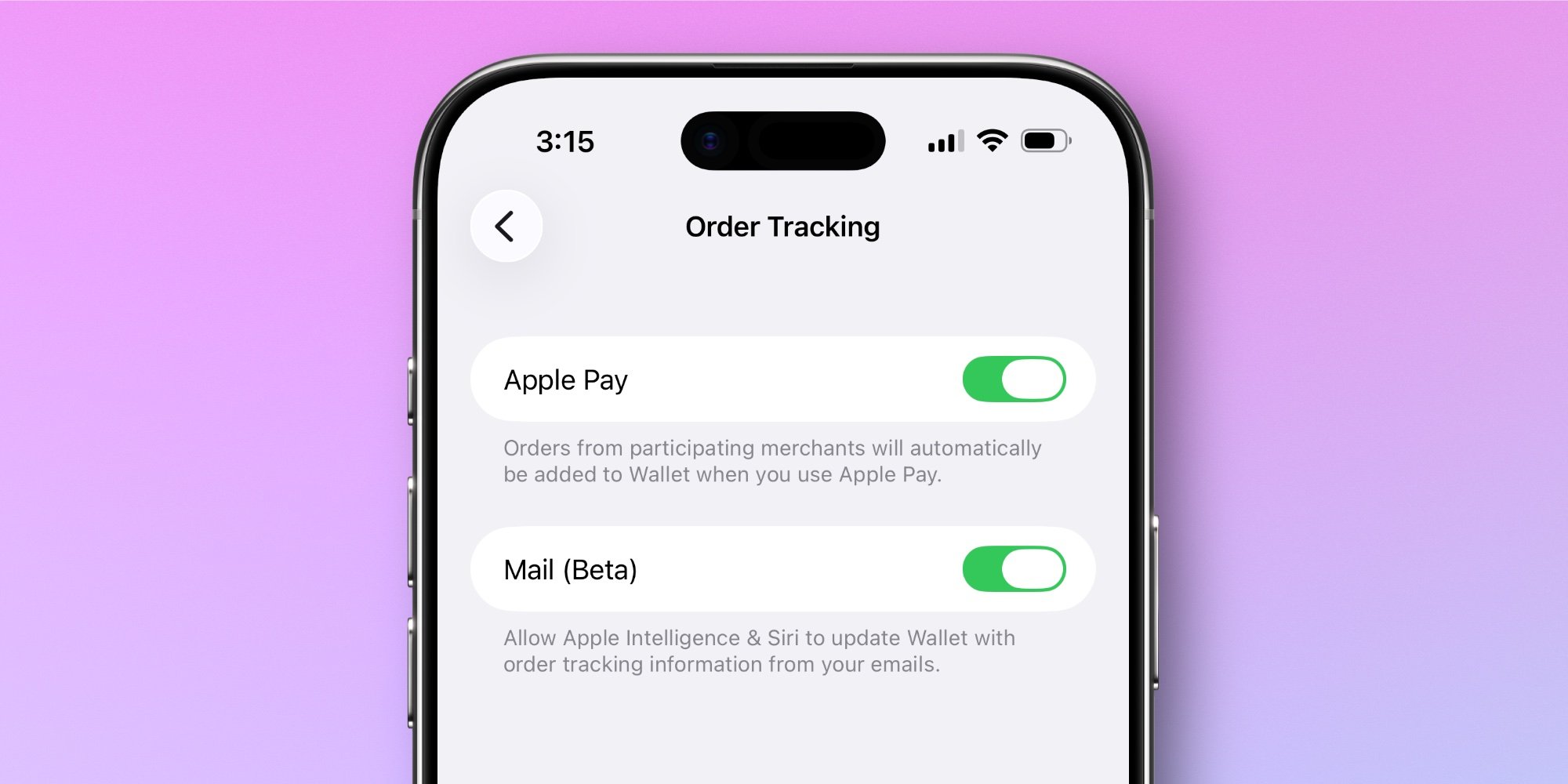
- Open Settings → Wallet & Apple Pay → Order Tracking.
- Turn on the Mail (Beta) toggle.
- Ensure Apple Intelligence is enabled (Settings → Privacy & Security → Apple Intelligence → On).
- Add the email account you want Wallet to scan in Settings → Mail → Accounts.
- When you receive an order‑confirmation email, open it in the Mail app and tap the Track button that appears at the top. A one‑time security prompt will ask you to Allow Wallet to read that email.
Once the permission is granted, future order emails from the same sender will be imported automatically. No further user interaction is required.
Finding and managing orders in Wallet
- Open Wallet.
- Tap the three‑dot icon in the top‑right corner and select Orders.
- You’ll see a list of Upcoming orders followed by a History section.
- Swipe left on any entry to Delete it. After deletion, a Block Merchant button appears, letting you prevent that vendor’s future emails from being parsed.
What this means for cross‑platform apps
If your Android app already offers an order‑tracking hub, you now have a clear point of divergence:
| Feature | iOS (Wallet) | Android (Google Pay) |
|---|---|---|
| Email‑based parsing | Built‑in with Apple Intelligence (on‑device) | No native equivalent – requires custom implementation |
| Real‑time carrier updates | Optional via Order Tracking API | Supported via Google Pay Passes API |
| Merchant blocking | UI built into Wallet | Must be handled in‑app |
For teams maintaining a single codebase with Flutter or React Native, you can expose a thin platform channel that forwards order data to the native Wallet UI on iOS and to a custom screen on Android. The channel only needs to send a JSON payload with orderId, status, estimatedDelivery, and an optional trackingUrl.
Migration checklist for existing iOS apps
- Update Xcode to 15.4 and set the deployment target to iOS 26.
- Add
WalletKit.frameworkand adoptWKOrderTrackingProviderif you still want to provide a deep‑link from your app to the Wallet order card. - Remove any server‑side code that was solely used for the old
WalletOrderTrackingentitlement. - Test the on‑device parsing flow using the Mail (Beta) toggle on a development device. Apple provides a test suite in the
WalletKitTestsbundle that simulates order‑email payloads. - Update your privacy policy to mention that Apple Intelligence may read order‑related emails on the device, even though no data leaves the device.
Quick tip: keep notifications tidy
Wallet now sends a single notification per order when the status changes (e.g., Shipped, Out for delivery). If you prefer fewer alerts, go to Settings → Notifications → Wallet and switch the style to Only when unlocked or Off.
Looking ahead
Apple hinted that future releases will let Wallet pull tracking numbers directly from carrier APIs, further reducing reliance on email parsing. For developers, the best preparation is to keep the Order Tracking API implementation up to date and to monitor the WalletKit release notes for any new data fields.
For a deeper dive into the new Apple Intelligence model that powers this feature, see the official Apple documentation.
Comments
Please log in or register to join the discussion