Windows 365 Link devices require specific Intune configurations for accurate time zone synchronization and customized screen timeout settings to enhance security and user productivity in Cloud PC environments.
Effective management of Windows 365 Link devices is crucial for maintaining accurate time synchronization and balanced security in Cloud PC deployments. Unlike traditional endpoints, these devices pull time zones from connecting clients and enforce screen timeouts at the hardware level. This guide details the Intune configuration process.
Why Time Zone and Screen Timeout Matter
Time zone detection ensures Cloud PCs display correct local time based on the connecting device's location—critical for scheduling and compliance. Screen timeout controls hardware-level security; while the default 5-minute lock works for some organizations, others require longer active sessions for collaborative workflows without compromising security.
Step 1: Create a Device Filter
Target Windows 365 Link devices exclusively using Intune's assignment filters:
- Navigate to Tenant Administration > Assignment Filters > Create
- Select Managed Devices and name the filter (e.g., "Windows 365 Link Devices")
- Set platform to Windows 10 and later
- Configure rule:
Operating System SKU equals "WCPC (Windows CPC (210))"
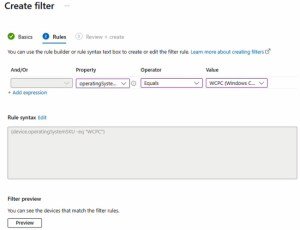 This filter isolates Windows 365 Link hardware for policy targeting.
Step 2: Configure Time Zone Detection
Enable automatic time zone synchronization:
- Create a new Settings Catalog policy under Devices > Configuration
- Search and select "Let Apps Access Location" under the Privacy category
- Set to "Force Allow"
- Assign policy using the filter created in Step 1
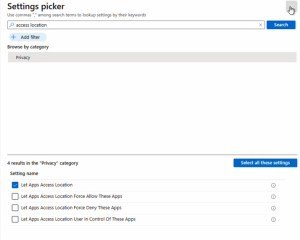 Enabling location access permits time zone detection from client devices.
Step 3: Adjust Screen Timeout
Modify the default 5-minute screen timeout:
- Create another Settings Catalog policy
- Search for "Turn off the display (plugged in)" under Video and Display settings
- Specify timeout duration in seconds (e.g., 600 seconds = 10 minutes)
- Assign using the same device filter
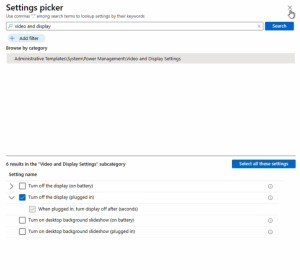 Longer timeouts require security assessments to balance usability and risk.
Verification and Deployment
- Check Device Configuration status in Intune post-deployment
- Allow 20+ minutes for policy propagation
- Test with a physical Link device: confirm time zone accuracy and screen lock timing
Strategic Considerations
- Bandwidth Impact: Time zone sync requires minimal resources
- Security Trade-offs: Extended screen timeouts necessitate complementary policies like mandatory authentication upon wake
- Hybrid Environments: Combine with dynamic device groups for scalable management
Documentation Resources
These configurations optimize the Windows 365 Link experience while maintaining Intune's centralized management capabilities. Organizations should validate settings against their security benchmarks before broad deployment.
Comments
Please log in or register to join the discussion