
Google Pixel's intelligent software holds the key to significantly extending battery runtime and preserving long-term health. Discover eight crucial settings, from Adaptive Charging to hidden Developer Options, that can transform your Pixel's endurance and lifespan.
Google Pixel phones are lauded for their smart software and clean Android experience, but battery life has historically been a pain point for many users. The irony is that Google's own software intelligence now offers powerful tools to combat this very issue – if you know where to look and how to configure them. Optimizing these settings isn't just about squeezing an extra hour out of a single charge; it's about fundamentally improving how the device manages power daily and protecting the battery's health over years of use.
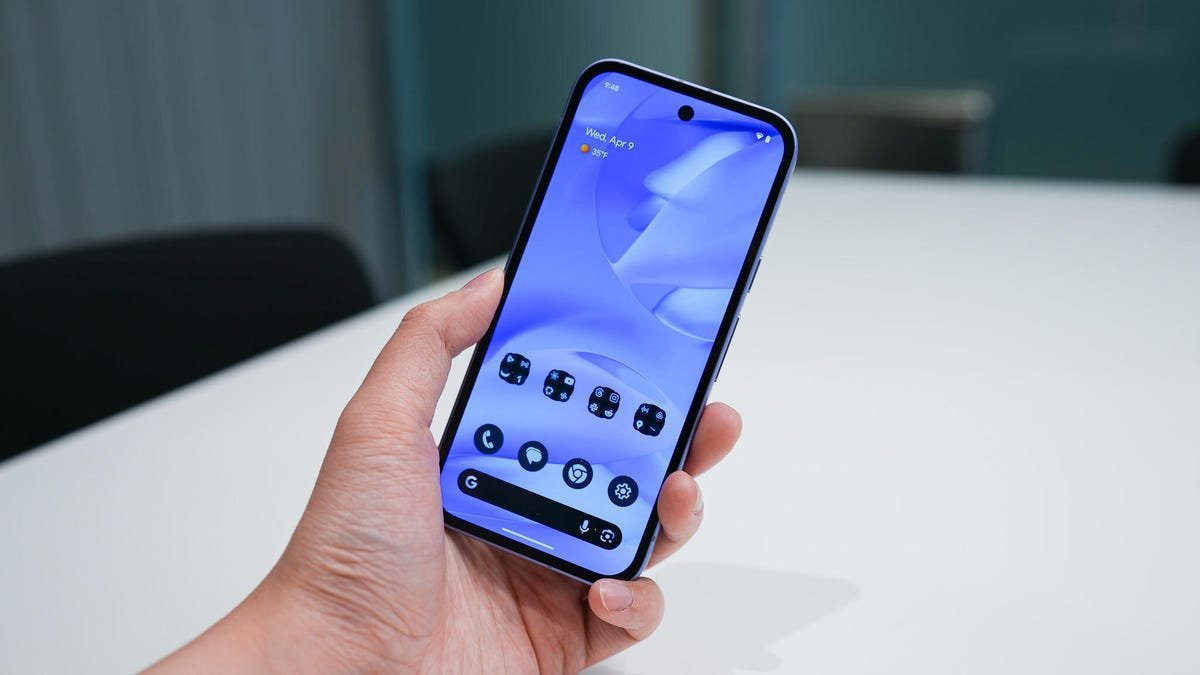
Here are the 8 essential settings every Pixel owner should adjust:
Leverage Battery Saver & Extreme Battery Saver: These are your emergency power reserves. Standard Battery Saver curbs background activity, forces Dark theme, and reduces animations. Extreme Battery Saver is transformative, pausing most apps and notifications, potentially extending battery life for days. Enable them via Settings > Battery > Battery Saver. Crucially, configure Extreme mode to allow essential apps and schedule activation at a specific battery percentage.
Enable Adaptive Battery: This ML-driven feature learns your app usage patterns over weeks, then restricts background power to apps you rarely use, significantly boosting daily endurance. Ensure it's active: Settings > Battery > Adaptive Battery (toggle on). Patience is key as it learns.
Activate Adaptive Brightness: The display is a major power drain. Adaptive Brightness learns your preferred brightness levels in different environments, preventing unnecessary high brightness indoors or in dim settings. Enable it: Settings > Display > Adaptive Brightness.
Optimize Connectivity with Adaptive Connectivity (5G Pixels): 5G radios are power-hungry. This feature intelligently switches between 5G (for demanding tasks) and more efficient 4G LTE for lighter activities like messaging, saving substantial power without noticeable speed loss for basic tasks. Turn it on: Settings > Network & Internet > Adaptive Connectivity.
Schedule Bedtime Mode: Part of Digital Wellbeing, this feature combats overnight drain by enabling Do Not Disturb, dimming/greyscaling the screen, and crucially, turning off the Always-On Display – a silent battery killer. Configure your schedule: Settings > Digital Wellbeing & Parental Controls > Bedtime Mode.
Disable "Mobile Data Always Active" (Developer Options): By default, Android keeps mobile data active even on Wi-Fi for seamless handoffs. This constant background activity drains battery. Disabling it requires unlocking Developer Options (tap Settings > About phone > Build Number 7 times), then navigate to Settings > System > Developer Options and toggle off "Mobile data always active". Expect a slightly slower switch to mobile data when leaving Wi-Fi range.
Prioritize Longevity with Adaptive Charging: Protecting battery health is paramount for long-term performance. Adaptive Charging slows the charging rate overnight. It charges to ~80% quickly, then completes the charge to 100% just before your typical wake-up time, minimizing stress from prolonged full-charge states. Activate: Settings > Battery > Charging Optimization > Adaptive Charging (ensure "Use charging optimization" is on).
Utilize Battery Health Assistance (Pixel 9a+): Google's latest innovation for newer Pixels (starting with Pixel 9a) is proactive battery health management. After approximately 200 charge cycles, it automatically adjusts charging parameters over up to 1000 cycles to slow degradation and maintain higher capacity longer. This runs automatically in the background on supported devices – no user setup needed, but awareness is key.
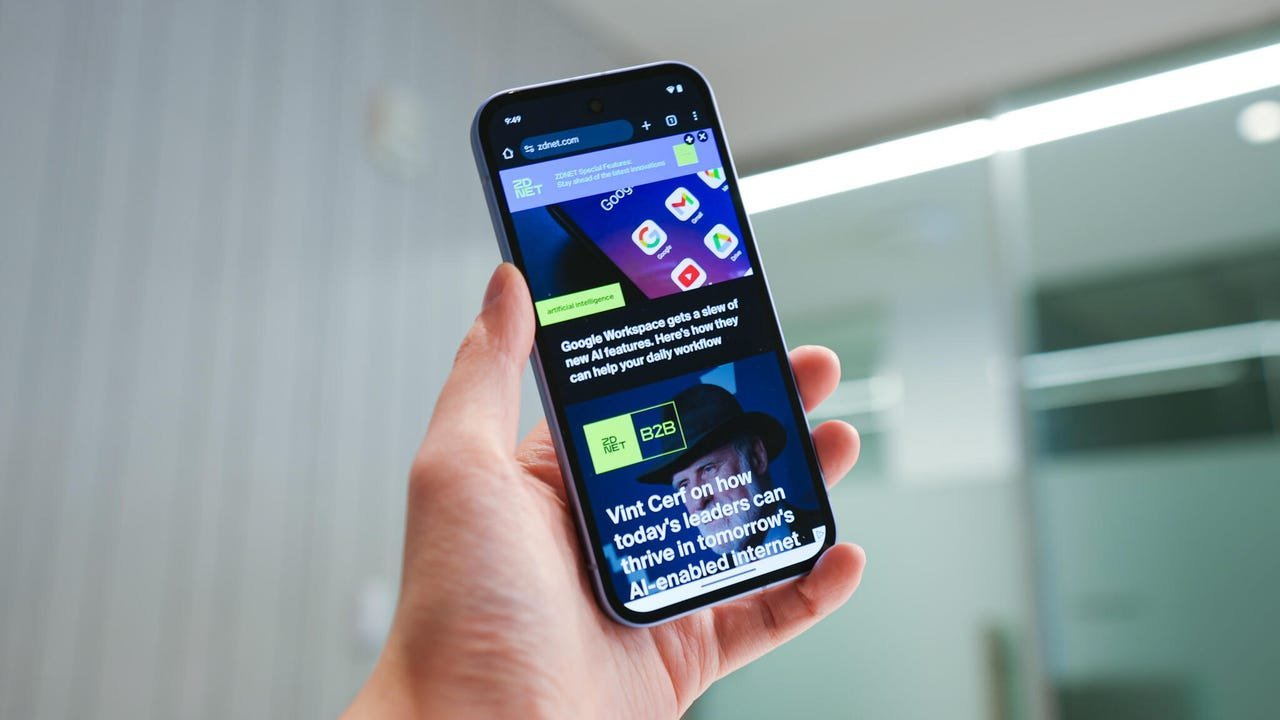 Caption: Google Pixel 9a (Credit: Kerry Wan/ZDNET)
These settings represent a powerful toolkit embedded within the Pixel's software. Configuring them transforms the device from potentially power-hungry to intelligently efficient, maximizing daily uptime while actively safeguarding the battery's capacity for the years ahead. It’s a testament to how thoughtful software optimization, when properly harnessed by the user, can fundamentally enhance the hardware experience.
Comments
Please log in or register to join the discussion