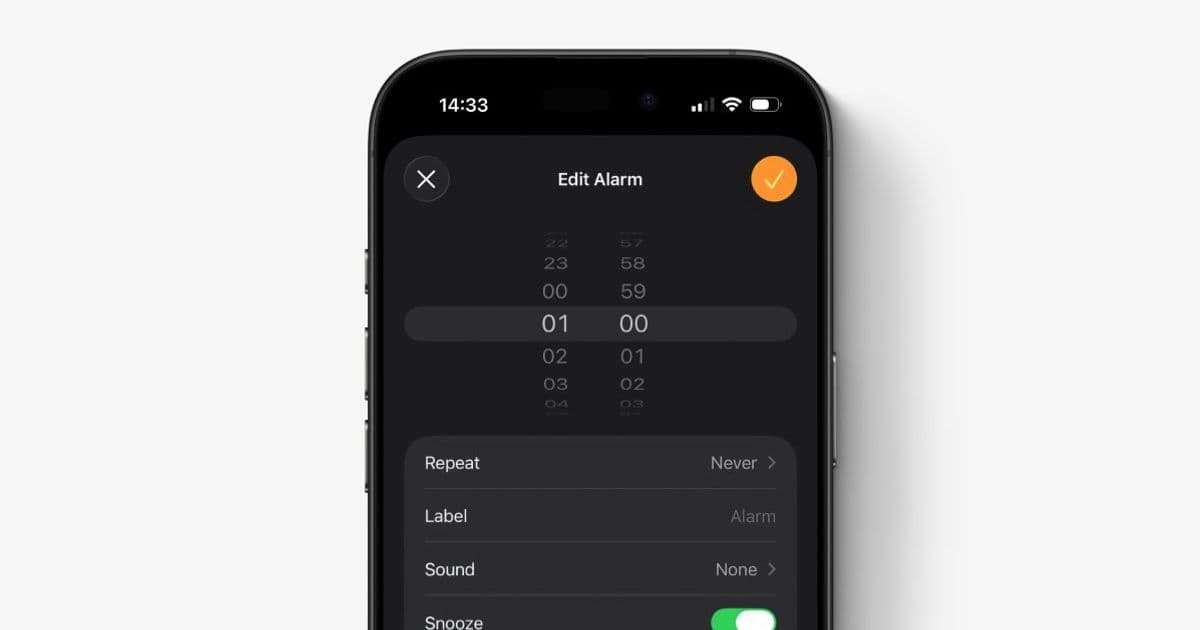
A growing number of iPhone users are discovering their alarms are going off silently, with the sound setting mysteriously changed to 'None'. This article explains the likely cause, how to diagnose the issue, and other common settings that can make your iPhone alarm too quiet.
If you've been jolted awake by the vibration of your iPhone but not the sound of its alarm, you're not alone. A subtle but frustrating bug is affecting some iPhone users, causing their alarm sound settings to reset to 'None' without any user intervention. This means the alarm will still trigger at the scheduled time, but it will only vibrate, potentially causing you to miss important appointments or wake-up calls.
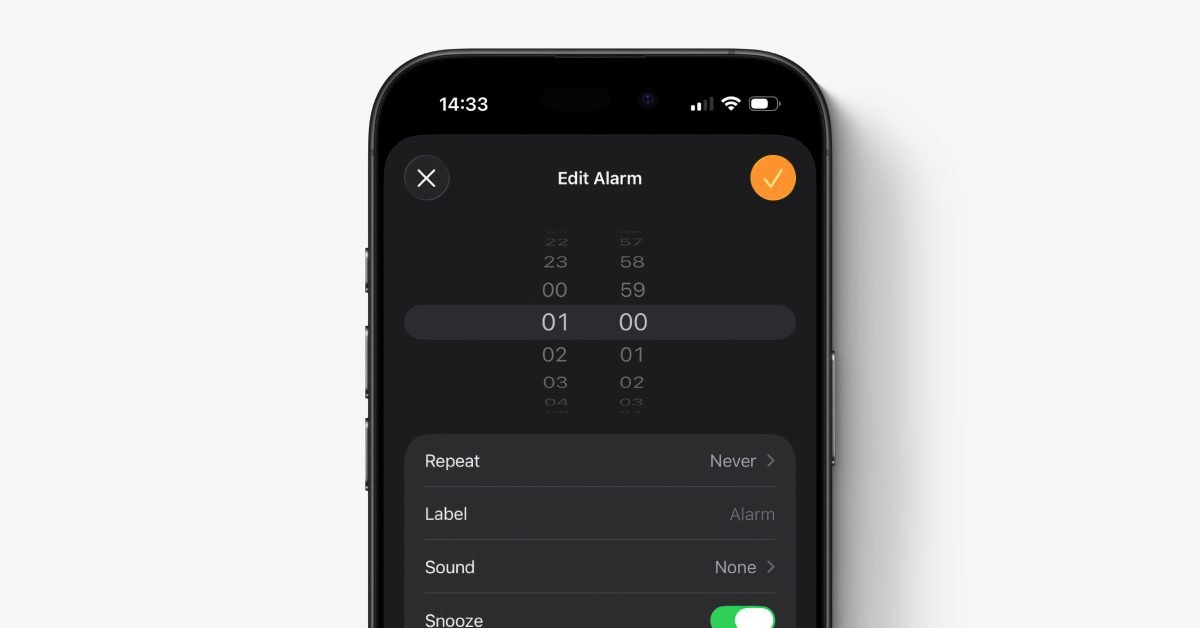
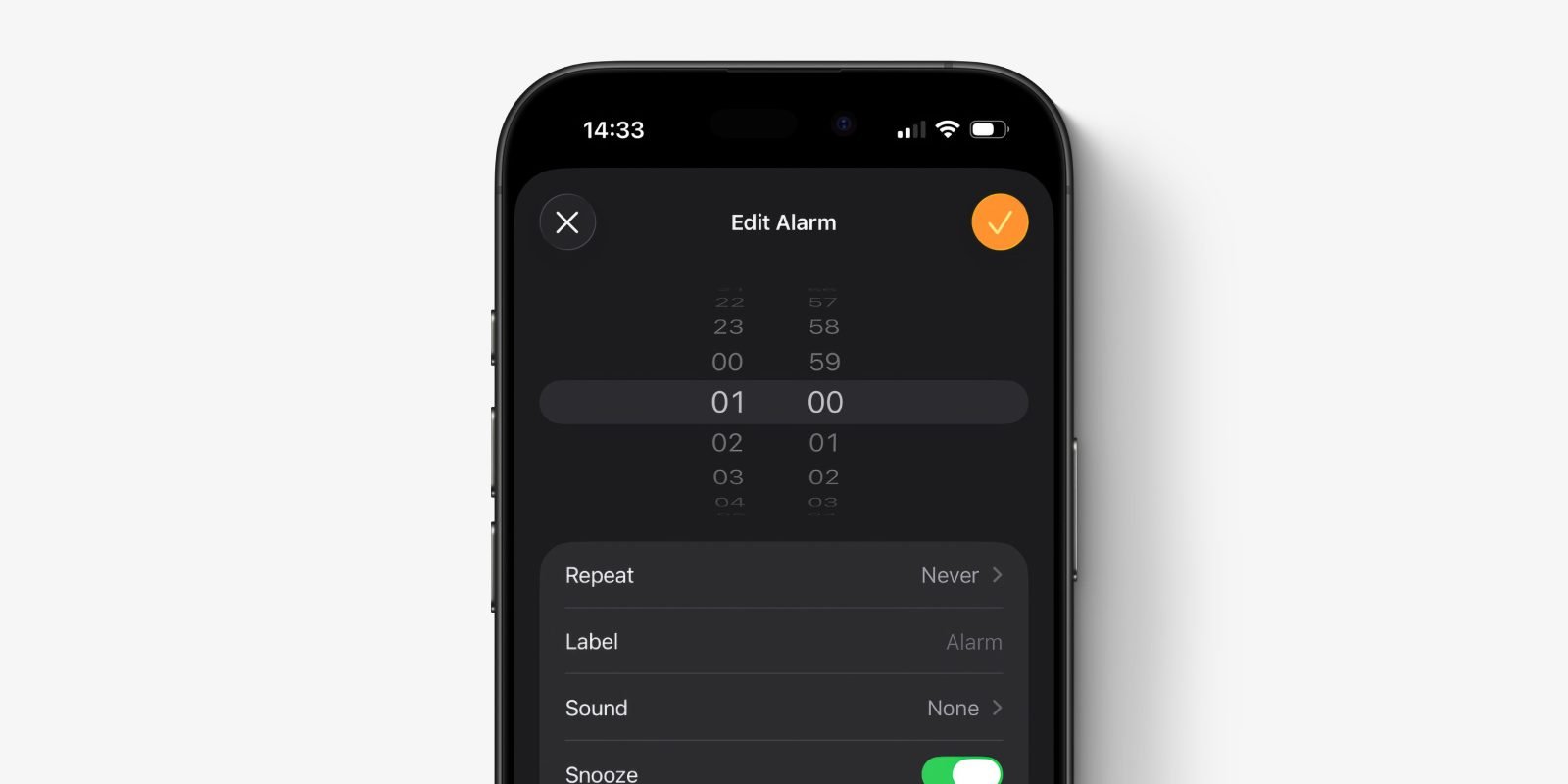
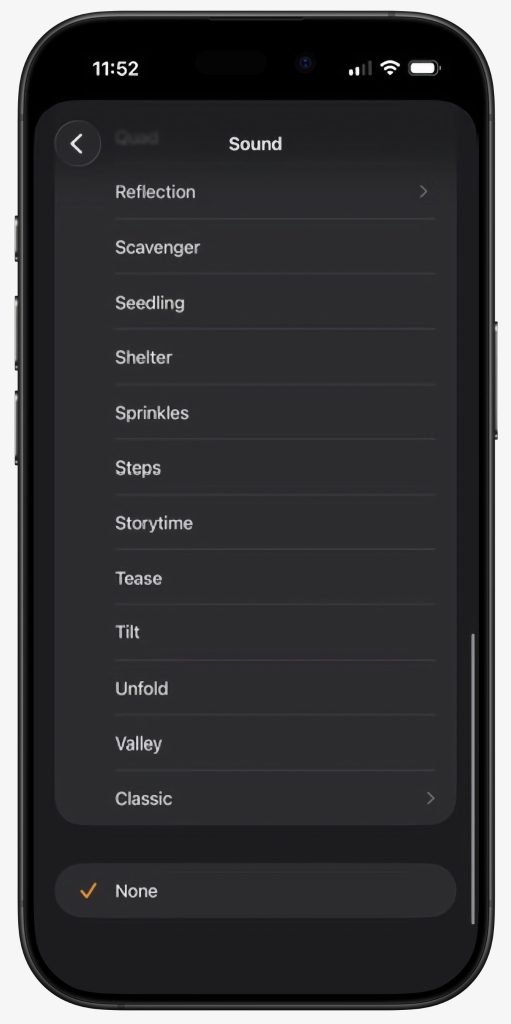
The issue appears to be linked to older alarms that use one of the 'Classic' ringtone options. While the exact trigger isn't confirmed, the symptom is consistent: users open the Clock app to find their trusted alarm sound has been replaced with the silent 'None' option. This isn't a user error or a deliberate change; it's a glitch that seems to have appeared in a recent iOS update.
How to Check and Fix the Silent Alarm Issue
The fix is straightforward, but it requires manually checking each alarm in your Clock app. Here's the step-by-step process:
- Open the Clock app on your iPhone.
- Navigate to the Alarm tab at the bottom of the screen.
- Tap on each alarm in your list to open its settings.
- Look for the 'Sound' field. It should display the name of a ringtone (like "Radar" or "Beacon"). If it says "None," tap on it and select a proper alarm sound.
- Test your fix. Create a new alarm set for two minutes from now. If it plays a sound, your fix is successful.
It's important to understand that an iPhone alarm will always make a noise, even if the physical silent switch (the orange line on the side) is engaged. This is a core design principle of the Clock app to ensure you don't oversleep. If your alarm is silent, the problem is almost certainly in the sound settings, not the silent mode.
Other Common Reasons for Quiet iPhone Alarms
If your alarm sound is set correctly but still seems too quiet, or if you're having other alarm-related issues, here are a few other settings to investigate.
1. Alarm Volume vs. Media Volume
Many users confuse the alarm volume with the volume for music or videos. The alarm volume is controlled separately.
- Path: Go to Settings > Sounds & Haptics.
- The Slider: Under the 'Ringer and Alerts' section, you'll find a volume slider. This controls the volume for phone calls, text alerts, and alarms.
- The Toggle: There's a 'Change with Buttons' toggle below the slider. If this is enabled, pressing the physical volume buttons will change the ringer and alert volume. For a reliable alarm, it's best to disable 'Change with Buttons'. This locks the alarm volume at a fixed, audible level you set manually, preventing accidental changes.
2. The Sleep Alarm's Separate Settings
If you use the Health app's Sleep Schedule feature, your primary sleep alarm has its own sound and volume controls, separate from your other alarms.
- Path: In the Clock app, tap on your Sleep alarm (it will have a bed icon).
- Adjust Settings: Scroll down past the schedule wheel. You'll find 'Sound & Haptics' options here, including a dedicated volume slider and sound selection. Make sure these are set to your preference.
3. Face ID Attention-Aware Features
Modern iPhones with Face ID have a feature that can reduce the volume of alerts, including alarms, if it detects you are looking at the screen. This is designed to be helpful but can backfire if your phone is on your nightstand and your face is accidentally detected while you're sleeping.
- Path: Go to Settings > Face ID & Passcode.
- The Toggle: Scroll to the 'Attention' section and disable the 'Attention-Aware Features' toggle. This will ensure your alarm always plays at its full set volume, regardless of where your phone is positioned.
Why This Matters for iPhone Users
This issue highlights a critical aspect of the iPhone ecosystem: the reliability of core, built-in utilities. The Clock app is a fundamental tool that millions rely on daily. When a bug like this occurs, it doesn't just cause a minor inconvenience; it can disrupt schedules, cause missed flights, or make someone late for work. It underscores the importance of periodically checking essential settings, especially after iOS updates.
For those deeply invested in the Apple ecosystem, this also serves as a reminder of how interconnected settings can be. A change in one area (like a potential update to the 'Classic' ringtones) can have unintended consequences in another (alarm functionality). While the fix is simple, the discovery process can be frustrating, and it reinforces the need for clear, accessible troubleshooting paths within the OS itself.
If you've been affected by this silent alarm bug, the solution is in your hands—literally. A quick audit of your Clock app settings should restore your morning wake-up calls to their proper, audible state.
Comments
Please log in or register to join the discussion