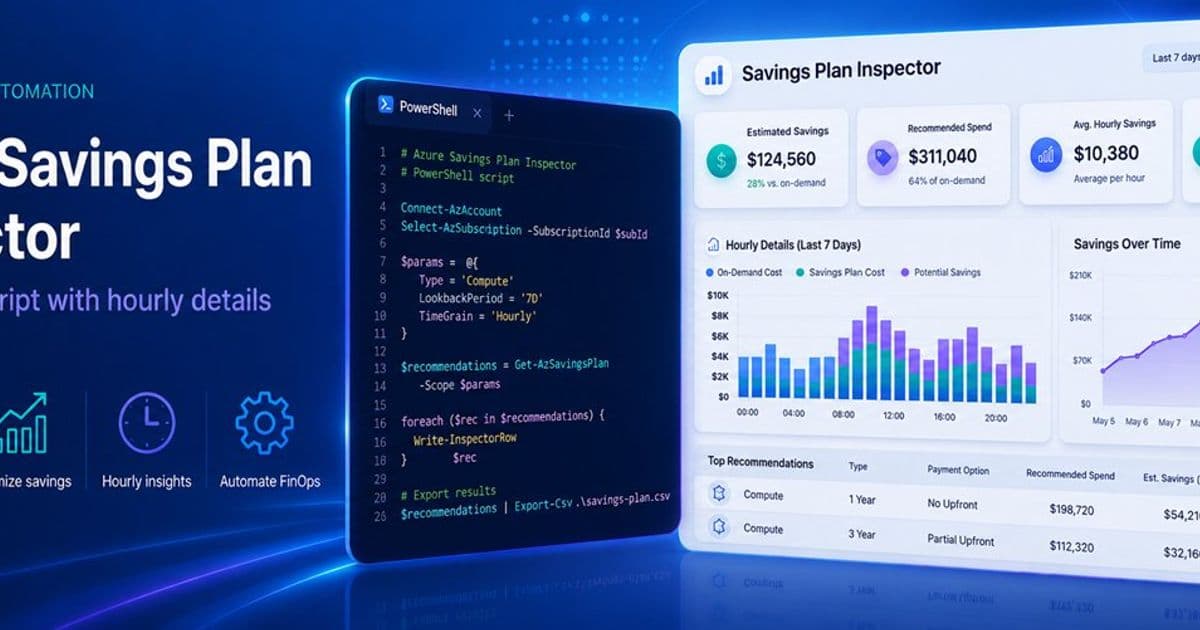
Azure Cost Management hands you a single recommended commitment figure for Savings Plans, but the Benefit Recommendations API also exposes the hourly usage and alternative commitment levels behind it. A new PowerShell tool from Dirk Brinkmann pulls that data into CSV and Markdown so FinOps teams can defend their commitment with a chart instead of a guess.
Most teams size a cloud commitment the way they order food for an offsite: estimate, round up, and hope nobody complains. That heuristic survives a pizza order. It is a poor way to lock in a three-year Azure Savings Plan, where the gap between a conservative and an aggressive commitment can swing tens of thousands of dollars in either savings or wastage.
A recent post on the Microsoft Community Hub from Dirk Brinkmann, a Microsoft FinOps practitioner, makes a sharp point about this. Azure Cost Management already generates Savings Plan recommendations, and they are a reasonable starting point. But the dollar figure shown in the portal hides the signal a finance and engineering team actually needs: the hour-by-hour Pay-As-You-Go (PAYG) usage the recommendation engine looked at, plus the alternative commitment levels it considered and rejected. Once that data sits in a spreadsheet, "right-sized" changes from a feeling into a number you can hold up in a steering meeting.
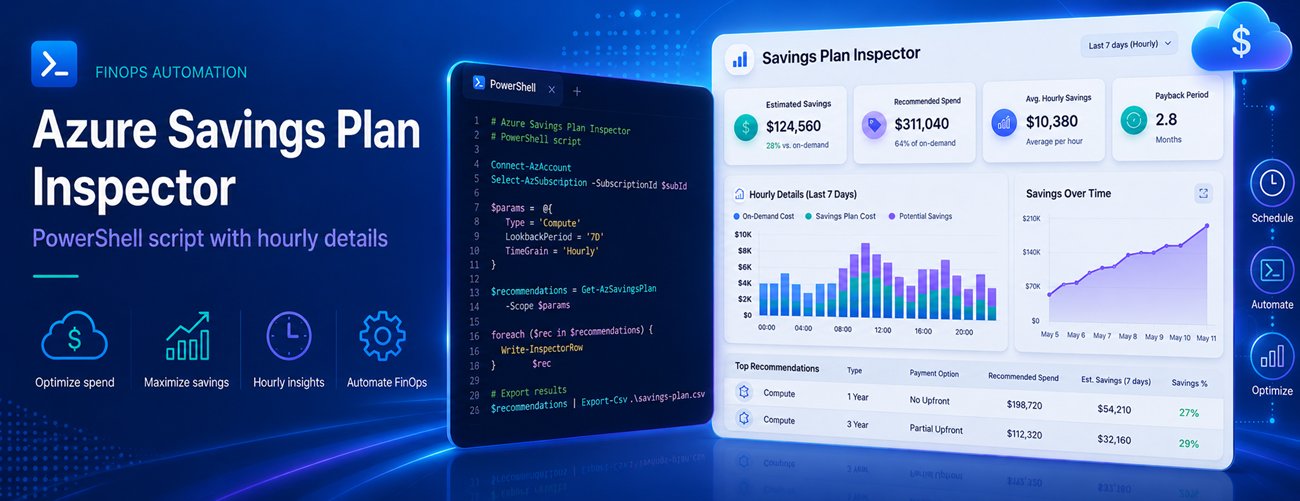
What changed: the data was always there, the extraction got easy
Nothing in the Azure billing model changed here. What changed is access. The Benefit Recommendations - List operation (api-version 2025-03-01) has quietly exposed the full optimization dataset behind every Savings Plan recommendation. Brinkmann's contribution is a small open-source PowerShell tool, azure-savingsplan-insights, that wraps the API call and writes analyst-friendly outputs in about five minutes of work.
A Savings Plan recommendation is, underneath, an optimization against a distribution of hourly compute spend over a lookback window. The portal surfaces the single commitment level that maximizes savings under a reasonable-utilization assumption. That answers one question well and leaves several others untouched. What does PAYG demand actually look like hour by hour, smooth or spiky? How do coverage and savings shift if you commit a bit less or a bit more? Will the recommended commitment sit idle on weekends or overnight? Can you line the hourly profile up against batch jobs, maintenance windows, or business hours?
None of those have answers in a single dollar figure. All of them have answers in the hourly series and the list of alternative commitment levels, and the API returns both.
How the API exposes the full picture
The endpoint accepts any of the supported scopes: Billing Account for Enterprise Agreement customers, Billing Profile for Microsoft Customer Agreement, Subscription, or Resource Group. You choose a lookBackPeriod (Last7Days, Last30Days, or Last60Days) and a term (P1Y or P3Y), and it returns one or more recommendations. The value comes from two $expand options that most callers skip:
$expand=properties/allRecommendationDetailsreturns an array of alternative commitment levels. Each entry carriescommitmentAmount,coveragePercentage,benefitCost,overageCost,savingsAmount,savingsPercentage,wastageCost, andaverageUtilizationPercentage.$expand=properties/usagereturns the hourly PAYG charge series the engine actually used, which combined withfirstConsumptionDateandlastConsumptionDategives you a time-aligned view of demand.
Both expansions are inexpensive, and the tool requests them on every call. That is the right default. They convert a single recommendation into a small, complete dataset you can chart and challenge.
What the tool produces
Export-BenefitRecommendations.ps1 is interactive, so there is nothing to memorize. It prompts for scope kind, the billing or subscription identifier, the lookback period, and the term, then authenticates through the Az.Accounts module, follows nextLink pagination, and checks API access up front so that a 401, 403, or 404 turns into an actionable hint rather than a stack trace.
It writes four files with a predictable naming pattern (yyyy-MM-dd-<scope>-<lookback>-<term>-...):
- An AllRecommendationDetails CSV, one row per commitment alternative, ready for a pivot table.
- A TopRecommendation Markdown brief covering the recommended commitment and the full alternatives table.
- An HourlyUsage CSV, hour by hour PAYG usage for the top recommendation, aligned to the API's actual data window with no padding or trailing blanks.
- An optional Raw JSON dump for archival or downstream tooling.
The filename convention is deliberate. Drop a folder of these into Power BI and the dates, scopes, and terms are already encoded in the names, so the data models itself.
A worked example, read as a set of levers
The post shares a real shape from a Last60Days / P3Y export against an EA billing account. The alternatives CSV produced four commitment options, which read like positions on a dial:
- Commit $4.124/hr for 28.9% coverage and 15.3% savings with zero wastage. Safe, but most spend stays on PAYG.
- Commit $5.848/hr for 39.2% coverage and 19.9% savings. Still conservative.
- Commit $16.359/hr for 97.9% coverage and 44.1% savings, with only about $3.77 of wastage over the window. This is the level the engine flags as recommended.
- Commit $16.806/hr for 98.9% coverage but 43.7% savings, where wastage jumps to $315.9. You bought a little more coverage and the engine charged you for it.
That last row is the lesson. Pushing past the recommended point buys diminishing coverage at rising idle cost. Seeing the alternatives side by side makes that tradeoff legible in a way the single portal figure never does.
The hourly CSV is what makes the choice defensible. In the example it held 1,428 rows, one per hour from 2026-04-11T00:00 through 2026-06-09T11:00, the API's reported data range rather than a naive "now minus 60 days." Plot that series in Excel or Power BI, draw a horizontal line at the recommended $16.359/hr, and you can see directly how often demand sits above the line (PAYG overage) versus below it (commitment technically idle, but given the savings rate still net positive). Slice by hour of day and weekend troughs or overnight batch spikes appear, which changes how you read an average-utilization number.
Business impact for FinOps teams
The strategic value here is not the tool itself but what it does to the conversation between engineering and finance. A black-box recommendation invites either blind trust or blind skepticism. A transparent dataset invites alignment. When the commitment level, the coverage curve, and the hourly demand profile are all on one chart, a finance partner can challenge the assumption and an engineer can defend it with the same evidence.
In FinOps Framework terms this is an Inform phase activity, the work of making spend visible and shared before anyone optimizes or governs. The recommendation engine handles the math. The export handles the trust. Both matter, and they are different problems.
For multi-cloud teams the broader pattern is worth carrying across providers. AWS exposes comparable commitment analysis through its Savings Plans recommendations and Cost Explorer APIs, and Google Cloud offers committed use discount recommendations through its Recommender service. The discipline is the same everywhere: a vendor's recommended commitment is an optimization output, and the inputs to that optimization are usually retrievable. Pulling the hourly demand profile and the rejected alternatives out of whichever provider you run on is how a commitment stops being a vendor suggestion you accepted and becomes a position you decided.
Trying it
The script and documentation live at the azure-savingsplan-insights repository. Quickstart is a clone, an Install-Module Az.Accounts -Scope CurrentUser if you lack it, a Connect-AzAccount, and then running the script. You need read access on the target scope, which means Cost Management Reader on a subscription or Billing Reader at the billing account or billing profile level. The repo has Issues and Discussions open, and Brinkmann is explicitly asking for edge cases where response shapes differ and for Power BI findings from real exports.
The practical advice is simple. Pull a Last60Days / P3Y export for your highest-spending scope, plot the hourly line against the recommended commitment, and make the next Savings Plan decision with a number you can point to rather than a figure you copied from a portal.
Comments
Please log in or register to join the discussion