
After a law‑enforcement takedown, the Tycoon2FA phishing kit resurfaced on fresh infrastructure and added support for OAuth 2.0 device‑code phishing. The new flow abuses Trustifi tracking links, tricks users into authorizing rogue devices, and grants attackers full access to Microsoft 365 data. Experts recommend disabling the device‑code grant, tightening consent policies, and monitoring Entra logs for suspicious activity.
Tycoon2FA Returns, Now Using Device‑Code Phishing to Hijack Microsoft 365 Accounts
 Featured image
In early May, security researchers confirmed that the Tycoon2FA phishing platform—disrupted by an international operation in March—has rebuilt itself on fresh servers and added a new weapon: device‑code phishing against Microsoft 365. The upgrade lets attackers bypass traditional credential‑stealing methods and directly register a rogue device to a victim’s account, opening the door to email, calendar, and OneDrive data.
What changed?
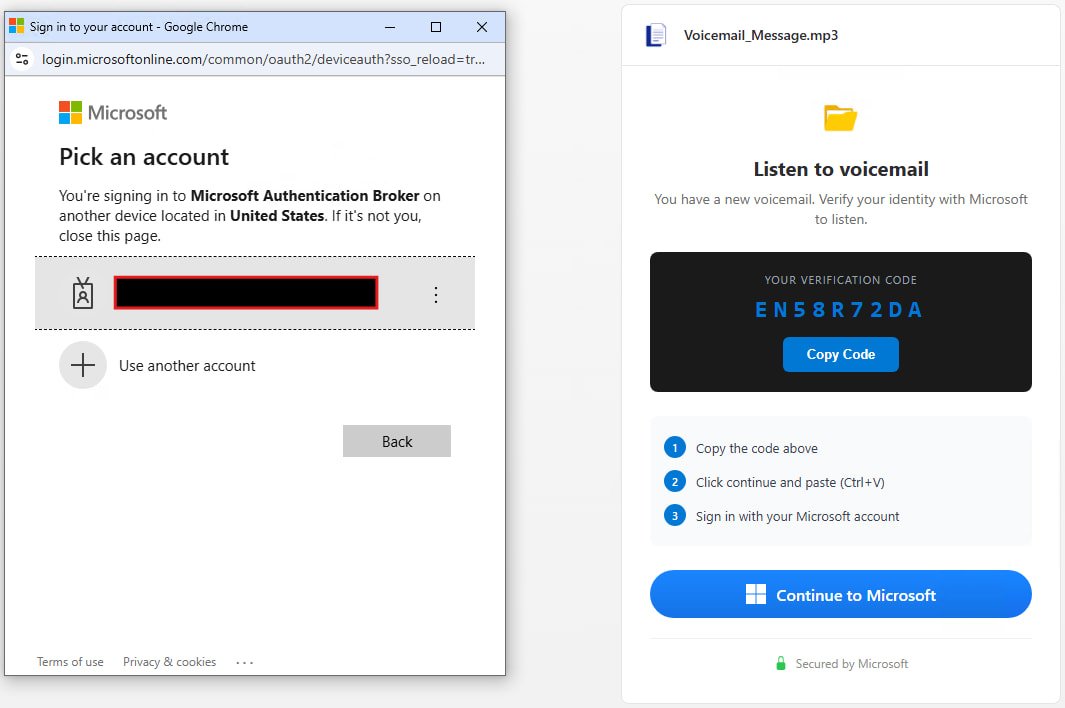
Tycoon2FA was already known for credential‑relay attacks that harvested usernames and passwords. The latest version pivots to the OAuth 2.0 device authorization grant flow. In a typical device‑code attack, the attacker requests a device code from Microsoft’s OAuth endpoint, then forwards that code to the victim. The victim, thinking they are completing a legitimate sign‑in, copies the code into the official Microsoft device‑login page (https://microsoft.com/devicelogin) and completes MFA. Microsoft then issues an access token and a refresh token to the attacker‑controlled device, granting persistent access.
 Attack flow – source: eSentire
The new kit strings together four delivery layers:
- Phishing email – often an invoice‑style lure containing a Trustifi click‑tracking URL.
- Trustifi redirection – the link passes through Trustifi’s legitimate tracking service, then into a Cloudflare Worker that serves obfuscated JavaScript.
- Fake Microsoft CAPTCHA page – the script renders a look‑alike page that asks the user to copy a device code.
- Device‑login page – the victim is instructed to paste the code at
microsoft.com/deviceloginand complete MFA, unknowingly authorizing the attacker.
The result is a rogue device registered to the victim’s tenant, with the same privileges as the user’s own devices. Because the flow uses Microsoft’s official OAuth endpoints, standard credential‑theft detections often miss it.
Why it matters now
- Rapid growth – Push Security reports a 37× increase in device‑code phishing this year, with at least ten PhaaS platforms offering kits.
- Persistent access – Refresh tokens can live for months, allowing long‑term exfiltration of emails, Teams chats, and SharePoint files.
- Evasion built‑in – The kit detects Selenium, Puppeteer, Playwright, Burp Suite, VPNs, sandboxes, AI crawlers, and major cloud providers. When it spots an analysis environment, it redirects the request to a genuine Microsoft sign‑in page, thwarting automated research.
Expert insight
“The attack chain is virtually unchanged from the credential‑relay variant we documented in 2025, but the move to device‑code grants makes it far more resilient to disruption,” says Matt Kelley, senior threat analyst at eSentire. “Defenders need to treat the device‑code flow as a privileged entry point and monitor for its misuse.”
Practical steps for defenders
- Disable the device‑code grant where it isn’t needed – In Azure AD, navigate to Enterprise applications → Consent and permissions and turn off Device code flow for all users.
- Enforce admin consent for third‑party apps – Require an administrator to approve any app that requests device‑code permissions.
- Enable Continuous Access Evaluation (CAE) – CAE forces token revocation when a user’s risk profile changes, limiting the window for stolen refresh tokens.
- Apply compliant‑device policies – Block access from devices that don’t meet your compliance baseline (e.g., missing encryption or endpoint protection).
- Log monitoring – Watch Entra ID logs for events:
DeviceCodeAuthenticationeventsMicrosoftAuthenticationBrokerusage- Node.js user‑agent strings (often a tell‑tale of the kit’s backend)
- Update blocklists – eSentire’s latest IoC feed includes over 230 vendor signatures used by the kit. Import these into your web‑gateway and EDR solutions.
Indicators of compromise (IoCs)
- Malicious domains:
*.trustifi‑track.net,*.cloudflareworkers.com - Payload hashes: SHA‑256
3a5f9c7d...(obfuscated JS) - User‑agent strings:
Mozilla/5.0 (Windows NT 10.0; Win64; x64) AppleWebKit/537.36 (KHTML, like Gecko) Chrome/124.0.0.0 Safari/537.36 Node.js/18.16.0 - OAuth client IDs:
0c6f5a1b‑e4d2‑4a7b‑b8c9‑f5e2d3c9a1b2
All IoCs are available in eSentire’s public feed: https://github.com/eSentire/tycoon2fa-iocs
What to watch next
The Tycoon2FA resurgence shows how quickly a takedown can be undone when a kit is modular and sold as a service. Keep an eye on emerging Phishing‑as‑a‑Service platforms that bundle device‑code modules, and consider red‑team exercises that simulate the full four‑stage flow to validate detection coverage.
For a deeper dive into protecting Azure environments from OAuth abuse, see our guide on ConsentFix v3 and the recent VENOM phishing campaign targeting senior executives.
Comments
Please log in or register to join the discussion