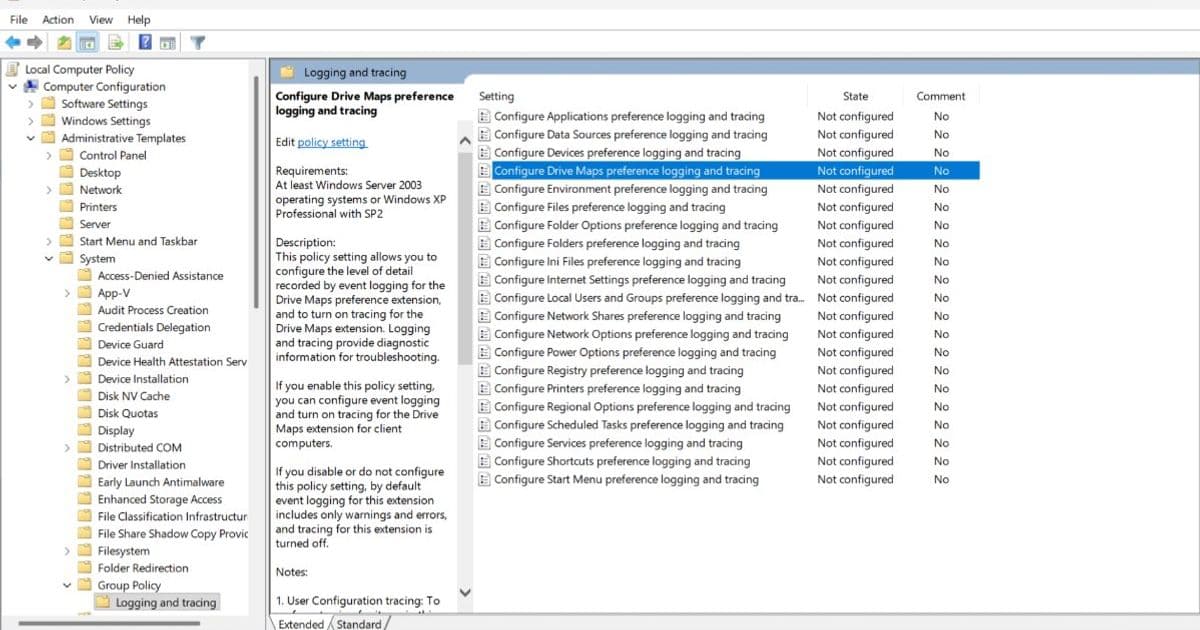
Windows 11 24H2 and 25H2 now allow administrators to enable Group Policy Preferences debug logging directly from Local Group Policy, eliminating the need for domain-based GPOs or manual file management.
Administrators troubleshooting Windows Group Policy Preferences (GPP) now have a powerful new tool at their disposal. With the February 2026 preview updates for Windows 11 24H2 and 25H2, Microsoft has brought GPP debug logging capabilities directly to Local Group Policy, marking a significant shift in how IT professionals can diagnose and resolve policy-related issues.
The Evolution of GPP Debug Logging
Traditionally, enabling verbose debug logging for Group Policy Preferences required domain-based Group Policy Objects (GPOs). This meant administrators had to:
- Create or modify GPOs on domain controllers
- Wait for policy replication across the network
- Coordinate with domain administrators for changes
- Manually manage Administrative Template files
The new local approach eliminates these dependencies, allowing troubleshooting directly on client devices without centralized GPO administration.
What's New in Windows 11 24H2/25H2
Starting with the February 2026 preview updates, administrators can now enable Group Policy Preferences debug logging through Local Group Policy Editor (gpedit.msc). This enhancement is available on:
- Windows 11 24H2
- Windows 11 25H2
- Via Windows Updates from February 2026 Preview onward
Configuration Steps
Enabling GPP logging and tracing is straightforward:
Open Local Group Policy Editor: Run
gpedit.mscNavigate to:
Computer Configuration → Policies → Administrative Templates → System → Group Policy → Logging and TracingSelect the desired Preference CSE: Choose from Drive Maps, Files, Shortcuts, Printers, or other available CSEs
Set policy to Enabled
Configure logging options:
- Event logging: Informational, Warnings, and Errors
- Tracing: Enabled
- User trace path:
%COMMONAPPDATA%\GroupPolicy\Preference\Trace\User.log - Maximum file size: 1024 KB (adjustable)
- Computer trace path:
%COMMONAPPDATA%\GroupPolicy\Preference\Trace\Computer.log
Click Apply and OK
Understanding Trace File Locations
The default trace directory for all GPP CSEs is %COMMONAPPDATA%\GroupPolicy\Preference\Trace. While %COMMONAPPDATA% isn't a standard Windows environment variable, it's recognized and expanded internally by the GPP CSEs. The equivalent physical path is %SYSTEMDRIVE%\ProgramData\Microsoft\.
Important Note: This folder is hidden by default. You can type the path directly into File Explorer to access it.
For custom trace log folders, Windows requires:
- Full access permissions for the SYSTEM account
- No restrictive ACLs that block service-level writes
Why This Matters for IT Professionals
This enhancement represents a major quality-of-life improvement for IT administrators who frequently debug GPP issues. The ability to enable detailed logging directly on client devices without domain dependencies means:
- Faster troubleshooting: No waiting for GPO replication or domain changes
- Greater independence: Client administrators can diagnose issues without coordinating with domain teams
- Improved scalability: Easier to troubleshoot across multiple devices
- Better diagnostics: More flexible and immediate access to detailed logging information
Best Practices for Effective Troubleshooting
When configuring GPP logging and tracing, consider these recommendations:
- Use Verbose logging: While it generates more data, the most verbose logging helps pin down difficult issues
- Monitor file sizes: Set appropriate maximum file sizes to prevent logs from consuming excessive disk space
- Check permissions: Ensure the SYSTEM account has proper access to trace directories
- Document changes: Keep track of which CSEs have logging enabled for specific troubleshooting sessions
The Bigger Picture
This update reflects Microsoft's ongoing commitment to improving the administrative experience in Windows. By bringing server-level policy debugging features directly to client devices, Microsoft is acknowledging the complex environments where IT professionals often need to work.
For organizations managing large fleets of Windows devices or dealing with complex Group Policy configurations, this change could significantly reduce troubleshooting time and improve overall system reliability.
The introduction of local GPP debug logging in Windows 11 24H2/25H2 represents a meaningful upgrade that will help administrators analyze issues faster and more independently than ever before.
Comments
Please log in or register to join the discussion