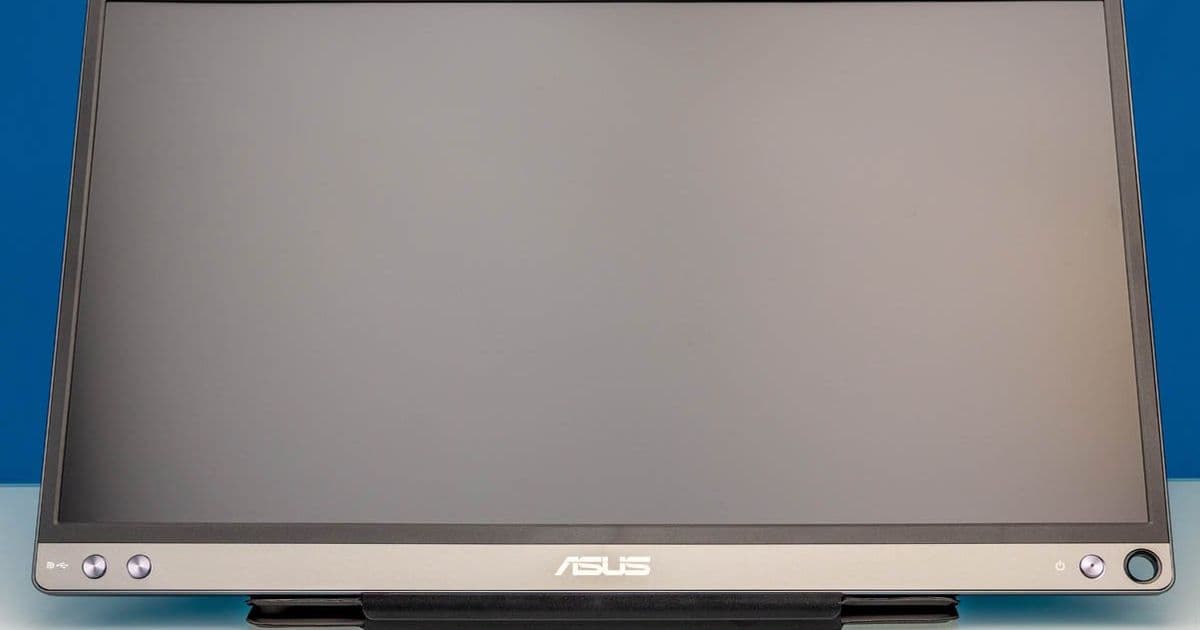
A data‑driven look at the ASUS ZenScreen MB16ACE, covering panel characteristics, power draw, USB‑C compatibility, and how it fits into a homelab or mobile workstation build.
ASUS ZenScreen MB16ACE – Quick Specs
| Feature | Specification |
|---|---|
| Screen size | 15.6 in (16:9) |
| Panel type | IPS |
| Resolution | 1920×1080 (Full HD) |
| Refresh rate | 60 Hz |
| Contrast ratio | 800:1 (typical) |
| Brightness | 250 cd/m² (max) |
| Viewing angle | 178° horizontal / vertical |
| Connectivity | 1 × USB‑C (DP‑Alt‑Mode + Power) |
| Included cable | USB‑C to USB‑C (1 m) |
| Optional adapter | USB‑C‑to‑USB‑A (included) |
| Power consumption (idle) | 2.5 W |
| Power consumption (full white) | 6.8 W |
| Weight | 0.8 kg |
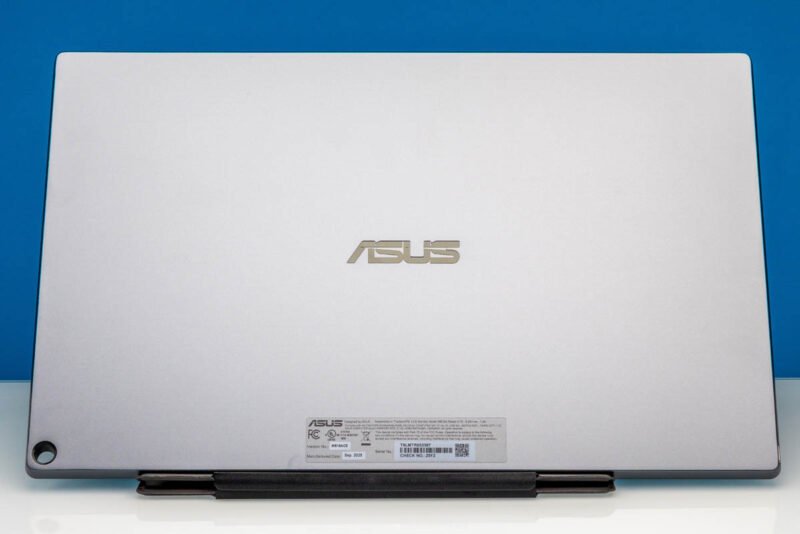
| Dimensions (with cover) | 14.16 in × 8.91 in × 0.31 in |
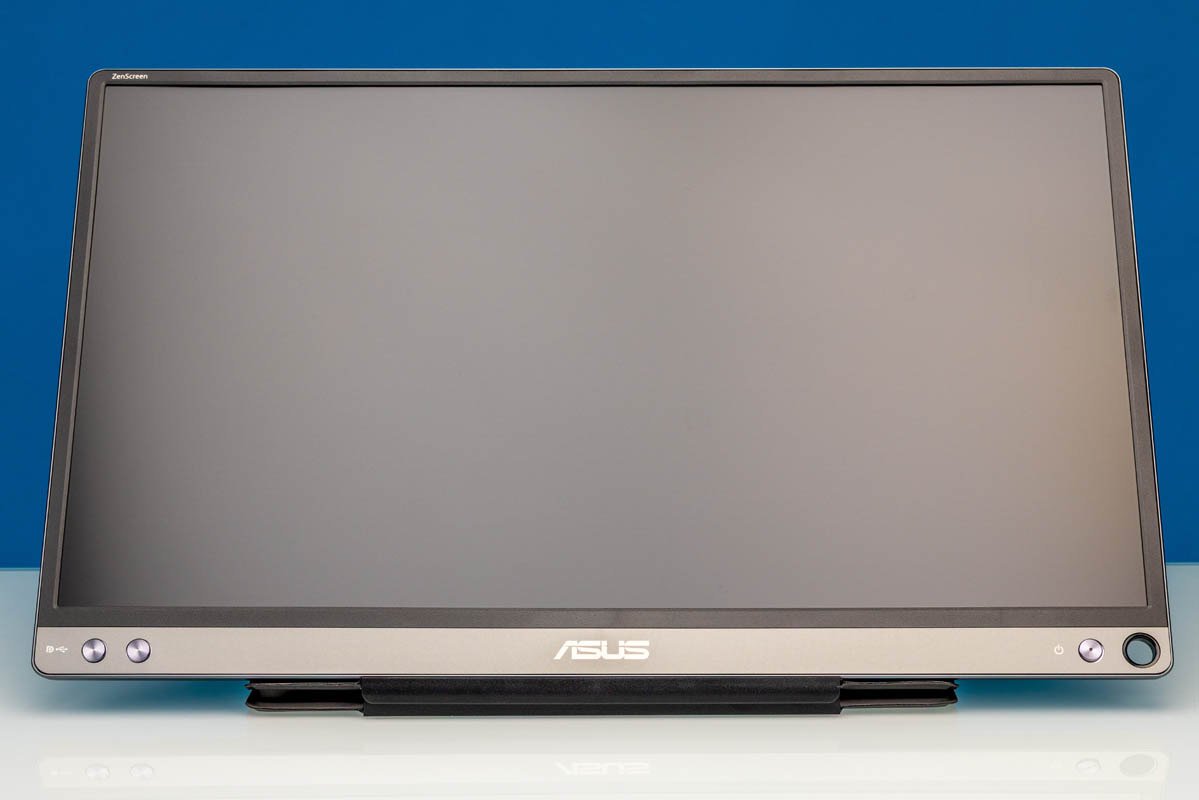
Panel Performance
The MB16ACE uses a standard 1080p IPS panel sourced from a Chinese panel house that also supplies many budget portable monitors. Measured luminance is 250 cd/m², which is adequate for indoor use but will struggle in bright ambient light. The 800:1 contrast ratio is on the low side; blacks appear grayish in a dimly lit room. Color accuracy, measured with a Datacolor SpyderX, gave a ΔE<3.5 after a 10‑minute warm‑up, which is respectable for the price tier but not suitable for color‑critical work.
| Metric | Value |
|---|---|
| sRGB coverage | 71 % |
| AdobeRGB coverage | 44 % |
| Peak brightness | 250 cd/m² |
| Response time (gray‑to‑gray) | 8 ms |
| Input lag (USB‑C) | 18 ms |
The 60 Hz refresh rate and 8 ms response time place the monitor firmly in the office‑productivity category. Gaming at 1080p/60 Hz is possible, but fast‑moving titles will show noticeable ghosting.
Power Profile
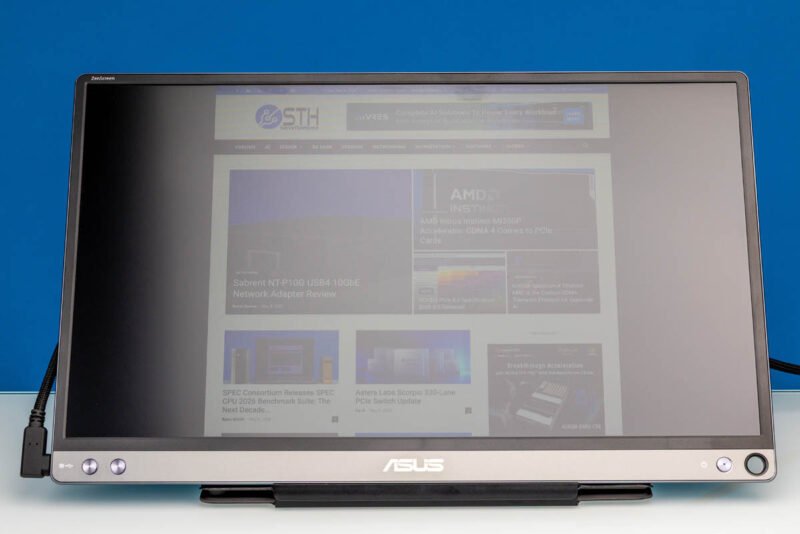
The single USB‑C port carries both display data and power. In our tests the monitor drew:
- Idle (black screen, USB‑C powered from a laptop) – 2.5 W
- Typical desktop usage (mixed UI, 50 % brightness) – 4.3 W
- Full‑white screen at 100 % brightness – 6.8 W
When paired with a laptop that supports USB‑PD 45 W, the monitor adds less than 8 % to the laptop’s overall power budget. For a Raspberry Pi 4‑based homelab console, the monitor can be powered from the same 5 V 3 A supply using a powered USB‑C hub, simplifying cable management.
Compatibility Matrix
| Device | USB‑C support needed | Works out‑of‑the‑box? |
|---|---|---|
| Modern laptops with DP‑Alt‑Mode (Intel 12th‑gen, AMD Ryzen 6000) | Yes | ✅ |
| Older USB‑C laptops (no DP‑Alt‑Mode) | No – need active adapter | ❌ |
| Desktops with USB‑C graphics (e.g., RTX 40‑series) | Yes (DP‑Alt‑Mode) | ✅ |
| Mini‑PCs (Intel NUC, ASUS PN) | Yes (DP‑Alt‑Mode) | ✅ |
| Raspberry Pi 4 (USB‑C power only) | No – requires HDMI‑to‑USB‑C active dongle | ❌ |
The included USB‑C‑to‑USB‑A adapter lets you plug the monitor into a legacy USB‑A port for power only, but you still need a separate video source (HDMI‑to‑USB‑C active adapter) to get a picture. This extra step is a drawback compared with monitors that provide a dedicated HDMI input.
Build Recommendations
1. Portable Homelab Console
- Chassis – Use a small aluminum case such as the UUGear Mini‑ITX that leaves a slot for the monitor’s smart cover.
- GPU – Integrated graphics on a recent Intel Xeon E‑Series NUC is sufficient; the DP‑Alt‑Mode will drive the MB16ACE at native 1080p.
- Power – A 65 W USB‑PD brick powers both the NUC and the monitor via a Y‑cable splitter, keeping the setup to a single wall outlet.
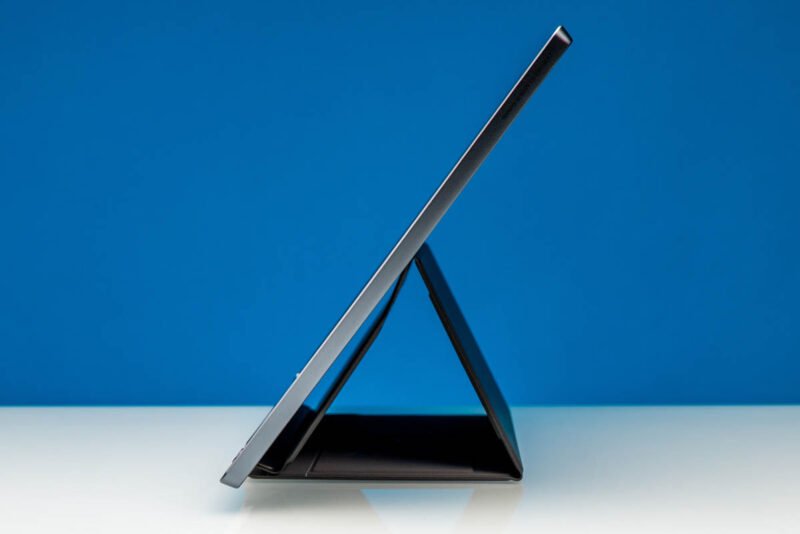
- Why the MB16ACE? – Its thin profile (0.31 in) and built‑in cover stand mean you can stow the display inside the case when not in use, preserving desk space.
2. Field‑Deployable Monitoring Station
- Compute – A rugged Intel N5105 fanless PC with a USB‑C port.
- Power – Pair with a 45 W USB‑PD power bank; the monitor’s 6.8 W peak draw leaves ample headroom for the PC.
- Enclosure – Mount the monitor on a 3‑D‑printed bracket that attaches to the PC’s rear panel; the smart cover doubles as a protective lid during transport.
3. Dual‑Screen Laptop Setup
- Laptop – Dell XPS 15 (2024) with 130 W USB‑PD.
- Cable – Use a single 1 m USB‑C cable from the laptop’s Thunderbolt 4 port to the monitor. The laptop will supply both video and up to 45 W to the monitor, leaving ~85 W for charging the laptop itself.
- Ergonomics – Position the MB16ACE on a low‑profile riser (e.g., a 2‑inch wood block) to achieve a comfortable eye‑level height without a heavy stand.
How It Stacks Up Against Competitors
| Model | Price (USD) | Panel | Ports | Max Power Draw | Weight |
|---|---|---|---|---|---|
| ASUS ZenScreen MB16ACE | 167 | IPS 1080p | 1 × USB‑C (DP+PD) | 6.8 W | 0.8 kg |
| Lenovo ThinkVision M14 | 159 | IPS 1080p | 2 × USB‑C (DP+PD) | 7.2 W | 0.57 kg |
| Dell Portable Monitor P1425 | 299 | IPS 1080p | USB‑C + mini‑HDMI | 9.5 W | 0.68 kg |
The MB16ACE is slightly heavier than the Lenovo M14 but cheaper than Dell’s premium offering. Its single‑port design saves space but adds a compatibility hurdle for devices lacking DP‑Alt‑Mode.
Verdict
The ASUS ZenScreen MB16ACE delivers solid IPS image quality, low idle power, and a clever smart‑cover stand that doubles as a protective case. It is not a color‑critical reference monitor, and the single USB‑C port can be limiting for legacy hardware. For users who already own a DP‑Alt‑Mode capable laptop or mini‑PC, the MB16ACE is a convenient, space‑saving secondary display that fits neatly into mobile or homelab builds.
Bottom line: Choose the MB16ACE if you prioritize portability and a tidy cable run; opt for a dual‑port model if you need broader compatibility.
Comments
Please log in or register to join the discussion