
Azure SRE Agent now integrates with ServiceNow via Basic Auth, enabling autonomous incident investigation, triage, and resolution with automated work notes. This tutorial walks through the 10-minute setup and demonstrates the agent's ability to detect ServiceNow incidents, investigate underlying Azure resources like AKS clusters, and write comprehensive resolution notes back to the ticketing system.
The gap between incident detection and resolution continues to challenge SRE teams managing multi-cloud environments. When a ServiceNow ticket lands in the queue for memory pressure on an AKS cluster, the typical workflow involves manual log correlation, metric analysis, and cross-service investigation before any remediation can occur. Azure's SRE Agent now bridges this gap by connecting directly to ServiceNow, creating a closed-loop system where AI-driven investigation happens automatically.
What This Integration Actually Does
The Azure SRE Agent's ServiceNow connector operates as an autonomous incident responder. Once configured, it polls your ServiceNow instance for new incidents, parses the incident details, and triggers investigation workflows based on the reported issue. For an AKS memory pressure alert, the agent doesn't just acknowledge the ticket—it queries Azure Resource Graph for cluster inventory, pulls memory utilization metrics from Azure Monitor, correlates pod-level resource consumption, and writes structured findings back to ServiceNow.
The key differentiator is the write-back mechanism. Traditional monitoring tools create alerts; the SRE Agent creates resolution artifacts. Every investigation step, metric validation, and root cause determination becomes a work note in ServiceNow, maintaining audit compliance while reducing mean time to resolution.
Prerequisites and Architecture
Before connecting, you need:
- ServiceNow Instance: Developer, PDI, or Enterprise with admin access
- Azure SRE Agent: Deployed in your Azure subscription with appropriate RBAC permissions
- Network Connectivity: The agent must reach your ServiceNow instance endpoint
The architecture is straightforward: the agent runs as a managed service in Azure, authenticates to ServiceNow using Basic Auth (username/password), and maintains a persistent connection for incident polling. The agent requires read access to Azure Monitor and Azure Resource Graph, plus write access to ServiceNow's incident table.
Step 1: Credential Collection
ServiceNow authentication requires three components:
ServiceNow Endpoint: Your instance URL appears in the browser address bar after login. Format: https://your-instance.service-now.com. Don't include trailing slashes or specific table paths.
Username: Click your profile avatar → Profile → User ID. This is distinct from your email address in many ServiceNow configurations.
Password: Your standard ServiceNow login password. For production environments, consider creating a dedicated service account rather than using personal credentials.
Step 2: Agent Configuration in Azure Portal
Navigate to your deployed Azure SRE Agent:
- Open Azure Portal
- Search for "Azure SRE Agent" (currently in Preview)
- Select your agent instance
- Expand Settings in left navigation
- Click Incident platform
- Select ServiceNow from the dropdown
The configuration form appears:
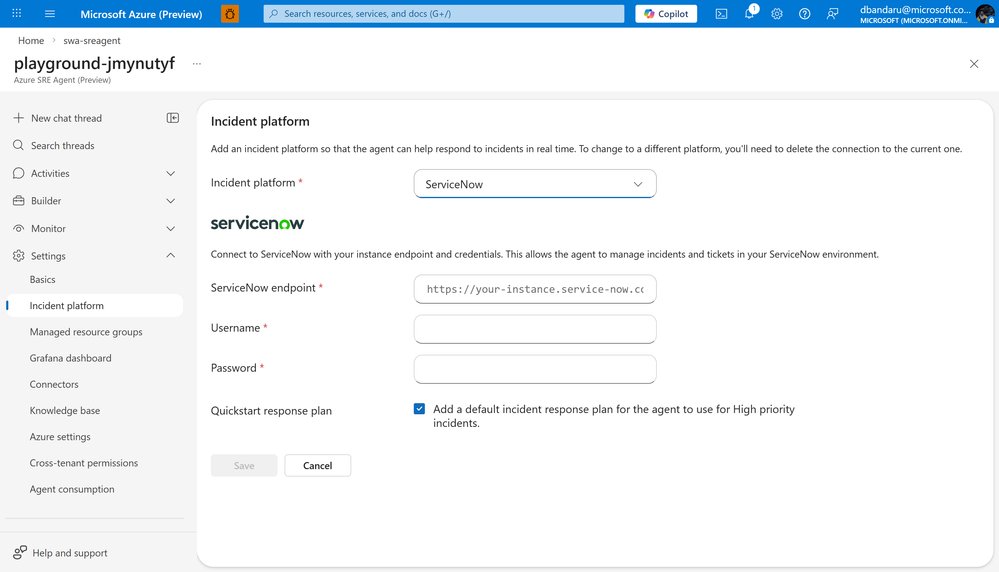
Enter your three credentials:
- ServiceNow endpoint:
https://your-instance.service-now.com - Username: Your ServiceNow User ID
- Password: Your ServiceNow password
Enable Quickstart Response Plan: This toggle activates automatic investigation workflows. When disabled, the agent will only sync incidents without autonomous action.
Click Save. The agent validates connectivity within 10-15 seconds. Success shows: "ServiceNow is connected" with a green checkmark. If validation fails, verify network connectivity and that your ServiceNow instance allows Basic Auth connections.
Step 3: Creating a Test Incident
To validate the integration, create a representative incident in ServiceNow:
- In ServiceNow, click All (left navigation)
- Search for "Incident"
- Select Incident → Create New
Populate the test incident:
| Field | Value |
|---|---|
| Caller | System Administrator (or any user) |
| Short description | [SRE Agent Test] AKS Cluster memory pressure detected in production environment |
| Impact | 2 - Medium |
Click Submit and note the incident number (e.g., INC0010025).
Step 4: Observing Autonomous Investigation
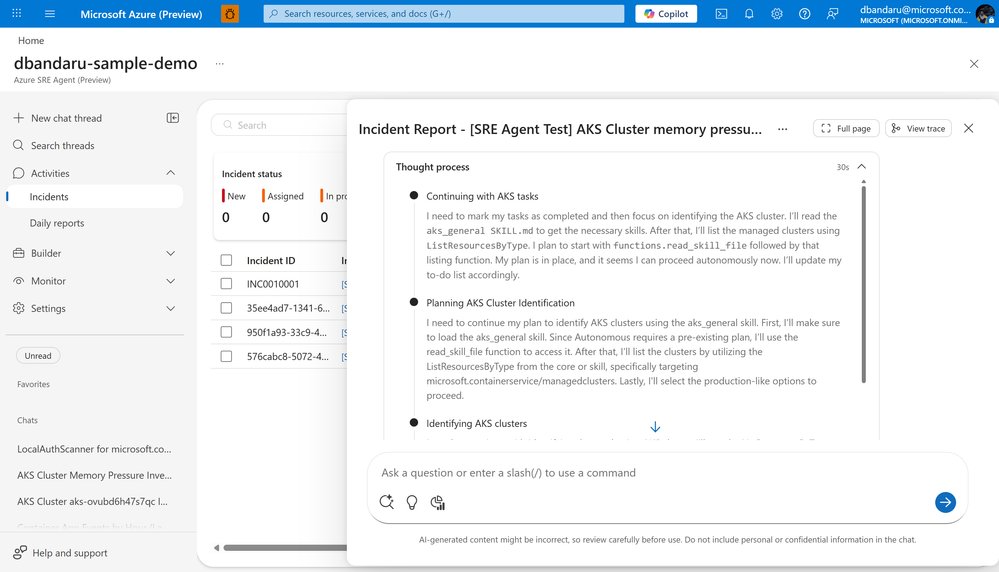
Return to Azure Portal and open your SRE Agent:
- Navigate to Activities → Incidents
- Within seconds, the ServiceNow incident appears in the feed
- Click the incident to view real-time investigation
The agent executes a predefined workflow:
Acknowledgment: The incident state changes to "In Progress" in ServiceNow within 30 seconds of detection.
Triage Plan Generation: The agent creates a structured investigation plan:
- Identify AKS clusters in the subscription
- Query memory utilization metrics (last 1 hour)
- Check for OOMKilled pods
- Validate node-level resource pressure
Resource Discovery: Using Azure Resource Graph, the agent enumerates AKS clusters matching the environment mentioned in the incident description. For "production environment," it filters clusters tagged with Environment: Production.
Metric Correlation: The agent queries Azure Monitor for:
- Node memory utilization percentage
- Pod memory working set vs. requests/limits
- Memory pressure events from kube-state-metrics
Resolution Determination: Based on thresholds (typically >85% sustained node memory), the agent identifies root cause and writes findings.
Step 5: Verifying Write-Back in ServiceNow
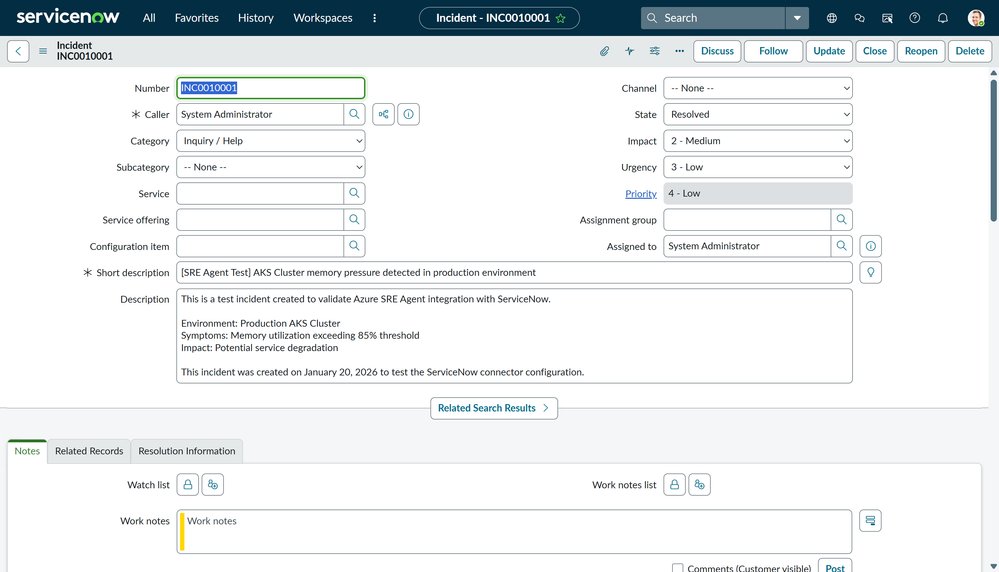
Open the original incident in ServiceNow. You'll observe:
State: Changed from "New" to "Resolved"
Activity Stream: Multiple work notes chronologically documenting:
- "Azure SRE Agent acknowledged incident"
- "Investigation initiated: AKS cluster memory analysis"
- "Found 3 production clusters: aks-prod-01, aks-prod-02, aks-prod-03"
- "Memory utilization: aks-prod-02 at 92% sustained for 45 minutes"
- "Root cause: Deployment 'payment-service' exceeding memory limits"
- "Recommendation: Increase memory limit from 2Gi to 4Gi or optimize application"
Resolution Notes: A comprehensive summary including:
- Timestamp of investigation completion
- Specific cluster and pod identified
- Metric values and time ranges
- Validation steps performed
- Recommended remediation actions
Configuration Options and Customization
The default behavior covers common scenarios, but you can customize:
Response Plans: Create incident-type-specific workflows. For database incidents, the agent can check Azure SQL metrics. For compute issues, it can analyze VM Scale Set metrics.
Alert Routing: Configure Azure Monitor alerts to automatically create ServiceNow incidents, which the agent then processes. This creates a full pipeline from Azure monitoring to ServiceNow resolution.
Severity Filtering: Set the agent to only process incidents above certain severity thresholds, preventing alert fatigue.
Security Considerations
Basic Auth is supported for quickstart scenarios, but production deployments should evaluate:
- Service Account Usage: Create dedicated ServiceNow accounts with minimal permissions
- Credential Rotation: Implement regular password rotation policies
- Network Security: Use ServiceNow's IP Access Control to restrict Azure agent connections
- Audit Logging: Monitor ServiceNow's audit logs for agent activity
For enterprises requiring stronger authentication, Azure SRE Agent supports OAuth 2.0 connections to ServiceNow, though configuration requires additional ServiceNow OAuth provider setup.
Troubleshooting Common Issues
Connection Failures: Verify the ServiceNow endpoint is reachable from Azure. Check firewall rules and ServiceNow's instance security policies.
Authentication Errors: Confirm username is the User ID, not email. Verify password hasn't expired. Check if Basic Auth is enabled in ServiceNow security policies.
Incident Not Detected: Ensure the incident description contains keywords matching your agent's configured patterns. The agent uses natural language processing to identify relevant incidents.
Missing Metrics: The agent requires Azure Monitor read permissions. Verify your Service Principal has Monitoring Reader or Contributor role on relevant subscriptions.
Production Deployment Best Practices
Start with Monitoring Mode: Deploy the agent in observation-only mode initially. Review the investigation notes it would have written before enabling automatic resolution.
Gradual Rollout: Begin with low-impact environments (dev/test) and specific incident types before expanding to production-critical systems.
Integration with Existing Playbooks: The SRE Agent complements, rather than replaces, existing ServiceNow workflows. Consider how it fits with your current incident escalation procedures.
Documentation: The work notes written by the agent become part of your incident history. Ensure your team understands the format and knows how to interpret the findings.
Beyond the Tutorial: Advanced Use Cases
Once basic integration is working, explore:
- Multi-Cloud Extension: While currently Azure-focused, the agent can incorporate AWS/GCP metrics via Azure Arc for hybrid scenarios
- Remediation Actions: Configure the agent to perform automated remediation (e.g., restarting pods, scaling nodes) after human approval
- Incident Correlation: Group related ServiceNow incidents and investigate them as a single problem
- Predictive Analysis: Use historical incident data to identify patterns and suggest proactive infrastructure changes
Community and Resources
The Azure SRE Agent is in Preview, and the team actively solicits feedback. Share your implementation experiences, custom response plans, and integration challenges in the Microsoft Community Hub.
For detailed configuration options and API references, consult the official Azure SRE Agent documentation.
This integration represents a shift from reactive monitoring to autonomous incident response. By connecting ServiceNow directly to Azure's investigation capabilities, teams can focus on strategic improvements while the agent handles routine triage and documentation.
Comments
Please log in or register to join the discussion