A practical guide to generating consistent, readable Azure architecture diagrams using Draw.io MCP combined with an Azure-specific Agent Skill for GitHub Copilot.
If you’ve ever tried to create a cloud architecture diagram that’s both accurate and easy to read, you’ll know the challenge: Manual drawing gives you precision but takes far too long Auto-generation is quick, but often produces cluttered, unreadable diagrams that need rework Recently, I wrote about my experience using Draw.io MCP for diagram generation – why it’s worth adopting and how it changes the way teams produce diagrams. If you haven’t read that post yet, start there for broader context: Draw.io MCP for Diagram Generation – Why It’s Worth Using. That earlier piece explains the core benefits of MCP and how it shifts diagramming from an ad-hoc task into part of an engineering workflow. This blog builds on that foundation. In particular, it looks at an Azure Diagram Agent Skill I’ve developed that works with Draw.io MCP and GitHub Copilot. The goal was simple: generate Azure architecture diagrams that are consistent, readable, and reliable enough to use in real reviews.
From Manual Diagrams to Automated Architecture
Many engineering teams still treat diagrams as static documentation. Someone sketches an architecture during design, exports a PNG, and eventually the diagram drifts out of sync with the actual system. Automation changes that dynamic. When diagrams can be generated from structured inputs, they become easier to update and regenerate. Instead of redrawing shapes whenever something changes, you adjust the source description and produce a fresh version. This doesn’t remove the need for human input – far from it. The first version of a generated diagram usually needs refinement. But it shifts the effort away from manual layout work and toward improving the architectural clarity. In practice, that means diagrams stay closer to reality.
Why Draw.io MCP Matters in the First Place
One of the core insights from my earlier blog post is simple: diagramming shouldn’t feel like manual busywork. Draw.io MCP lets you generate sketches from structured inputs (XML or graph models) instead of arranging every shape by hand. The benefits become obvious very quickly:
- Speed – you get a usable draft in seconds
- Consistency – the same layout logic applies every time
- Repeatability – regenerate diagrams from source inputs without manual redraws
- Automation-readiness – suitable for CI/CD workflows and documentation pipelines
It turns diagramming into an engineering artefact rather than a one-off slide with an expiry date. Yet, while MCP gives you the tools to generate diagrams, it doesn’t know anything about Azure conventions, so you can still get messy results if you’re not careful.
Why Generic Diagram Generation Falls Short
Generic generation workflows treat all diagrams like generic graphs, but real architecture diagrams – especially in cloud environments – have domain-specific expectations:
- Azure icons may have inconsistent naming or paths across sources
- Some icons fail to render cleanly in certain viewers
- Default layouts can be dense and confusing
You end up iterating because visual QA fails on the first pass. Most teams aren’t just sketching shapes – they’re conveying meaningful service boundaries, security controls, and platform patterns. Without some domain knowledge baked into the generation logic, you end up in trial-and-error loops. That’s where the Azure Diagram Skill comes in.
Introducing the Azure Diagram Agent Skill
The Azure Diagram Skill is implemented as part of the GitHub Copilot Agent Skills ecosystem. It’s a portable skill you can drop into your AI-assisted workflows, with metadata, instructions, and curated resources to support repeatable Azure diagram generation through Draw.io MCP.
In practical terms, it adds Azure-specific logic on top of Draw.io MCP so the generated output follows patterns that cloud engineers already expect. The skill focuses on a few areas where automated diagrams usually struggle.
Reliable Azure Icon Handling
Azure has a lot of service icons – and some can be inconsistently referenced or improperly resolved if you rely on generic paths. The skill:
- Checks icon availability before generation
- Substitutes known fallback mappings when needed
- Prevents diagrams from rendering when required icons are missing
That means fewer surprises where something looks fine in one viewer but broken in another.
Curated Icon References
Instead of pulling icons ad hoc from every possible source, the skill includes:
- Full support for the Azure2 icon set
- A validated subset for commonly used services
- Recovery logic for problematic paths
This cuts down the number of times you need to regenerate just to fix missing or incorrect icons.
Anti-Clutter Defaults
Auto-generated diagrams often suffer from visual clutter. The skill uses readability defaults that reflect how humans expect to read diagrams:
- Three to four lanes/zones maximum
- Left-to-right primary flow
- Stage numbering rather than excessive labels
- One icon per major service boundary
- Minimal crossing lines
The diagram that comes out of the box is far easier to share with teammates without first apologising for it.
Scoped Azure Validation
Not every diagram you generate is Azure. The skill applies Azure-specific pre-validation only when needed, and skips it when you’re working with generic models. That keeps things practical and prevents over-rigid generation logic.
Real-World Example: Azure API Management in UK South
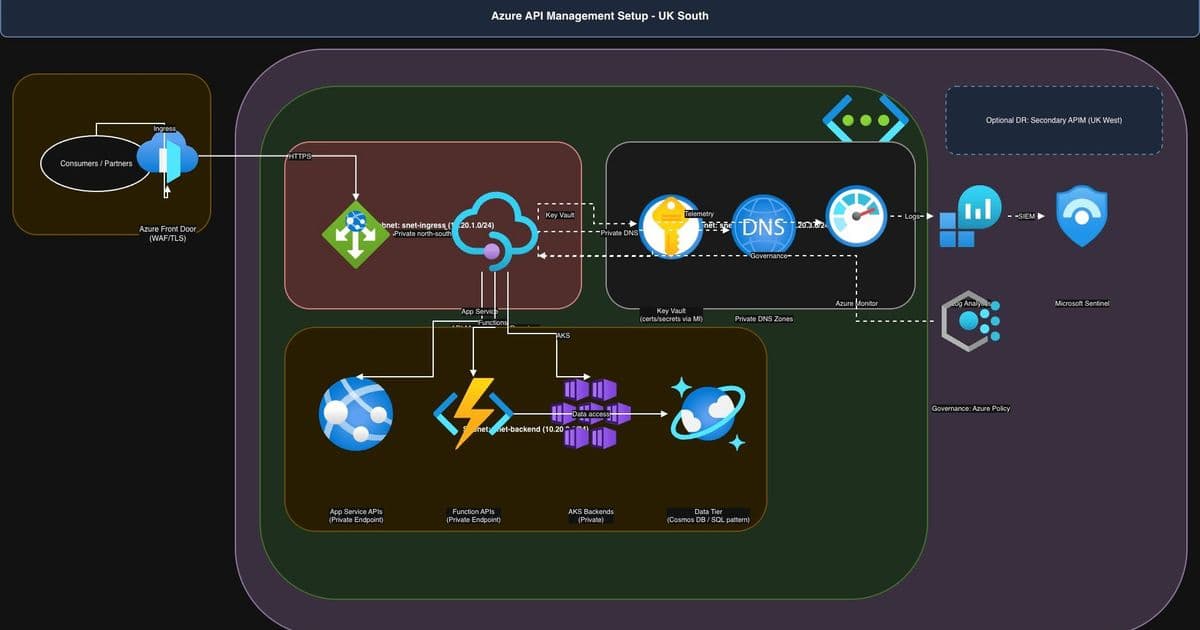
Here’s a scenario I’ve been working with lately: Azure API Management Premium in an internal VNet in the UK South region. With the Azure Diagram Skill, I can generate a flow that clearly shows:
- Ingress via Azure Front Door with WAF
- North–south traffic through Application Gateway
- Internal API traffic to API Management Premium
- Backend services (App Services, Functions, AKS)
- Security via Managed Identity + Key Vault + private DNS
- Observability with Azure Monitor, Log Analytics, and Microsoft Sentinel
The correct Azure icon mappings are applied automatically – no manual chasing icons in libraries. The result isn’t just a diagram – it’s a team-ready architecture sketch that others can review, comment on, and tie back into PRs or documentation.
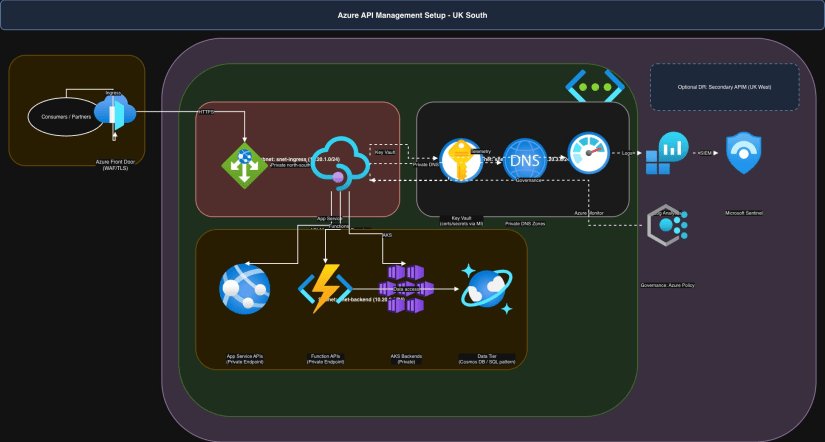
The diagram I generated above wasn’t perfect. But it was close enough that refining them took minutes rather than rebuilding them from scratch.
Why Diagrams Matter More in AI-Assisted Development
Architecture diagrams are communication tools. If they’re unclear, people misinterpret systems If they’re inconsistent, trust erodes If they take forever to produce, they don’t stay current By combining Draw.io MCP with a domain-aware Diagram Skill:
- You produce diagrams faster
- Visual quality is higher by default
- Azure rendering becomes more reliable
- Outputs are repeatable and consistent across teams
That makes diagrams a living part of the engineering process instead of a stale artefact.
Diagrams in AI-Assisted Development
One of the biggest advantages of this workflow shows up when using AI agents and skills. When you think visually, you spot inconsistencies and architectural assumptions much earlier. A text-only description leaves gaps; a sketch exposes them.
The pattern I use is:
- Prompt an AI agent for architecture intent
- Generate a visual draft using the Azure Skill
- Validate icons, layout, and patterns
- Refine based on feedback
- Publish alongside design docs
This accelerates visual thinking, communication, and feedback loops – and reduces the time it takes to get everyone on the same page.
Automating Architecture Diagrams in CI/CD
One interesting direction is generating diagrams directly from infrastructure descriptions. For teams using Terraform, Bicep, or other infrastructure-as-code tools, structured infrastructure definitions can provide the starting point for diagram generation. CI/CD pipelines can then regenerate diagrams when infrastructure changes occur. This approach keeps architecture documentation much closer to the deployed environment.
Where This Fits in the Development Lifecycle
I now use this approach at three key stages:
- Design phase – get visuals quickly from concept
- PR/Implementation reviews – ensure deployment intent matches diagrams
- Operational documentation – embed visuals in runbooks and wikis
Because these diagrams come from structured inputs, they can be updated as systems change rather than gathering dust.
Practical Takeaways for Engineering Teams
If you want to adopt something similar:
- Treat diagrams as first-class outputs alongside code and docs
- Use MCP to generate repeatable results – no more manual redraws
- Build visual guardrails to keep diagrams readable
- Automate diagram generation from structured inputs for accuracy
- Use AI agents to speed up architectural iteration
Ultimately, the aim is not to eliminate drawing – it’s to reduce the friction between system intent and visual representation.
Tip: When pairing MCP diagram generation with AI agents, treat it as a conversation. The agent produces a draft, you refine the intent, and together you create a diagram that’s both technically correct and visually clear.
Final Thoughts
Draw.io MCP changes the economics of diagram creation. When producing diagrams becomes quick and repeatable, teams are more likely to keep them updated. Adding an Azure-aware Agent Skill improves that process further by ensuring the output respects Azure conventions and remains readable.
The result is a workflow where diagrams stop being static documentation and start becoming part of everyday engineering practice. If you’re interested in experimenting with this approach, the Azure Diagram Skill is available in my GitHub Agent Skills repository. It’s designed to be easy to drop into existing Copilot workflows and adapt for your own architecture patterns.
Draw.io MCP for Diagram Generation: Why It’s Worth Using 2nd March 2026 In "Agentic AI"
Why You Should Consider Using MCP servers with GitHub Copilot 19th June 2025 In "Azure"
Docker MCP Toolkit: Hassle-Free Local Agentic AI with MCP Servers 13th August 2025 In "Agentic AI"
Comments
Please log in or register to join the discussion