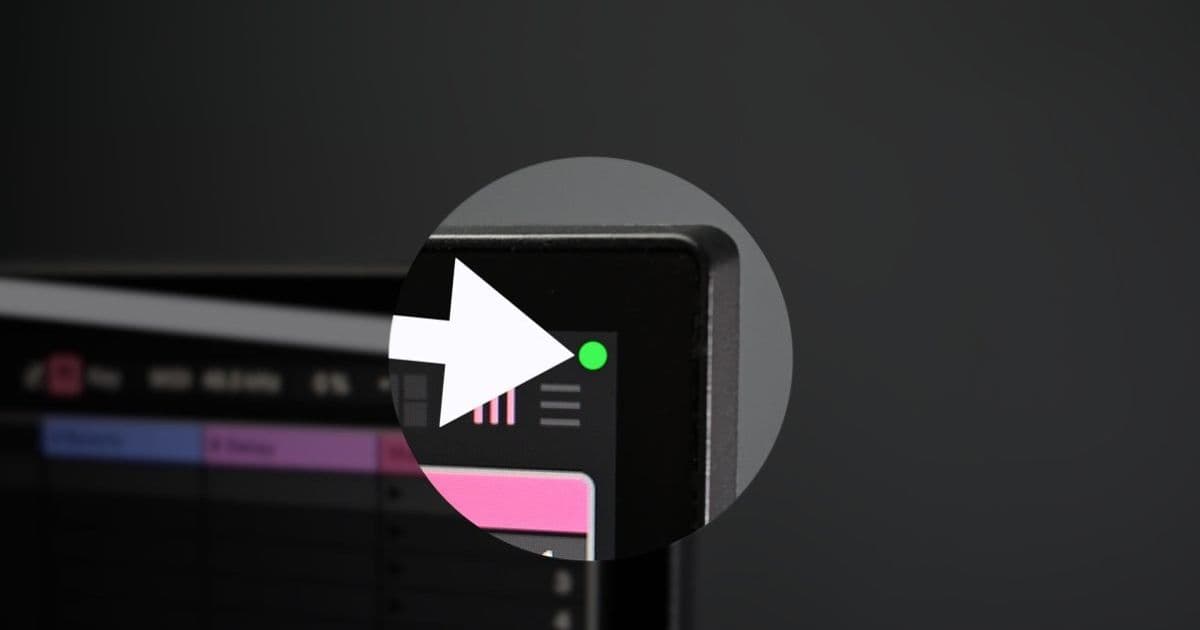
Apple's macOS Sonoma 14.4 introduces selective privacy indicator management for external displays, balancing security needs with screen recording workflows.
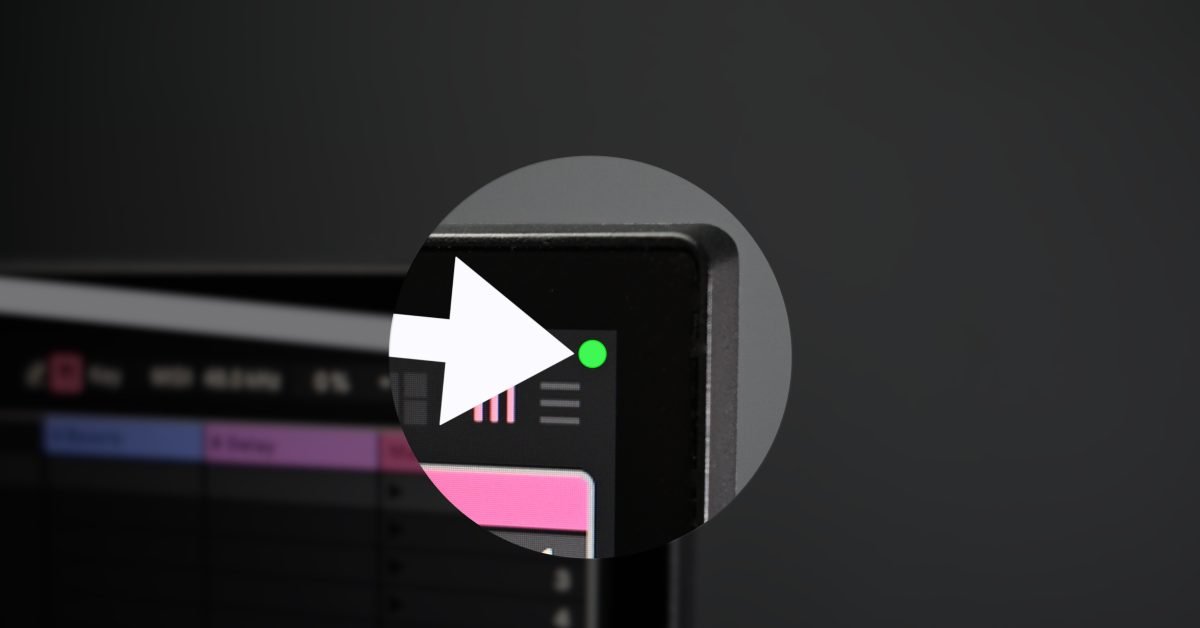
Apple's privacy indicators – the orange microphone and green camera dots in the menu bar – serve as critical security features for macOS users. These visual cues alert you when apps access sensitive hardware, acting as a first line of defense against unauthorized surveillance. While invaluable on your primary display, they become problematic when recording tutorials, streaming, or capturing screenshots on external monitors. The persistent dots often overlay critical UI elements and distract viewers.
macOS Sonoma 14.4 addresses this friction point with a targeted solution: the ability to disable privacy indicators exclusively on external displays while maintaining them on your main screen. This nuanced approach preserves security awareness where it matters most while eliminating visual clutter in production workflows.
Implementation Mechanics
The implementation involves a two-phase process combining Terminal configuration and Settings adjustment:
Recovery Mode Configuration
- Shut down your Mac and restart while holding the power button until "Loading startup options…" appears
- Select Options → Continue → Authenticate with your user credentials
- Navigate to Utilities → Terminal in the menu bar
- Execute:
system-override suppress-sw-camera-indication-on-external-displays=on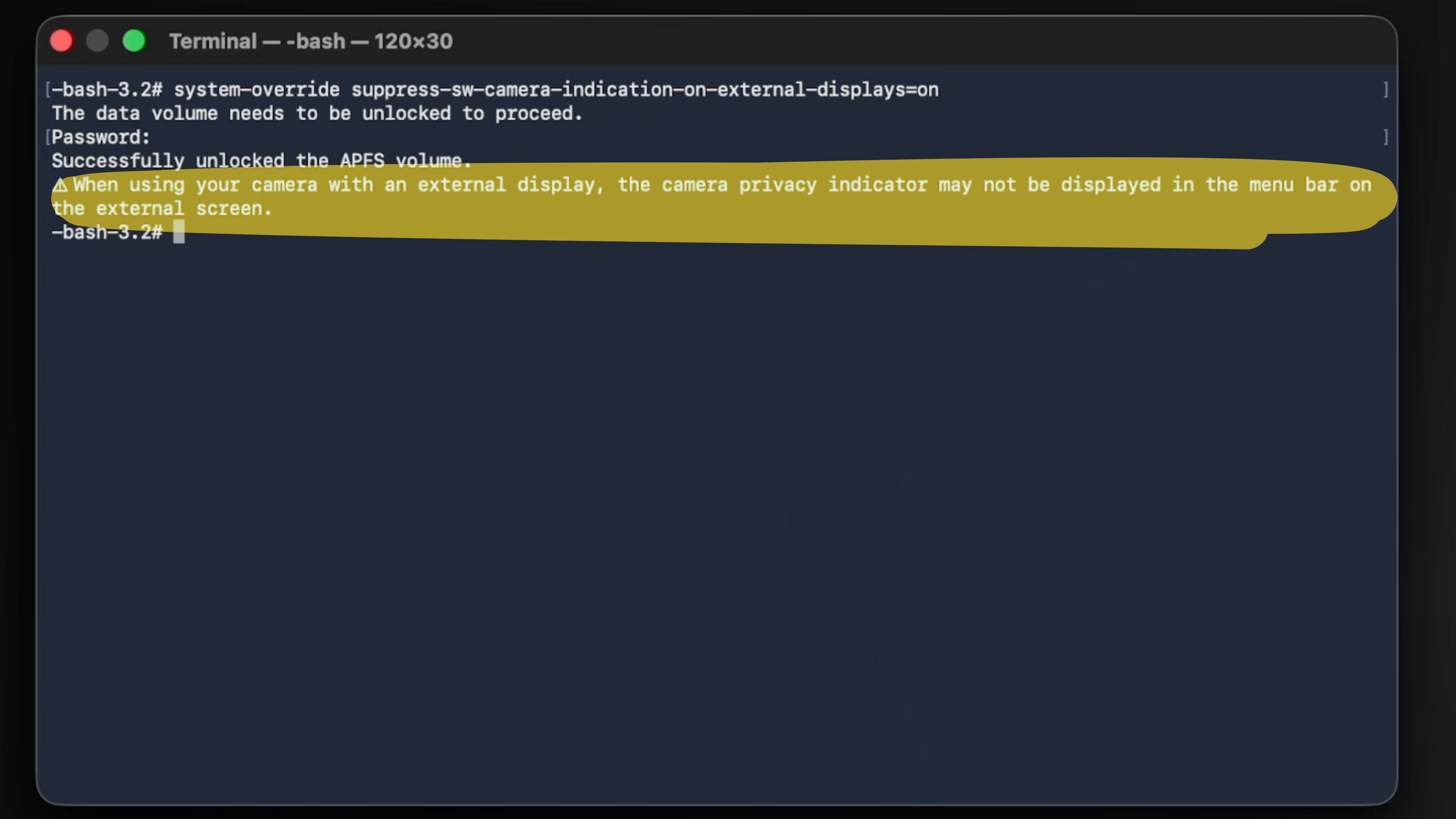
- If FileVault is enabled, authenticate again when prompted
- Restart normally
Settings Validation
- Open System Settings → Privacy & Security → Camera or Microphone
![How to disable privacy indicators on external displays connected to your Mac [Video] - 9to5Mac](https://news.lavx.hu/api/media/file/how-to-disable-privacy-indicators-on-external-displays-connected-to-your-mac-video-9to5mac-4_1771122925228.jpg)
- Toggle OFF "Privacy Indicators" at the bottom of the panel
- Authenticate with Touch ID or password when prompted
- Open System Settings → Privacy & Security → Camera or Microphone
This setting synchronizes across both Camera and Microphone sections. The green camera indicator takes precedence when both sensors are active.
Developer Considerations
- Recording Workflows: Eliminates overlay interference during OBS/Xcode simulator recordings
- Testing Scenarios: Useful when automating UI tests involving camera/microphone permissions
- Security Tradeoffs: Main display indicators remain active as a security baseline
- Edge Case: Apple notes indicators might not appear on externals even when menu bar is visible (though not observed in testing)
Reverting Changes
Unlike the initial configuration, disabling the feature requires no Recovery Mode access. Simply re-enable the "Privacy Indicators" toggle in Privacy & Security settings.
![How to disable privacy indicators on external displays connected to your Mac [Video] - 9to5Mac](https://news.lavx.hu/api/media/file/how-to-disable-privacy-indicators-on-external-displays-connected-to-your-mac-video-9to5mac-2_1771122913395.jpg)
This solution exemplifies Apple's growing attention to pro-user workflows. By confining indicators to the primary display, macOS maintains security vigilance while accommodating content creation scenarios. For developers recording tutorials or testing multi-display setups, this eliminates a persistent pain point. The Settings-based toggle provides frictionless experimentation – if external indicators become necessary during development, they're two clicks away.
As screen recording becomes integral to developer communication and testing, such granular controls demonstrate how platform features can evolve to support professional workflows without compromising core security principles.
Comments
Please log in or register to join the discussion