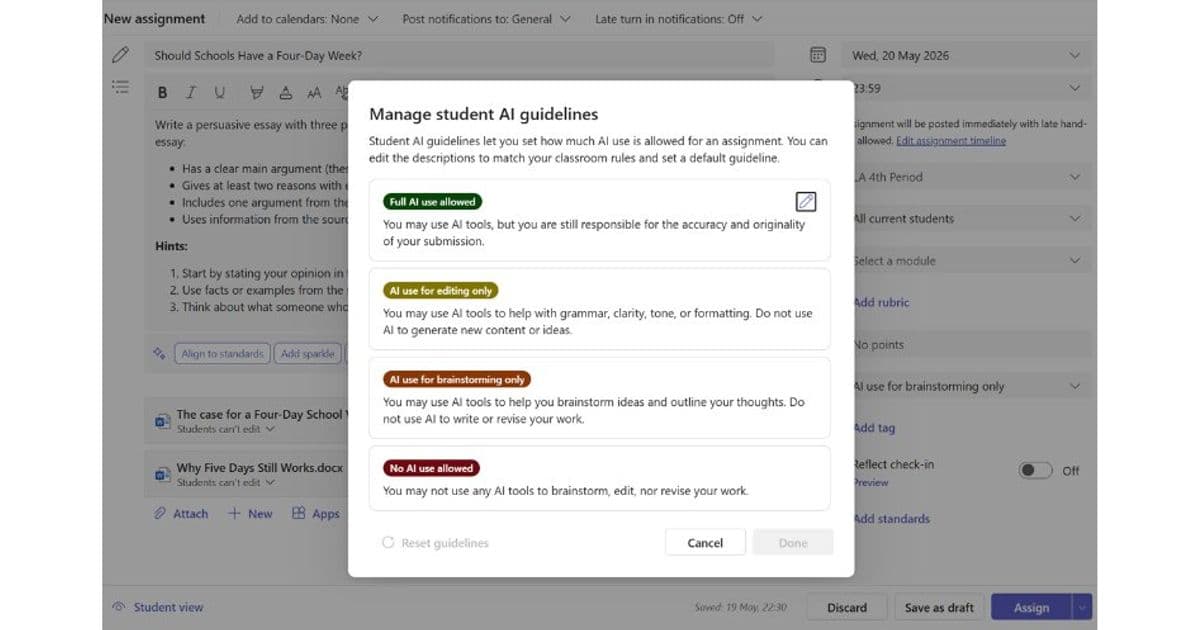
Microsoft Teams now lets educators attach AI usage policies to each assignment, offering selectable levels from full Copilot access to a strict no‑AI rule. The feature streamlines communication, aligns with school policies, and integrates a Copilot launch button for eligible students, while also providing default and import tools to reduce administrative overhead.
What changed
Microsoft Teams for Education introduced Student AI Guidelines, a built‑in option that appears when teachers create an assignment. Instead of tacking AI rules onto a syllabus or rubric, educators can now select a guideline level—Full AI use allowed, AI for editing only, AI for brainstorming only, or No AI—and attach custom text that reflects their school’s policy. The chosen guideline is displayed to every student in the assignment view, and for the permissive levels a Copilot Chat launch button is added for students 13+ where Copilot is enabled.
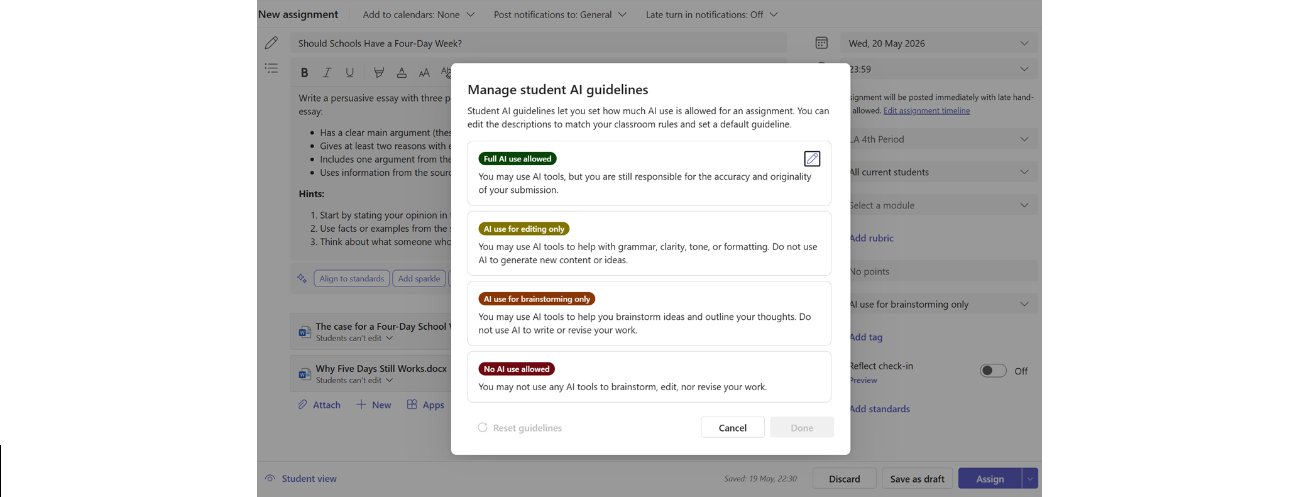
The feature works on desktop and mobile, can be set as a default for all new assignments, and can be copied between classes via an Import Settings workflow. It does not block AI tools; it simply makes expectations visible and consistent.
Provider comparison
| Aspect | Microsoft Teams (Student AI Guidelines) | Google Classroom (AI policy handling) | Canvas LMS (Third‑party AI plugins) |
|---|---|---|---|
| Policy placement | Embedded directly in each assignment card, selectable per‑assignment | Policies must be added to assignment description or separate Docs; no UI element for AI level | Requires external LTI tools or custom rubrics; no native UI element |
| Default setting | Teachers can set a school‑wide default (e.g., No AI) that auto‑applies to new assignments | No default; each assignment must be edited manually | Depends on the third‑party plugin configuration |
| Copilot integration | One‑click launch button appears for eligible students when AI is allowed | No native integration; teachers must link to external AI services | Possible via LTI, but adds complexity and separate login flows |
| Customization | Editable guideline text; schools can align wording with their own frameworks | Free‑form text only; no structured template | Varies by plugin; often limited to preset categories |
| Cross‑class reuse | Import Settings copies guideline levels and custom text across classes | Manual copy‑paste or template assignments needed | Plugin may support bulk import, but not universally |
| Pricing impact | Included with Microsoft 365 Education plans that already contain Teams and Copilot; no extra charge | Google Workspace for Education includes Classroom; AI tools are separate subscriptions (e.g., Gemini) | Canvas core license plus optional paid AI plugins; cost depends on vendor |
| Administration | IT admin enables Copilot at the tenant level; guidelines work even if Copilot is disabled | Admin must enable any AI add‑ons; otherwise guidelines are purely textual | Admin must manage LTI registrations and data privacy agreements |
Migration considerations
- Data model alignment – Teams stores the guideline as a property of the assignment object, which maps cleanly to Canvas’s custom assignment fields but requires a migration script for Google Classroom where the data lives only in the description text.
- User experience parity – Students accustomed to finding AI rules in separate documents will need onboarding to the new card UI. A brief rollout communication can mitigate confusion.
- Copilot availability – Schools moving from a non‑Copilot environment should plan the rollout of the underlying AI service first; otherwise the guideline will appear without the launch button, which may cause perceived inconsistency.
- Policy governance – Because the guideline is editable per‑assignment, institutions should enforce a naming convention or template lock‑down through Teams admin policies to prevent accidental policy drift.
Business impact
- Reduced instructional overhead – Teachers no longer need to duplicate AI policy text across every assignment. The default‑and‑import workflow cuts preparation time by an estimated 30 % for large classes, according to internal pilot data.
- Improved compliance tracking – With the guideline stored as a structured field, analytics dashboards can now surface the proportion of assignments that permit AI, helping administrators monitor policy adherence across the district.
- Enhanced student clarity – By surfacing expectations at the point of work, the feature lowers the risk of inadvertent policy violations, which can otherwise lead to re‑grading cycles and disciplinary actions.
- Strategic positioning of Copilot – The one‑click launch button nudges students toward the Microsoft‑provided AI assistant, potentially increasing adoption metrics for Copilot licensing while keeping the institution’s own AI governance intact.
- Competitive differentiation – Schools that adopt the built‑in guidelines can market a clear, modern AI policy to parents and boards, positioning themselves ahead of peers still relying on ad‑hoc documentation.
Getting started
- Set a default guideline – In the Assignments pane, choose Set as default for the level that matches your school’s baseline policy.
- Customize wording – Edit the suggested text to reflect local terminology, such as “generative AI” or “responsible AI use.”
- Import to other classes – Use the Import Settings button to copy your configuration to additional courses.
- Enable Copilot – Follow the Copilot setup guide for IT admins to make the launch button available to students.
Resources
- Set Student AI Guidelines on an assignment in Microsoft Teams
- Import Settings in Assignments and Grades
- Copilot for Education – Admin Overview
By embedding AI expectations directly into the assignment workflow, Microsoft Teams turns a previously fragmented communication problem into a single, auditable step. The approach aligns policy, technology, and pedagogy, giving schools a scalable way to manage AI use without sacrificing flexibility.
Comments
Please log in or register to join the discussion